

What You Will Achieve
After completing this tutorial, you will have:- The resource view enabled below your Gantt chart
- Resource allocation markers displaying workload per team member
- An understanding of load calculation modes and overallocation indicators
Prerequisites
- Gantt installed on your Polarion server
- A working Gantt chart with work items assigned to users (see Set Up a Basic Gantt Chart)
- Edit permissions on the Gantt page
1
Enable the Resource View
- Enter page edit mode by clicking Edit on the Polarion page
- Open the widget parameters by clicking the widget gear icon
- Scroll to the Resource View section
- Set Show Resource View to Yes
- Click Apply
2
Understand the Resource View Layout
The resource view displays:
- Resource rows: one row per team member (or per value of the configured resource field)
- Item count: the number of work items assigned to each resource
- Workload cells: colored cells aligned with the timeline, showing allocation per time period
- Color indicators: green cells indicate allocation within capacity, red cells indicate overallocation
3
Choose a Load Calculation Mode
The resource view supports four load calculation modes, each suited to different planning needs: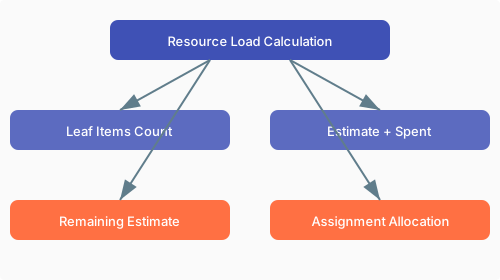
Leaf Items Count
Counts how many leaf-level work items (items with no children) are assigned to each resource per time period. Each item counts as one unit regardless of estimated effort. The cell turns red when the count exceeds the Items per resource threshold.Estimate + Spent
Sums the remaining estimate and time already spent on each item. This total effort is distributed evenly across the task’s scheduled days, providing a comprehensive workload view that accounts for both completed and pending work.Remaining Estimate
Shows only the remaining effort required to complete each task. Past effort (time already spent) is excluded. Effort is distributed from today forward across the remaining scheduled days. This mode is useful for forecasting future workload.Assignment Allocation
Uses team-based assignment percentages to calculate workload. Each team member’s allocation across teams and projects is summed. When total allocation exceeds 100%, the cell turns red to indicate overallocation. This mode requires team assignment configuration.Choosing the Right ModeFor simple task tracking, Leaf Items Count is the easiest starting point. For effort-based planning with time tracking, use Estimate + Spent or Remaining Estimate. For team capacity management, use Assignment Allocation.
4
Configure the Resource Field
By default, the resource view uses the
assignee field to identify resources. You can change this to any custom field:- In the widget parameters, find Resource Field
- Change it to a different field (for example, a custom team field or enum field)
- Click Apply
5
Show Unassigned Work Items
To see work items that have no resource assigned:
- In the widget parameters, set Show Unassigned to Yes
- Click Apply
6
Save Your Configuration
Click Apply to confirm the widget parameters, then save the Polarion page.
Reading the Resource View
Next Steps
- Licensing and User Access — configure user groups for edit access
- Update to the Latest Version — keep your Gantt installation current
- Explore Guides for advanced resource configuration, cross-team setup, and resource hiding