

The Core Idea
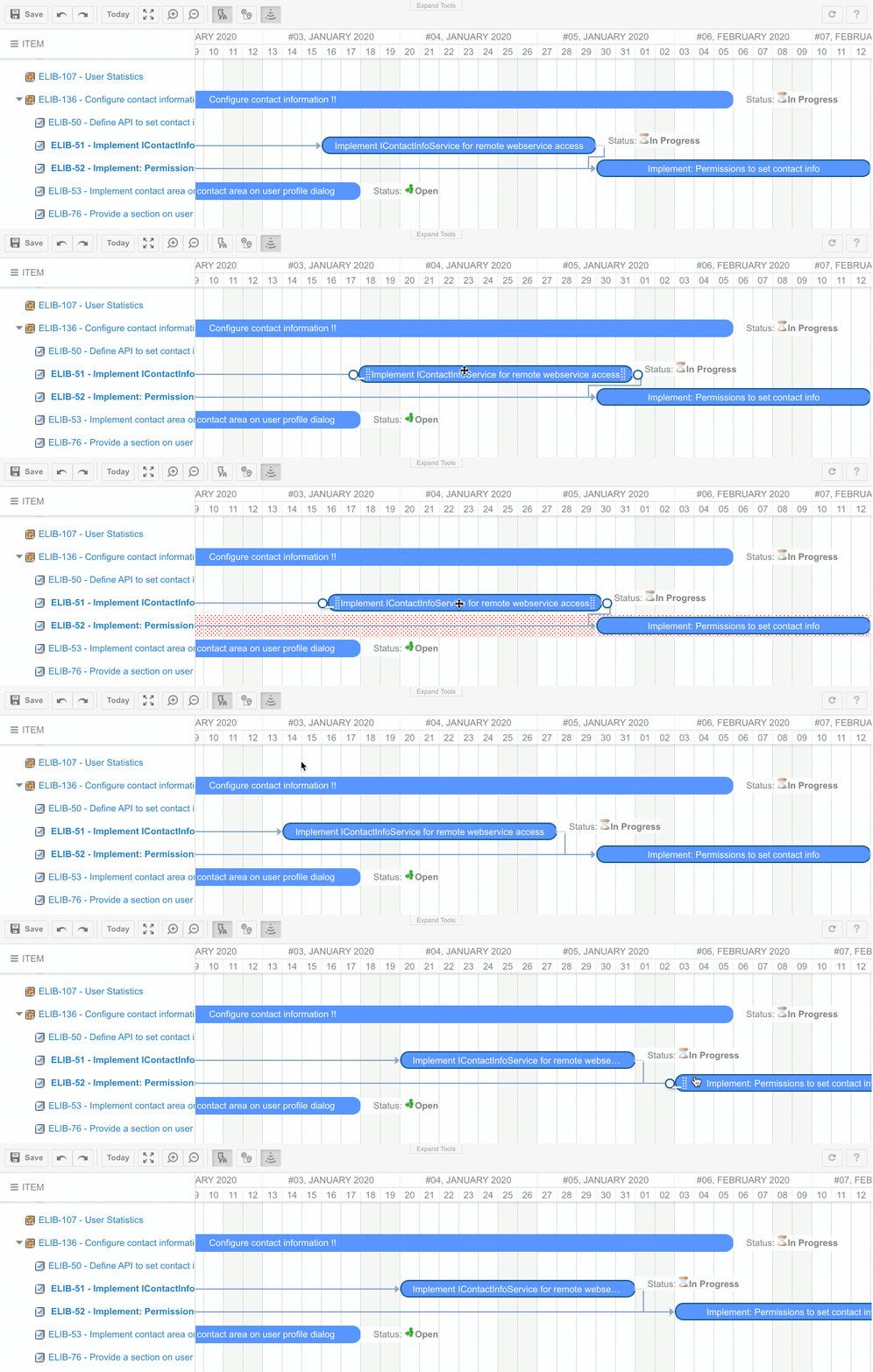
Imagine a project with three tasks connected in sequence: Design, Build, and Test. If Design slips by two days, Build must also start two days later, which pushes Test by the same amount. Without auto-scheduling, you would need to manually adjust each task. With auto-scheduling enabled, moving Design automatically shifts Build and Test to maintain the dependency constraints. Auto-scheduling updates the start date of a successor task according to the end date of its predecessor each time a change occurs. This allows you to maintain the project schedule by specifying relationships between tasks with no need to set dates manually.
- Build shifts to Jan 8 - Jan 14
- Test shifts to Jan 15 - Jan 19
How It Works
Auto-scheduling is triggered only when you change a task or modify a dependency link. It does not continuously run in the background. When you drag a task bar, resize it, or edit dates in the lightbox, the Gantt evaluates all downstream dependencies and adjusts successor dates to satisfy the constraints. The propagation follows dependency link types:
The most common type is Finish-to-Start (FS), where the successor cannot begin until the predecessor is complete.
Enabling and Controlling Auto-Scheduling
Auto-scheduling is controlled at the server level via the administration propertynextedy.gantt.default.auto_scheduling. When set to true, the Gantt opens with auto-scheduling enabled by default.
Users can toggle auto-scheduling on and off at runtime using the toolbar toggle button. This allows switching between automatic constraint enforcement and manual date editing within the same session.
Per-Task Overrides
In complex projects, you may want auto-scheduling for most tasks but need certain tasks (such as milestones or fixed-date deliverables) to remain pinned. The Gantt supports per-task override flags:enforceAutoMode— Forces auto-scheduling for a specific task, even if the global setting is offblockAutoMode— Prevents auto-scheduling from moving a specific task, even if the global setting is on
Interaction with Drag Children
ThedragChildren configuration controls whether child tasks move together with their parent when the parent is dragged. When both dragChildren and auto-scheduling are enabled:
- Dragging the parent moves all children by the same offset
- Auto-scheduling then recalculates any successors of those children
Interaction with Working Calendars
When working calendars are enabled, auto-scheduling respects non-working days. If a predecessor finishes on Friday and the successor has a Finish-to-Start dependency, the successor will start on Monday (skipping the weekend) rather than Saturday. This applies to all calendar exceptions including holidays and per-user off days.What Auto-Scheduling Does Not Do
Auto-scheduling operates on the client side during the current editing session. It does not:- Run automatically when Polarion data changes outside the Gantt (e.g., another user modifies dates via the Polarion work item form)
- Detect concurrent editing conflicts — the last save wins
- Automatically resolve resource overallocation
Related Topics
- Critical Path Analysis — Identifying which tasks determine the project end date
- Date Range Conflict Detection and Resolution — Parent-child date containment enforcement
- Working Calendars and Scheduling — How calendars affect scheduling calculations