

Prerequisites
Before you begin, ensure that:- Team and Team Assignment work item types are configured and each Team Assignment is linked to its parent Team — see Set Up Team Assignments Gantt
- Show Resource View is set to Yes in the widget parameters
- Load Team Assignments is set to Yes in the Working Calendar section
- No single team is selected in the team filter — grouping applies when the view is showing all teams
1
Turn Grouping On in the Widget Parameters
Open the Gantt page in Edit mode, click the widget gear icon to open Widget Parameters, and in the Resource View section set Group Resources By Teams to Yes.The parameter name follows your configured team label. If teams are called Squads in your installation, the parameter reads Group Resources By Squads.Its starting value comes from the project property
nextedy.gantt.resourceView.groupResourcesByTeam, which is true unless you set it otherwise.2
Or Toggle It from the Toolbar
Grouping can also be switched without editing the page. The Gantt toolbar carries a grouping button next to the resource-view controls: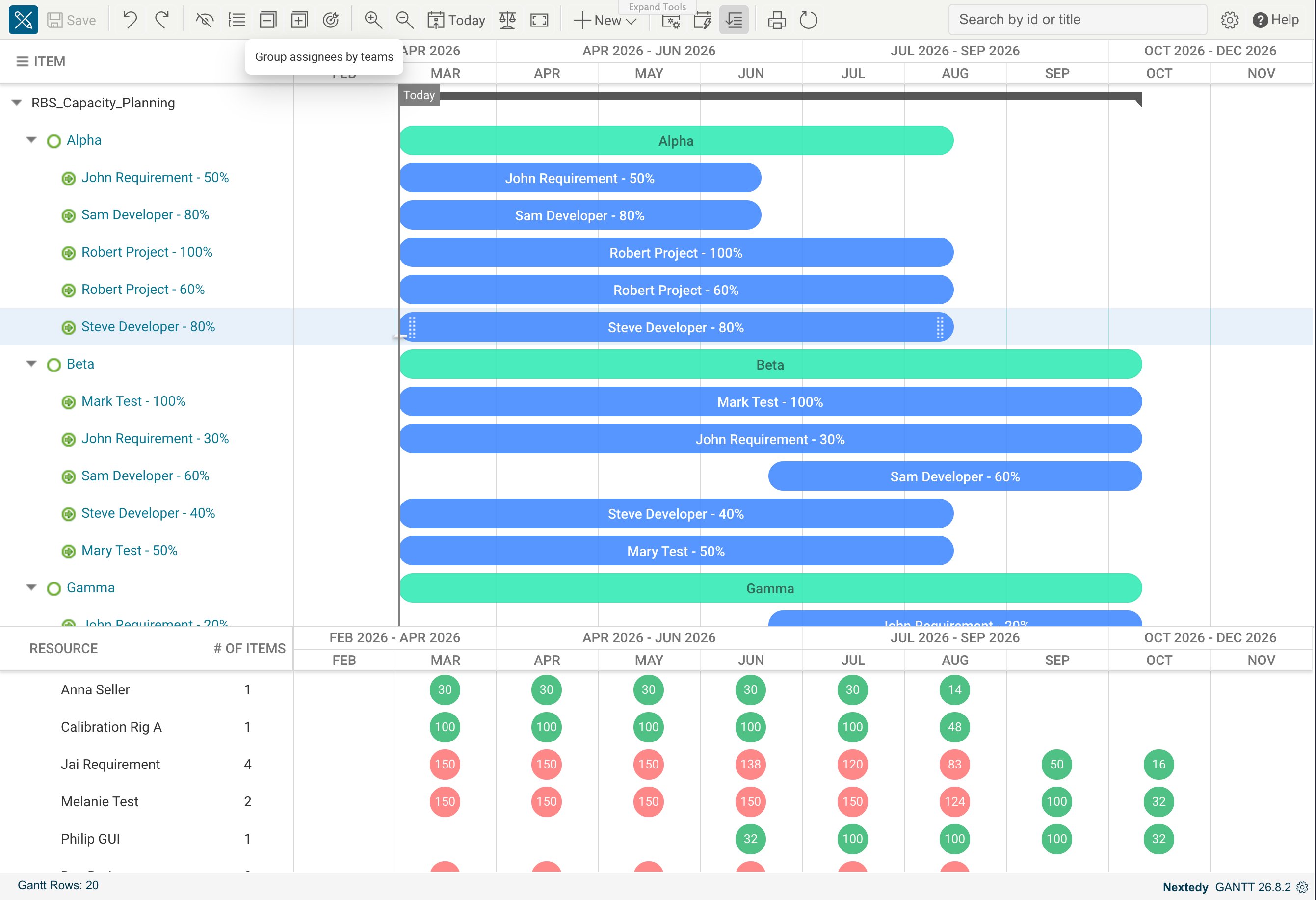
Switched off, the same resources appear once each as a flat list:
3
Read a Team Header Row
Each team becomes a header row you can collapse and expand. The header carries the team’s own allocation, aggregated from the resource rows beneath it, so you can judge a team’s load without opening it.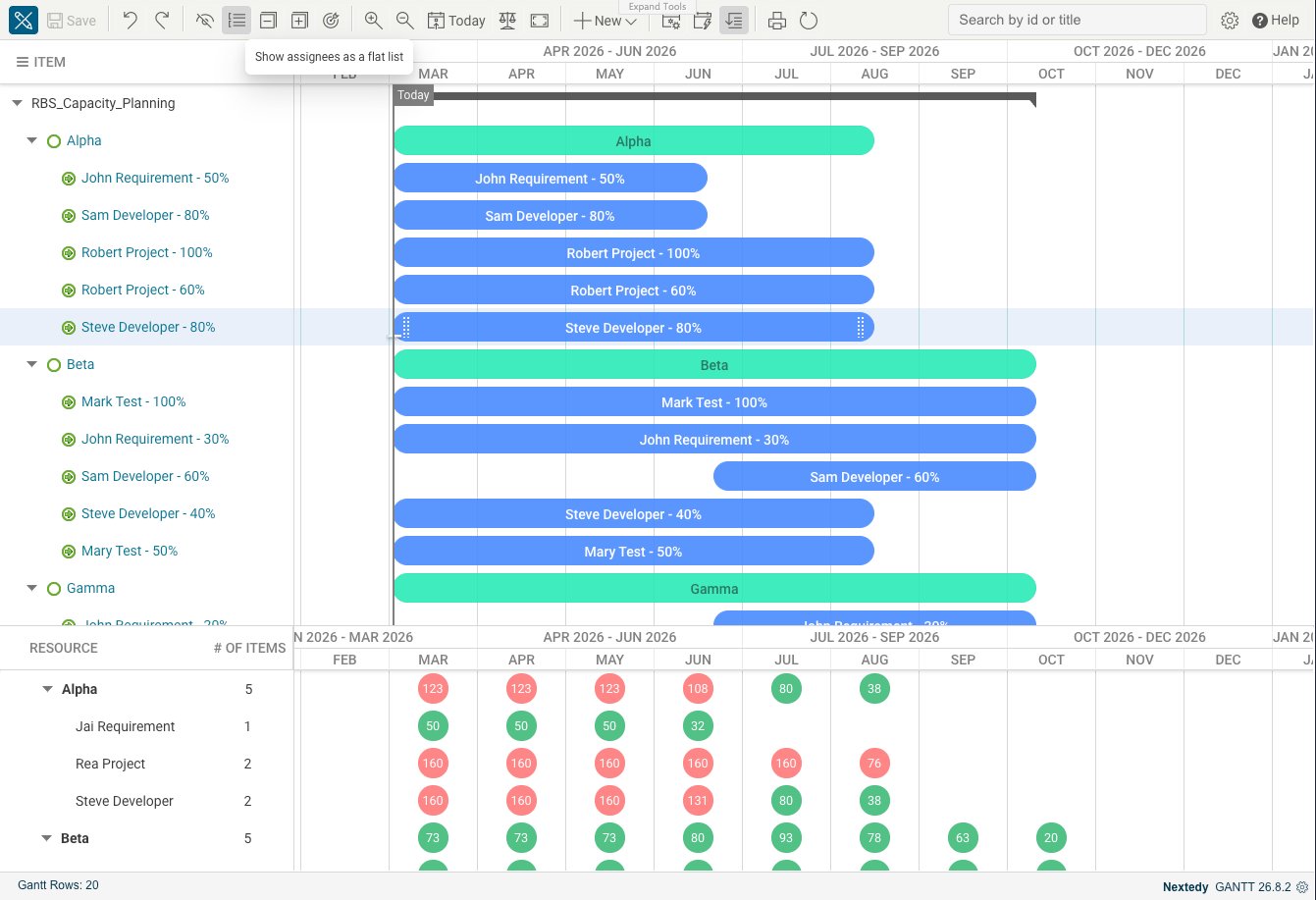
4
Show Teams That Have No Assignments Yet
While the view is showing all teams and resources are taken from
assignee, a team with no assignments at all still gets a header row rather than disappearing. An empty row is the signal that the team exists and nothing has been planned for it — which is the state you most need to see when you are building next year’s plan.That comes from enumerating the project’s teams rather than the plan’s assignments, and it is the one thing the assignee resource field still does that a custom one does not: where Resource Field names a custom field, the header rows are built from the assignments that exist, so a team nobody is assigned to has no row.Grouping with a Custom Resource Field
Grouping is no longer limited to theassignee field. When the Resource Field points at a custom field — a user-typed field, an enumeration, or a resource work item from a Resource Breakdown Structure — those resources group under their teams in the same way.
The one case where grouping is switched off automatically is when the configured Resource Field is the team custom field itself.
Resource Column Label
While grouping is on and the view is showing all teams, the resource column header reads Teams & Assignees (again following your configured team word) unless you have set the Resource Label parameter to something of your own. Switching to the flat list puts the configured Resource Label back on the column — Name, where you have not set one.Troubleshooting
Verification
You should now see:- One collapsible header row per team in the resource view, expandable to its resource rows
- An aggregated allocation value on each team header
- A header row for every team, including ones with no assignments yet, where resources are taken from
assignee