

Prerequisites
Before you begin, ensure that:- Gantt is installed — the enumeration is part of it
- Your resources exist as Polarion work items, for example of a work item type
resource - You have administrator rights on the project that will carry the field, with write access to its administration, so you can set configuration properties and add custom fields
1
Define Which Work Items Are Resources
In Administration > Configuration Properties of the project that will carry the field, set the Lucene query that selects your resources:The query is used exactly as written — nothing is added to it. Say there both what a resource is and which project holds them; with no project clause, matching work items from every project are offered.Leave the property unset and the enumeration offers every work item of type
resource, the default query type:resource.2
Choose What Is Stored, if Not the Work Item ID
By default, the value stored on a work item is the resource’s work item ID. To store a different identifier — a resource code or personnel code held in a string field of the resource work item — name that field:The field must be a string field. Every resource then needs a value in it, unique among the resources the query returns.
3
Add the Custom Field
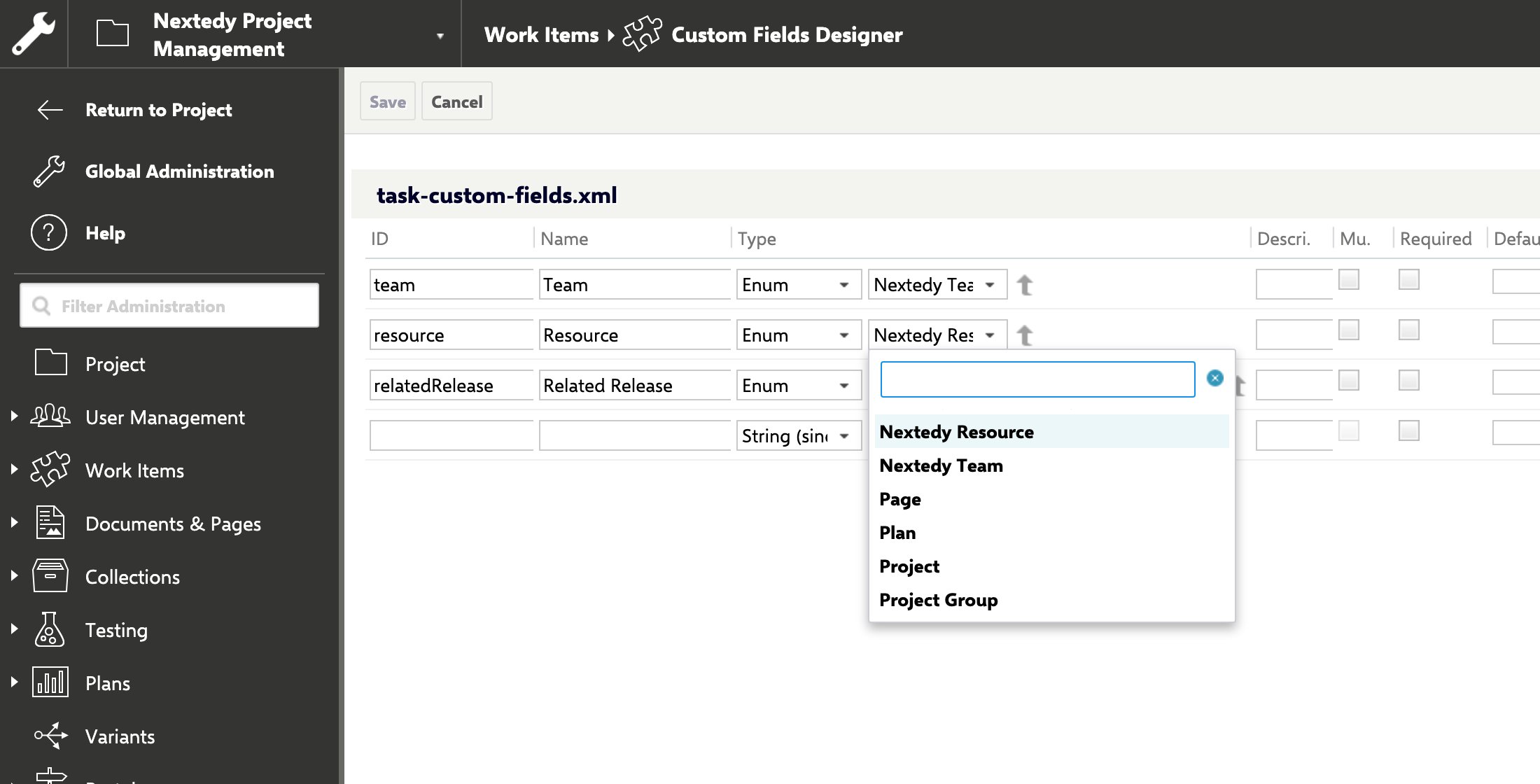
- Open Administration > Work Items > Custom Fields and select the work item type that should carry the field.
- Add a field — for example
resource, named Resource — of type Enum. - In the enumeration list, select Nextedy Resource.
- Click Save.
4
Pick a Resource
Open a work item of that type, click Edit, and open the Resource field. It lists the resources the query returns, each by its title, sorted by project ID and then by title.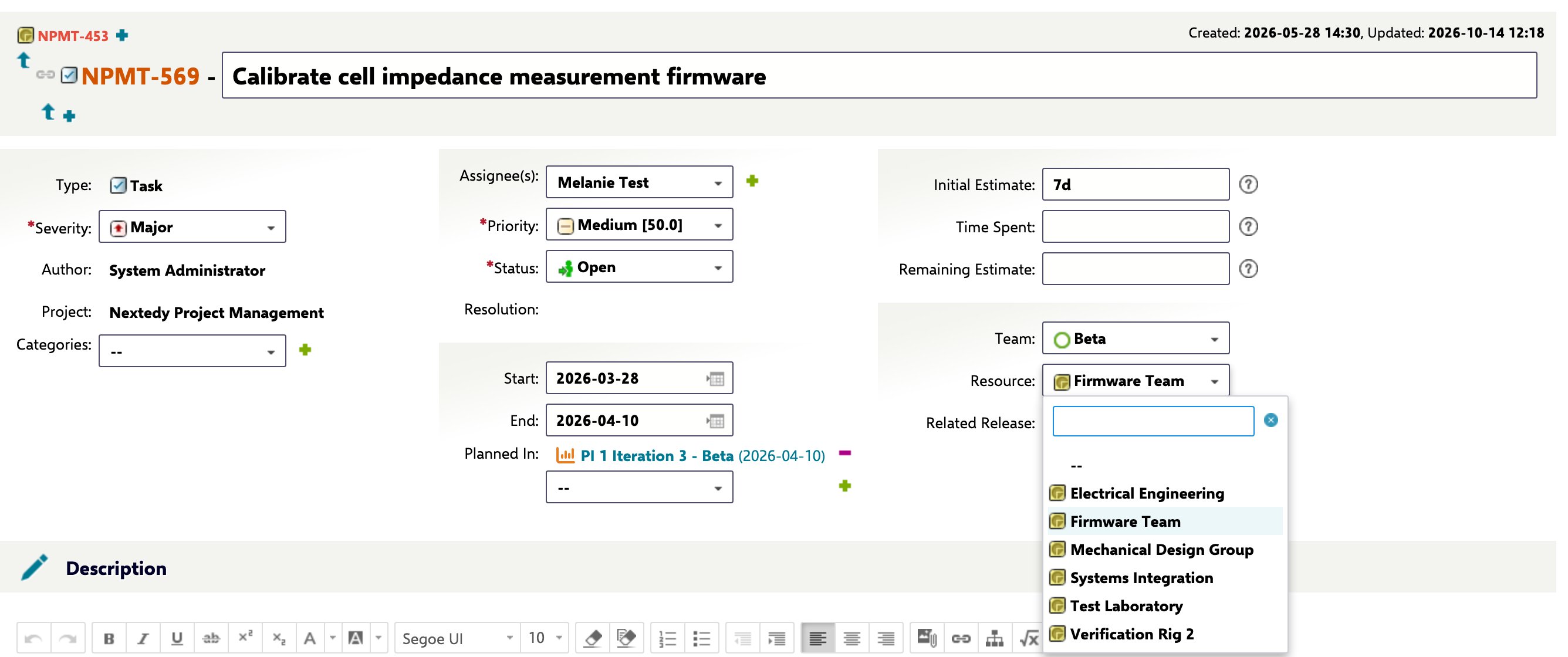
Large Resource Pools
The enumeration lists every resource the query returns and never truncates the list. Resources in different projects that share a work item ID appear only once, so scope the query to the project holding your resources. That suits a pool of tens or hundreds of resources. For a pool in the thousands — or tens of thousands of nodes — a flat list is not usable in the browser; narrow the query, or use the hierarchical resource picker, which browses the structure one level at a time.Troubleshooting
Verification
You should now see:- Nextedy Resource selected as the enumeration of the new custom field
- The field on a work item listing your resources by title
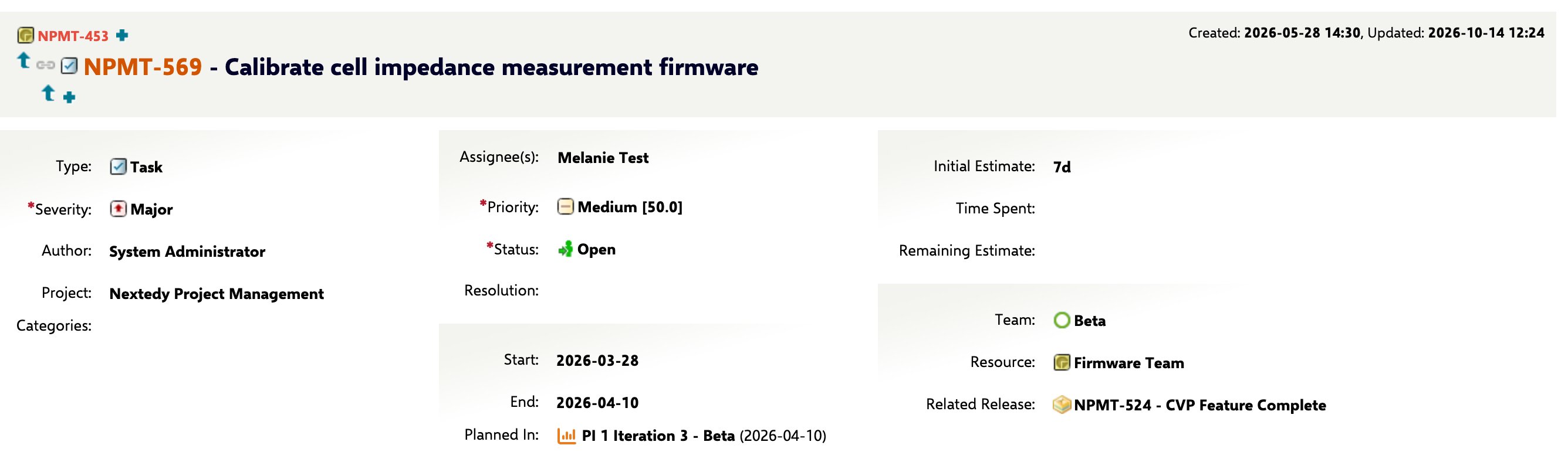
- The picked resource shown on the work item after saving
See Also
- Enumeration Properties — every property named on this page
- Resource Breakdown Structure — the enumeration next to the hierarchical picker
- Set Up a Hierarchical Resource Picker
- Configure Resource Fields