

Option 1: Use the Project Navigation Sidebar
Risksheet registers itself as a navigation item in the Polarion project sidebar. The menu label dynamically reflects the configured tool name from your project properties.- Open your Polarion project in the browser.
- Look for the Risksheet entry in the left navigation sidebar.
- Click it to open the Risksheet home view for the current project.
Option 2: Embed a Link Inside the LiveDoc
You can render a styled hyperlink directly inside the parent LiveDoc that opens the associated risksheet. This is the recommended pattern for documents that own a single risk analysis grid, because it places the entry point next to the document content. Insert a wiki snippet into the LiveDoc that resolves the current project ID and document path through Velocity: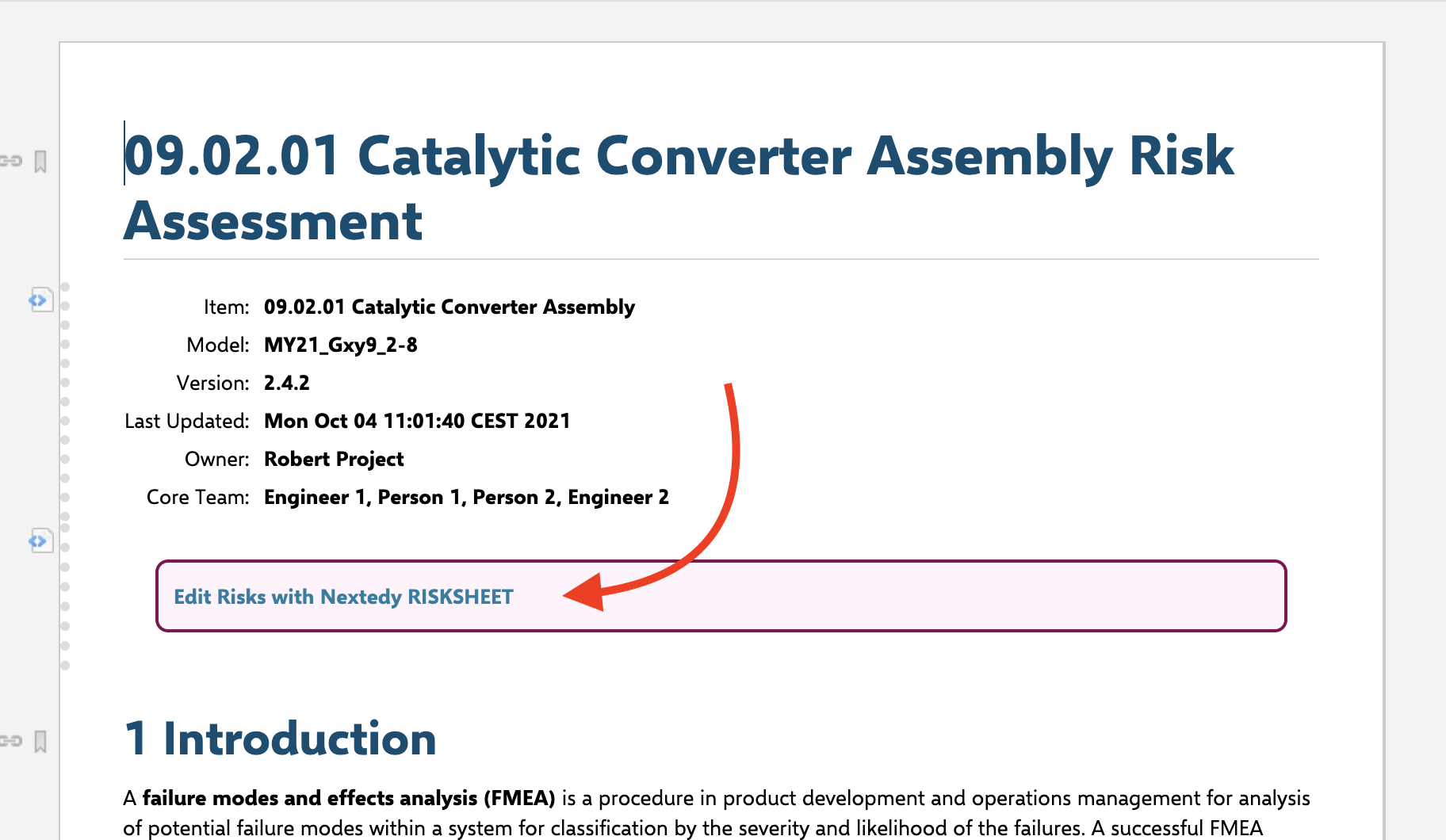
$document.getProjectId() and $document.getRelativePath() resolve the link to the current document at render time. The conditional $revisionPar appends a revision query parameter only when the LiveDoc is being viewed at a specific revision, so a baselined document opens the matching read-only risksheet snapshot. The recommended button styling uses a Nextedy-branded look: background #fff4fb, a 2px solid #860251 border, and border-radius: 8px.
Option 3: Navigate Directly via URL
Construct a direct URL to a specific risksheet document using the project ID and document path:
When you specify a
revision parameter, the risksheet opens in read-only mode displaying the historical state of the document at that revision.
Option 4: Open LiveDoc from Risksheet
Risksheet provides a command to navigate from the risk grid back to the parent LiveDoc document:- Open a risksheet document.
- Use the Open LiveDoc command from the toolbar or menu.
- The parent Polarion document opens in a new browser tab.
Option 5: Configure a Custom Help URL
You can set a custom help URL that the Risksheet Help button opens, pointing to your internal documentation portal. Add thehelp property in the global section of the sheet configuration:
global.help property accepts any URL. When not configured, the Help button defaults to the Nextedy support portal.
Context Menu Navigation
The risksheet context menu (right-click on any cell) provides additional navigation options:- Open Row Item — Opens the current row’s work item in Polarion’s work item editor (always available).
- Open Linked Item — Opens a linked upstream work item when clicking on an item link column.
- Open Task Item — Opens a linked downstream task from a task link column.
Session Keep-Alive
During long editing sessions, Risksheet automatically sends keep-alive signals to prevent your Polarion session from timing out. This helps ensure you do not lose unsaved work when navigating between Risksheet and other Polarion views.Verify in applicationThe keep-alive interval depends on your Polarion server’s session timeout configuration. Contact your administrator if you experience session timeouts during extended editing sessions.
Verification
After setting up navigation:- Open your Polarion project in the browser.
- Click the Risksheet entry in the project navigation sidebar, or click the embedded button you added to the LiveDoc.
See Also
- Embed Risksheet in LiveDoc — Render a risk table inside a LiveDoc page.
- Open Nested Risksheets — Navigate between linked risksheet documents.
- Understanding the Interface — Risksheet UI overview.