

How the default highlight works
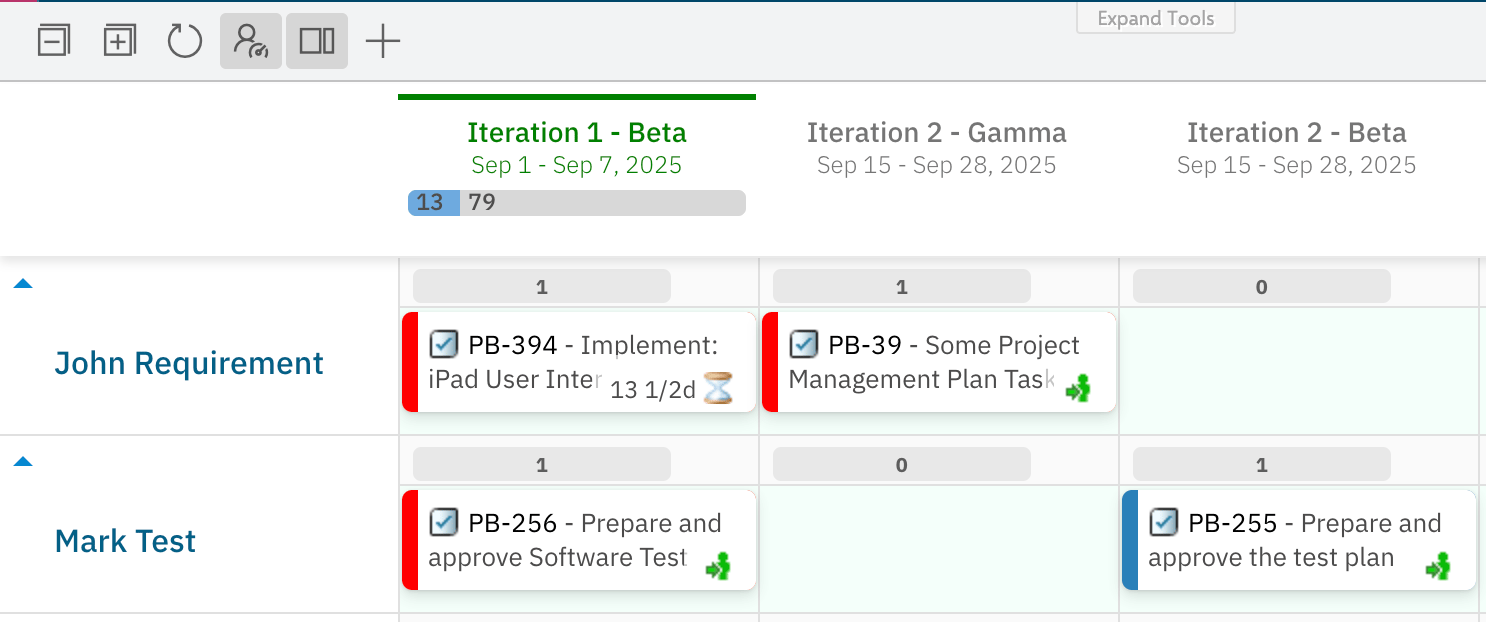
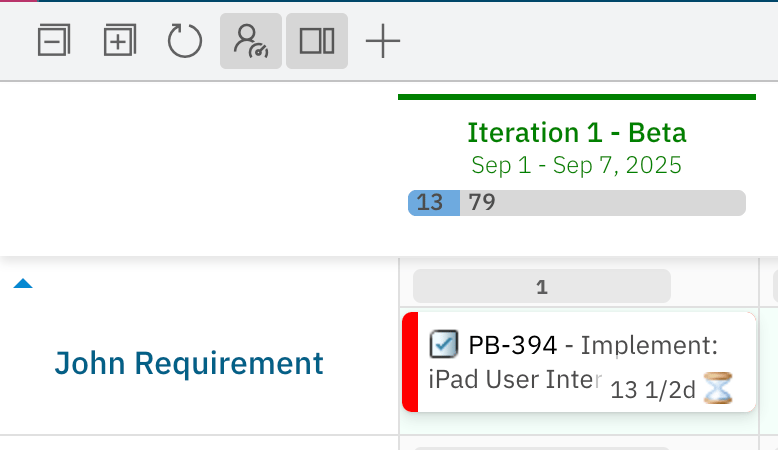
Since version 25.10.0, Nextedy PLANNINGBOARD automatically highlights work items that are placed in a Plan whose end date falls after the work item’s own Due Date field. These cards receive a red frame to signal the scheduling conflict. The comparison logic is:- Planningboard reads the Due Date field of each work item.
- It compares that date against the end date of the Plan column the card occupies.
- If the work item’s due date is earlier than the plan’s end date, the card is highlighted in red.
Customize the highlight with an Item Script
The default red frame can be replaced or extended using an Item Script. The script runs for each card and lets you change the frame color, background color, or both.Step 1 — Open widget parameters
Open the Polarion page that contains your Planningboard widget. Enter edit mode and open the widget configuration panel.Step 2 — Navigate to the Item Script field
Go to Widget Parameters → Advanced → Item Script.Step 3 — Enter your highlighting script
Paste a script that checks the due date condition and sets the visual properties you want. The example below changes the default red frame to orange and adds a soft orange card background:Step 4 — Save and reload the board
Save the widget parameters and reload the page. Cards meeting the condition will now display with the orange frame and background instead of the default red frame.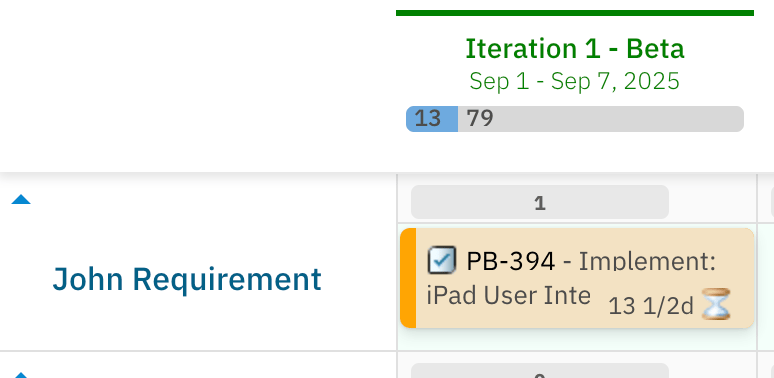
Item Script properties for highlighting
The following properties are available when writing a highlight rule in the Item Script:Null checks are requiredAlways guard against
null before comparing dates. If wi.getDueDate() is null (the work item has no due date set) or cli.planEndDate is null, the comparison will throw an error and the script will fail silently for that card.Example: color by priority
You can extend the same pattern to apply different highlights based on other work item fields. For example, to use a stronger color for high-priority overdue items:Diagram: how highlighting is evaluated
Pitfalls and limitations
Verification
After saving the widget parameters and reloading the board, scan for cards that are placed in Plans whose end date is later than each card’s due date. Those cards should display with the frame color defined in your script (or the default red if no script is set). Cards without a due date, or cards placed in Plans that end before their due date, should remain unhighlighted.See also
- Customize Card Appearance — change card layout and visual style beyond highlighting
- Customize Card Colors — set card colors based on status or other rules
- Item Scripts — full reference for the Item Script API
- Widget Parameters Overview — where to find the Advanced → Item Script field
- Script Errors — diagnose Item Script failures