

Overview
Card colors in Planningboard are set via the Item Script in the widget’s Advanced Properties. Thecli.cardColor property accepts any CSS HEX or named color value and can be set conditionally based on any work item field — including workflow status, custom fields, or parent-item relationships.
How to set a card color
Step 1: Open widget parameters
- Navigate to the Polarion LiveDoc or Wiki page that contains your Planningboard widget.
- Enter edit mode and open the widget’s Advanced Properties section.
- Locate the Item Script field.
Step 2: Set cli.cardColor in the script
Add a JavaScript expression that sets cli.cardColor to a color value. The color is applied as the card’s background.
Simplest form — fixed color for all cards:
wi is the current work item (Polarion IWorkItem) and wi.getValue("crType") reads the crType custom field. Replace "crType" and "parentCR" with your actual field ID and enum ID.
Step 3: Save and reload
Save the widget configuration and reload the page. Cards matching the condition will display with the new background color.Color cards by parent item
A common pattern is to let child items inherit a color from their parent — for example, all items belonging to the same System Requirement share a color. This makes it easy to trace hierarchy on a dense board.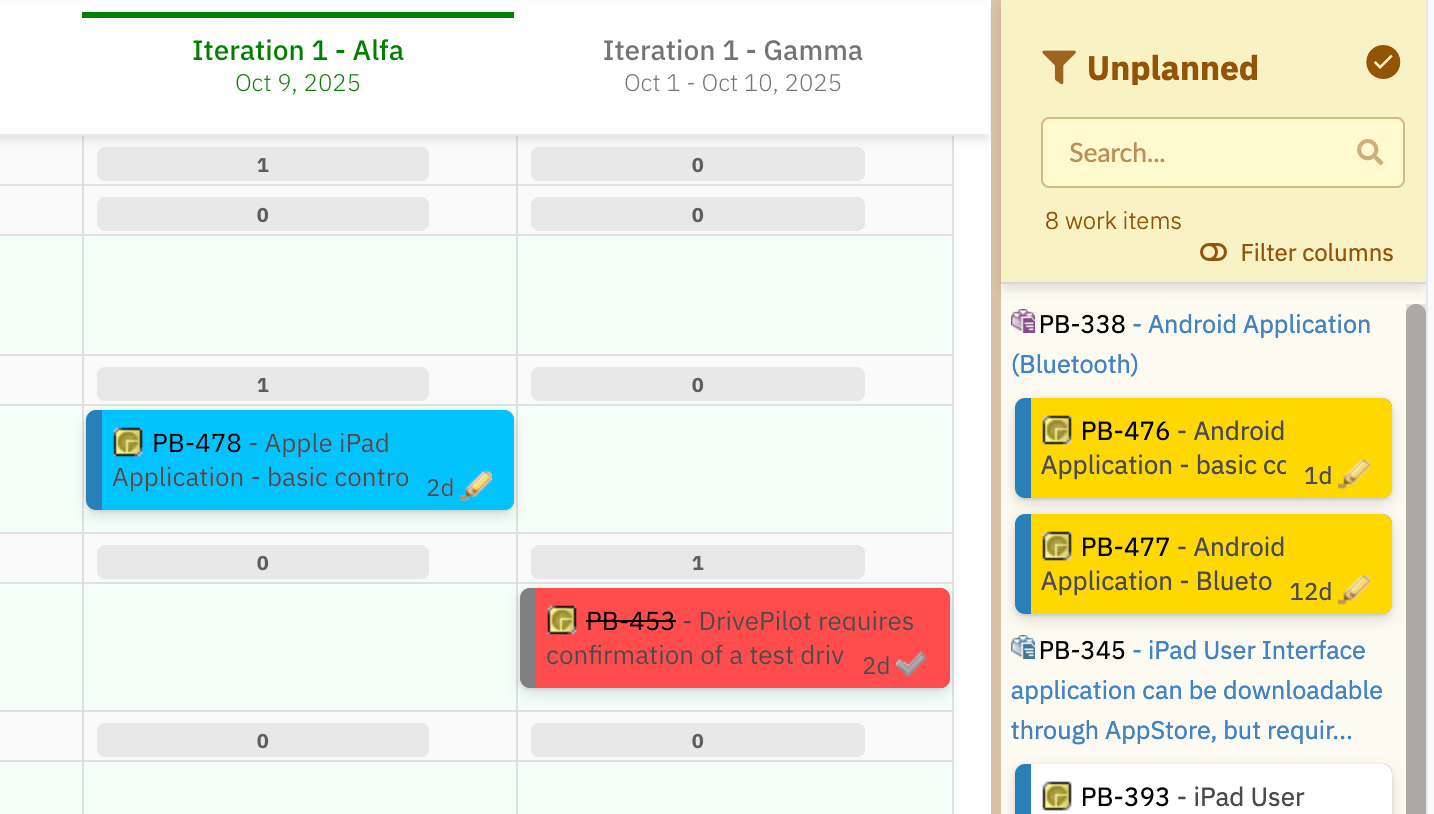

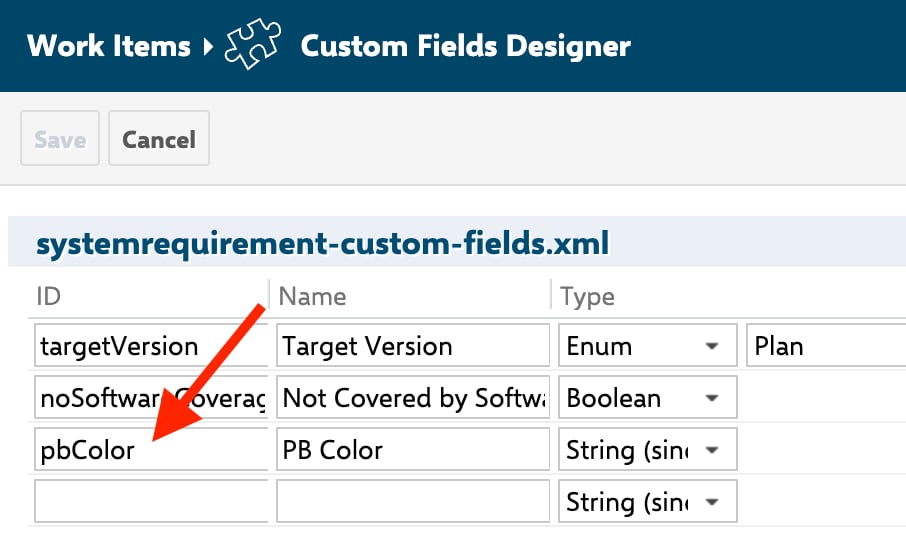
Step 1: Create a custom string field on the parent type
In Polarion Administration, add a custom field to your parent work item type:- Field ID:
pbColor(or any name you choose) - Type: String
Step 2: Populate the field on parent items
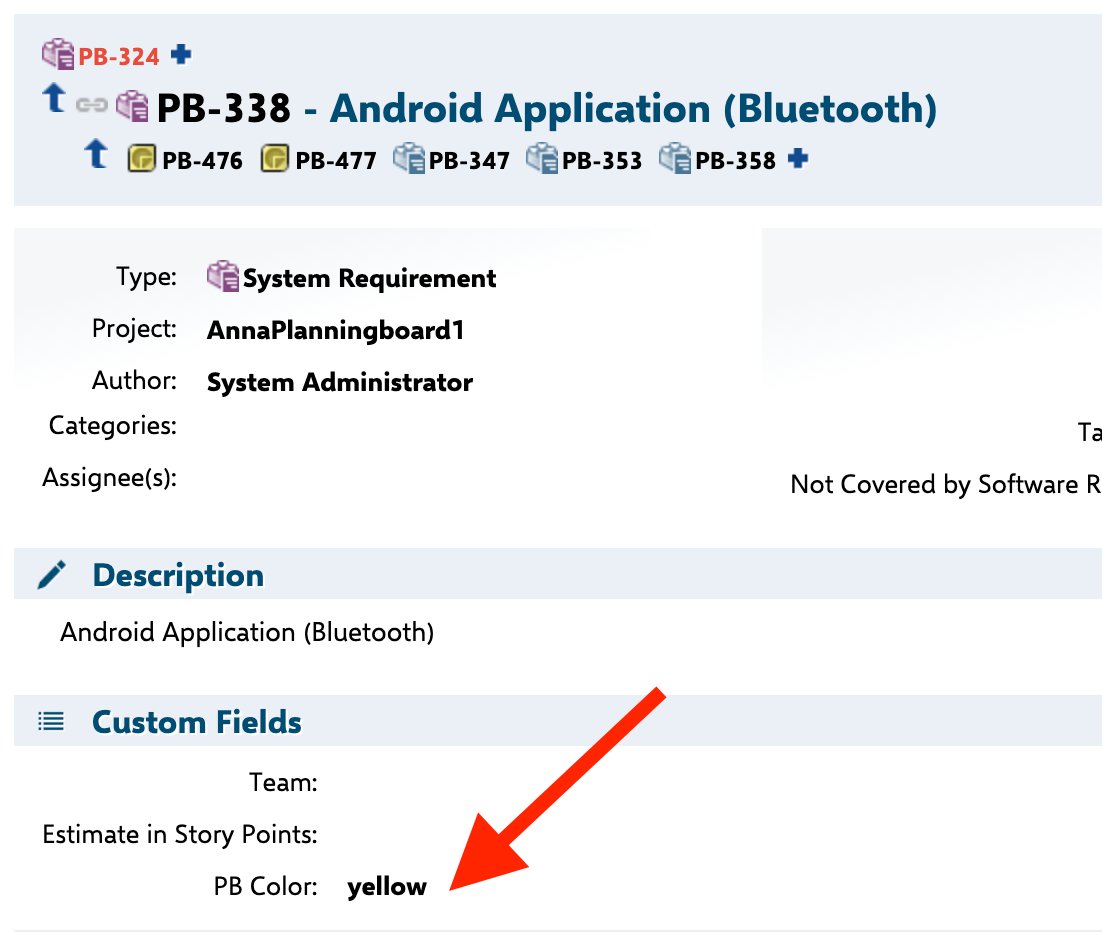
On each parent work item, enter a color name into thepbColor field: blue, red, green, or yellow.
Step 3: Add the Item Script
Paste the following into the Item Script field in the widget’s Advanced Properties:Item Script API reference
The table below lists thecli properties relevant to card color customization. These are the confirmed properties available inside an Item Script.
The main objects available in every Item Script:
Decision guide: which approach to use

Verification
After saving the Item Script and reloading the page, you should now see:- Cards that match your condition displaying the assigned background color.
- Cards that do not match the condition retaining the default (uncolored) appearance.
- If you implemented parent-color inheritance, all child items linked to the same parent appear with the same color.
- The
cli.readonly = false;line is present if needed. - The field ID and enum ID strings match exactly what is configured in Polarion (IDs are case-sensitive).
- The
pbColorfield (or equivalent) is populated on the parent items. - The correct link role ID is used in
getLinkRole().getId().
See also
- Customize Card Content — control which fields and HTML appear on card faces
- Customize Card Appearance — adjust card height, layout, and overall style
- Highlight Work Items by Rules — rule-based highlighting for items such as those planned after their due date
- Item Scripts — full reference for the Item Script API and scripting patterns
- Widget Parameters Overview — all widget parameters including the Advanced Properties section where Item Script is configured