

1
Verify Working Calendar Toggle Hierarchy
The working calendar parameters follow a strict dependency chain. Each level must be enabled before the next becomes available: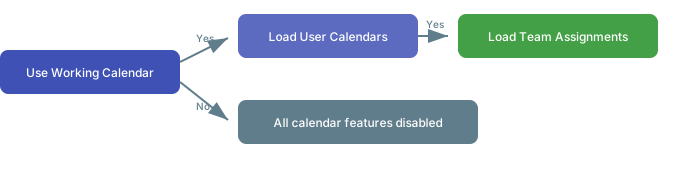
- Open the Gantt widget parameters
- Navigate to the Working Calendars section
- Confirm the toggles are enabled in order:
- Use Working Calendar must be
Yes - Load User Calendars only appears when Use Working Calendar is
Yes - Load Team Assignments only appears when both above are
Yes
- Use Working Calendar must be
2
Check Calendar Project Configuration Properties
If user calendars are not loading, verify that the required administration properties are set in Administration > Configuration Properties for both the calendar project and the consuming project:
- Replace
<PROJECTID>with the project ID of the work item calendar project - Replace
<WORKITEMID>with the work item ID of the calendar work item used as the global calendar
3
Verify Assignee Configuration on Calendar Items
Calendar work items must have the correct assignee set to link to a resource in the Gantt chart.
4
Validate Calendar Inheritance Links
Calendar work items use the
inherits from link role for parent-child inheritance and the affects link role for exceptions (Time Off, Time On, Tweak).- User calendars should have a parent link to the global calendar via inherits from
- Exception items (Time Off, Time On, Tweak) must be linked to their target calendar via affects
5
Address Version-Specific Regressions
If user calendar changes stop reflecting in resource allocation bubbles after an upgrade:
- Versions v25.7.0 through v25.8.0 contain a known regression where work items missing fields required by a workflow action can fail to load on the Gantt, which can leave resource rows and allocations incomplete
- Upgrade to v25.9.0 or later to resolve this issue
- As a workaround, roll back to v24.10.1 if upgrading is not immediately possible
6
Clear the Calendar Cache
If calendar changes are not reflected after editing calendar work items, the server-side calendar cache may be stale. Caching is enabled by the Cache Working Calendars widget parameter (or the
nextedy.gantt.workingCalendar.useCache administration property).When caching is active, clear the stale cache using either method:- Click the Clear Calendar Cache toolbar button, which appears in the Gantt toolbar when caching is enabled
- Call the
api/clearCalendarCacheendpoint directly
Verification
You should now see:- The Working Calendars section in widget parameters shows all three toggles in sequence
- User-specific non-working days appear as gray areas on the resource view
- Resource allocation markers reflect correct capacity based on each user’s calendar
- Time Off, Time On, and Tweak items correctly adjust the displayed availability