

Symptom
The today marker (a vertical line on the Gantt timeline) displays a date that does not match your current local date. For example, it may show January 24 when your local date is already January 25.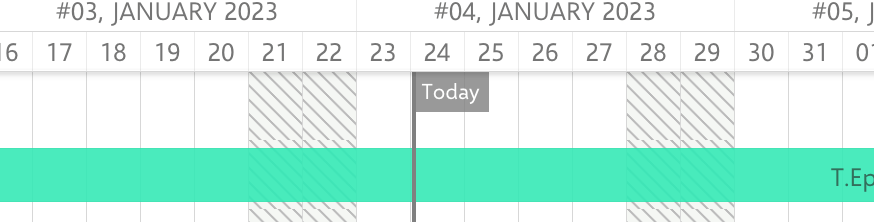
Why This Happens
The today marker date is determined by the Polarion server’s timezone, not the user’s browser timezone. When the server is located in a different timezone than the user, the today marker may appear to be one day behind or ahead.
The today marker tooltip displays the exact date in
Today: YYYY-MM-DD format. Hover over the marker to see the precise server date.
This is expected behaviorThe timezone difference between server and client is the most common cause of the today marker appearing in the wrong position. In most environments where server and client are in the same timezone, the dates match.
Option 1: Align Server Timezone
If your organization requires the today marker to match client time, coordinate with your Polarion server administrator to set the server timezone to match your primary user base.Verify in applicationThe server timezone configuration is managed at the operating system level on the Polarion server host. Consult your Polarion administrator for changes.
Option 2: Hide the Today Marker
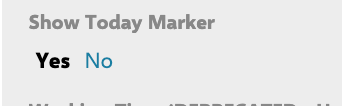
If the timezone discrepancy is not critical and you prefer to remove the marker entirely:- Open the Gantt widget parameters in the page editor
- Navigate to Widget Parameters > Advanced > Show Today Marker
- Set the value to No
- Save the page
Option 3: Adjust Marker Position with Scripts
For milestone markers that you create via the Markers Script, the marker date follows an end-of-day rendering convention. If a marker appears one day off from where you expect it, you can apply a-1 day offset in your script to shift it to a start-of-day position.
Custom Marker Troubleshooting
If you use custom markers via the Markers Script (under Widget Parameters > Advanced), verify these common issues:- Markers not appearing — Ensure the markers script has no syntax errors (check the Gantt footer for a “Markers Script Error” indicator)
- Wrong marker color — The
setColormethod accepts one of the 16 basic HTML color names (e.g.,"red","blue","green","fuchsia") - Markers from wrong project — When using
addPlanMarkersoraddWorkItemMarkers, verify theproject.idin the Lucene query matches the intended source project
Verify
After applying your chosen solution, reload the Gantt chart. You should now see either:- The today marker correctly aligned with the expected date (Option 1)
- No today marker displayed on the timeline (Option 2)
- Custom markers positioned at the correct dates (Option 3)
Today: YYYY-MM-DD with the expected date.