

How Script Errors Are Displayed
Since version 25.4.2, the Gantt provides an improved error alert system that makes it easier to identify and resolve script issues.In Edit Mode (Administrator View)
When a script contains an error, a footer indicator appears. Clicking it opens a detailed message that identifies the error location. Errors are also logged in the browser console and server logs.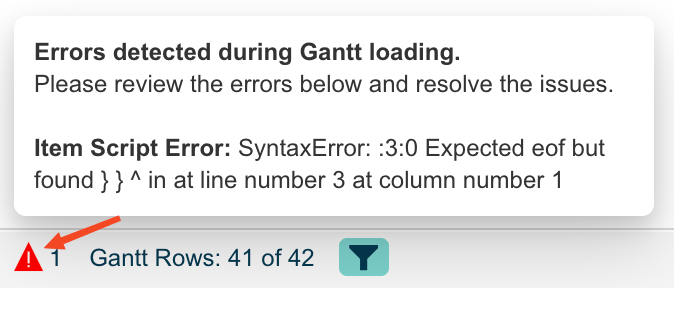
In View Mode (User View)
A visual indicator (triangle icon in the Gantt footer) informs end users when configuration or data-related issues occur. The indicator shows a count badge with the number of errors detected.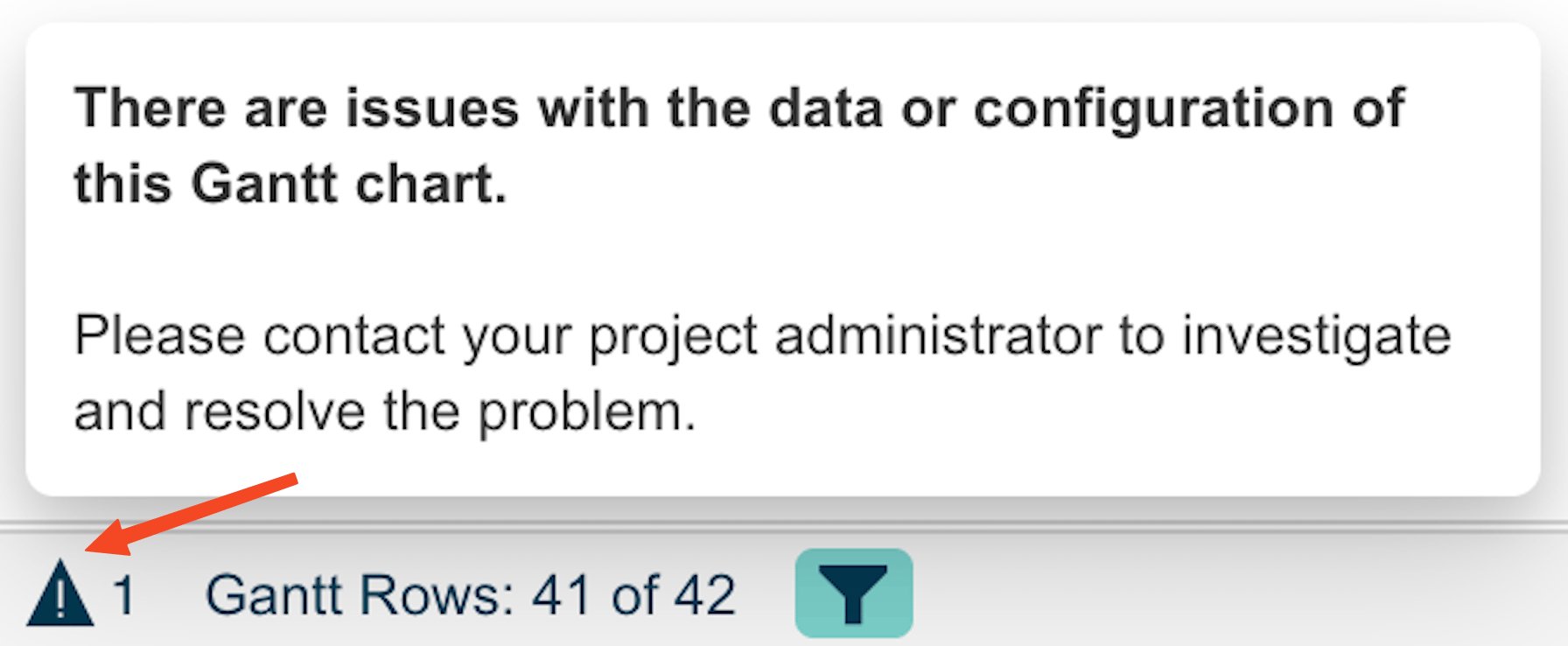
Error Types
The Gantt distinguishes between three script error categories:1
Identify the Failing Script
- Open the page in edit mode
- Look for the error indicator in the Gantt footer
- Click the indicator to see the detailed error list
- Note the error type prefix to determine which script is failing
2
Check for Polarion 2304+ Compatibility
If your scripts stopped working after a Polarion upgrade to version 2304 or later, you need to update the script syntax:Before (Polarion 2303 and earlier):After (Polarion 2304+):Key changes:
- Replace
nullchecks withtypeofchecks (e.g.,typeof wi !== 'undefined') - Replace direct property access with getter methods (e.g.,
wi.getStatus().getId()instead ofwi.status.id)
3
Debug the Script
- Isolate the error — Temporarily clear the script content, save, and confirm the Gantt loads without errors
- Re-add incrementally — Add the script back line by line to pinpoint the failing statement
- Check variable availability — Item scripts have access to
task,wi(work item),plan,config,util, and other context variables. Verify you are using the correct variable names. - Check browser console — Look for detailed JavaScript error messages including line numbers
4
Validate and Save
After correcting the script:
- Save the page in the wiki editor
- Switch to view mode
- Verify the error indicator has disappeared from the Gantt footer
- Check that the script’s intended behavior (colors, markers, custom logic) is applied correctly