

Symptom: Widget Not Found or Error Message After Installation
If you see an error message in the Polarion UI where the Gantt widget should appear, or the widget is not listed in the available widgets, the most common cause is that the configuration cache was not cleared after installation.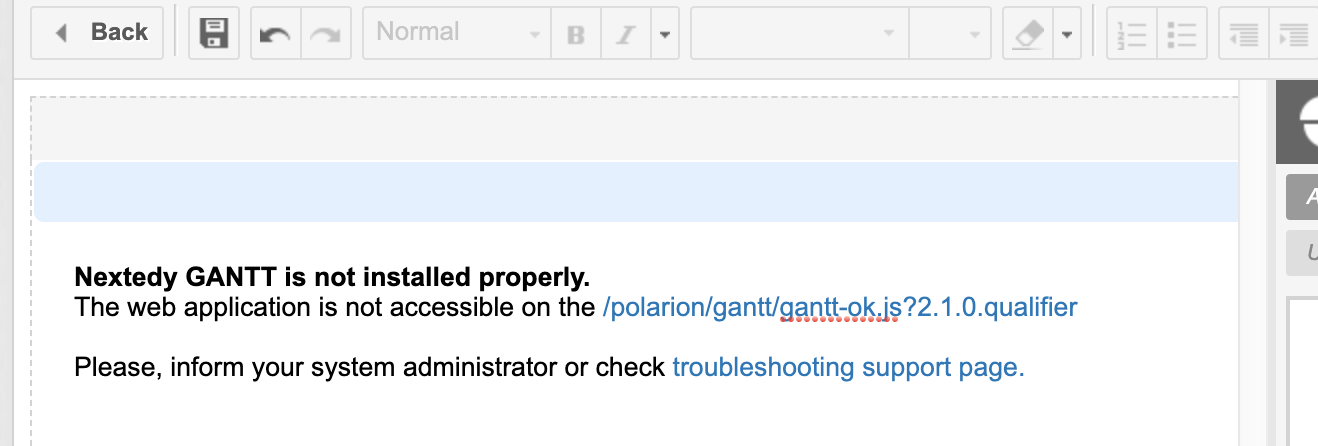

1
Stop the Polarion Server
Shut down the Polarion server before making any file system changes. Use your standard server management process to stop the service.
2
Delete the Configuration Cache
Navigate to your Polarion installation directory and delete the This folder contains configuration caches that Polarion rebuilds automatically on startup. Deleting it forces Polarion to re-read all extension registrations, including the newly installed Gantt widget.
.config folder:This is a standard Polarion procedureDeleting the
.config folder is prescribed by the Polarion team whenever a new extension with a web application component is installed. The caches are rebuilt automatically and no data is lost.3
Start the Polarion Server
Restart the Polarion server. The first startup after clearing the cache may take slightly longer as Polarion rebuilds its configuration.
4
Verify the Widget Is Available
- Navigate to a LiveDoc or Wiki page in Polarion
- Enter edit mode and add a widget
- Search for Gantt in the widget list
- Verify that both Gantt (Work Items) and Gantt (Plans) appear
Verify in applicationIf the widget still does not appear after clearing the cache, verify that the Gantt extension files were placed in the correct directory as described in the
INSTALL.txt file included in the distribution package.