Access the Markers Script

Markers are defined in the Markers Script, located under Widget Properties > Advanced > Markers Script. This server-side script runs each time the Gantt loads and produces the set of marker lines displayed on the timeline.
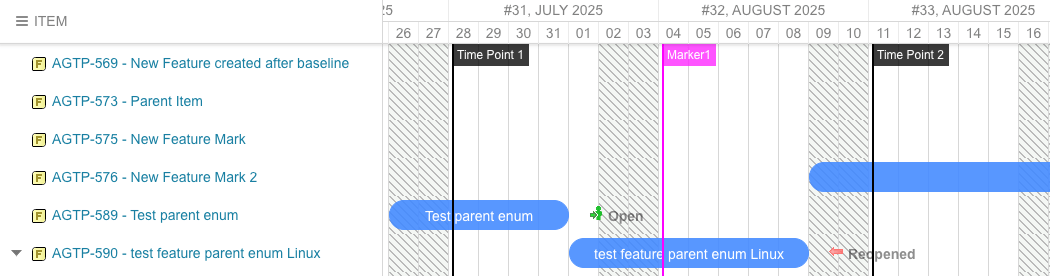
Gantt timeline showing vertical milestone marker lines across the chart
The script has access to the markerFactory object, which provides methods for creating markers manually and from Polarion data.

Add a Marker Manually

To create a single marker at a specific date, use the markerFactory.addMarker() method:
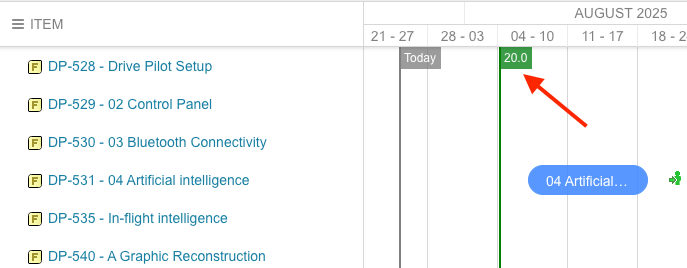
This creates a green vertical line labeled “20.0” on August 4, 2025.
Green milestone marker labeled 20.0 on the August 4 column of the Gantt timeline
The marker object provides these methods:
Markers render at the end of the specified date. If you set a marker to “2025-08-04”, the vertical line appears at the end of August 4th. To position a marker at the start of a date, subtract one day from the date value in your script.

Add Markers from Plans

Use addPlanMarkers to automatically create markers from Polarion Plan items matching a Lucene query:
This creates a blue marker for each iteration plan in the project “gantt2”. The marker date is taken from the plan’s date range.

Add Markers from Work Items

Use addWorkItemMarkers to create markers from work items, specifying which date field to use:
Blue markers generated from release-type work items, dated from their Public Launch custom field
To reference the current project dynamically instead of hard-coding the project ID:
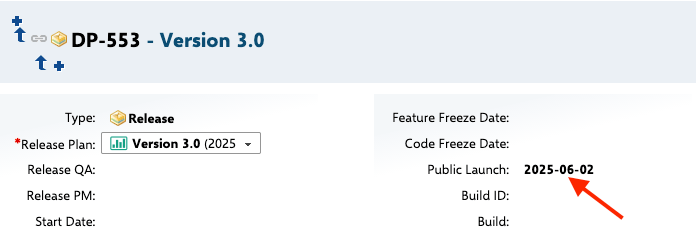
When marking version releases, point the date field parameter to a custom field like publicLaunch rather than the task’s scheduling dates. This lets you track external release dates independently from the work item’s planned schedule.
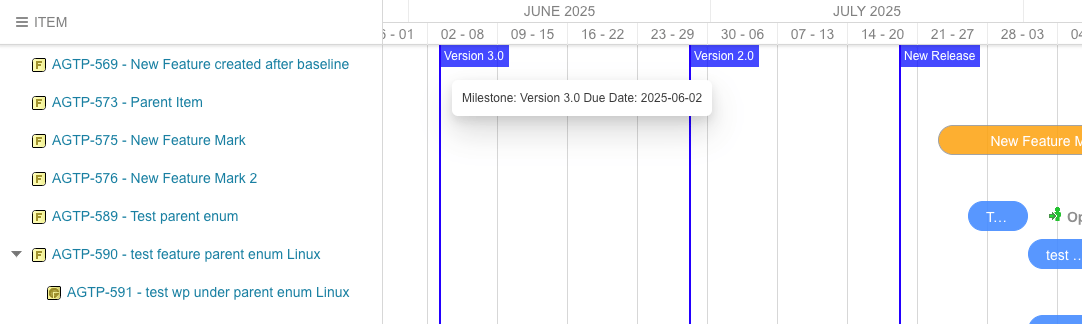
Marker for Version 3.0 positioned at 2025-06-02, the value of its Public Launch field

Use the Polarion API for Dynamic Markers

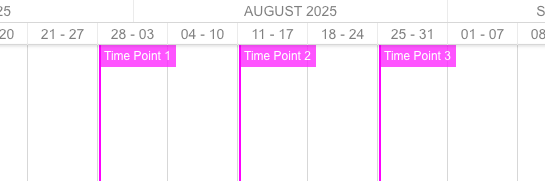
For full scripting control, use the trackerService API to query Polarion data and build markers dynamically. This approach supports conditional logic, custom tooltips, and color-coding based on field values. Example: Load Time Points as markers:
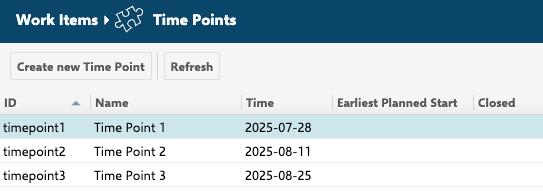
Fuchsia markers on the timeline, one per Polarion Time Point
Time Points list defined in the Polarion Gantt project that drive the markers
Example: Dynamic markers from page parameters:
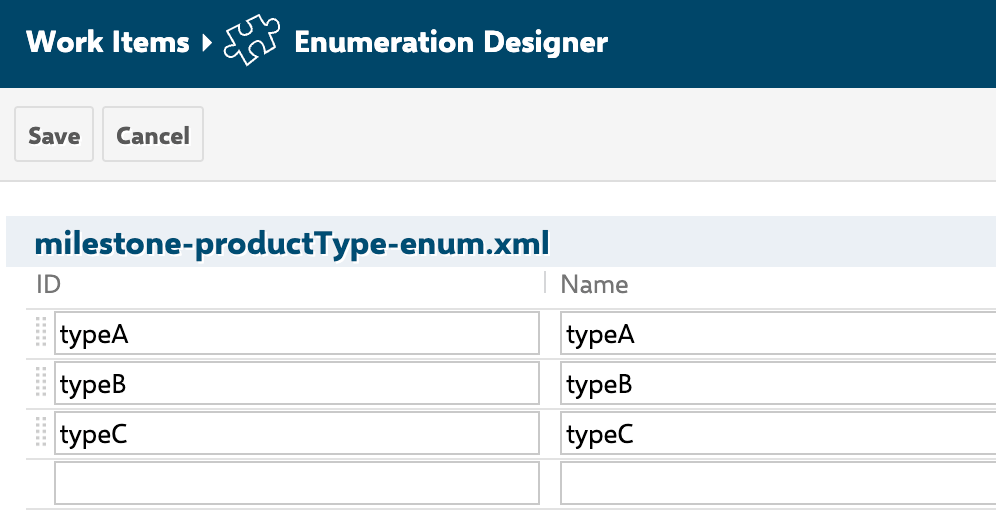
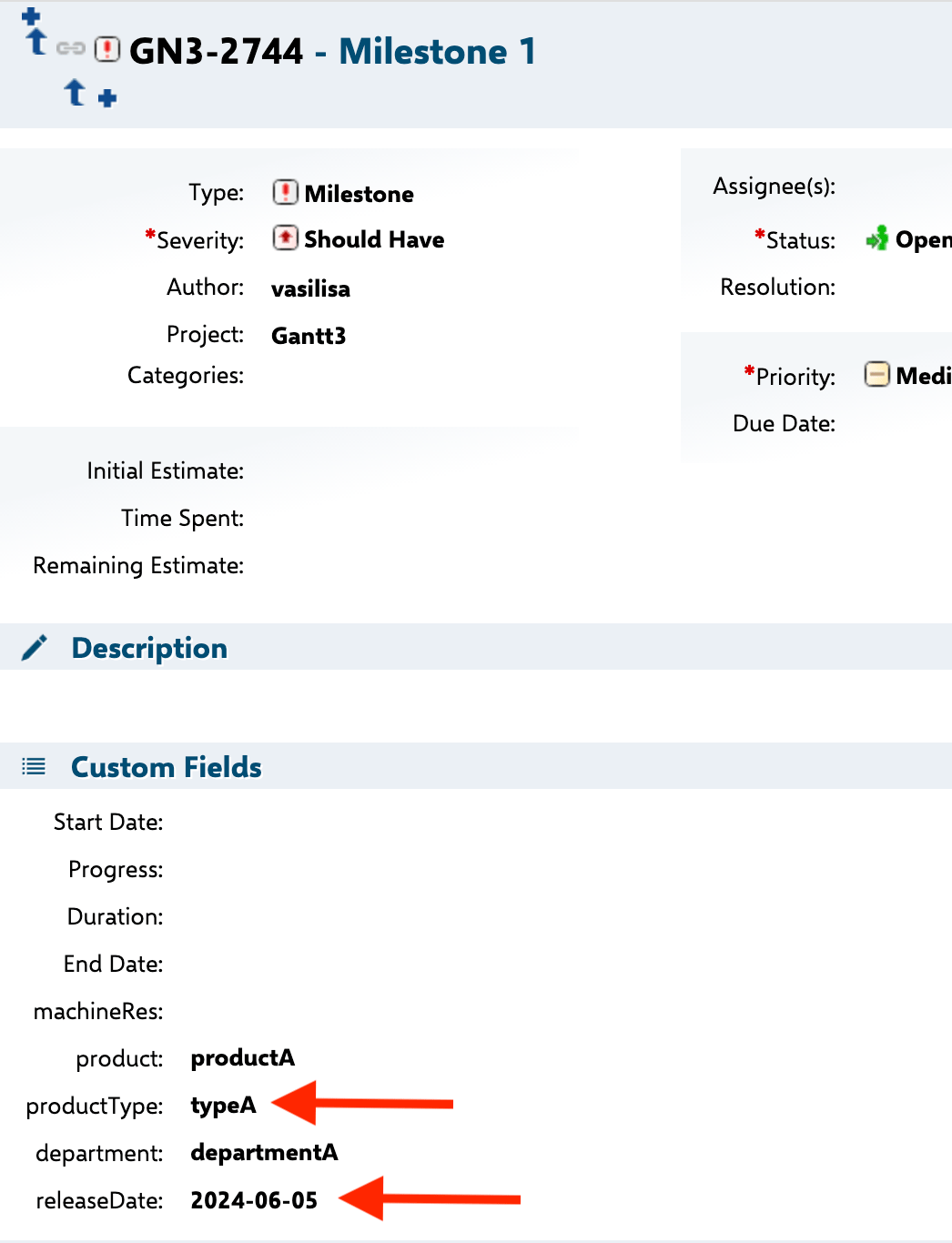
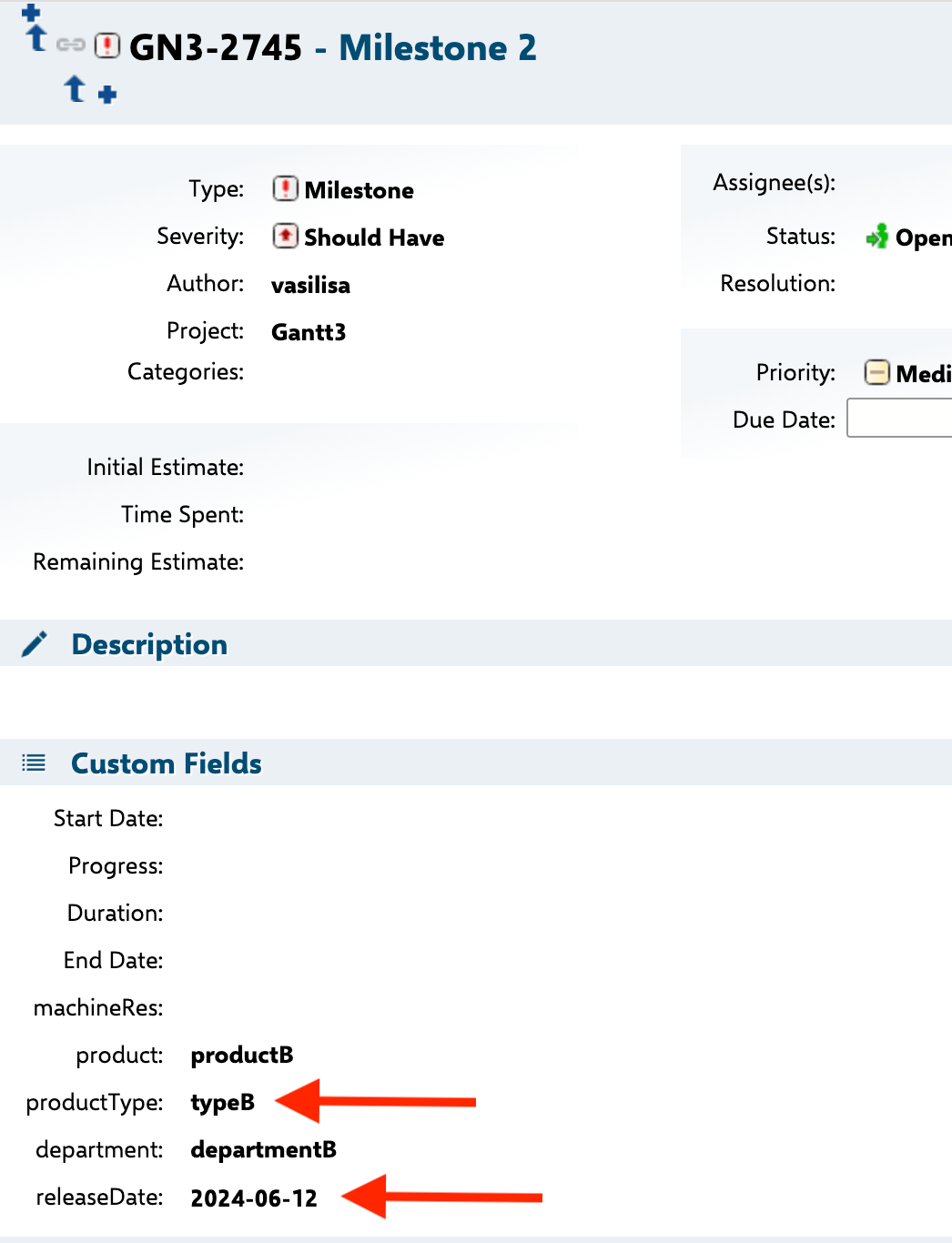
This example works with Milestone-type work items that carry two custom fields: releaseDate (a date) and productType (an enumeration with values such as typeA, typeB, and typeC).
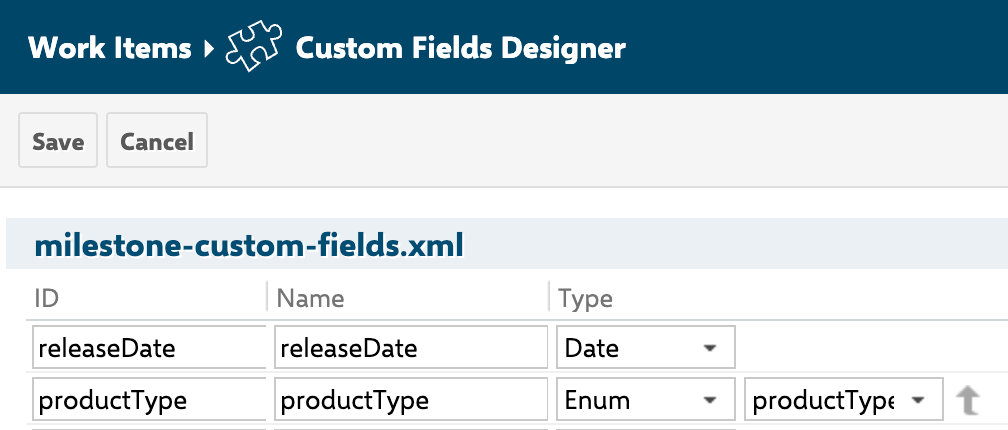
Milestone work item showing the releaseDate and productType custom fields
productType enumeration values typeA, typeB and typeC on a milestone work item
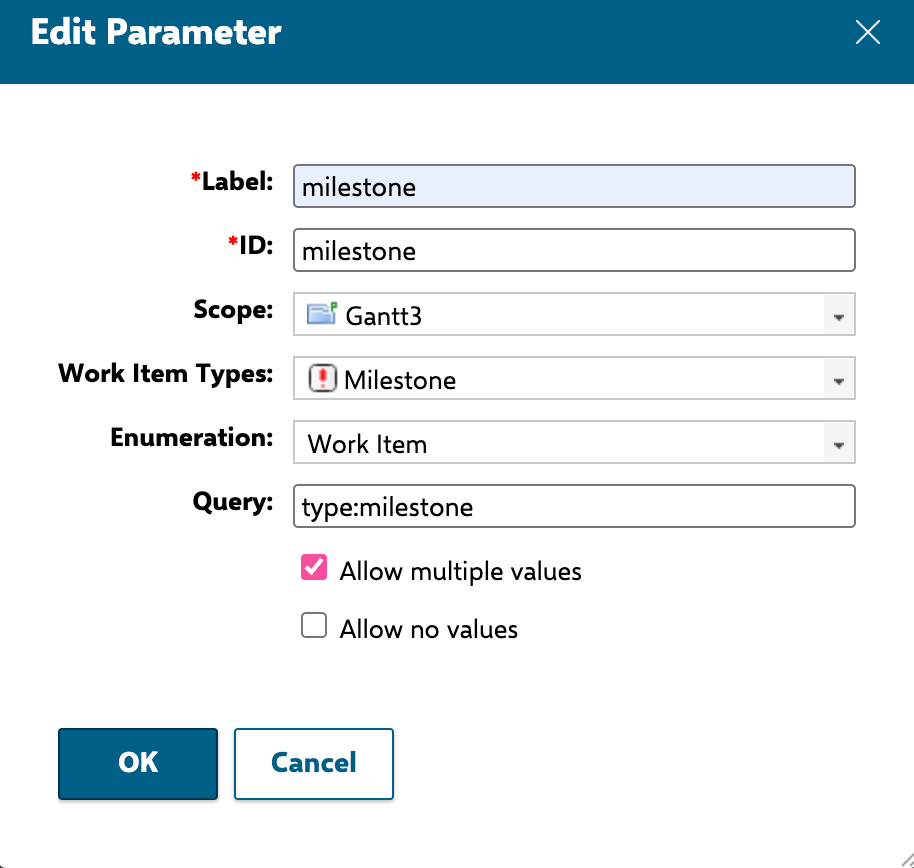
Define the page parameter that drives the query as an Enumeration-type parameter so editors get a dropdown of milestone work items. Its ID must match the one referenced in the script — here, milestone.
Edit-mode dialog creating an Enumeration page parameter with ID milestone
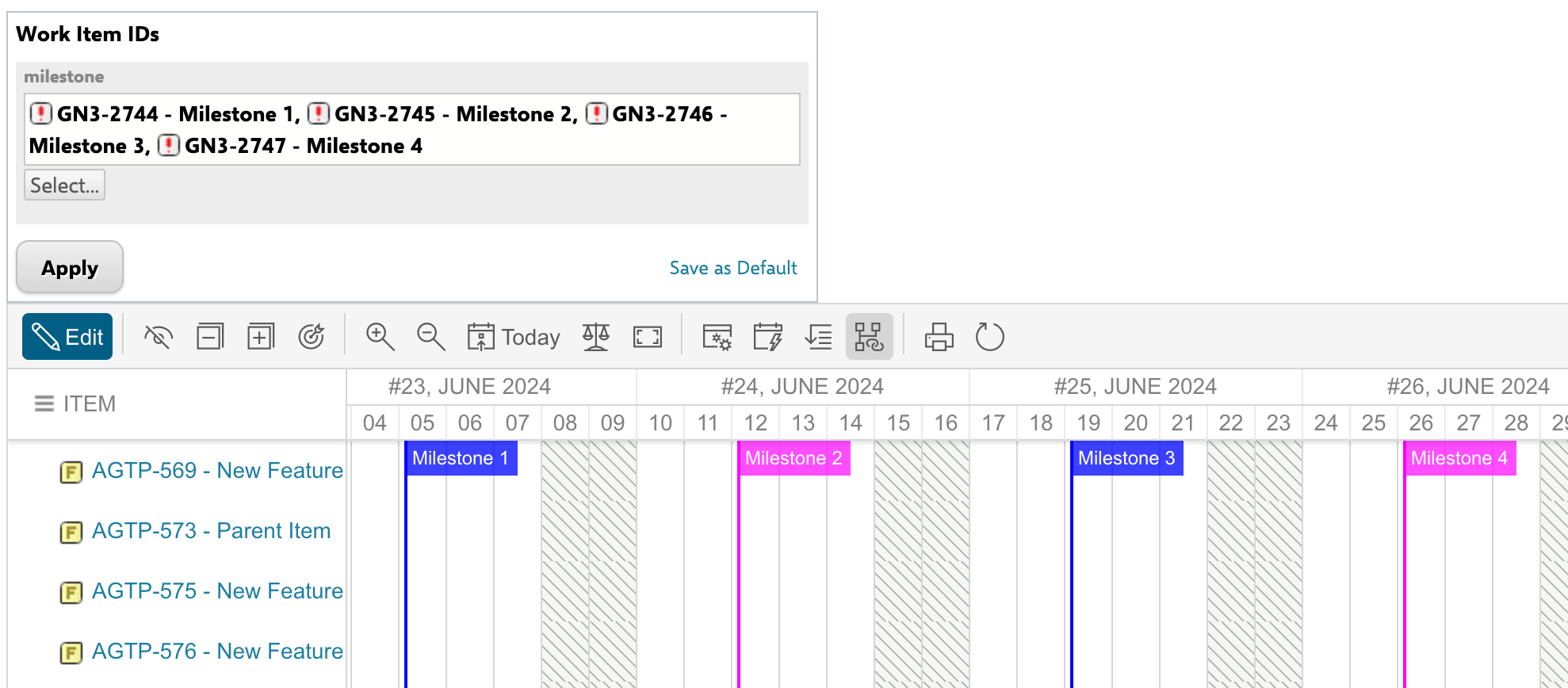
This reads a comma-separated list of work item IDs from the milestone page parameter, queries them, and renders each as a marker. Changing the page parameter updates which markers appear without editing the script. As a result, only the selected work items appear as markers, dated from their releaseDate field. Milestones 1 and 3 appear blue because their productType has a value, while Milestone 2 is pink because its productType is typeB.
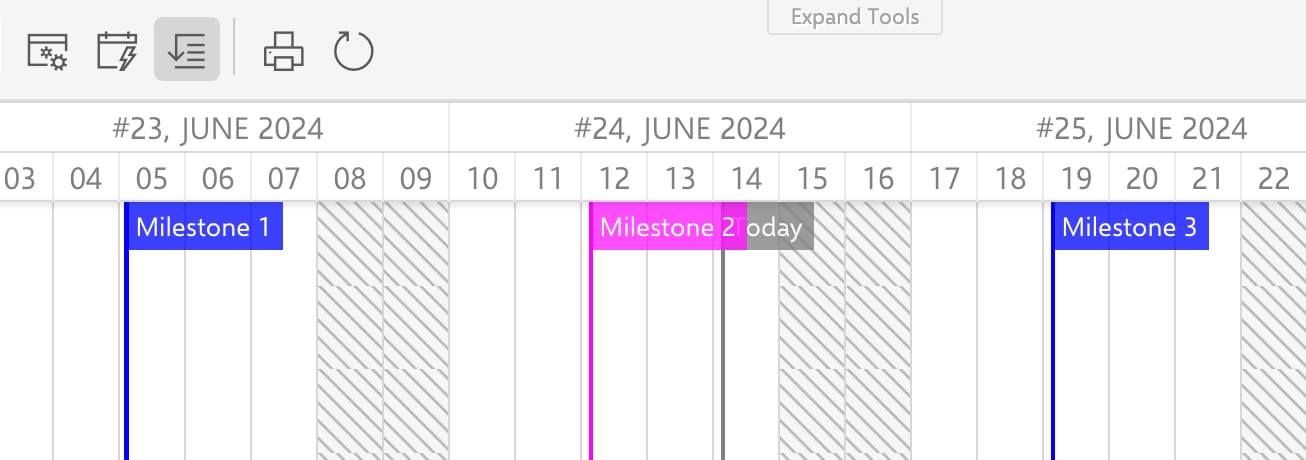
Selected milestones rendered as markers, two blue and one pink, by productType value
Gantt timeline with blue Milestone 1 and 3 markers and a pink Milestone 2 marker
Close-up of the color-coded milestone markers placed at their releaseDate positions
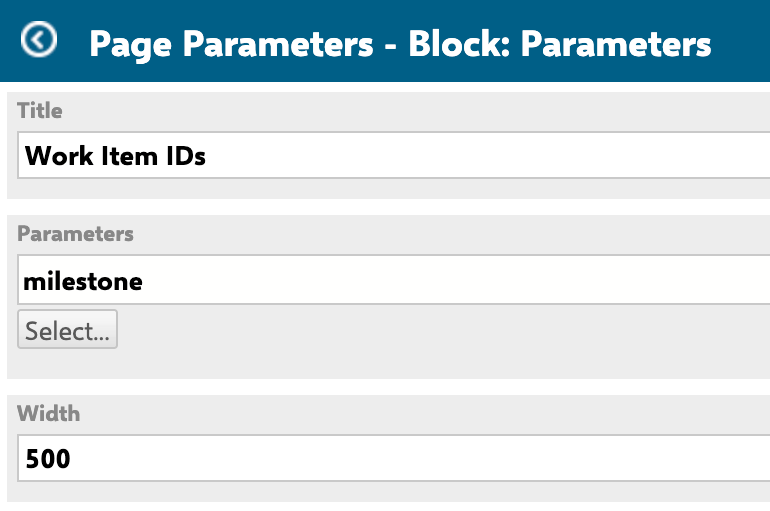
To switch the displayed markers quickly, add a Page Parameters Block widget to the same page as the Gantt and expose the milestone parameter there.
Page Parameters Block widget configured with the milestone parameter
Finished Gantt page with the milestone selector and color-coded markers in place

Marker CSS Classes

Markers receive CSS classes based on their type, which you can use for custom styling: To keep only the marker line and hide its header label, add a script-block widget above the Gantt that sets .gantt_marker_content { display: none; }. The result shows the marker line without its text header.

Gantt marker rendered as a bare vertical line with its header label hidden
If the Markers Script contains a syntax or runtime error, the Gantt displays a warning indicator with the message prefix “Markers Script Error:”. This warning is visible to all users viewing the page, not just to page editors. Test your scripts thoroughly before deploying.

Marker Tooltips

Hovering over a marker line displays a tooltip showing the marker name and date. Set the tooltip content using marker.setTitle() for custom tooltip text, or let the Gantt generate a default tooltip from the marker text and date.
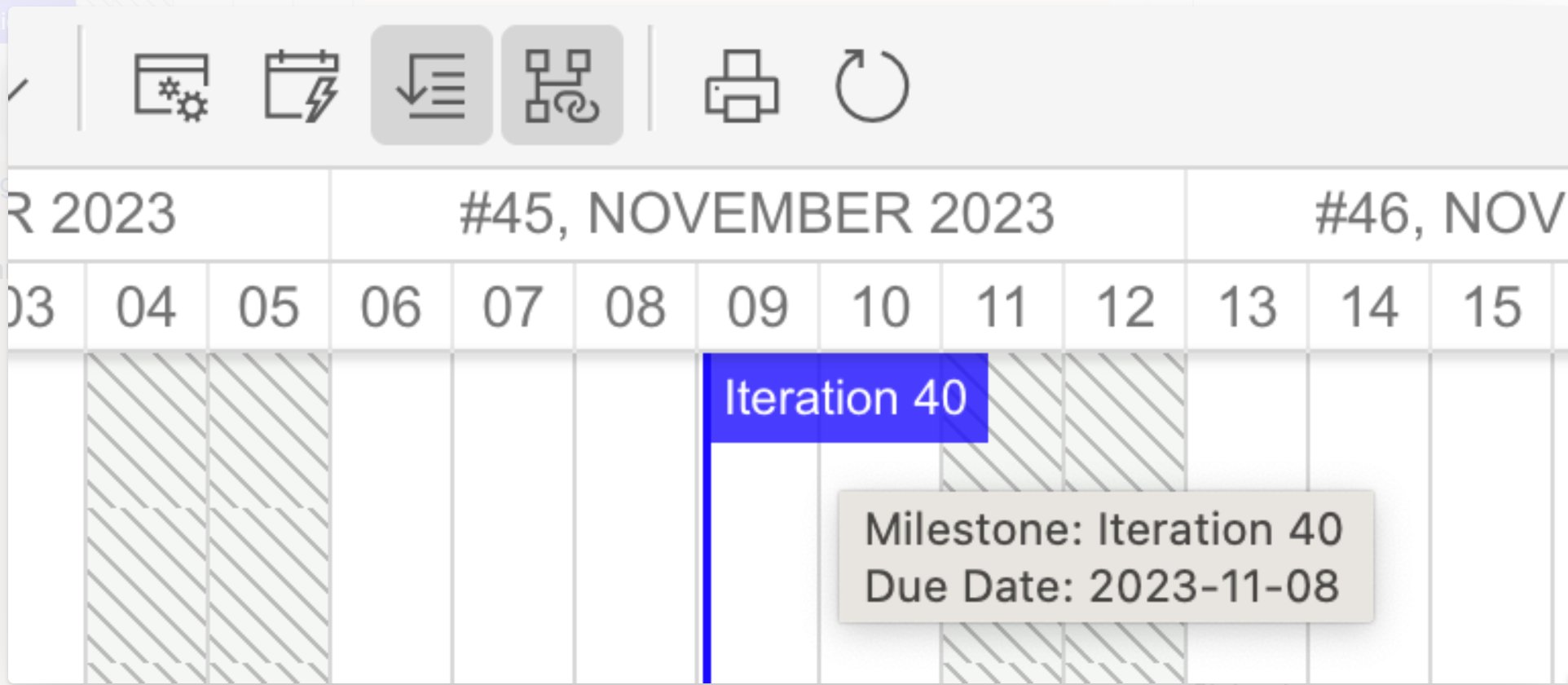
Marker tooltip shown on hover, displaying the marker title and due date

Verification

You should now see vertical marker lines on the Gantt timeline at the configured dates. Hover over each marker to verify the tooltip displays the expected name and date. If markers do not appear, check the Markers Script for errors using the warning indicator in the Gantt toolbar area.

See also

Last modified on July 10, 2026