Option 1: Type-Based Milestones

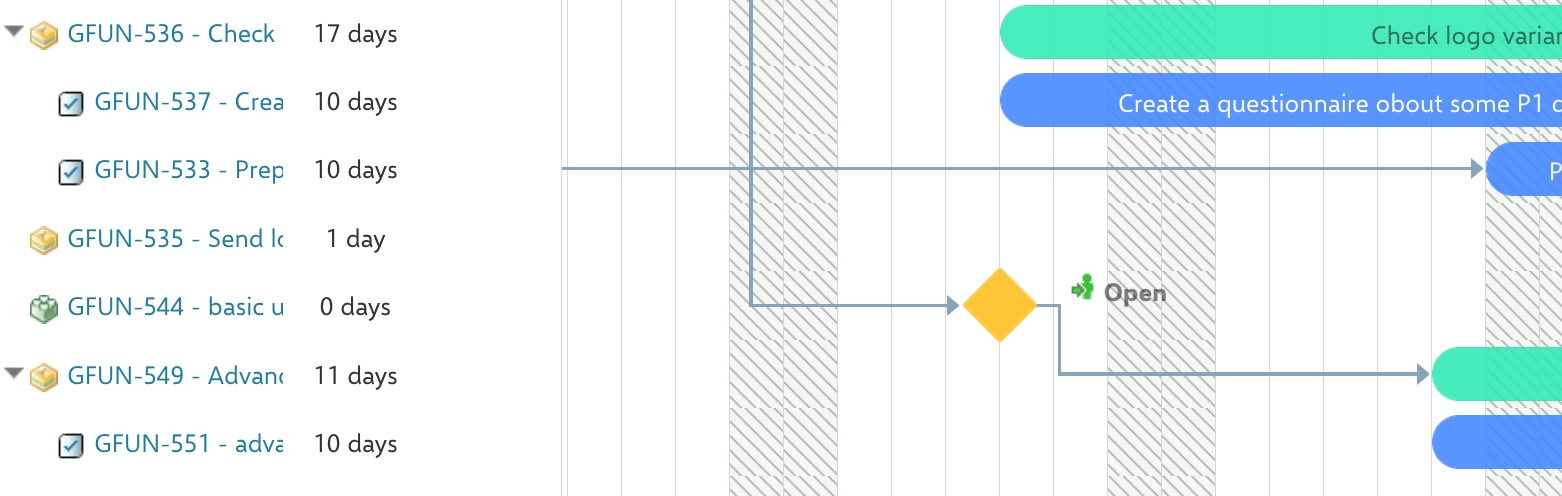
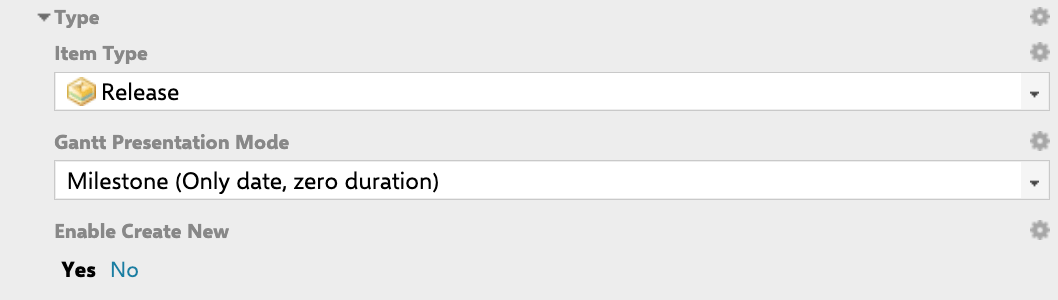
The simplest approach sets an entire work item type to render as milestones. Navigate to the work item type configuration in Polarion and set the Gantt Presentation Mode to Milestone (Only date, zero duration). All work items of that type will appear as diamond shapes on the timeline instead of task bars. Milestones represent a single point in time with zero duration.
Presentation ModeVisual AppearanceBehavior
TASK (Item)Standard task barDirectly editable, shows duration
PROJECT (Derived Schedule)Summary bar spanning childrenDates computed from child extents, not directly editable
MILESTONE (Milestone)Diamond shapeZero duration, shows only the start date
AUTO (Auto-Mode)AutomaticRenders as TASK if no children, PROJECT if has children
Set the presentation mode to AUTO when work items of the same type may or may not have children. Items with children will render as summary project bars, while leaf items will render as standard task bars.

Option 2: Conditional Milestones via Item Script

Use an Item Script when you need to control which individual items appear as milestones based on conditions beyond the work item type. Navigate to Widget Properties > Advanced > Item Script and add a script that sets task.type to "milestone":
if(wi.getType().getId() === "release" && wi.getStatus().getId() === "inprogress") {
    task.type = "milestone";
}
In this example, only Release items with the status “In progress” render as milestones. When the status changes, the item reverts to its default presentation (a standard task bar with duration). You can combine multiple conditions to match your project needs. For example, display all items of a specific type as milestones only when they are unresolved:
if(wi.getType().getId() === "goal" && wi.getResolution() === null) {
    task.type = "milestone";
}

Schedule Milestones from a Custom Date Field

By default, milestones use the date fields configured in the widget Data Mapping section. To pull the date from a different field (such as a “Public Launch” custom field), use an Item Script that overrides the schedule for unplanned items:
var typeId = wi.getType().getId();
if (typeId === "release") {
    if (task.unplanned && wi.getValue("publicLaunch")) {
        task.start_date = util.getDate(wi, "publicLaunch");
        task.readonly = true;
        task.unplanned = false;
    }
}
When overriding the schedule from a custom field, always set task.readonly = true. This prevents users from dragging the milestone on the timeline, which would trigger the default scheduling logic and overwrite the custom date field value.

Render a Visual Milestone Marker from a Custom Field

To highlight an important date on a work item without changing its actual schedule, render a small diamond marker at the custom field date. This requires both an Item Script and a Gantt Config Script. Item Script (passes the custom field value to the client):


function storeMS(field) {
    var milestone_Field = wi.getValue(field);
    if (milestone_Field) {
        task.getFields().put(field, milestone_Field.toString());
    }
}

if(wi.getType().getId() === "workpackage") {
    storeMS("testDateField");
}
Gantt Config Script (attaches the milestone marker to the task bar):
var milestones = [];
milestones.push(["testDateField", "green"]);

gantt.attachEvent("onTaskLoading", function(task) {
    milestones.forEach(m => {
        parseDateHelper(task, m[0])
    });
    return true;
});

milestones.forEach(m => {
    attachMilestoneMarker(m[0], m[1]);
});
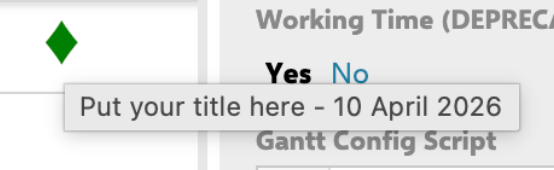
The result is a small diamond shape at the custom field date, overlaid on the task bar without altering the task’s start or end dates. This is useful for highlighting review dates, internal checkpoints, or delivery milestones.
By default, milestones inherit progress-based coloring. To apply custom colors to milestone diamonds, disable progress coloring in the Gantt Config Script with gantt.config.drag_progress = false; and use static coloring via the Item Script. See Configure Item Colors for details.

Alternative: Use Milestone Markers

For dates that are not tied to a specific work item (such as version releases or phase deadlines), consider using milestone markers instead. Markers appear as vertical lines spanning the entire timeline. See Create and Configure Markers for setup details.

Verification

You should now see milestone diamonds on the Gantt timeline for the configured work item types or script conditions. Hover over a milestone to verify the tooltip shows the correct name and date. If you used a custom date field, confirm the diamond appears at the expected date position.

See also

KB ArticlesSupport TicketsSource Code
  • prod-gantt-src/com.nextedy.polarion.gantt.client/cypress/e2e/milestones/milestone-tooltip-date.cy.ts
  • prod-gantt-src/com.nextedy.polarion.gantt.client/cypress/e2e/Rewritten Tests/testGanttEndMilestones.cy.ts
  • prod-gantt-src/com.nextedy.polarion.gantt/src/com/nextedy/polarion/gantt/model/Marker.java
  • prod-gantt-src/com.nextedy.polarion.gantt.client/src/js/default.json
  • prod-gantt-src/com.nextedy.polarion.gantt/src/com/nextedy/polarion/gantt/model/impl/types/PresentationMode.java