Prerequisites
- A dedicated calendar project with work item calendars already configured (see Set Up Work Item Calendars)
- Access to Administration > Configuration Properties in both the calendar project and each consuming project
1
Identify the Calendar Project Settings
In your calendar project, find the following values:
- Project ID: The Polarion project ID of the calendar project (visible in the URL or project settings)
- Global Calendar Work Item ID: The ID of the Calendar-type work item used as the global (company) calendar
2
Configure the Calendar Project
Add these properties in the calendar project under Administration > Configuration Properties:Replace
CalendarProject with the actual project ID and CAL-1 with the actual global calendar work item ID.3
Configure Each Consuming Project
In every project that should use the shared calendar, add the same properties under Administration > Configuration Properties: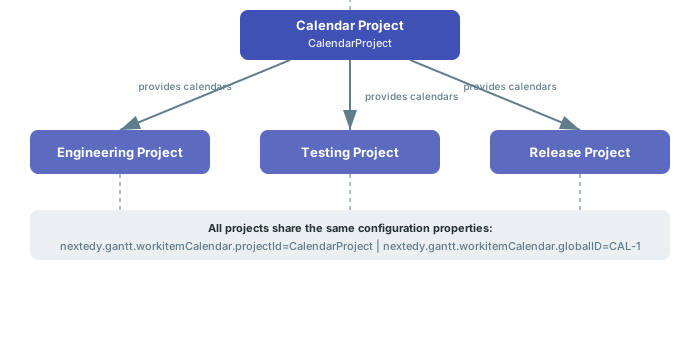
4
Enable Working Calendars in Each Widget
In each consuming project’s Gantt widget, navigate to the Working Calendars section in the widget parameters: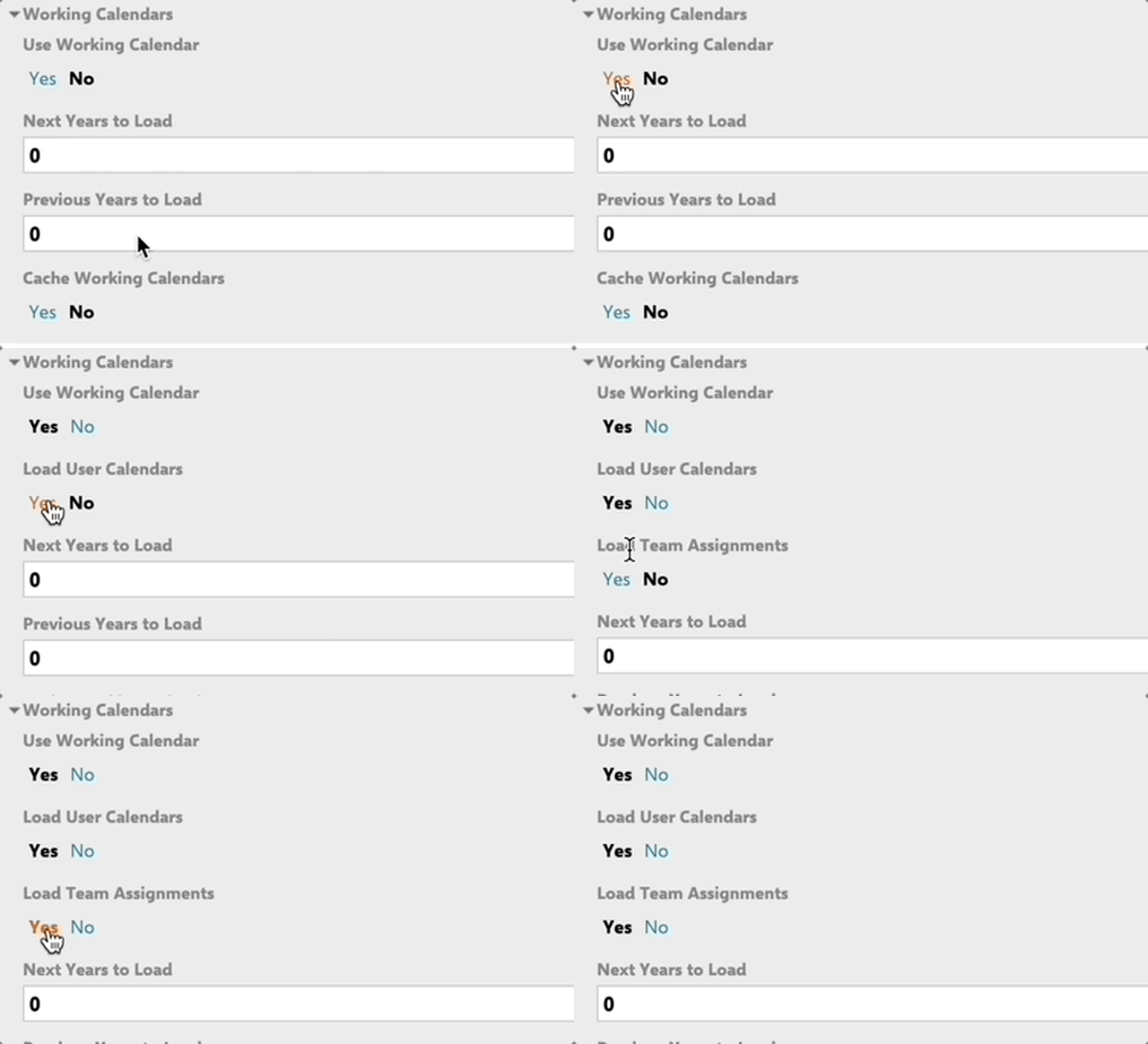
- Set Use Working Calendar to Yes
- Set Load User Calendars to Yes
- Optionally enable Load Team Assignments for team-scoped capacity
5
Enable Calendar Caching (Recommended)
Cross-project calendar resolution involves querying work items in another project, which can be slow on large installations. Enable caching to improve performance:
How Calendar Resolution Works
When the Gantt loads in a consuming project:- The Gantt reads
nextedy.gantt.workitemCalendar.projectIdto determine the source project - For each resource, it searches for a Calendar work item in the source project where the Assignee matches the user and the From/To date range contains today
- If a user calendar is found, it loads the regular working hours and all linked exceptions (Time Off, Time On, Tweak) via the affects link role
- If no user calendar is found, the global calendar (specified by
nextedy.gantt.workitemCalendar.globalID) is used as the fallback
Verify
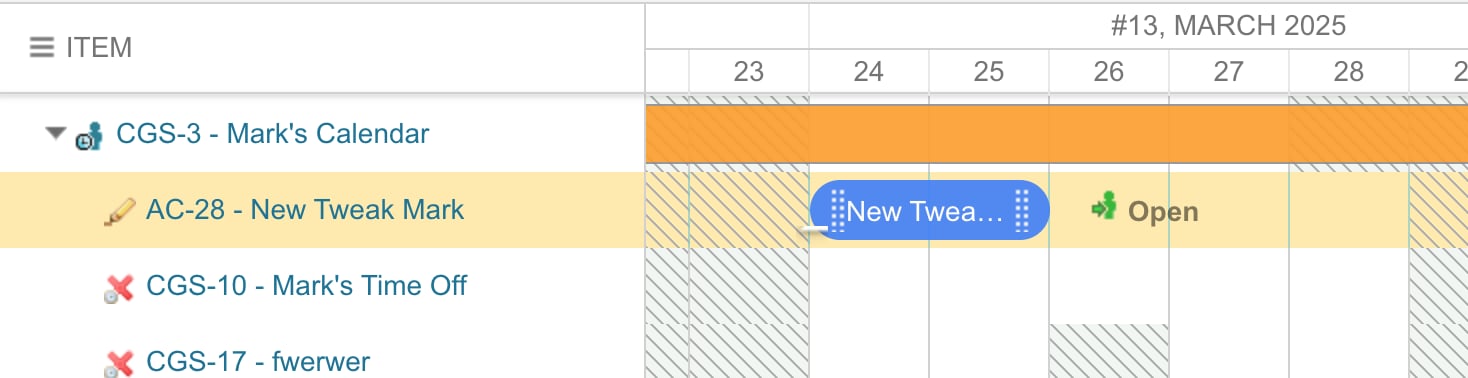
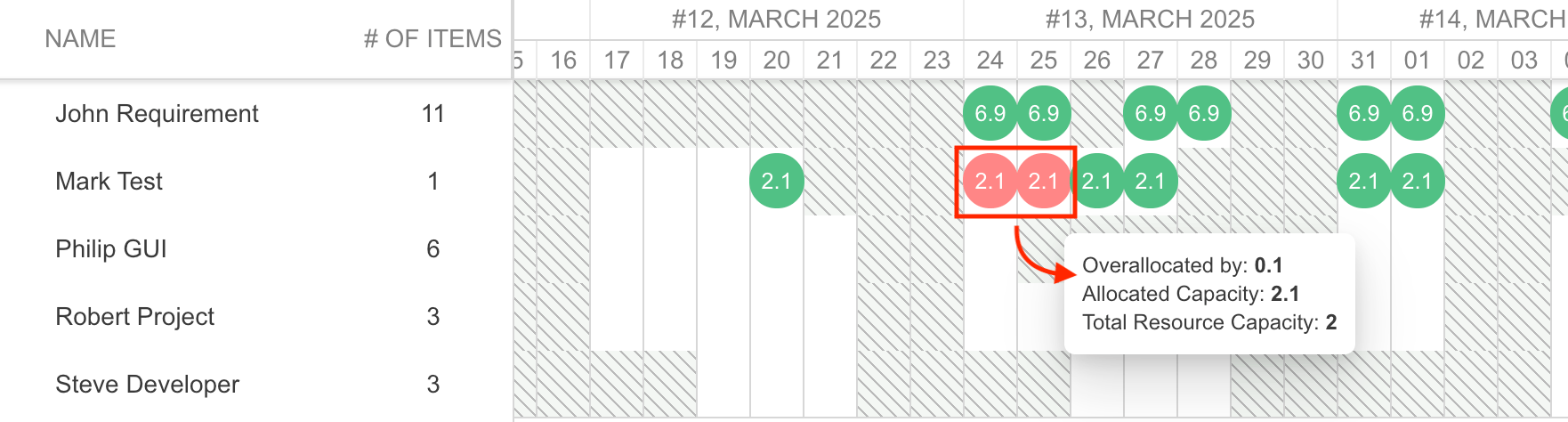
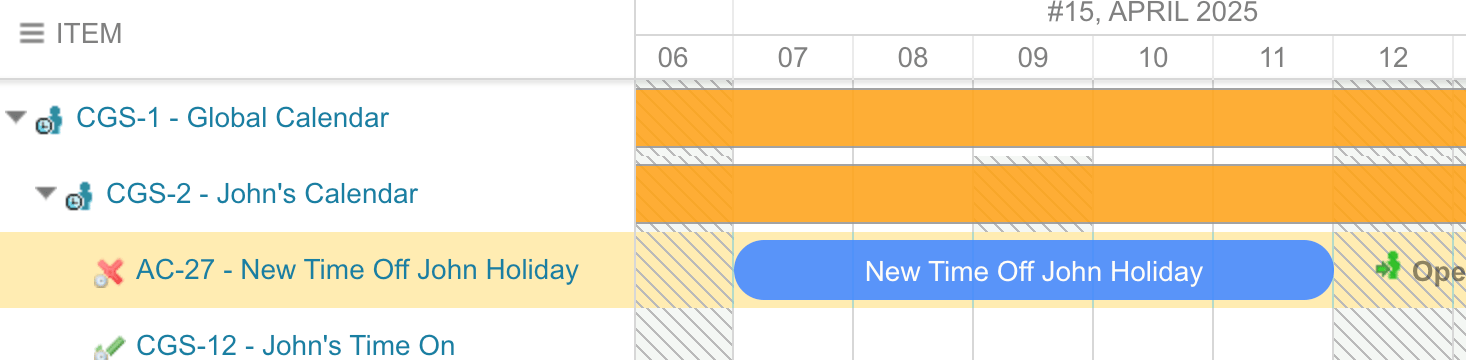
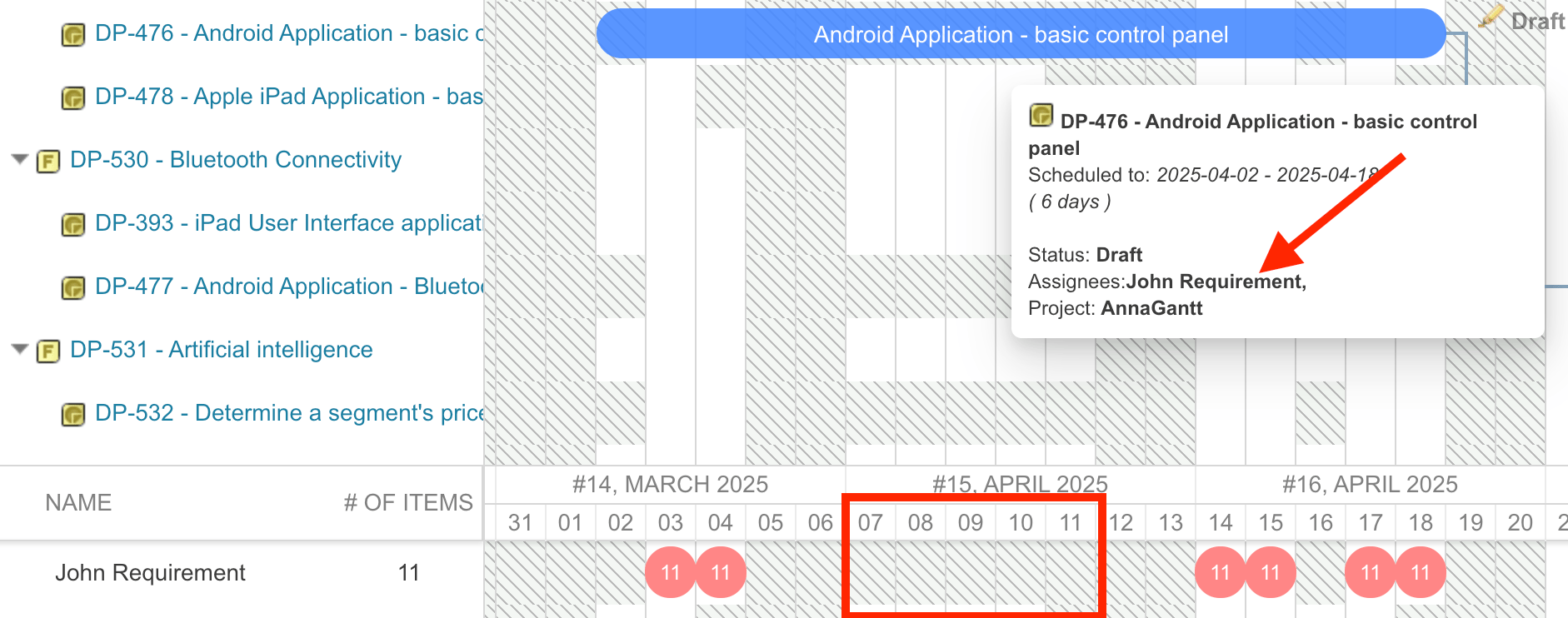
You should now see that time off and custom working hours defined in the central calendar project appear as grey markers and adjusted capacity values in the resource view of each consuming project’s Gantt chart. A Tweak in the central calendar — here “New Tweak Mark” on Mark’s Calendar, limiting his capacity for those days — is another exception that flows through to consuming projects: