

Prerequisites
- A Polarion project created from the Gantt Calendars template (or manually configured with the required work item types)
- Access to Administration > Configuration Properties on both the calendar project and consuming projects
1
Create the Calendar Project
- Download the Gantt package from the Gantt product page
- Locate
nextedy_gantt.zip/com.nextedy.polarion.gantt/template/WorkItemsCalendarTemplate.zip - Upload it as a Project Template via the Project Templates global administration page
- Create a new project based on the Gantt Calendars template
2
Enable Work Item Calendar Properties
Add the following properties under Administration > Configuration Properties in your calendar project:Replace
<PROJECTID> with the project ID of your calendar project and <WORKITEMID> with the ID of a Calendar-type work item to use as the global calendar.3
Create a Global (Company) Calendar
- In your calendar project, create a new work item of type Calendar
- Set the weekday fields using the format
HH:mm,HH:mm(for example,09:00,17:00for an 8-hour workday) - Set Saturday and Sunday to
-(explicitly non-working) - Leave the Assignee field empty for a global calendar
- Set the From and To date fields to define the calendar’s validity period
4
Create User-Specific Calendars
- Create a new Calendar work item for each user
- Link it to the global calendar using the inherits from link role so it inherits the base schedule
- Set the Assignee field to the target Polarion user
- Override only the weekday fields that differ from the global calendar (leave others empty to inherit)
5
Add Exceptions
Link exception work items to the appropriate calendar using the affects link role: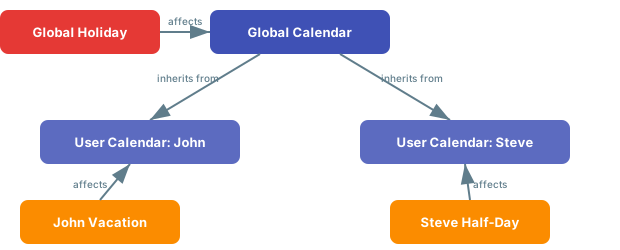
- Time Off: Create for vacations or holidays. Link to the global calendar for company-wide holidays, or to a user calendar for individual time off.
- Time On: Override a Time Off period for a specific user who must work during a global holiday.
- Tweak: Adjust hours for a date range. Set both
workstartandworkendfields to define the modified work window.
6
Enable in the Gantt Widget
Open the Gantt widget parameters and navigate to the Working Calendars section:
- Set Use Working Calendar to Yes
- Set Load User Calendars to Yes
- Optionally enable Load Team Assignments for team-scoped capacity