Run a configured AI action against the row you are working on in Nextedy POWERSHEET, review the work items it proposes, and apply the ones you accept as links you can undo before saving.
The AI Assistant proposes Polarion work items for the row you are on and links the ones you accept into the sheet. It is the assisted counterpart of creating a link by hand: instead of searching the picker yourself, you run an action your administrator has configured, review a shortlist, and apply what fits.
An action runs against the row currently selected in the sheet, and reads the fields your administrator configured as its context. Select that row first, so the proposals are ranked against the right item.
2
Open the assistant
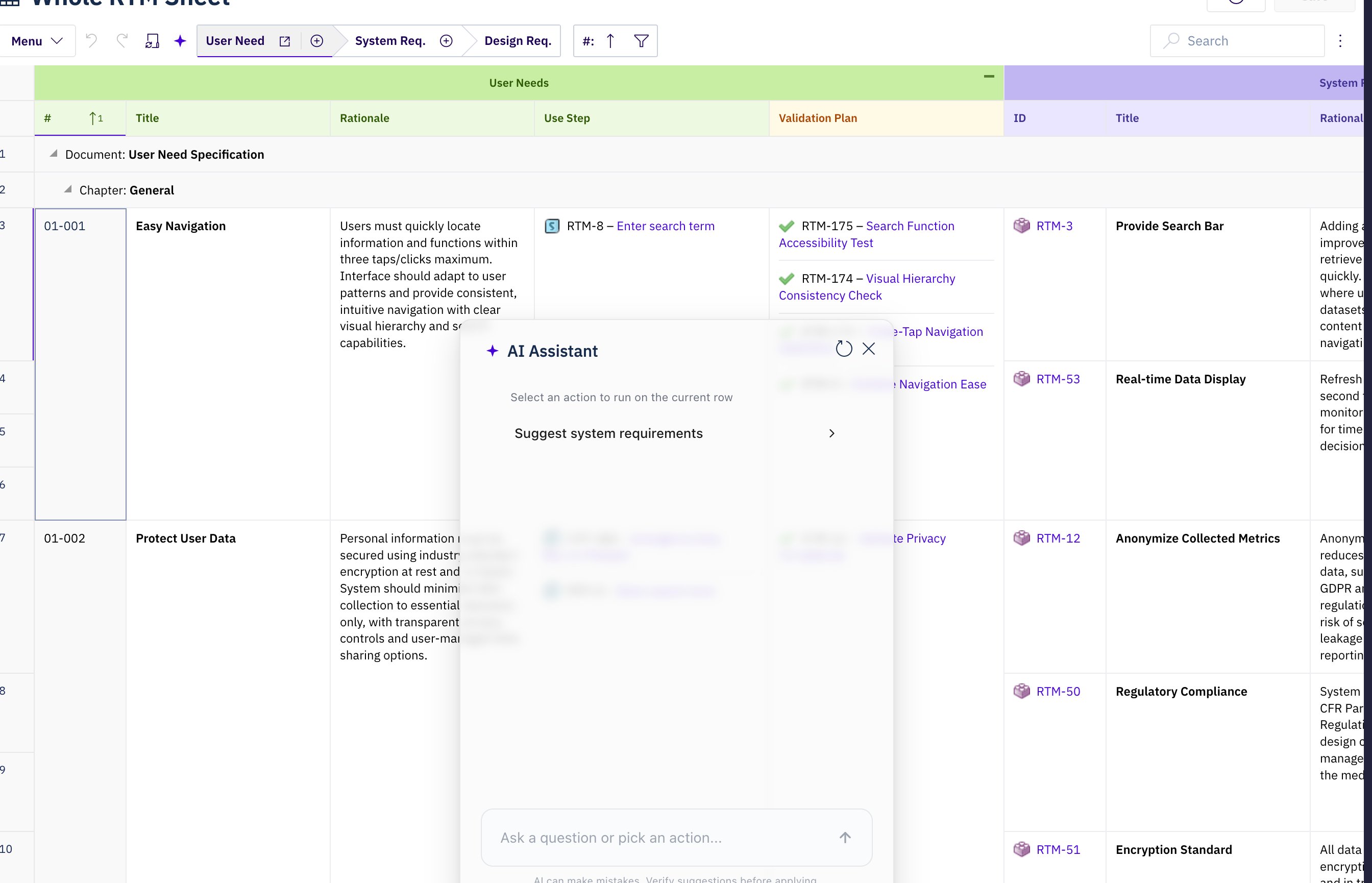
Select the sparkle AI Assistant button in the sheet toolbar, or choose AI Assistant from the toolbar menu. A floating AI Assistant window opens at the bottom centre of the sheet. Drag it by its title bar to move it out of the way of the rows you are working on.
The AI Assistant window over a powersheet document, opened from the sparkle button in the sheet toolbar.
3
Pick an action
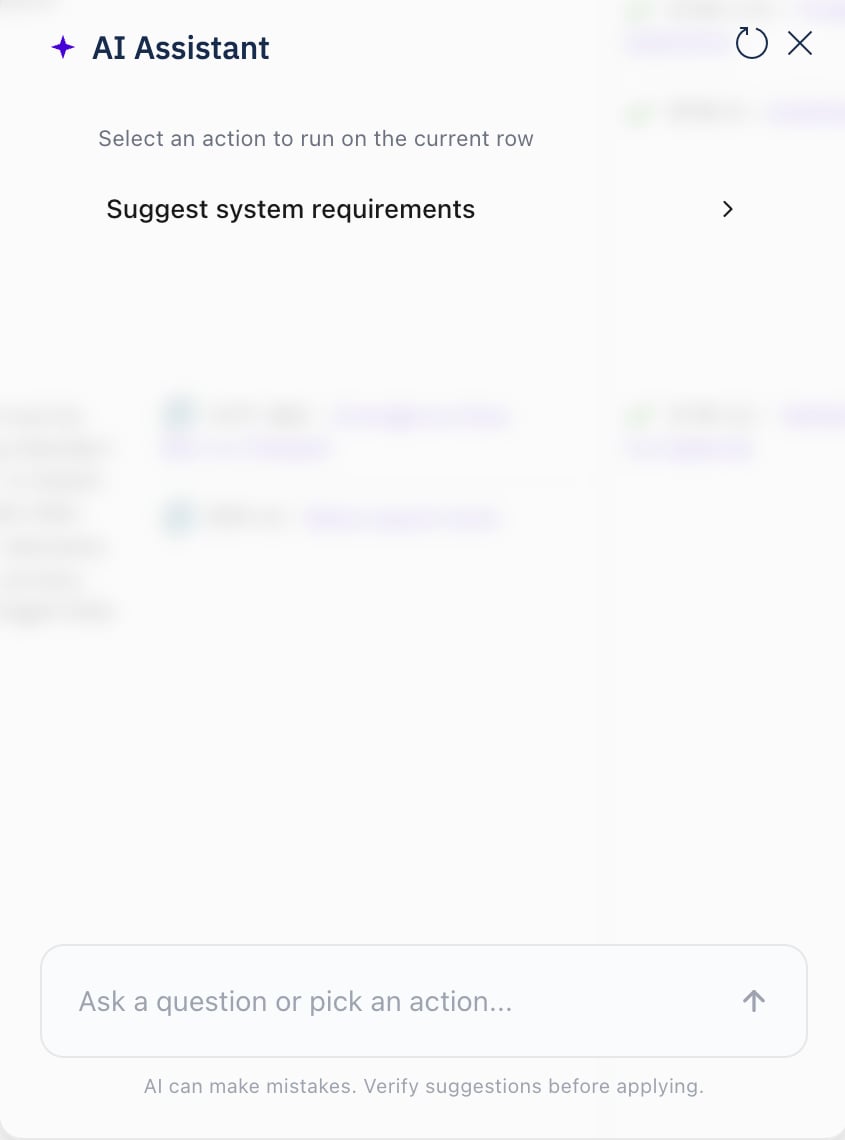
With an empty conversation the window lists the actions configured for this sheet. Select the one that matches what you want filled — for example an action that proposes system requirements for a user need. Each action carries its own search, ranking instructions and target column.
The empty conversation lists the actions configured for the sheet. Selecting one runs it against the row currently selected.
4
Review the proposals
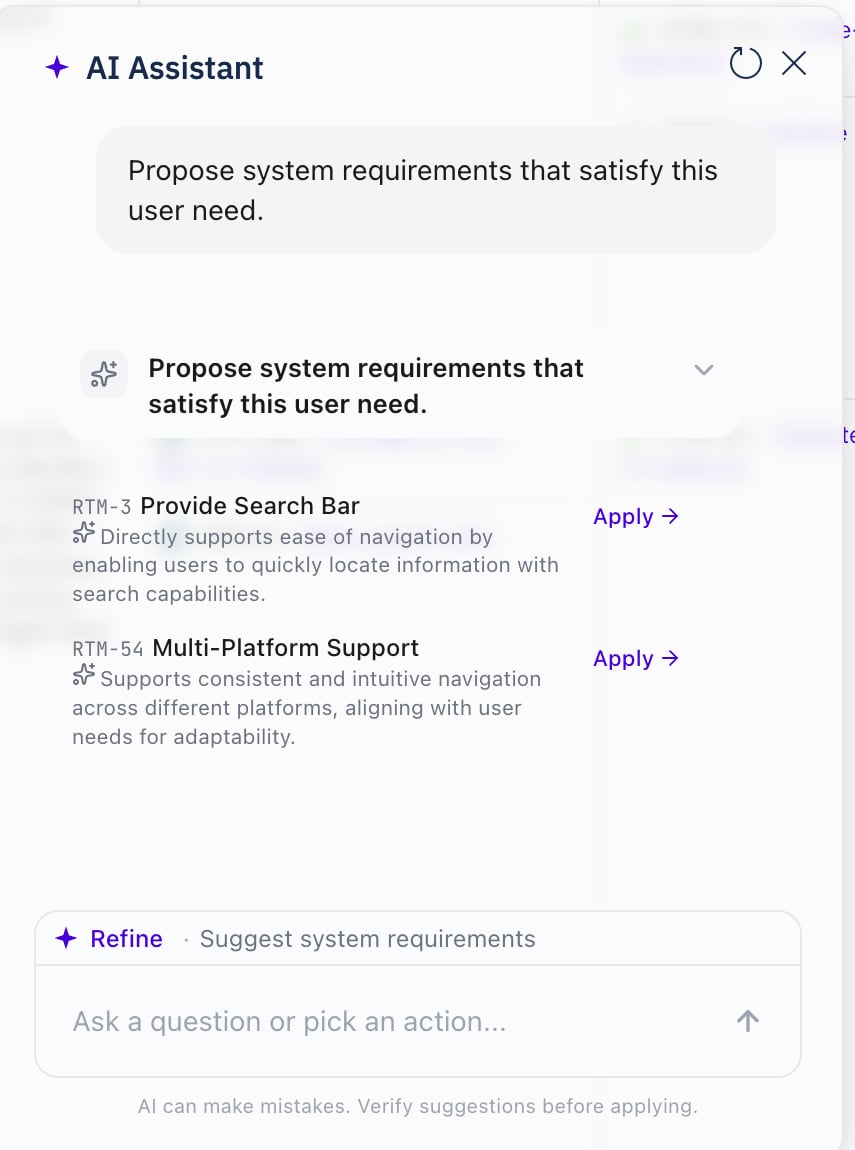
The assistant searches Polarion, ranks the candidates against your row, and shows a shortlist. Each entry carries the work item’s id and title and, beneath them, the model’s justification — one sentence saying why this candidate fits the row you are on. Everything it offers has already been checked against the target column’s own allowed values, so anything you could not have picked by hand has been dropped before you see it.Read the justification and open the work item before you accept it: it explains the ranking, it is not evidence that the item is right.
A completed action: two ranked recommendations, each with its work item id, title and justification, and an Apply link.
If every candidate was filtered out, the assistant reports “No suggestions match this column’s allowed values.” — that is a signal about the column’s filter or the action’s search, not an empty result you should retry blindly.
5
Apply what you accept
Apply a recommendation to write it into the sheet. On a many-to-many or one-to-many column that adds a row and links it; on a scalar reference column it sets the reference on the current row.Nothing reaches Polarion yet — the change sits in the sheet’s change buffer like any other edit until you Save.
As soon as an action has been run, a Refine bar appears above the message box, naming the action it will re-run. Use it when the shortlist is close but not right: it re-runs that same action with fresh sheet data and the conversation so far, so you can say what was wrong rather than picking the action again from scratch. It is disabled while a response is still streaming.You can also type into the message box directly — its placeholder reads “Ask a question or pick an action…”.
Your conversation follows the documentThe conversation is kept per project and per document. Moving to another document gives you a fresh thread, and coming back brings the previous one with it. Use New conversation in the window’s title bar when you want to start clean — for example after switching to a different part of the sheet.Only the most recent part of a long thread is carried into a refine, so a conversation that has wandered a long way is worth resetting rather than refining.
An applied recommendation is an ordinary sheet edit and is reversible before you save:
What you applied
Undo entry
A link on a many-to-many or one-to-many column
Changed link
A reference on a scalar reference column
Set reference
Editing a link cell by hand is undoable through the same Changed link entry, so an assisted link and a manual one behave identically in the undo stack.
Verify before you saveThe assistant shows a standing reminder that “AI can make mistakes. Verify suggestions before applying.” Applying a recommendation creates a real traceability link once you save, and in a regulated project that link is part of the audit trail. Open the proposed work item and check it before accepting.
The sparkle AI Assistant button is enabled in the sheet toolbar.
Selecting it opens the AI Assistant window, listing the configured actions.
Running an action against a selected row returns a shortlist of candidate work items.
Applying a recommendation adds the link or sets the reference, and Ctrl+Z reverses it.
Errors appear in the window, not as a dialogWhen a request fails — the service is unreachable, or your Polarion session has to be re-established — the assistant shows the failure as an error strip inside the conversation rather than interrupting the sheet. Reload the document and sign in again if the message points at your session.