This is the standard, dedicated template mechanism, driven entirely by configuration properties.

1. Open Configuration Properties

Go to Project Administration > Configuration Properties.

2. Add a template property for your checklist

Pick the property form that matches your scope: Type-specific — a checklist ID on a specific work item type:
Here requirement is the work item type and chkApproved is the checklist ID. Type-agnostic — a checklist ID that applies to any work item type:
The work item type is omitted, so this template applies regardless of the work item’s type. Document template — a checklist ID on a document type:
Here documentSpecification is the LiveDoc type and documentReadyChecklist is the checklist ID. The value is a document path (Space/DocumentName), not a work item ID.
Templates are live, not a one-time copyAll changes to a checklist template are instantly promoted to every work item, document, test run, or plan referencing it. You don’t need to re-apply anything after editing the template — this makes checklist-only templates the preferred option for centrally managed checklists.

3. Reference a template from another project (optional)

To reuse a template stored in a different project, prefix the template ID with the project ID:
The same pattern works for document templates:

Option 2: Use a Polarion built-in work item template

You can also point a checklist at a Polarion built-in work item template, but this path has a known caveat — read the warning below before choosing it.

1. Create the template work item

Create a new work item, e.g. with title “TEMPLATE”.

2. Resolve it out of default views

Mark the template item resolved so it disappears from default views.

3. Reference it from the work item type enum

Refer to this item from the workitem-type-enum.
workitem-type-enum.xml admin table with the User Story row's Template column set to EL-218, referencing the template work item
Duplicated checklist items with Polarion built-in templatesWhen you use a Polarion built-in work item template, there is a known Polarion bug (not a Nextedy Checklist bug) where copying data from the template to a new item changes the checklist field’s format from Text to Richtext, which can produce duplicated checklist items. Nextedy has reported this to Siemens.Workaround:

  1. Open the workflow configuration for your work item type.
  2. Select the init action.
Workflow actions table for a work item type, with the Rework action's Initial checkbox selected
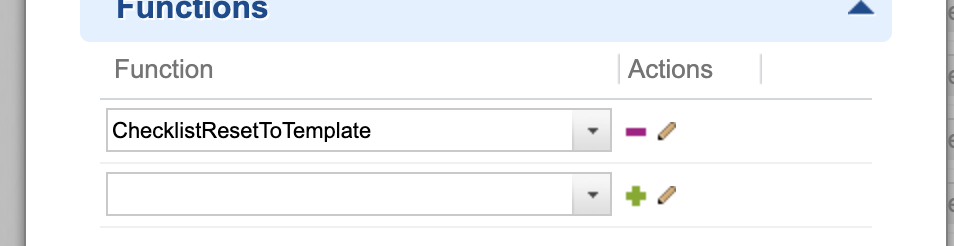
  1. Add a function: ChecklistResetToTemplate.
Workflow action Functions panel with ChecklistResetToTemplate selected in the function dropdown
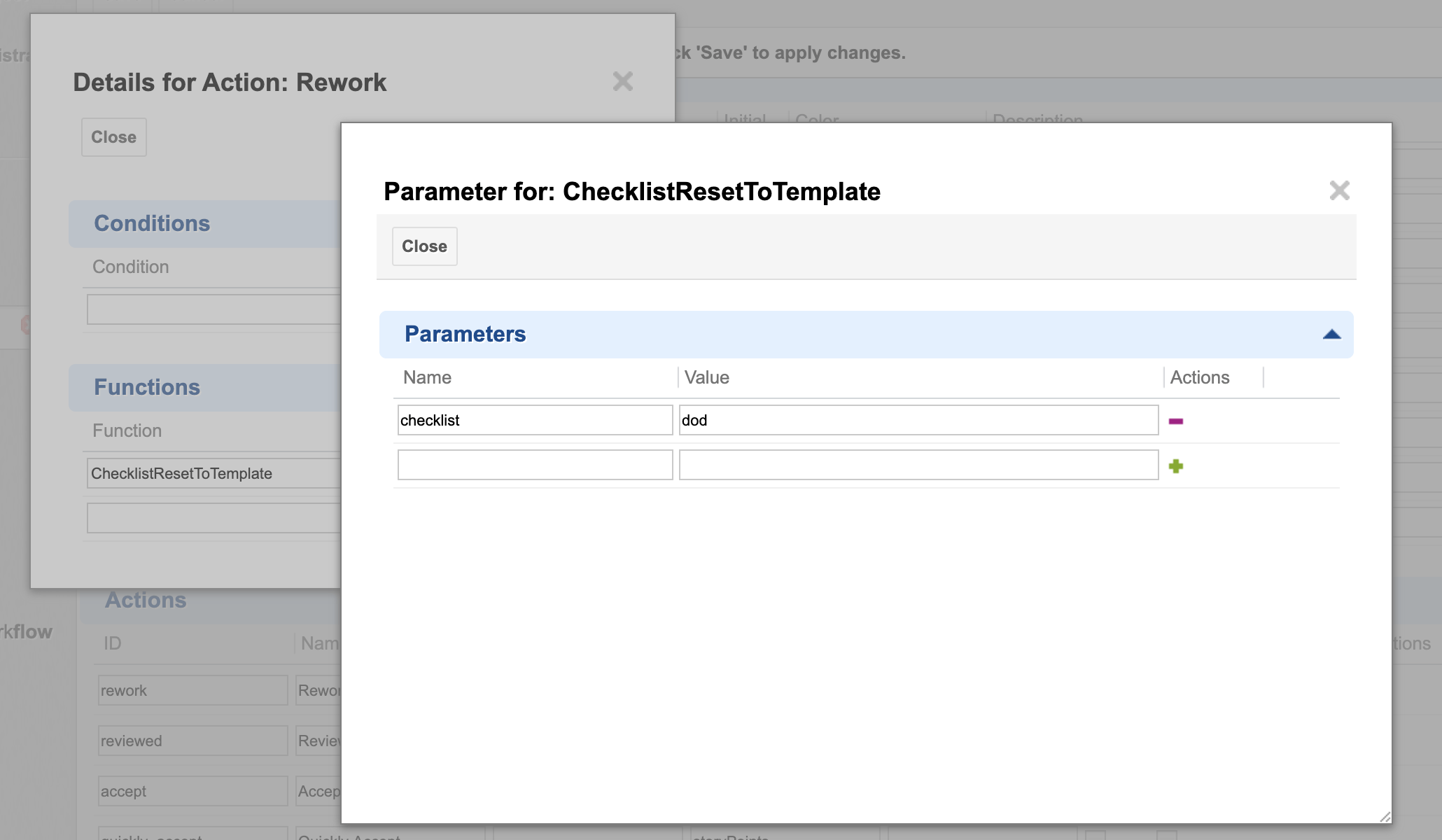
  1. Add a parameter checklist with the value set to the name of your checklist custom field.
Parameter dialog for the ChecklistResetToTemplate function with a checklist parameter set to the value dod
This resets the checklist immediately after the new item is created, which also fixes the field type. This workaround will no longer be necessary once the underlying Polarion bug is fixed.

How the checklist syntax works

A checklist template’s content is parsed from the referenced work item’s, document’s, test run’s, or plan’s field. Each line follows a defined syntax:
Checklist template resolution flow: a Configuration Property pointing to a template item, which is parsed and merged into the checklist rendered on the target

Common pitfalls

A template is not automatically shared across work item typesSupport has confirmed that checklist templates are configured per work item type — a checklist populated for one type (e.g. User Story) does not automatically carry over to another type (e.g. Epic) using the same checklist ID. Each work item type needing a checklist must have its own explicit workItemTemplateId (or controlField-based) reference configured, even if the template content itself is reused.
Reused document templates need per-project reconfigurationIf you copy a document template between projects, the checklist template / document-type mapping (the configuration properties above) is project-scoped and is not automatically carried over. You need to reconfigure the mapping in each target project.

Verification

  • Open a work item, document, test run, or plan whose type matches your configured workItemTemplateId / documentTemplateId property.
  • You should now see the checklist populated with the items defined in your template work item or template document, including any mandatory markers, descriptions, and notes carried from the template.

See also

KB Articles
  • How to create checklist template?
  • Multiple templates per one work item/document type
  • How to reset Checklist to the Template on WI type change
Support TicketsSource Code
  • proc-checklist-src/com.nextedy.polarion.checklist/src/com/nextedy/polarion/checklist/internal/ChecklistSetupService.java
  • proc-checklist-src/com.nextedy.polarion.checklist/src/com/nextedy/polarion/checklist/internal/ChecklistAdminService.java
  • proc-checklist-src/com.nextedy.polarion.checklist/src/com/nextedy/polarion/checklist/ChecklistProduct.java
  • proc-checklist-src/com.nextedy.polarion.checklist/src/com/nextedy/polarion/checklist/internal/ChecklistService.java
  • proc-checklist-src/com.nextedy.polarion.checklist/src/com/nextedy/polarion/checklist/wf/ChecklistResetToTemplate.java
Last modified on August 31, 2026