

To set up a checklist on a work item instead, see Set Up a Work Item Checklist.
1. Create the custom field
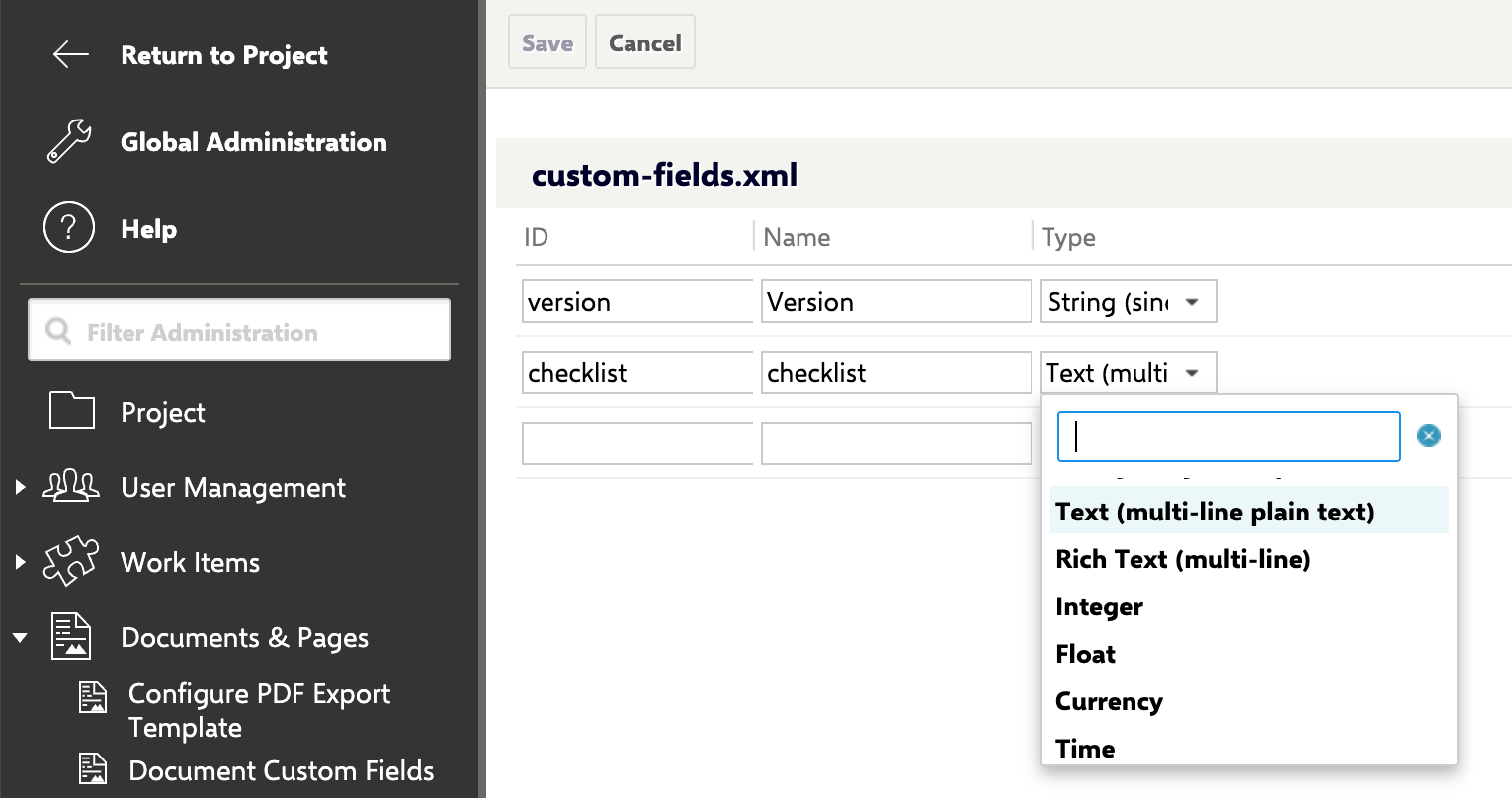
Create a new document custom field of type Text (multi-line plain text). This field holds the checklist content; you’ll reference its ID (for exampledod) in the wiki block below.
2. Add a panel to your LiveDoc
- Open your live document.
- Navigate to the place in the document where you want the checklist to appear.
- Insert a Wiki Block.
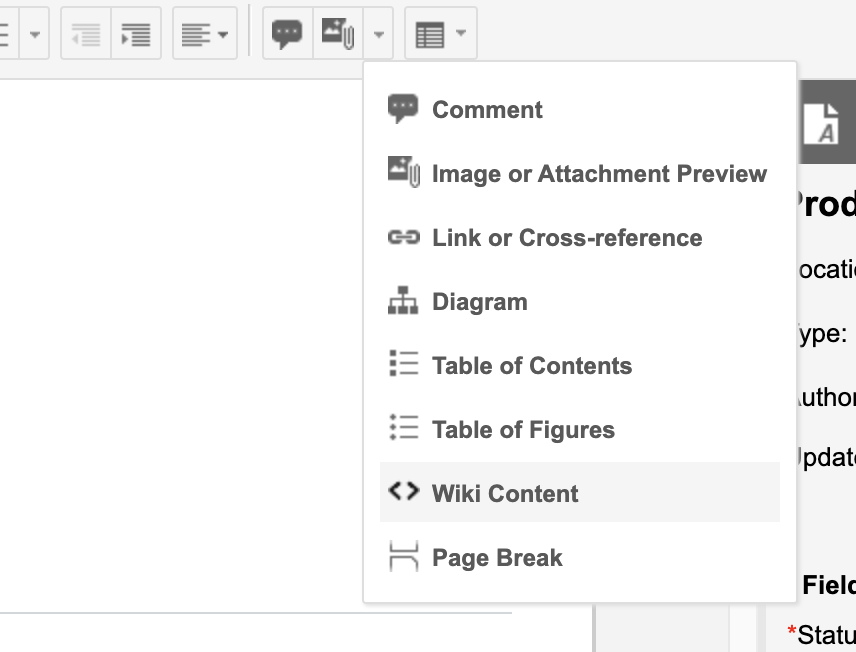
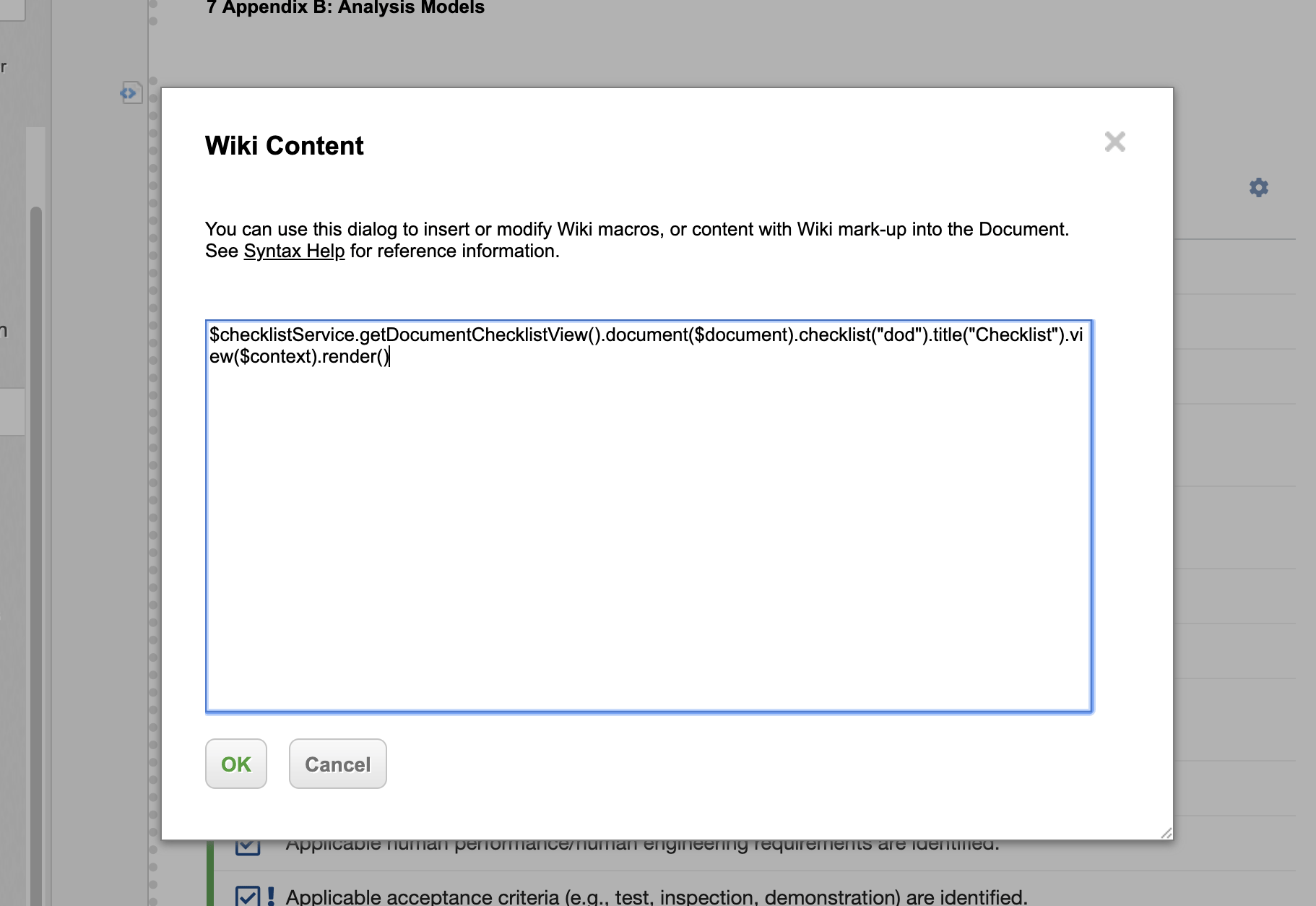
- Put the following content into it:
"dod"is the ID of your document checklist custom field from step 1..title("Checklist")is optional — omit it if you don’t want a title added above the checklist.- You can also chain
.hideInPdf()before.render()if you don’t want the checklist to appear in PDF exports.
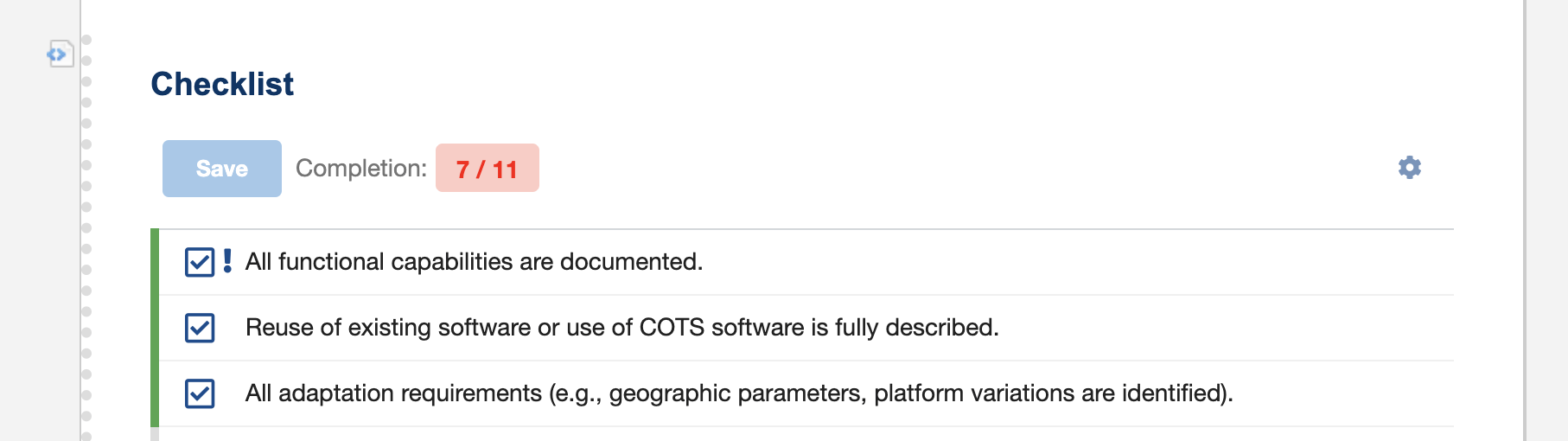
- Save the document. You should see the checklist panel rendered in place of the wiki block.

3. (Optional) Define a checklist template
To centrally manage the checklist content on a document type — so edits to the template propagate to every LiveDoc using it — configure a document template ID:documentSpecification is the LiveDoc type and documentReadyChecklist is the checklist ID. See Create a Checklist Template for the full property reference, including how to point at a template stored in another project.
LivePages are also supportedThe checklist rendering methods described here (
getDocumentChecklistView()) work on both Documents (LiveDocs) and LivePages (Info Pages). Embedding a checklist in a LivePage via a Script Block — e.g. $checklistService.getDocumentChecklistView().workitem($wi).checklist("dor").view($context).render() — renders an interactive checklist, and check/uncheck works and persists there just as it does on a LiveDoc.How data is saved
When a user checks or unchecks an item in the rendered panel, the browser posts the checklist ID, the target document, and the checklist data back to the server, which writes the change to the document’s custom field inside a transaction. If the save fails, the server returns an error and logs the request parameters — useful information if you need to contact support about a document checklist that won’t save.Verification
You should now see the checklist panel rendered inside your LiveDoc wherever you placed the wiki block, with items you can check and uncheck. If you added.title("Checklist"), confirm the title appears above the panel. Save the document and reopen it to confirm your checked items persist.