

- Who can mark items as checked (or set any other result state)?
- Who can define the checklist structure — add, remove, or edit items?
Control who can check items
Marking items as checked is just modifying the underlying custom field, so it is controlled by standard Polarion permissions rather than a Checklist-specific property:- Administration > Work Items > Readonly Fields — mark the checklist custom field as read-only for everyone (or for specific conditions supported by that screen).
- Administration > User Management > Permissions Management — use field-based permissions to control who can write to the checklist custom field.
Control who can define the checklist structure
Adding, removing, or editing items is a separate concern from checking them, and is typically tied to a workflow status — for example, allowing structure edits only while a work item is indraft, then locking the definition once it moves further along.
Configure this with the adminPermission configuration property:
Example: DoR / DoD checklists with different rules
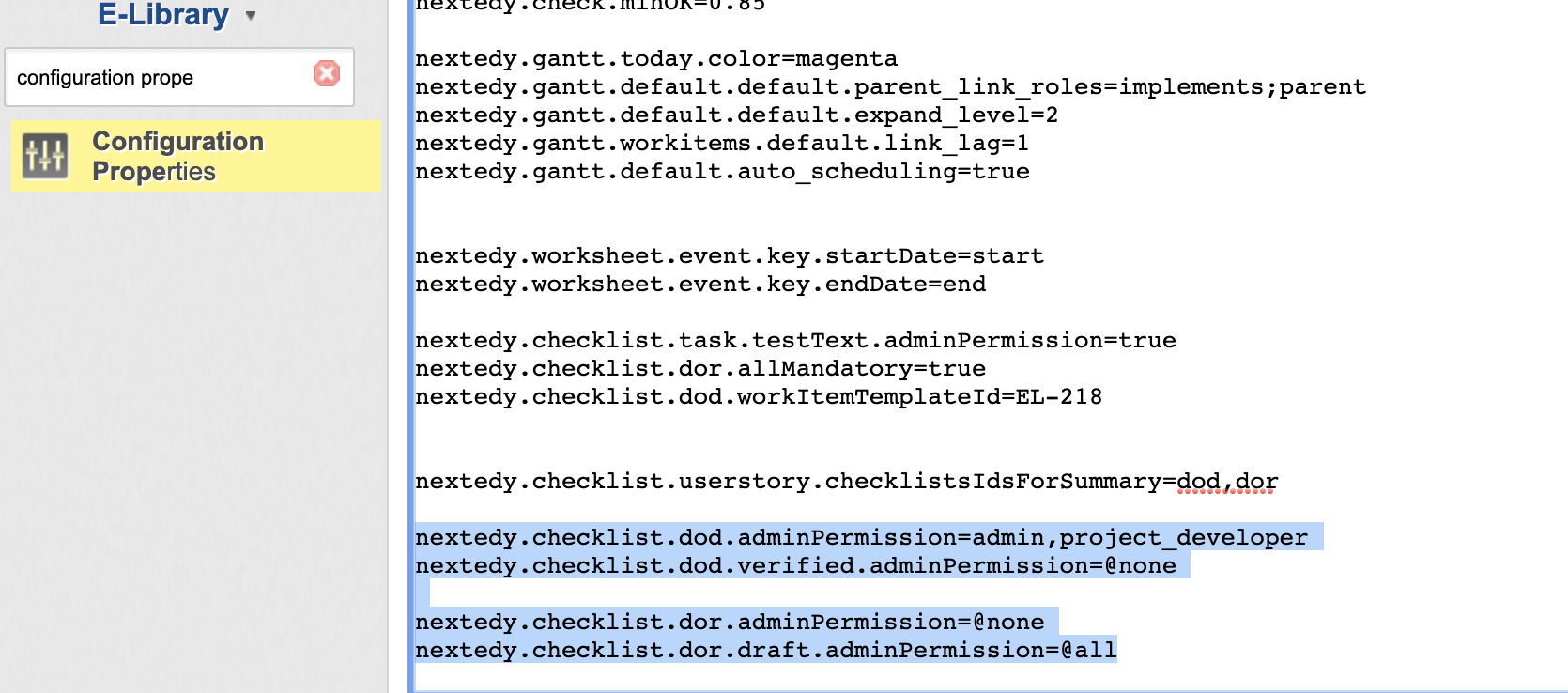
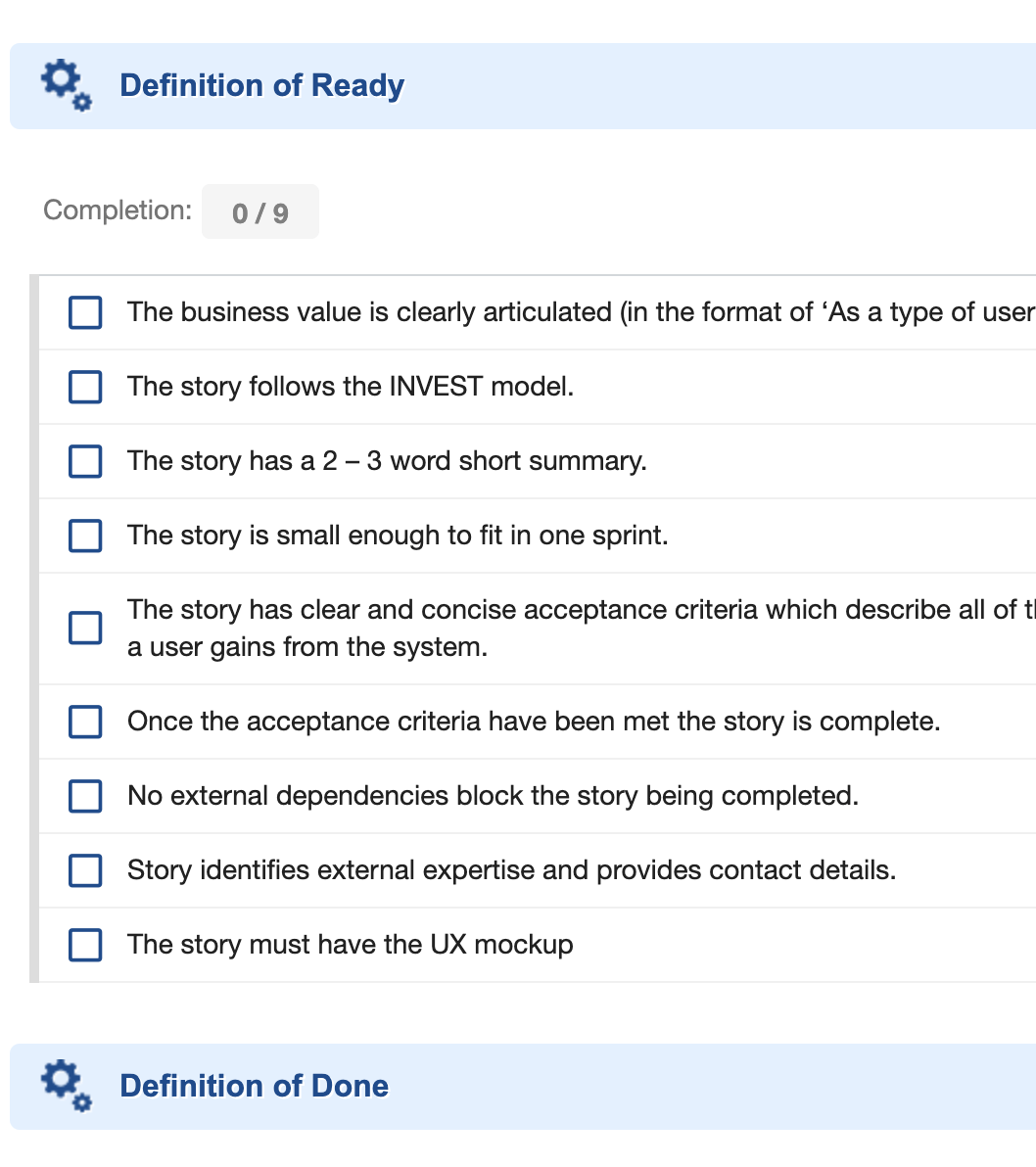
userstory leaves status draft, there is no UI control to add, delete, or edit items in the dor checklist — but users can still mark existing items as checked (that’s governed separately, see above).
Version 25.7.0 also locks the Clear actionStarting with version 25.7.0, regular users without admin permission on the applicable condition can no longer clear the checklist structure either — the Clear button is no longer available under the gear menu icon for them.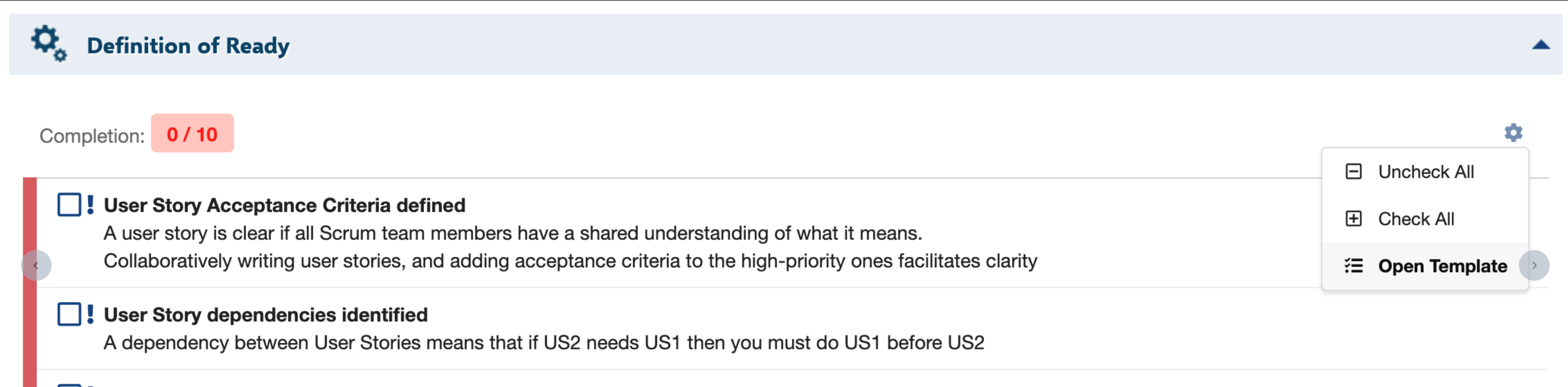
How the system picks which property applies
adminPermission supports type, field, and status specificity at once. When resolving the effective value for a given type, checklist ID, and status, the system evaluates keys from most specific to least specific and uses the first one that is set:

userstory, checklist dod, status accepted:
nextedy.checklist.userstory.dod.accepted.adminPermissionnextedy.checklist.dod.accepted.adminPermissionnextedy.checklist.userstory.dod.adminPermissionnextedy.checklist.dod.adminPermissionnextedy.checklist.userstory.accepted.adminPermissionnextedy.checklist.accepted.adminPermissionnextedy.checklist.userstory.adminPermissionnextedy.checklist.adminPermission
Freeze structure changes as part of a workflow gate
CombiningadminPermission with a specific _STATUS segment is the standard way to freeze a checklist’s definition once a work item passes a review gate — for example, Configure Gate Enforcement (DoD / DoR) and Freeze on Status shows how to pair this with mergeTemplate/mergeTemplateResolved so the checklist both stops re-syncing to its template and stops accepting manual structure edits at the same time.
Known limitation: no per-item audit trail
Verification
You should now see:- Users without the configured role (or when
adminPermission=@noneapplies) unable to add, remove, or reorder checklist items, while still able to check existing items (unless the field itself is also read-only). - The Clear action absent from the gear menu for non-admin users on version 25.7.0 and later.