

Default Icons
By default, Checklist uses a built-in icon set for the three primary result states: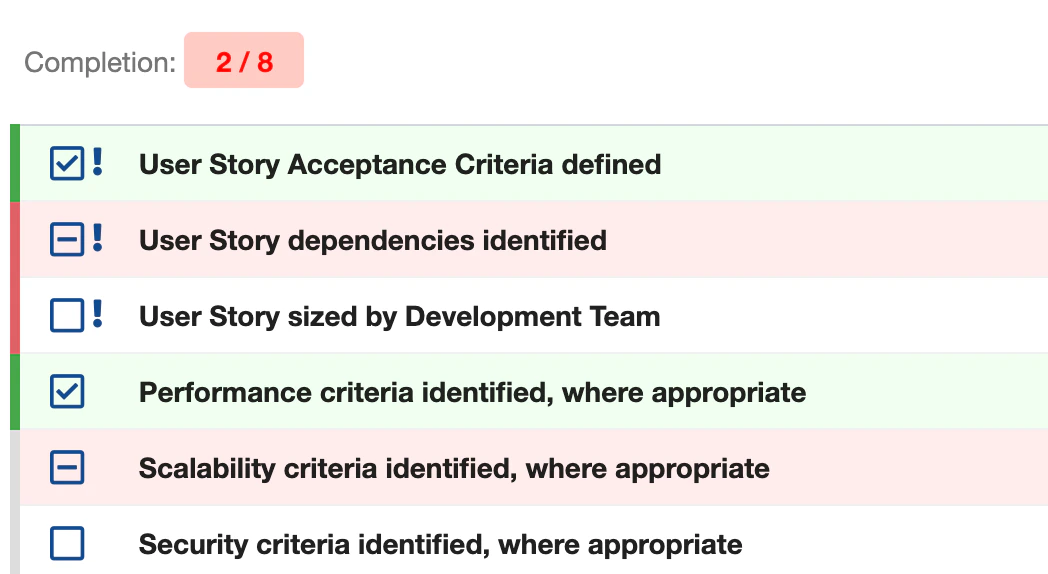
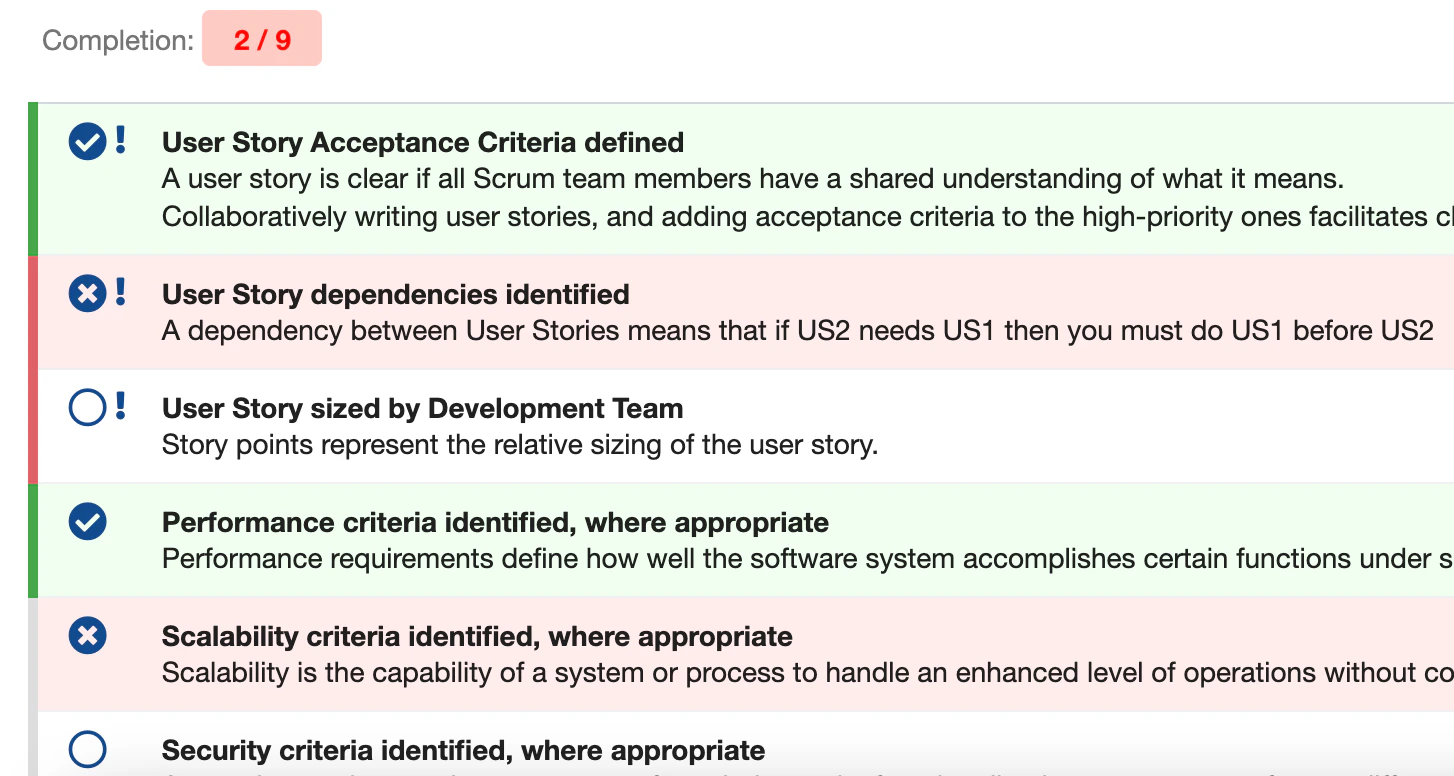
1
Choose Your Icons
Browse the Font Awesome v5.15 free icon gallery to find icons that suit your use case:Font Awesome v5.15 Free IconsClick on an icon to open its detail page and note the CSS class names: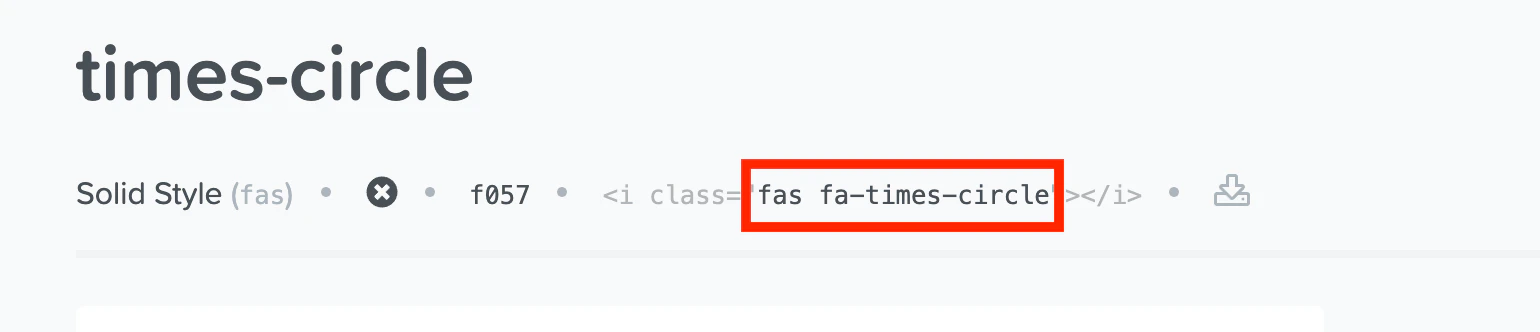
fas— solid style (filled icons)far— regular style (outline icons)fab— brand icons
fa-check-circle.2
Configure Icon Properties
Open Polarion Administration > Configuration Properties and add the following properties:Each property maps to a result state:
3
Apply and Test
After saving the configuration properties:
- Open a work item with a checklist
- The icons update immediately for all checklist items
- Click through the result states to verify each icon displays correctly
Understanding Icon Classes
Font Awesome icons use a two-part class syntax: a style prefix followed by the icon name.
fas prefix produces filled (solid) icons, while far produces outline (regular) icons. Most checklist configurations use fas for checked and rejected states (bold, highly visible) and far for the empty state (subtle, outline only).
Common Icon Combinations
Here are some popular icon configurations for different team preferences: Circle-based (check/cross/empty):Icon Size Considerations
Icons in PDF Export
When a checklist is exported to PDF, Checklist converts the interactive UI to a static HTML table. Custom icons are rendered as their Font Awesome equivalents in the PDF output.Verify that your chosen icons render correctly in PDF exports. Some Font Awesome icons may not display identically in all PDF rendering environments.
Reverting to Default Icons
To revert to the default icon set, remove the three configuration properties:- Open Polarion Administration > Configuration Properties
- Delete
nextedy.checklist.checked_sign - Delete
nextedy.checklist.unchecked_sign - Delete
nextedy.checklist.no_sign - Refresh the work item page
Verification
After configuring custom icons:- Open a work item with a checklist
- You should now see the custom icons for each result state instead of the defaults
- Click an item to cycle through OK, NOK, and Empty states
- Verify all three custom icons appear correctly
- Open a second work item to confirm the icons apply globally
See Also
- Assigning Notes to Items — add contextual notes to checklist items
- Creating and Managing Templates — define checklist items with mandatory flags
- Troubleshooting — resolve icon rendering issues