

Before you start
This guide assumes you already have a checklist set up on a work item, document, test run, or plan. If you haven’t created one yet, see Set Up a Work Item Checklist or the relevant setup guide for your object type.Understanding notes vs. descriptions
A checklist item can carry two different kinds of supporting text, and Checklist distinguishes them visually:Verify in applicationBeyond the
/ and > markers used in the underlying stored text, the exact visual styling of description vs. note text in the rendered checklist form extension is not confirmed — confirm the on-screen appearance in your Polarion instance.Add a note to a checklist item
- Open the object that carries the checklist (work item, document, test run, or plan) in edit mode.
- Locate the checklist item you want to annotate in the checklist form extension.
- Use the item’s note field to enter your free-text remark.
- Save the object. The note is persisted as part of the checklist text stored in the underlying custom field, alongside the item’s result state.
Notes and mandatory items
A note does not change whether an item counts as checked. An item’s completion is driven solely by its result state (Empty, OK, NOK, Pending) — adding a note to a mandatory item does not itself satisfy the mandatory-item gate. Set the item’s result explicitly in addition to any note you add.

Using Information-type items for static context
If you want to show explanatory context in the checklist without it affecting completion statistics, use an Information-type item. Items with anInformation result are excluded from all active-item counts (checked count, mandatory-checked evaluation, all-checked evaluation) — they render in the list but never factor into progress or gating.
Custom icons
Verify in applicationA dedicated, user-configurable “custom icon per item” feature — beyond the standard result-state icons (
Empty, OK, NOK, Pending) shown by the checklist form extension — is not confirmed. If your use case requires distinct iconography per item beyond result state, verify current support for this directly in the application before relying on it, and treat any icon customization here as unconfirmed pending that check.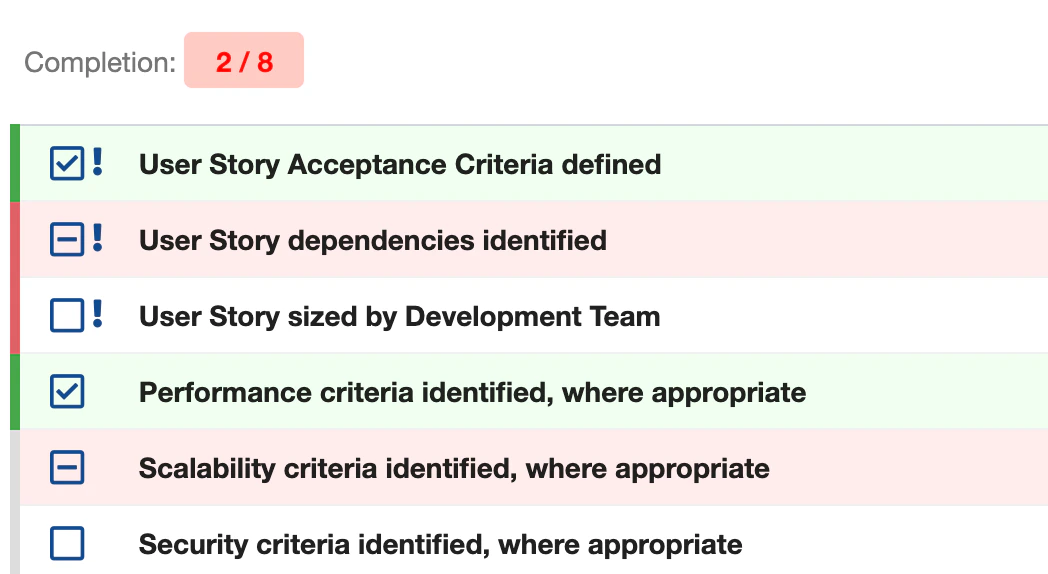
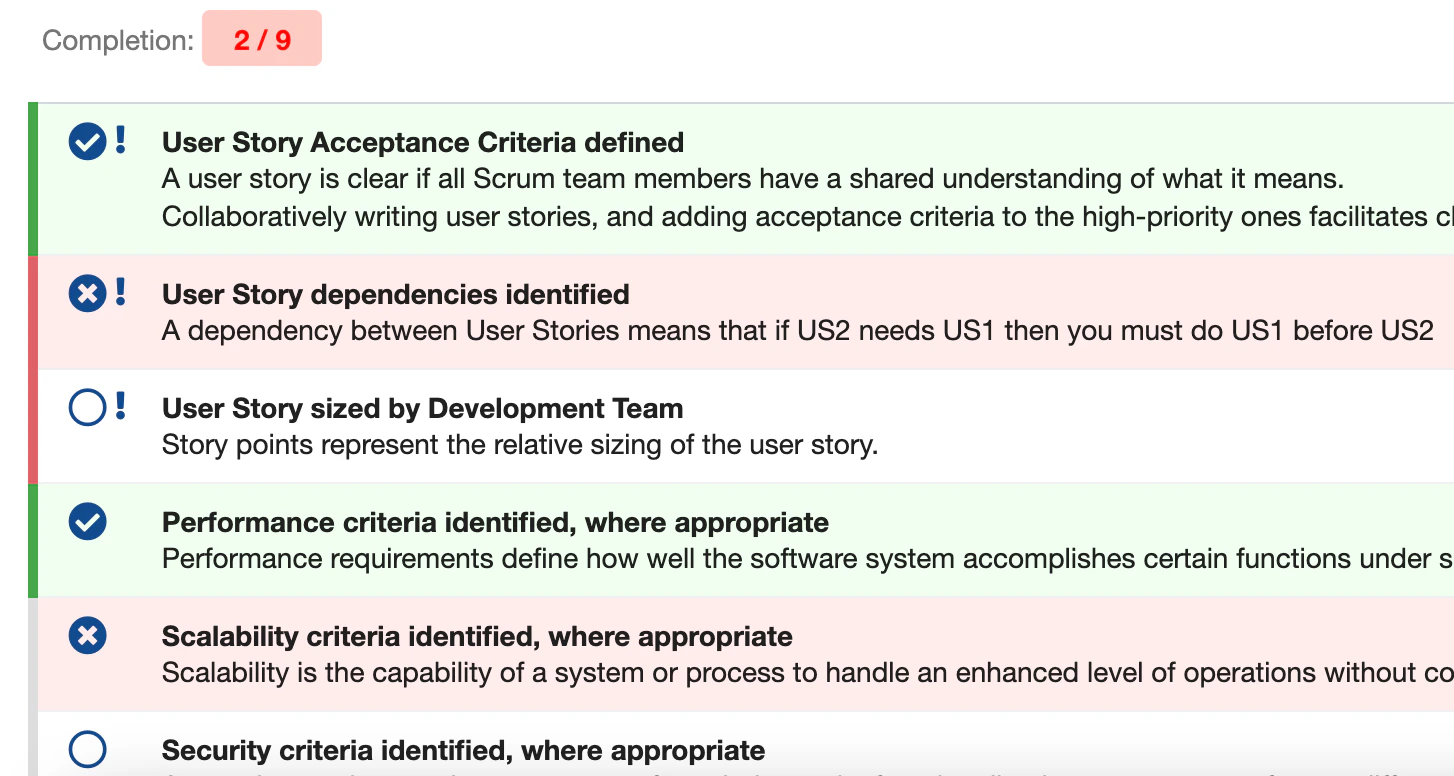
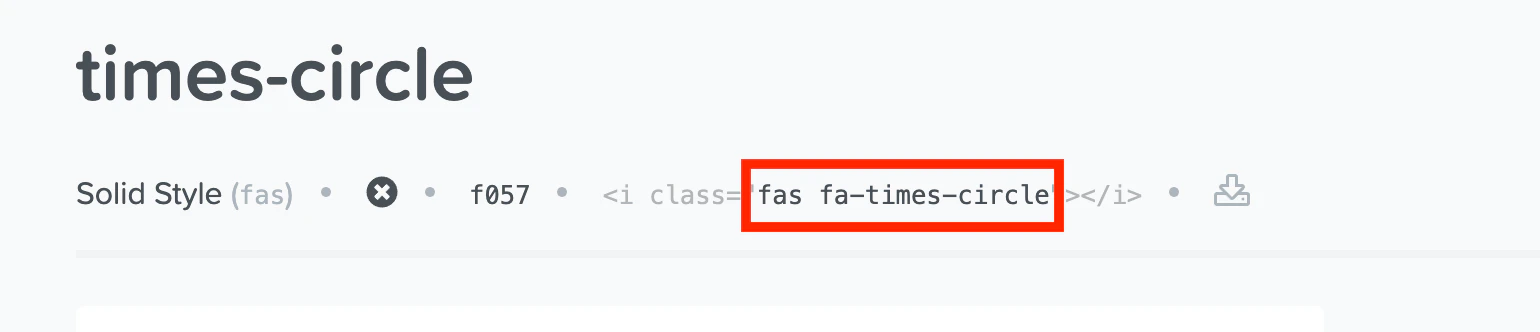
Verify in applicationThe class name is then expected to be pasted into a Polarion Administration Configuration Properties entry, but the exact property key and full configuration steps are not confirmed — verify the precise configuration property in your Polarion instance before relying on this.
Common pitfalls
Verification
You should now see your entered text rendered as a note line under the relevant checklist item (marked internally with a leading>), separate from any template-authored description text (marked with a leading /), and the note should persist after saving and reopening the object.