

When to Freeze
Freezing is useful when you want the checklist to reflect exactly what was verified at a point in time. For example, once a work item is marked as “Approved”, the checklist should not change even if the underlying template is updated.1
Disable Merge at a Specific Status
Open Polarion Administration > Configuration Properties and add a property using this pattern:Replace the placeholders:This tells Checklist to stop merging template items into the
_TYPEID— work item type ID (for example,requirement) or omit for all types_FIELDID— checklist custom field ID (for example,dod)_STATUS— workflow status ID where merging stops (for example,reviewed)
dod field when the work item has the reviewed status. The checklist displays only the data stored so far.2
Disable Merge After Resolution
Alternatively, freeze the checklist when a work item receives any resolution (for example, “Done”, “Won’t Fix”, “Duplicate”):Example:
3
Ensure the Checklist Is Initialized Before Freezing
A frozen checklist shows only the data that was stored at the time of freezing. If the template was never applied, the checklist may appear empty.To ensure the template is applied before the freeze takes effect, add the 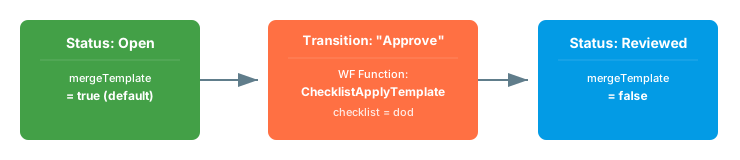
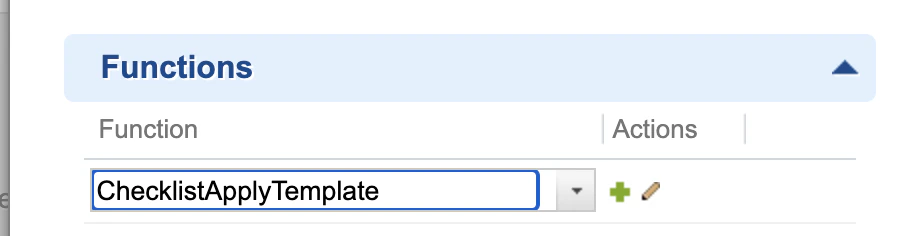
ChecklistApplyTemplate workflow function to the transition that moves the work item into the frozen status.- Open the workflow editor for the relevant work item type
- Select the transition that leads to the frozen status (for example, “Approve”)
- Add the workflow function
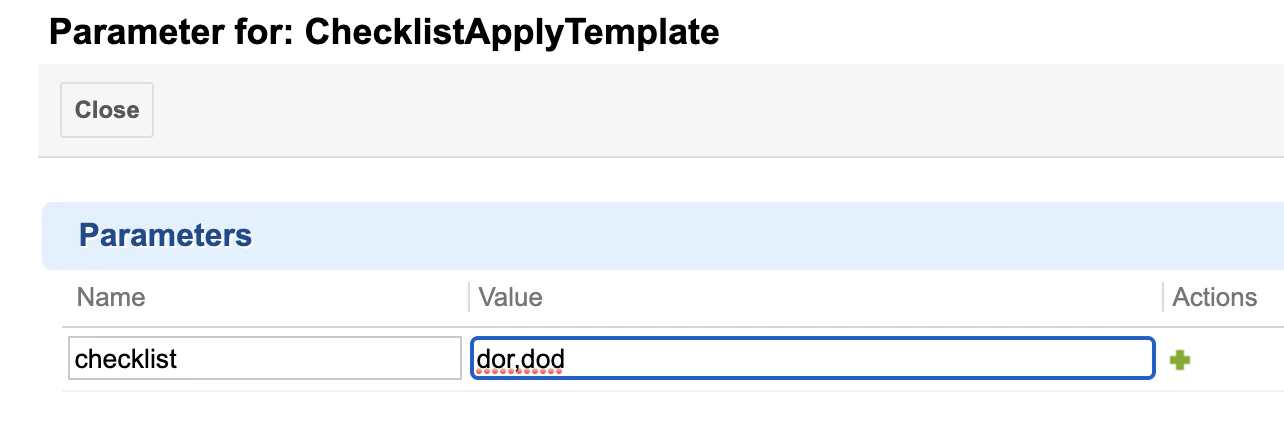
ChecklistApplyTemplate - Set the
checklistparameter to the field ID(s):
4
Make the Checklist Read-Only (Optional)
Freezing stops template merging, but users can still edit checklist items manually. To fully lock the checklist, combine freezing with read-only mode:
- Use Polarion’s built-in read-only field configuration to make the custom field non-editable at certain statuses
- Use Polarion’s field-based permissions to restrict write access by role
Type-Specific Freeze Configuration
You can freeze checklists for specific work item types while leaving others unfrozen:Multiple Checklists Freeze
If a work item has multiple checklist fields, configure each one independently:Freeze and Baselines
Freezing works well alongside baseline tracking. The typical compliance workflow is:- Apply template at a workflow gate to ensure completeness
- Freeze the checklist at the approval status to lock the template state
- Create a baseline to capture a permanent record of the checklist at that point
Verification
After configuring the freeze properties:- Open a work item that is in the frozen status (for example, “Reviewed”)
- You should now see the checklist displaying only the items that were present when the status was reached
- Modify the template work item by adding a new item
- Reopen the frozen work item — the new template item should not appear
- Move the work item back to an unfrozen status (for example, “Open”) — the template items should merge again
See Also
- Workflow Gates and Validation — enforce checklist completion before transitions
- Read-Only Mode — fully lock checklists from editing
- Baselines and Comparison — capture frozen checklist states for audit
- Creating and Managing Templates — template setup fundamentals