

Prerequisites
- Nextedy CHECKLIST version 25.1.0 or later
- Type-specific checklist templates already configured for each work item type
- Access to Polarion Administration > Configuration Properties
When You Need This
You have multiple work item types that share the same checklist custom field ID but use different templates. For example:testChecklist field, but each has its own template with type-appropriate checklist items. When someone changes a work item from one type to another, the checklist needs to reset to the new type’s template.
Configuring Automatic Reset on Type Change
Step 1: Verify Your Type-Specific Templates
Confirm that each work item type has its own template configured. Navigate to Administration > Configuration Properties and verify entries like:Step 2: Enable Type Change Monitoring
Add the following configuration property to specify which checklist field IDs should be monitored for type changes:Step 3: Save and Test
- Navigate to Administration > Configuration Properties.
- Add the
nextedy.checklist.checklistsIdsForTypeChangesproperty with the relevant field IDs. - Save the configuration.
How the Reset Works
The following diagram illustrates the automatic reset flow:
- The system compares the current type against the previously saved revision.
- If the type has changed, it checks whether any configured checklist fields contain data.
- For each monitored checklist field with data, the checklist is reset and the new type’s template is applied.
- The reset action is logged for audit purposes.
Example Walkthrough
Starting state: A User Story with thetestChecklist field containing completed checklist items.
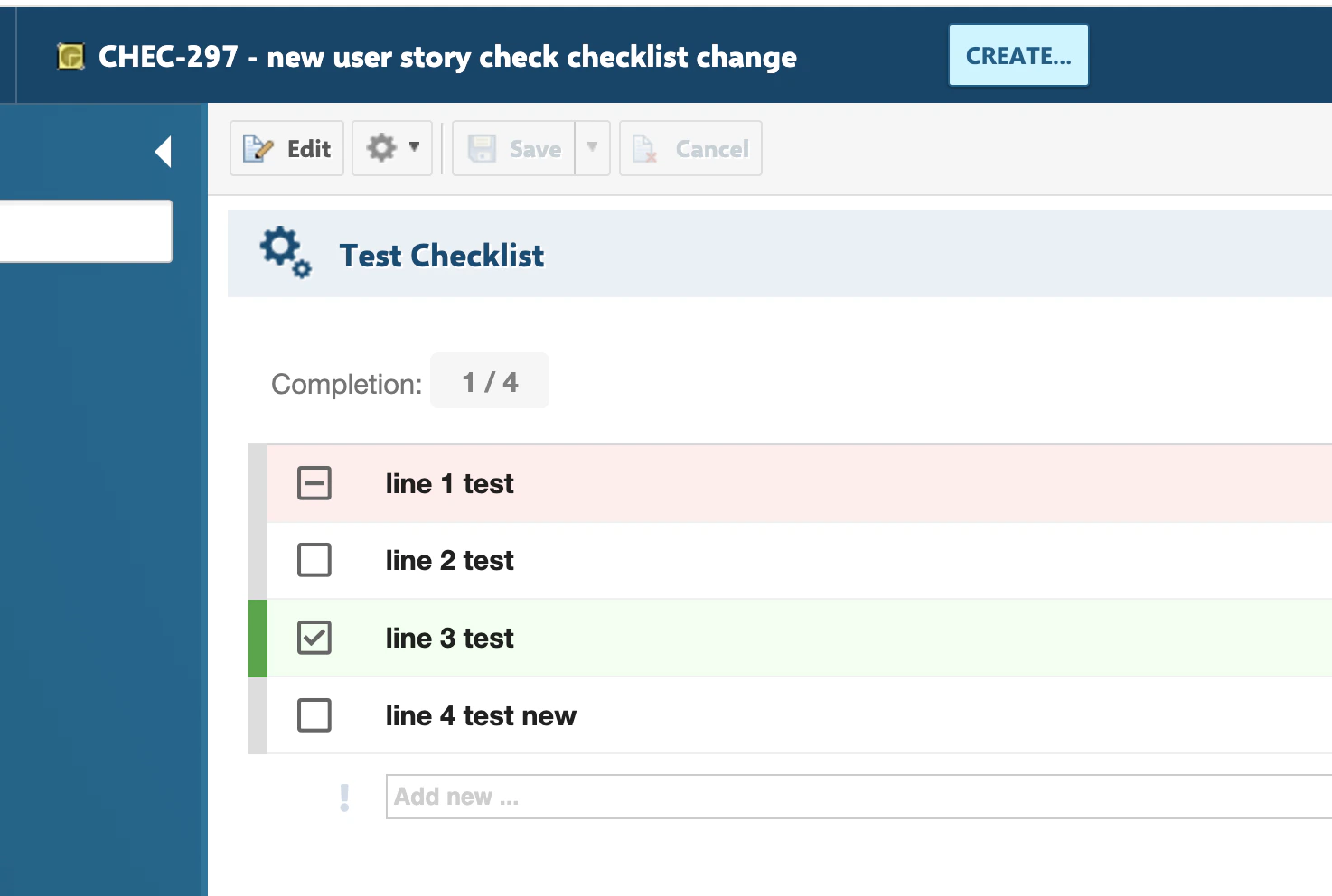
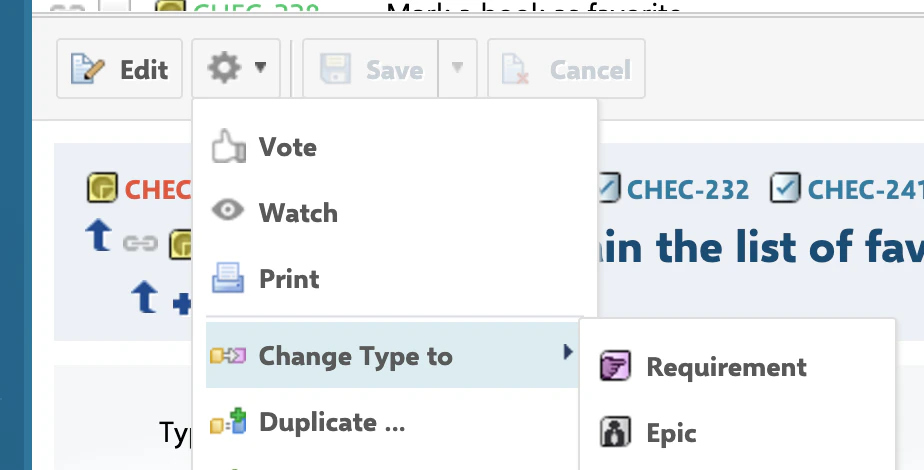
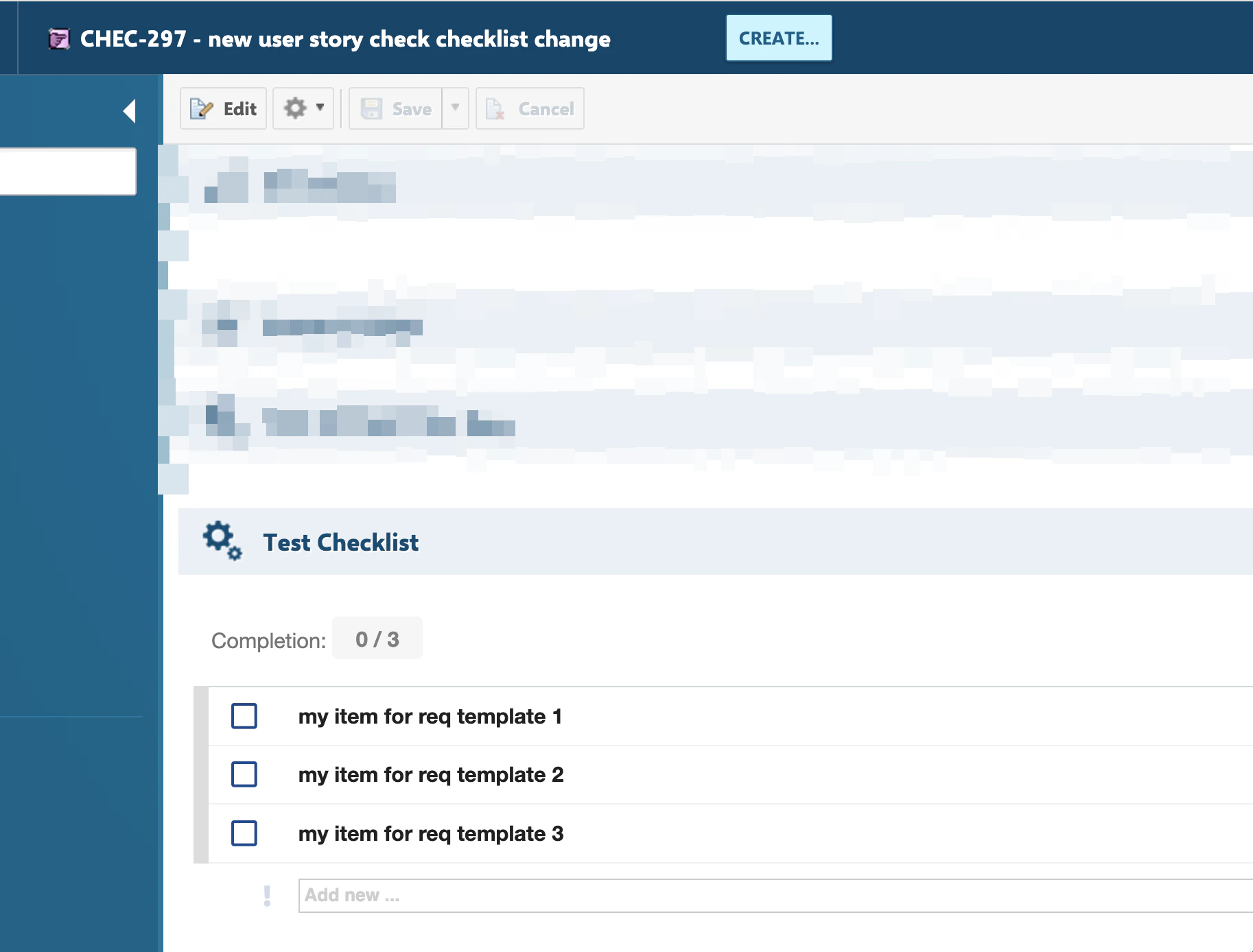
testChecklist is listed in nextedy.checklist.checklistsIdsForTypeChanges.
Configuration Reference
Disabling the Save Hook
If you encounter conflicts with other Polarion extensions that also use save hooks (such as EHCache conflicts), you can disable the Checklist save hook entirely with the system property:Mixed-Type Bulk Edit Behavior
Starting with version 24.9.0, checklists do not load when bulk-editing work items of mixed types. This intentional change prevents template corruption when different work item types share the same checklist field ID. If you select work items of different types and open the bulk editor, the checklist field will not be displayed.
Verification
You should now see:- After changing a work item type, the checklist resets to the template configured for the new type
- Only checklists listed in
nextedy.checklist.checklistsIdsForTypeChangesare affected - Checklists on fields not listed in the property remain unchanged during type changes
- The reset applies the full template for the new type, replacing all previous items
See Also
- Creating and Managing Templates — Define checklist template work items, configure template properties, and manage cross-project template references
- Multiple Templates per Type — Configure different checklist templates for different work item types using the hierarchical property system
- Workflow Gates and Validation — Add workflow conditions and functions to enforce checklist completion before status transitions
- Troubleshooting — Diagnose and resolve common checklist issues including save hook conflicts, template merging errors, and rendering problems