

Prerequisites
Before you begin, ensure you have:- At least two work item types that share the same checklist custom field ID
- A dedicated template work item created for each type (see Creating and Managing Templates)
- Access to Polarion Administration > Configuration Properties
How Type-Specific Templates Work
When you assign a single checklist field (for example,testChecklist) to multiple work item types, each type can reference its own template work item. Checklist resolves which template to use based on the type-specific configuration property.

1
Create Template Work Items
Create one work item per type to serve as the template source. Populate each with the checklist items appropriate for that type.For example:
CHEC-287— template for user stories with items like “Acceptance criteria defined”, “Story points estimated”CHEC-288— template for requirements with items like “Traceability links verified”, “Test cases linked”
2
Configure Type-Specific Properties
Open Polarion Administration > Configuration Properties and add a Replace Both properties use the same checklist field ID (
workItemTemplateId property for each type. The configuration property follows this pattern:_TYPEID with the work item type ID and _FIELDID with the checklist custom field ID.Example — two types sharing testChecklist:testChecklist) but point to different template work items depending on the type.3
Add More Types as Needed
You can extend this pattern to any number of work item types. Each type gets its own property line:
4
Configure Global Fallback (Optional)
If you want a default template for types that do not have a type-specific property, set a field-level property without the type qualifier:The resolution order is:
5
Handle Type Changes with Reset
When a user changes the type of a work item (for example, from user story to requirement), the checklist may still contain items from the old template. To automatically reset the checklist on type change, add the monitoring configuration property:Specify a comma-separated list of checklist field IDs that should be monitored. When the work item type changes, any checklist listed here is reset to match the new type’s template.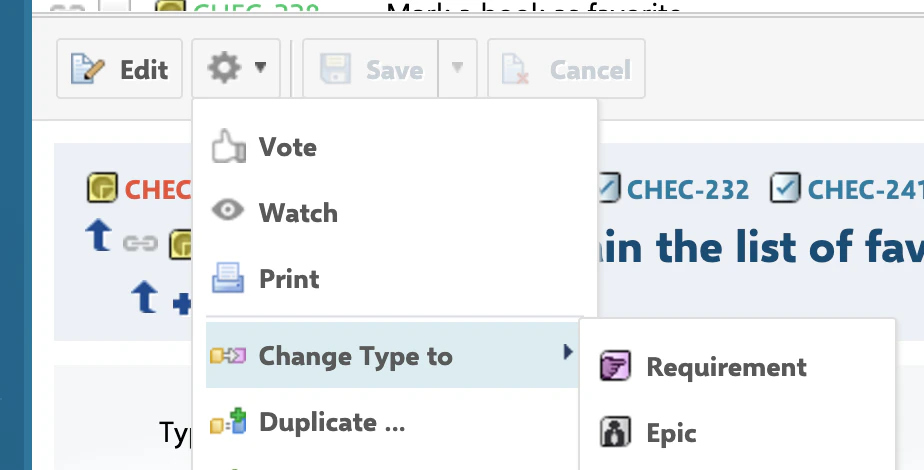
Dynamic Template Selection
For advanced scenarios where the template must vary beyond just the work item type, use theworkItemTemplateHolder configuration property. This property specifies a custom field on the work item that holds the template ID dynamically:
workItemTemplateHolder is configured, its value takes priority over the static workItemTemplateId property. This lets you assign different templates to individual work items within the same type.
Document Templates
For document (LiveDoc) checklists, the same pattern applies usingdocumentTemplateId instead:
documentTemplateHolder for dynamic document template selection:
Verification
After configuring multiple templates:- Open a work item of the first type (for example, a user story)
- You should now see the checklist populated with items from the type-specific template (for example,
CHEC-287) - Open a work item of the second type (for example, a requirement)
- You should now see a different set of checklist items matching that type’s template (for example,
CHEC-288) - If you configured type change reset, change a work item from one type to another and verify the checklist resets to the correct template
See Also
- Creating and Managing Templates — template creation fundamentals
- Reset on Work Item Type Change — automatic reset on type change
- Workflow Gates and Validation — enforce checklist completion before transitions
- Freezing Checklists by Status — stop template merging at specific statuses