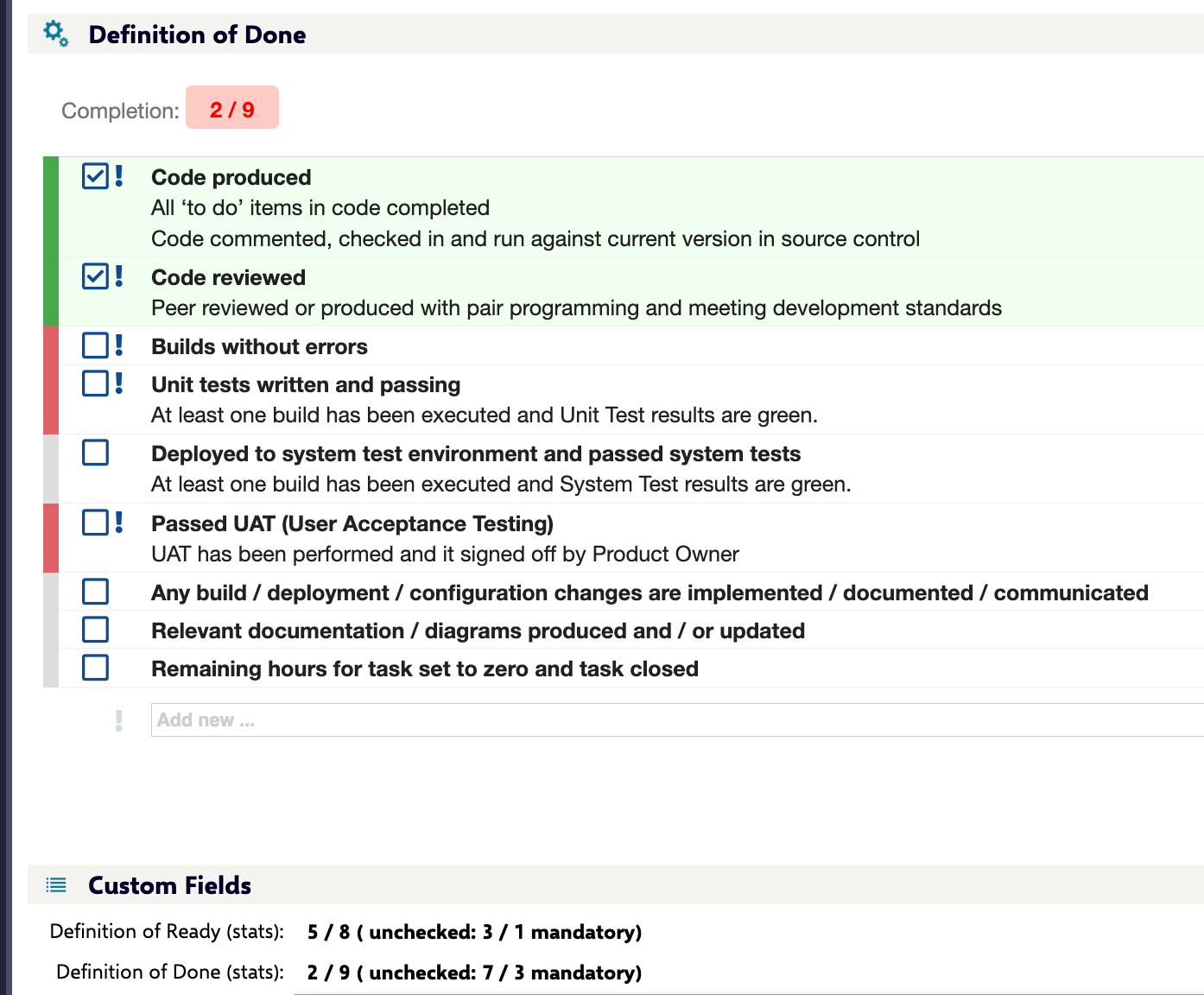
To set up a checklist on a document (LiveDoc) instead, see Set Up a Document (LiveDoc) Checklist.
1. Create the custom field
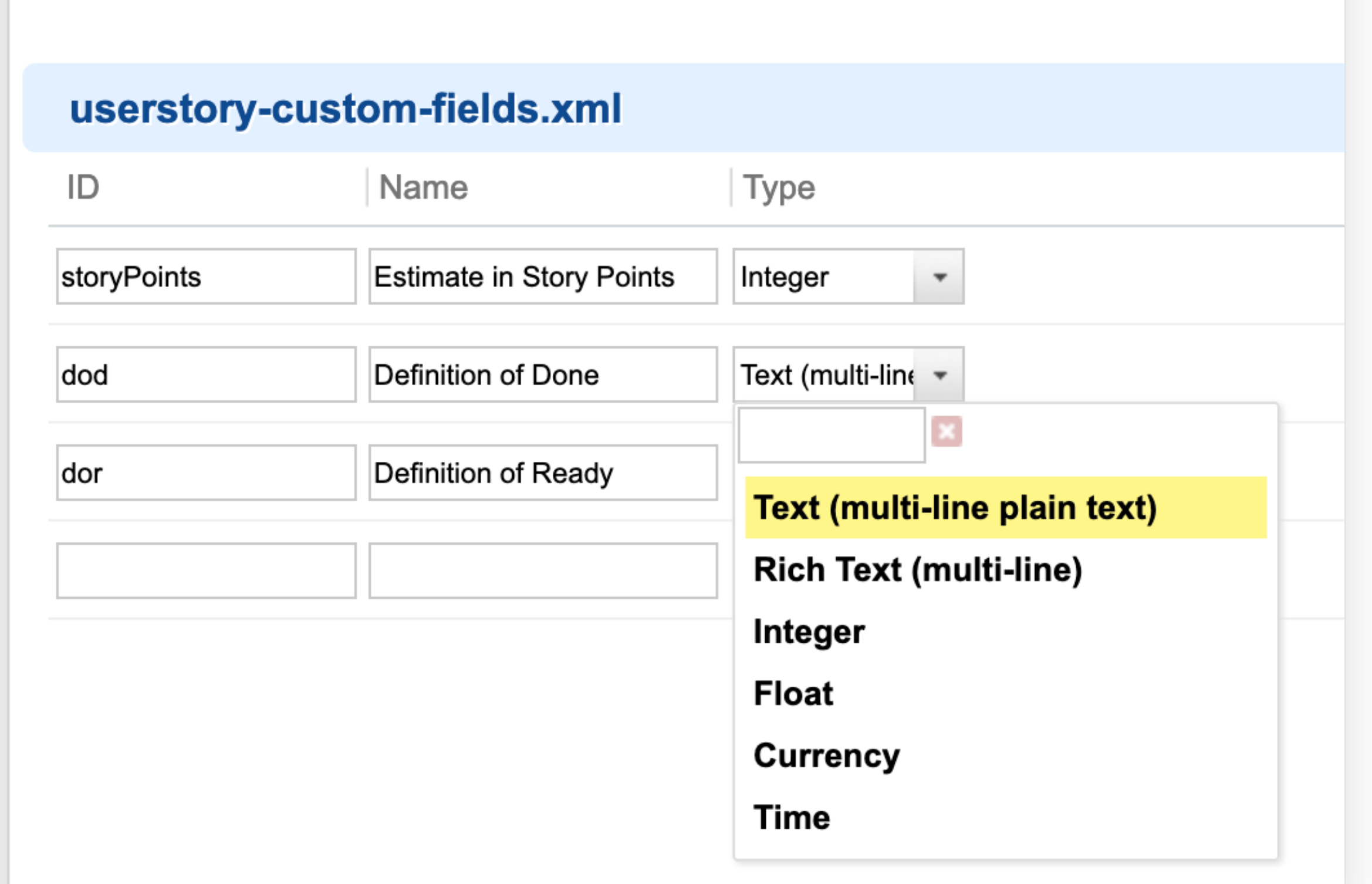
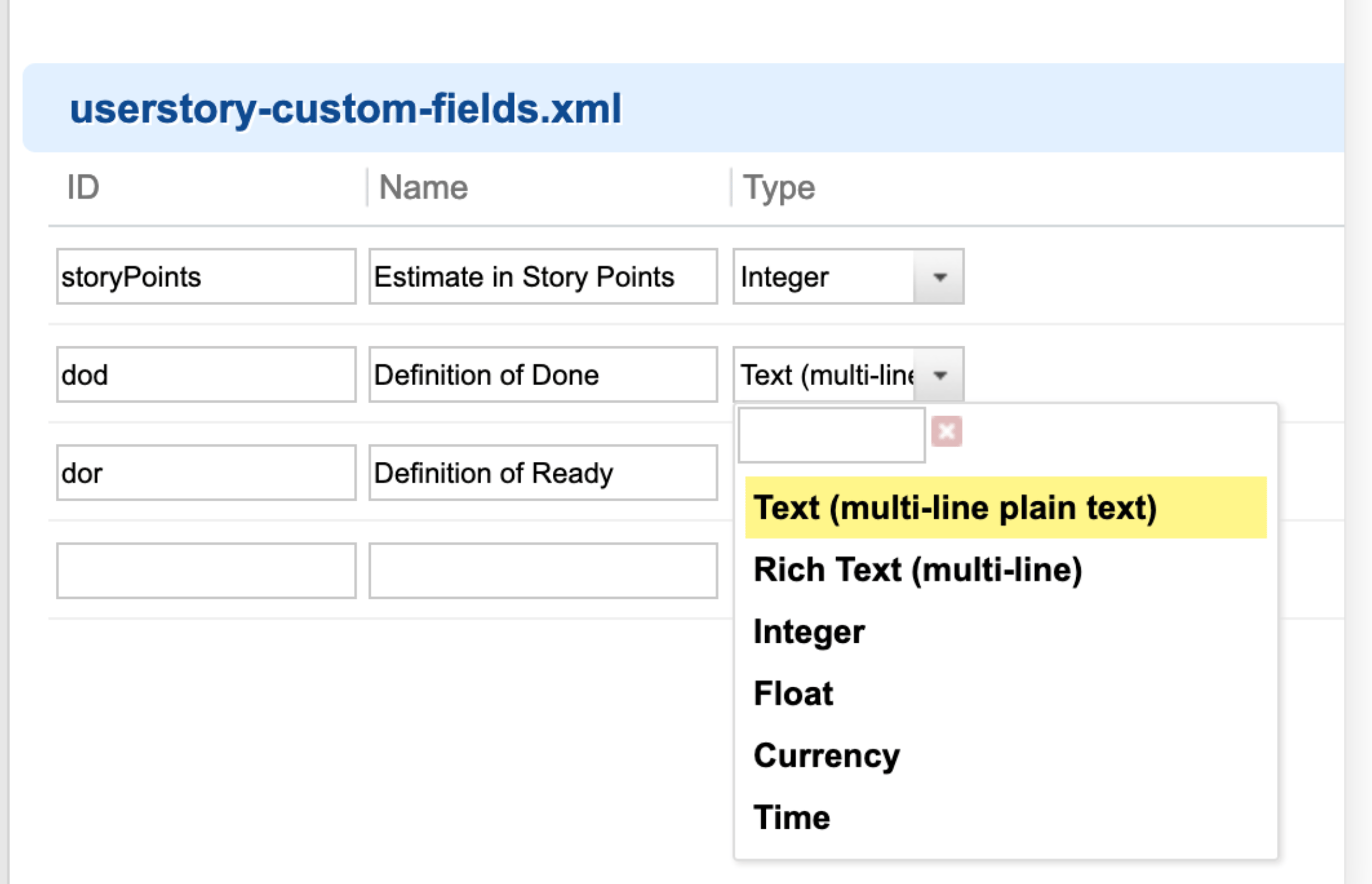
Create a new custom field of type Text (multi-line plain text). This field will hold the checklist item, whose ID you’ll reference in the next step (for exampledod).
2. Expose the field on the work item form
First, make sure the custom field is exposed on the work item form, either as part of a panel or a section. This step is mandatory. The form extension hides the raw field from view, but the field still needs to be present in the form configuration — it is not supported to place the checklist field outside of a<panel> or <section>.
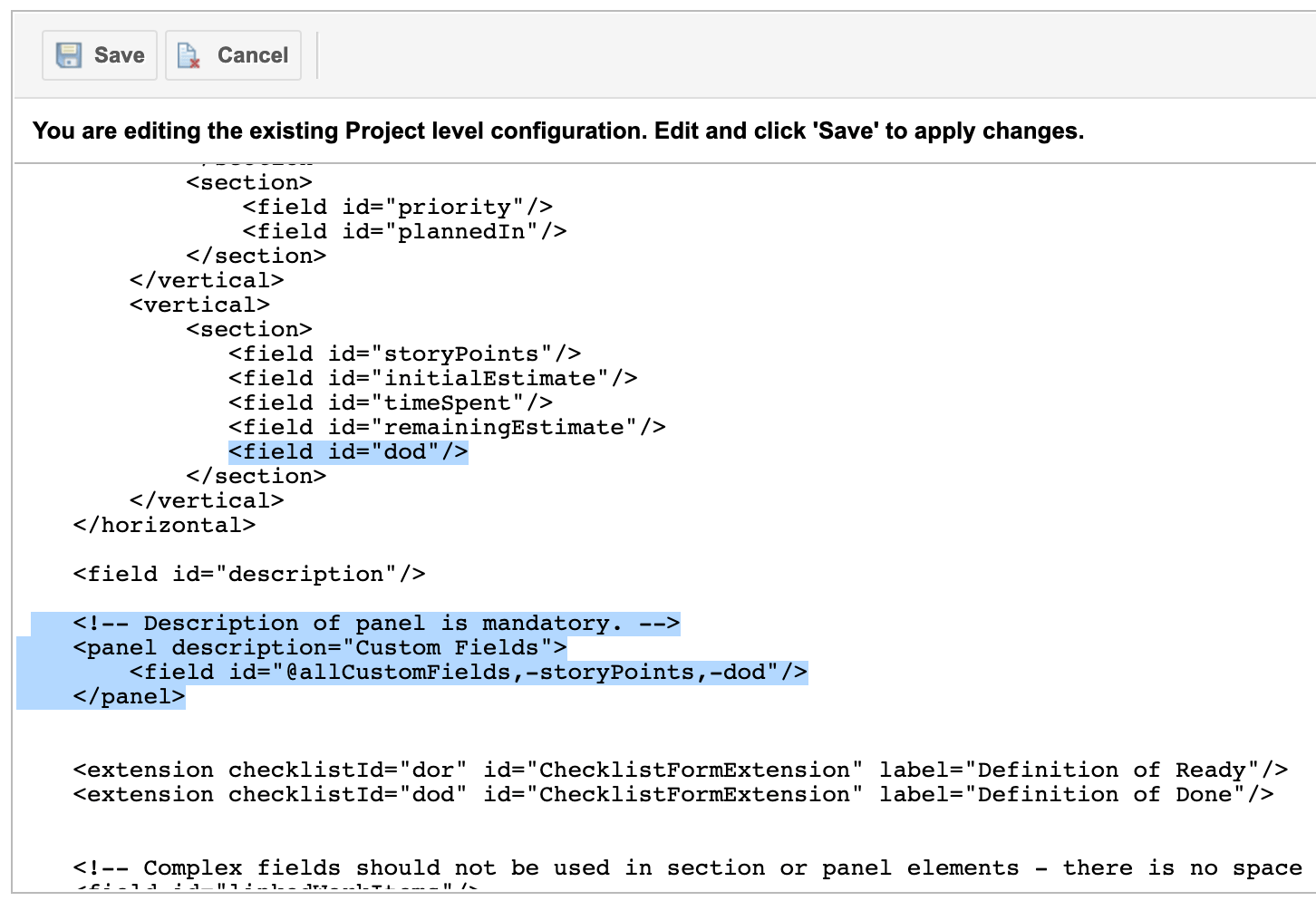
ChecklistFormExtension work item extension at the place on the form where you want the checklist to appear:
checklistIdrefers to the ID of the custom field you created in step 1labelis the title shown above the checklist section in the UI — set it to whatever you likeidmust be exactlyChecklistFormExtension

3. (Optional) Set up a summary field
A summary field holds aggregated information about checklist completion, useful for lists, dashboards, and reports.- Create a new custom field of type String (single line plain text) with the ID
YOUR_CHECKLIST_ID_summary. For example, if your checklist custom field from step 1 isdod, create a custom field calleddod_summary. - Make this field read-only using the read-only fields configuration page (not by permissions).
- Required: tell Checklist to calculate the summary field using Project Administration > Config Properties:
userstory work item type.
4. (Optional) Define a checklist template
To keep the checklist content centrally managed — so changes propagate to every work item using it — define a template using theworkItemTemplateId configuration property:
requirement is the work item type and chkApproved is the checklist ID. You can also omit the type to apply the template to any type:
How permissions interact with this setup
Two permission layers apply once your checklist is live:- Who can check/uncheck items — controlled by standard Polarion field permissions (read-only fields or field-based permissions).
- Who can change the checklist structure (add/remove items) — controlled by the
nextedy.checklist._TYPEID_._FIELDID_._STATUS_.adminPermissionconfiguration property, often tied to workflow status so the structure can be frozen after a certain point.
Verification
You should now see a Definition of Ready (or whatever label you chose) section on the work item form, rendered by the checklist form extension, with checkable items instead of a raw text field. If you configured a summary field, it should update automatically to reflect the checklist’s completion state once you check items and save.