

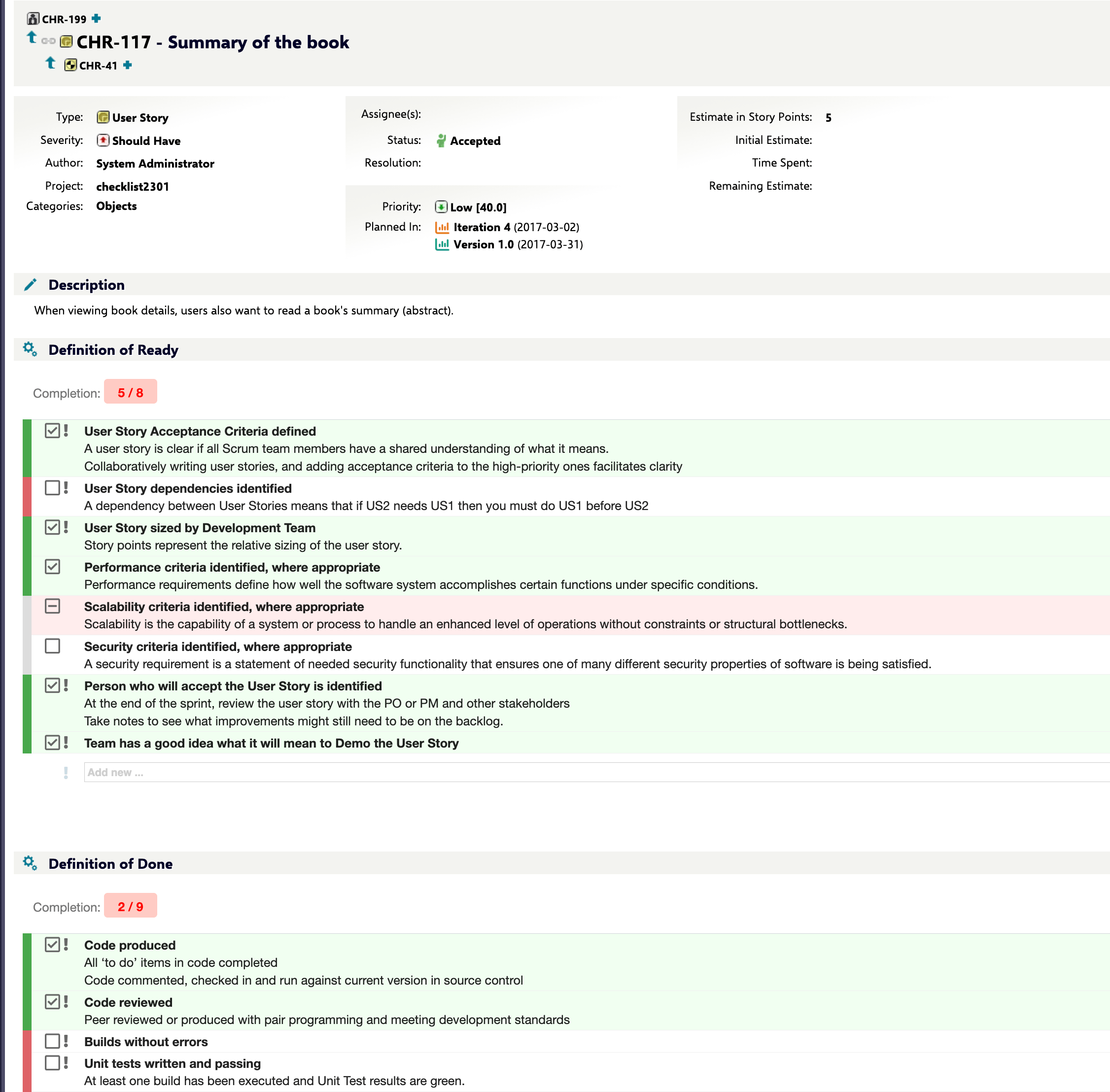
The problem: checklists that nobody enforces
Most engineering organizations already have checklists — a Definition of Done, a peer-review checklist, a release-readiness list. The usual home for these is a wiki page, a document template, or a rich-text field that someone pastes into a work item. The problem is that none of these are actionable: nothing stops a reviewer from approving a work item with half the items unaddressed, nothing distinguishes “not applicable” from “forgot to check,” and nothing captures what the checklist looked like at the moment a milestone was reached. Checklist exists to close that gap for regulated and process-driven environments — teams working under ISO 26262, Automotive SPICE, or IEC 62304, where a Definition of Done or Definition of Ready has to be demonstrably enforced, not just written down. Instead of a block of text, a Checklist-backed field becomes a small structured object: a list of checklist items, each with its own result state, that Polarion’s workflow engine can inspect and act on.The core idea: a checklist is data, not decoration
The most important mental shift is this: a Checklist is not a UI widget bolted onto a field — it’s structured data stored as that field’s content. Checklist reads a plain-text (or rich-text) custom field, parses it into a checklist item, and renders that as an interactive checklist form extension. When a user checks an item, the change is posted back and re-serialized into the same field. This is why Checklist can attach to so many different kinds of Polarion objects — work items, documents (LiveDocs), test runs, and plans — without needing a bespoke integration for each: as long as the object has a text-based custom field, the same parsing and rendering logic applies.Checklist is not limited to work itemsA recurring point of confusion in support requests is whether Checklist works on documents as well as work items. It does — Checklist supports work items, documents (LiveDocs), test runs, and plans as attachment points, each with its own configuration path.
Anatomy of a checklist item

- Label — the visible text of the item (for example, “Review code changes”).
- Result state — the current outcome: Empty (default), OK, NOK, or Pending. This is the field the workflow engine actually inspects. (A separate, non-selectable Information row type also exists, for headings or annotations that carry no result.)
- Mandatory flag — whether this specific item must be checked before the checklist counts as complete.
- Description — static, template-authored guidance text for the item (rendered distinctly from a note).
- Note — a free-text annotation a reviewer adds while working through the checklist, separate from the description.
- Template origin — whether the item came from a template or was added locally.
Result states: more than a checkbox
A plain checkbox only has two states. A Checklist item supports four result states, because “reviewed and accepted”, “reviewed and rejected”, “accepted conditionally”, and “not yet looked at” are different facts, and conflating them is exactly how compliance checklists lose their evidentiary value.Rendered as iconsIn the running product the states show as icons only (no text label): an empty square (Empty), a checked square (OK), a minus square (NOK), and a plus square (Pending). The icon classes are configurable — see Icon, Feature-Toggle, and Baseline Properties.
Templates: one definition, many instances
Rather than typing the same checklist items into every work item, document, test run, or plan, you define a template once and reference it from a configuration property. When Checklist parses a checklist field, it can merge in items from the linked template — meaning the same review steps are visible on hundreds of items in different sheet, and updates to the template’s items propagate the item content, not just the result state, to anywhere the template is referenced. For example, the same checklist template can be referenced from a work item’sdod field, a document’s dodField, and a test run’s testDone field at once, and each one merges in the template’s items.
This is the mechanism behind Definition of Done and Definition of Ready: define the required steps once, in one place, and every object of that type inherits them. See Templates for how template resolution actually works, including the type-specific and field-specific property forms.
Configuration properties: precedence, not just settings
Checklist behavior — which items are mandatory by default, which template applies, how summaries are calculated — is controlled throughnextedy.checklist.* configuration properties set in Administration > Configuration Properties. The mental model to hold here is precedence, not just key-value lookup: a property can be scoped globally, to a work item type, to a specific checklist field, or to both a type and a field at once, and Checklist searches from most specific to least specific.
For example, nextedy.checklist.userstory.dod.allMandatory=true applies only to the dod checklist on userstory items, while nextedy.checklist.allMandatory=true is a blanket default for every checklist in the project. This lets an administrator set a sane default once and override it narrowly wherever a specific work item type or checklist needs different behavior. The full precedence order and worked examples are in Configuration Property Hierarchy.
Workflow gates: from checklist to enforcement
A checklist that nobody is required to complete is just documentation. Checklist becomes enforcement when it’s wired into Polarion’s workflow engine via workflow functions and workflow conditions attached to transitions. The distinction between the two matters conceptually:- A workflow function is an action that runs during a transition. Some functions (like the fail-if-unchecked family) actively block the transition by throwing a user-visible error if mandatory items aren’t checked. Others (reset-to-template, uncheck-all) mutate the checklist state itself as a side effect of the transition.
- A workflow condition is a guard evaluated before a transition is even offered. If the condition fails, the transition button is simply unavailable or disabled, with a human-readable message explaining which checklist is incomplete.

workflow.xml.
Baselines: freezing a checklist in time
Enforcement answers “was this checked before we proceeded?” Baseline tracking answers a different, equally important question for regulated environments: “what did the checklist look like then, and can we prove it?” A baseline is a frozen snapshot of a checklist’s state at a point in time, which supports the kind of historical comparison an auditor or safety reviewer expects — not just “is it complete now” but “what changed between this milestone and the last one.” See Baseline Tracking for how baseline records are structured and queried.Putting it together
The pieces compose into a single lifecycle: a template defines the review steps once; a configuration property links that template (and any mandatory-item rules) to a specific field on a specific object type; the checklist form extension renders that field as an interactive checklist for reviewers to work through; a workflow function or condition inspects the resulting result states to gate a transition; and, where audit trails matter, a baseline preserves what the checklist looked like at that moment.