

What you will achieve
You will create a custom field to hold checklist data, expose it on the work item form, and attach the checklist form extension so the checklist renders and can be interacted with. You will also optionally set up a summary field that reports checklist completion.Prerequisites
- Administrator access to Project Administration in Polarion
- Permission to create custom fields and edit work item form layouts
- A work item type to attach the checklist to (for example, a user story or requirement type)
Document checklists are differentThis tutorial covers work item checklists. To set up a checklist on a document (LiveDoc) instead, see the Guides section.
1
Create a custom field
In Project Administration, create a new custom field of type Text (multi-line plain text). This field will hold the raw checklist item text and the result state of each item.Give the field a short, memorable ID — for example 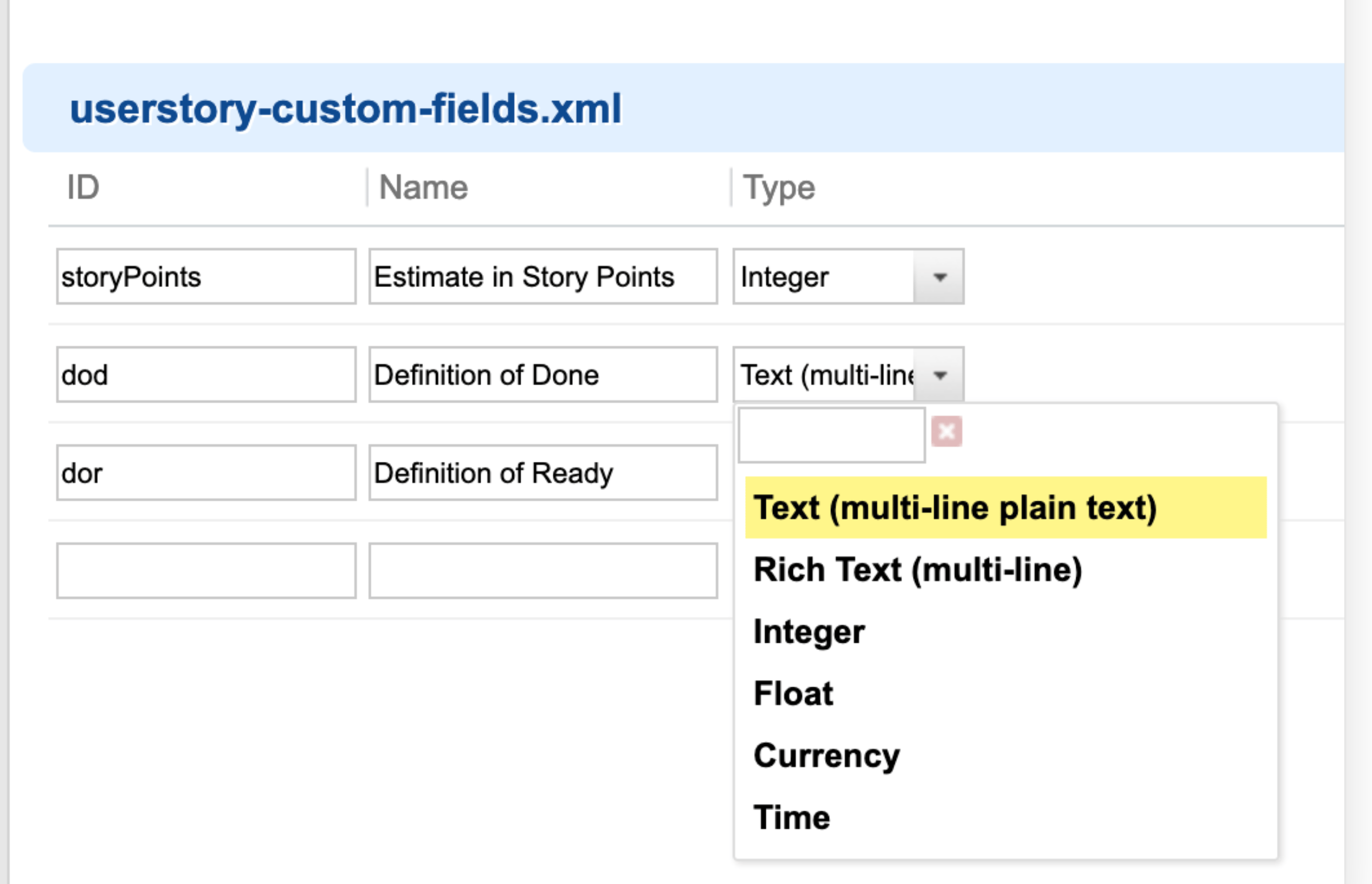
dod (for Definition of Done) or dor (for Definition of Ready). You’ll reference this ID in the next step.What you should see: the new custom field listed among your work item custom fields, with type Text (multi-line plain text).2
Expose the field on the work item form
The checklist form extension replaces the raw text field with an interactive checklist widget, but the underlying custom field must still be present in the form configuration.Add the field to your form layout XML as you would any other custom field, inside a panel or section.
3
Add the checklist form extension
In the same form layout, add the checklist form extension at the location where you want the checklist to appear: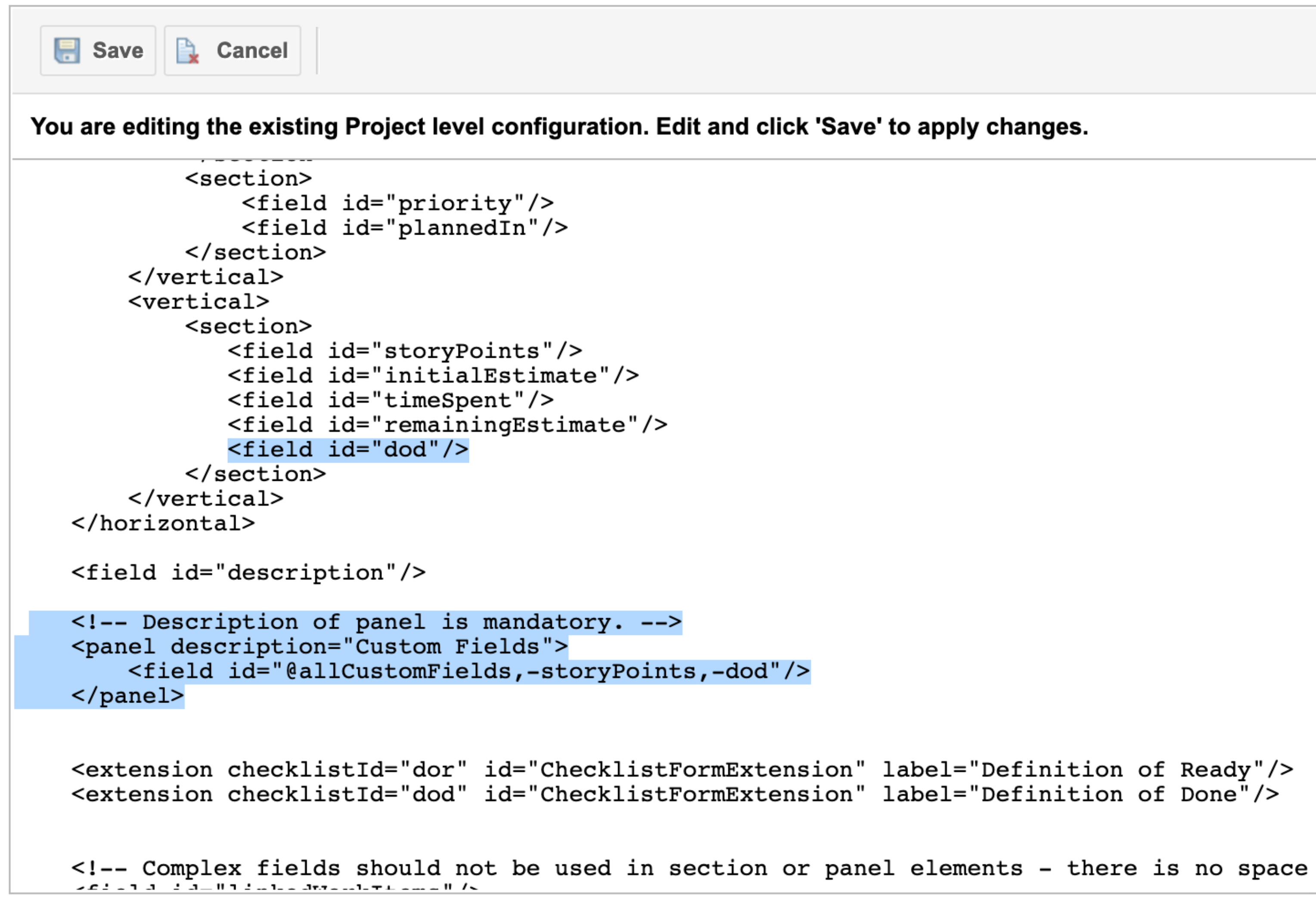
checklistIdrefers to the ID of the custom field you created in Step 1 (here,dod)labelis free text — it becomes the title of the checklist section in the UIidmust always beChecklistFormExtension
label. Since the checklist is empty at this point, it will show no checklist items yet.4
Set up a summary field (optional)
A summary field reports whether a checklist is complete — useful for dashboards and reports.What you should see: the summary field populates automatically based on the checklist’s completion state once items are checked.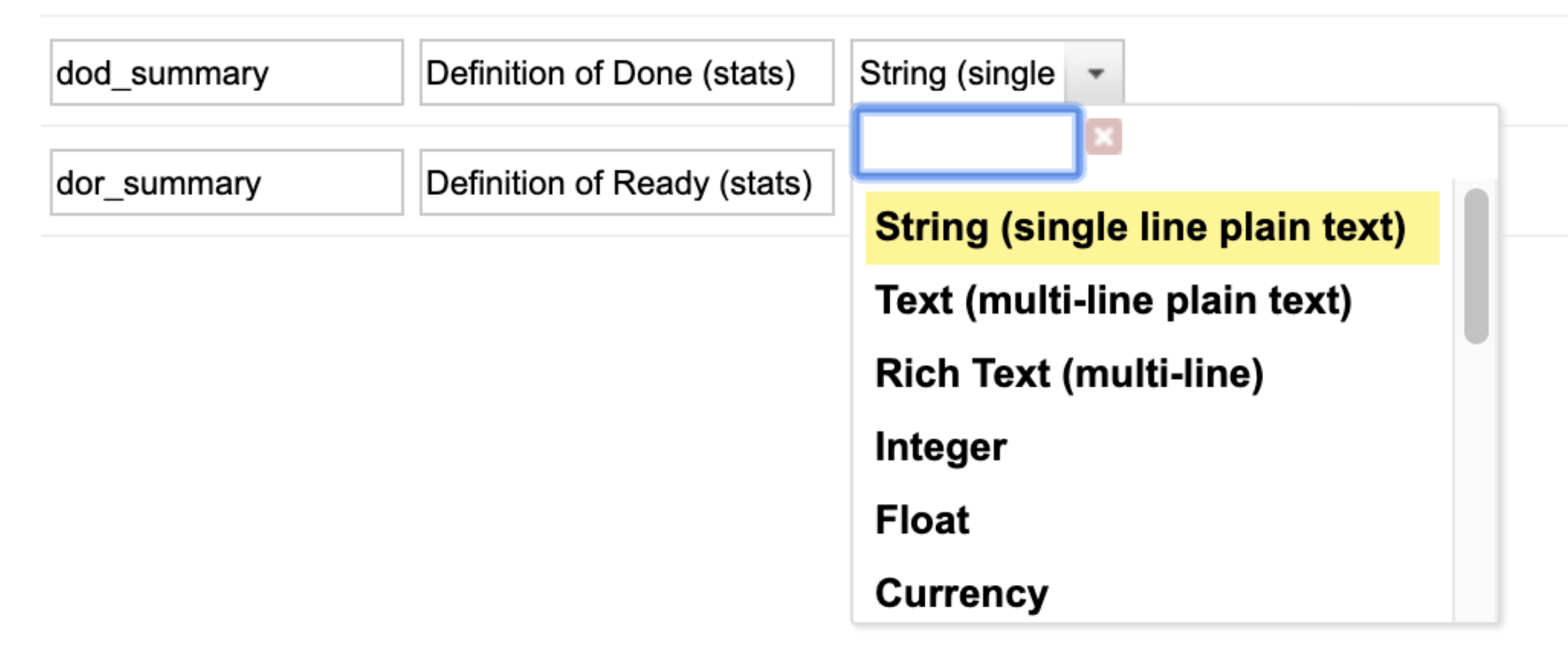
- Create a new custom field of type String (single line plain text). Its ID must follow the pattern
YOUR_CHECKLIST_ID_summary— for example, if your checklist field from Step 1 isdod, createdod_summary. - Make this field read-only using the read-only fields configuration page — not by permissions.
- In Project Administration > Config Properties, tell Checklist which checklist field(s) feed the summary, using the type-specific configuration property:
This example uses the work item type ID
userstory and lists the dod checklist field ID created in Step 1. To summarize more than one checklist field on the same type, list each distinct checklist field ID separated by commas.5
Check off your first item
Open a work item of the configured type and check an item in the checklist section. Saving the work item persists the checklist state.
How saves workChecklist state is submitted to the server and written to the corresponding work item within a transaction. If a save fails, the server returns an error — check server logs if a checklist doesn’t seem to persist.
6
Add a few Checklist entries
Start typing a new entry and then add it by clicking on the + icon on the right. Once you have a few items added, mark some of them as mandatory, and some others as completed.
Once an item is saved, you’ll see the completion information also on the summary fields.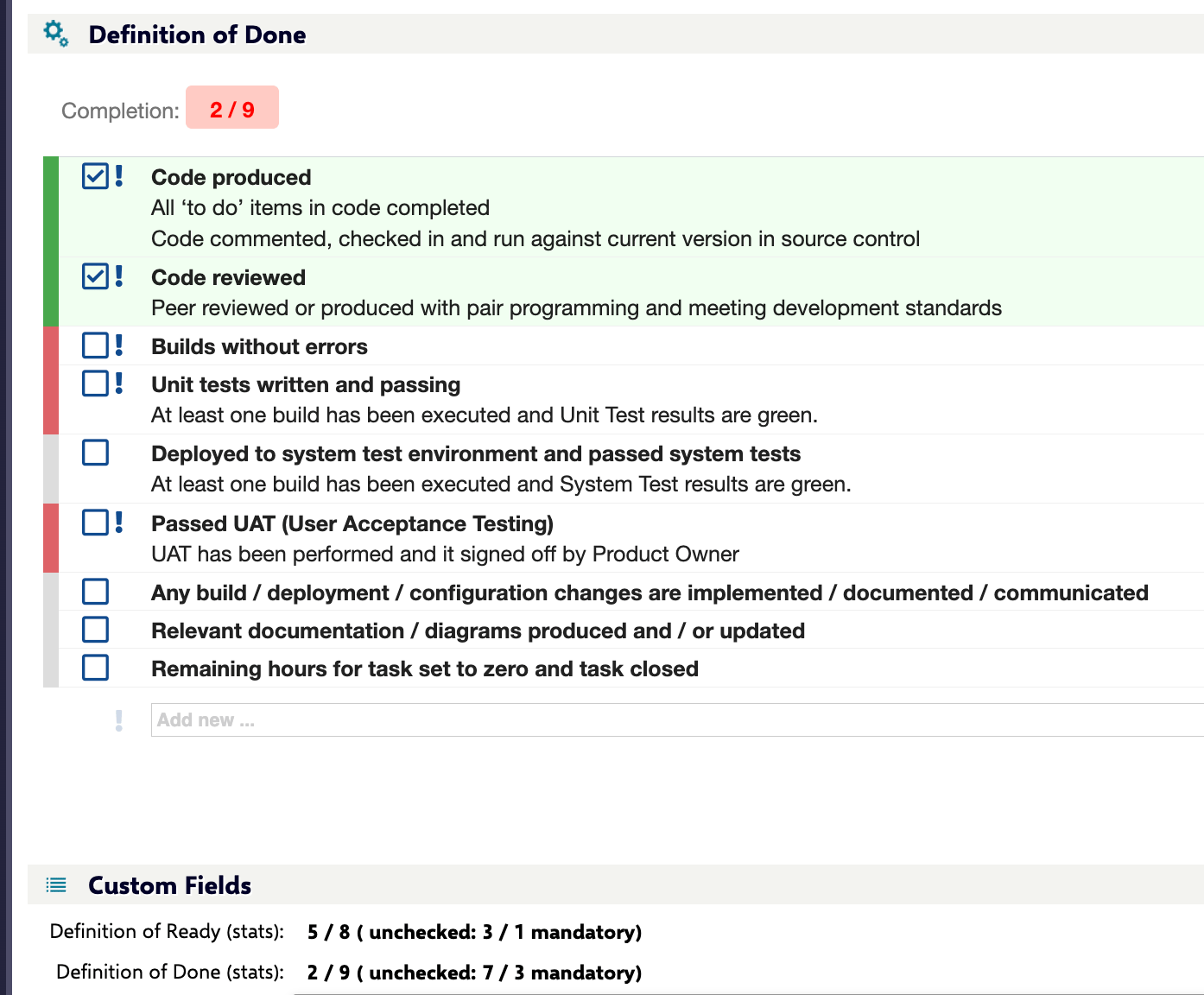
Once an item is saved, you’ll see the completion information also on the summary fields.
Next steps
- Explore the Concepts section to learn about checklist items, result states, and text syntax
- Visit the Guides section to define a reusable checklist template, configure gate enforcement (DoD / DoR), and cover other work item checklist scenarios
- Check the Reference section for configuration property details