

Version requirementControl-field-based multiple templates require Checklist 2.6.0 or later. Resetting a checklist on work item type change requires Checklist 25.1.0 or later.
Multiple templates for the same checklist ID, keyed by work item type
By default, the system loads a checklist template depending on the work item or document type:testChecklist) is identical in both properties — only the work item type prefix (userstory, requirement) differs, so each type resolves its own template.
Multiple templates for the same type, keyed by a custom field value
You can also reconfigure which built-in or custom field controls the template selection, so that two work items of the same type can load different templates depending on a field value. Example scenario: a work item custom fieldrequirementType is an enumeration with two options, system or software. You want the checklist requirementReady to load a different template depending on that value.
1. Designate the control field
Set the control field for all work item types:requirement):
2. Define a template per control-field value
requirementType field (system or software) becomes the prefix used to look up the template ID.
3. Do the same for documents
The equivalent property for documents is:
Reset the checklist to the template on work item type change
When a work item’s type is changed to a different type that has its own checklist template, the existing checklist content (from the old type’s template) does not automatically get replaced. To handle this, monitor specific checklist IDs for type-change resets.1. Add the monitoring property
In Polarion Administration > Configuration Properties, add a comma-separated list of checklist IDs to monitor on type change:2. Example walkthrough
- A Userstory work item uses the checklist
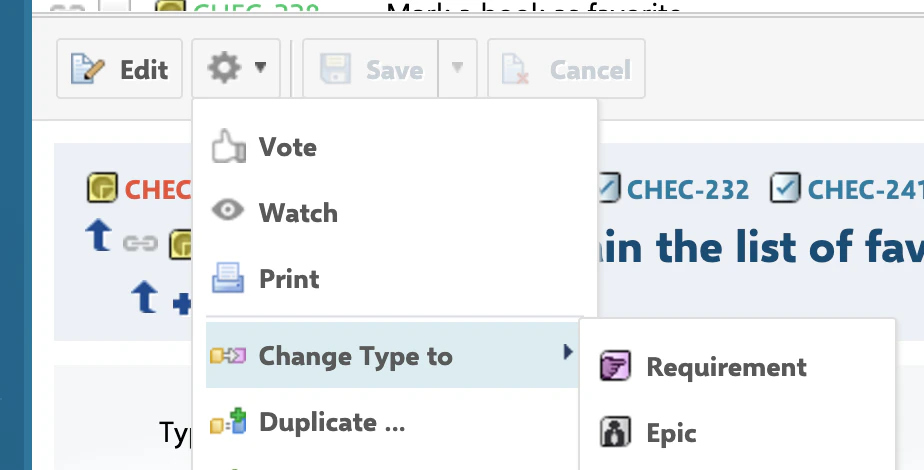
testChecklistand has some entries checked. - The work item’s type is changed to Requirement, which has its own
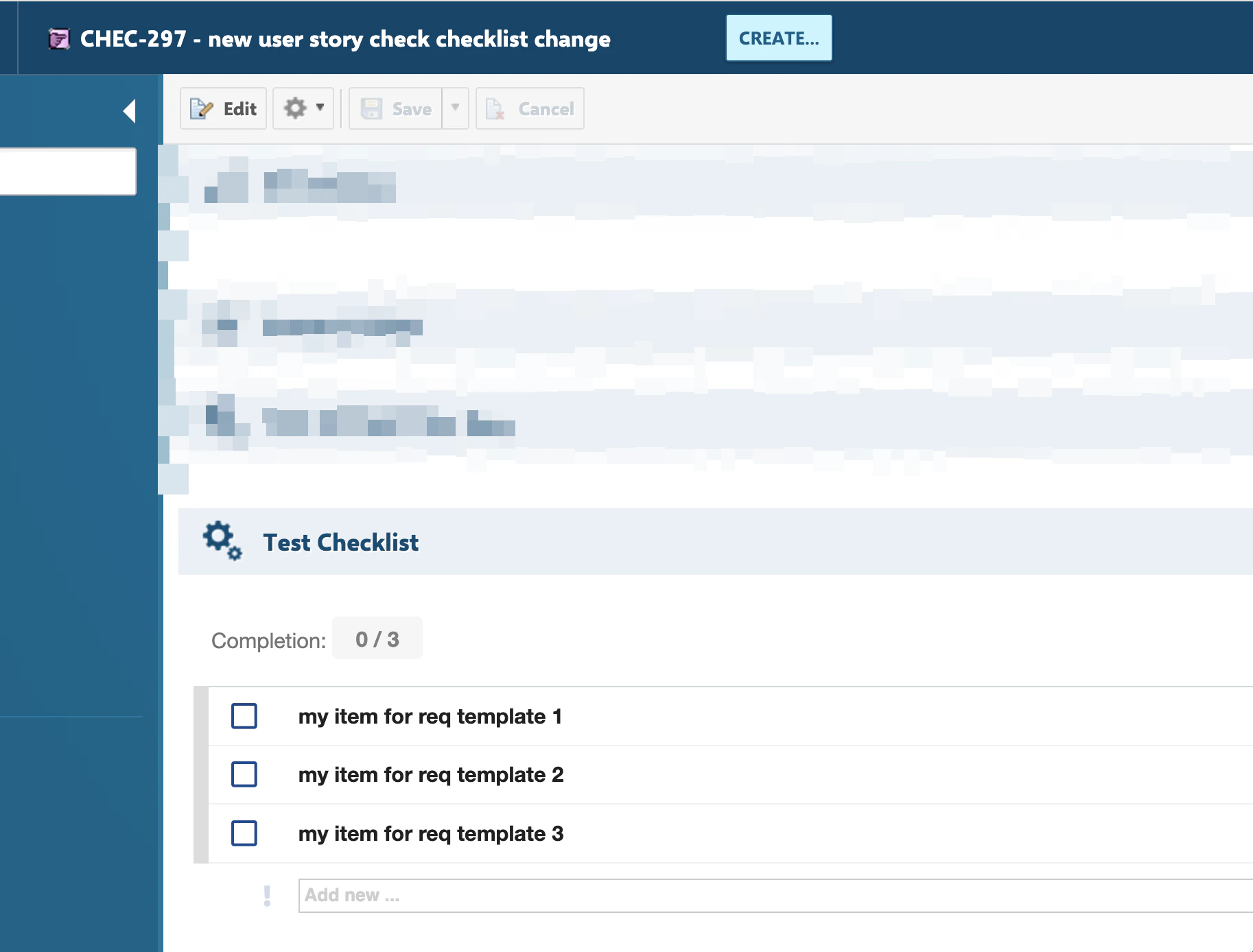
testChecklisttemplate (per the type-specificworkItemTemplateIdproperties shown above). - After the type-change action completes,
testChecklistis reset to the Requirement template, becausetestChecklistwas listed inchecklistsIdsForTypeChanges. - The checklist now shows only the entries relevant to the Requirement type.
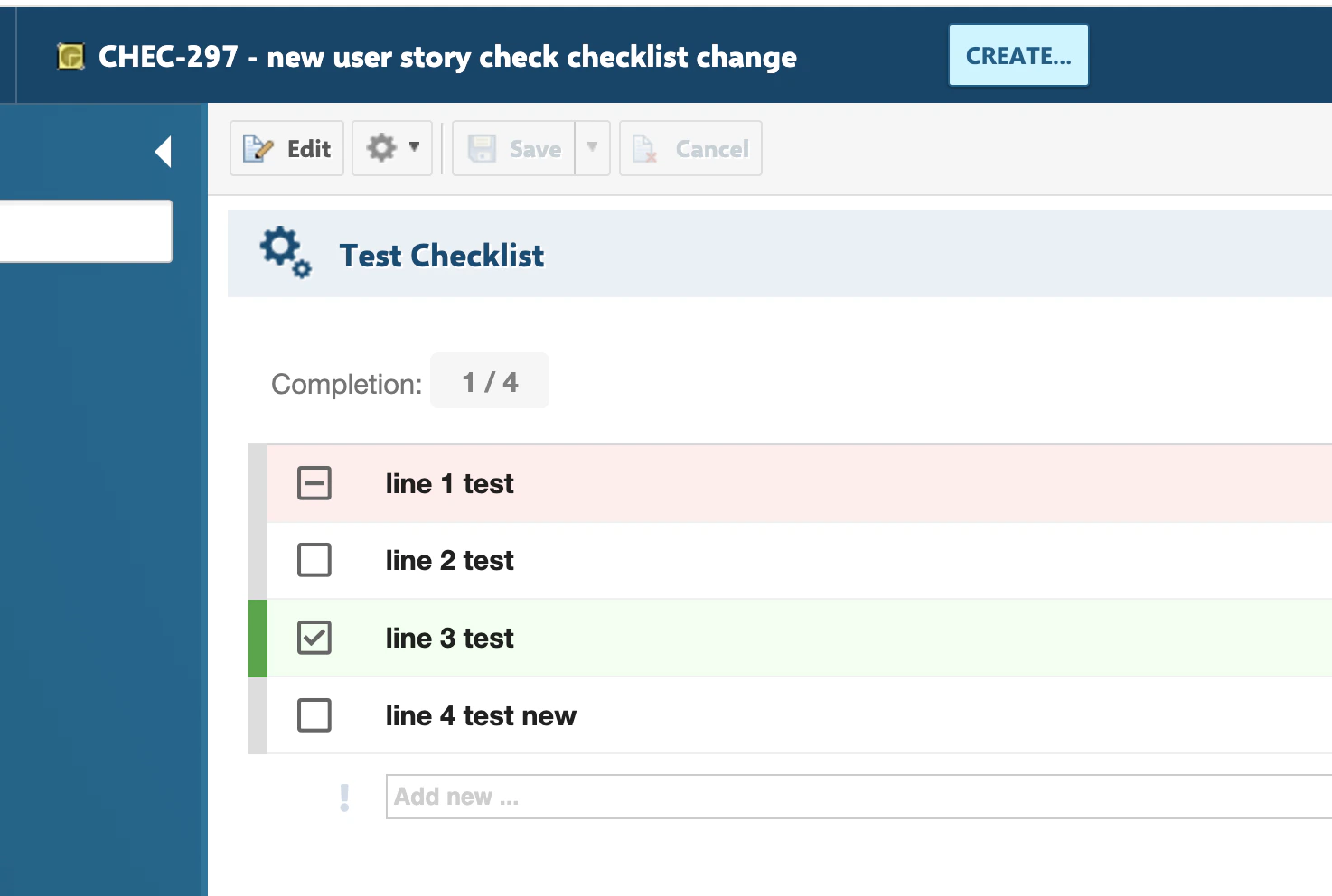
Verification
- Configure two work item types with different
workItemTemplateIdvalues for the same checklist ID (or acontrolFieldmapping) and confirm each type loads its own template content. - Change a work item’s type between two types whose checklist ID is listed in
checklistsIdsForTypeChanges, and confirm the checklist resets to the new type’s template. - You should now see checklist content that always matches the work item’s current type and field values, rather than stale content from a template that no longer applies.