

Board Layout Overview

Collapse / Expand Controls
Individual swimlanes can be collapsed to hide their cards and save vertical space, then expanded again to reveal them.Per-swimlane toggle
Clicking the swimlane row header toggles that swimlane between collapsed and expanded state. The toolbar also provides global collapse/expand actions that affect all swimlanes simultaneously (see Toolbar Controls).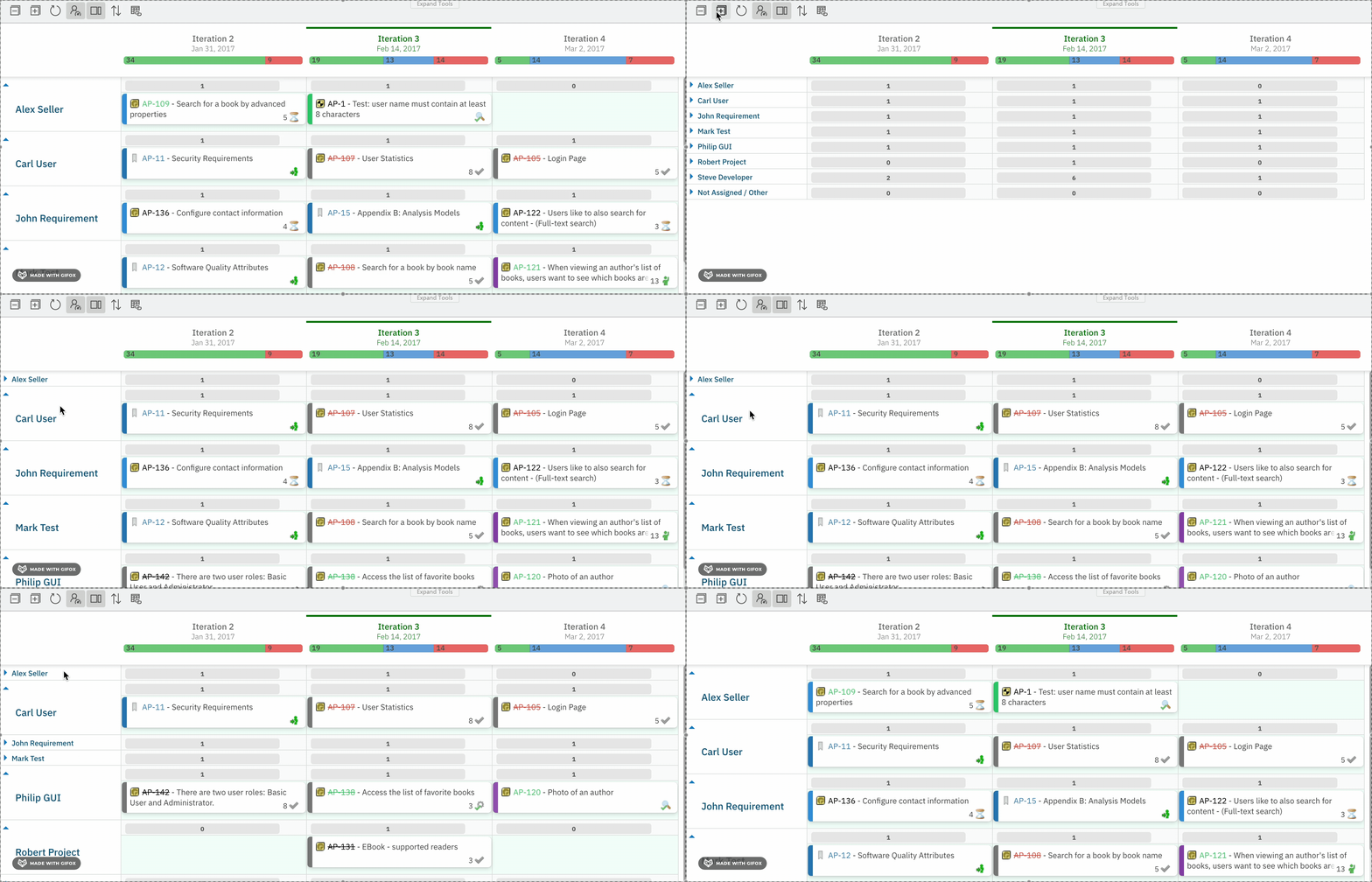
Widget parameter
Configuration example:
Show Empty Swimlanes
By default, swimlanes with no matching work items are hidden. Enabling this option keeps all possible lanes visible even when empty.
Configuration example:
Showing empty swimlanes is useful when you want a consistent row structure across all iterations — for example, to confirm a team member truly has no work planned in a sprint rather than wondering whether the row is simply hidden.
Assignment Type
The assignment type (widget parameterassignmentMode) determines how work items are grouped into swimlane rows. It is configured in the Widget Parameters panel under Swimlanes (Rows) > Assignment Type.

Assignment type options
Each type exposes different configuration fields, described in the sections below.
Users (Assignee)
Each swimlane row represents one user who holds a specified role in the current Polarion project.
Configuration example:
Parent Item
Each swimlane row represents a parent work item. Items can only be placed under their actual parent — dragging to an incorrect row causes Planningboard to snap the card back to its correct parent’s lane automatically.
Configuration example:
Enumeration Field
Each swimlane row represents a value from a specified enumeration custom field (e.g.,team, component type, or priority tier).
Configuration example:
Project
Each swimlane row represents a sub-project within the current project group. Only projects readable by the current user are included; the current project itself is excluded.
Configuration example:
SAFe Assignment Types
Three assignment types are available for SAFe (Scaled Agile Framework) environments. These require a Polarion SAFe Solution to be configured.Verify in applicationSAFe assignment type configuration requires Polarion SAFe Solution. Contact Nextedy support for setup guidance specific to your SAFe topology.
No Swimlanes
All work items appear in a single flat view. No horizontal grouping is applied. Configuration example:Swimlane Sort Order
TheswimlaneSort parameter controls the vertical ordering of swimlane rows (when using any assignment type other than none).
Available values:
Verify in applicationAdditional sort values beyond
alphabetical (including custom property sort introduced in Planningboard 25.9.0 for Parent mode via the Sort By field) may be available depending on the assignment type and version. Check the Sort By field in Widget Parameters > Swimlanes (Rows) for available options for your chosen assignment type.Capacity Bar
Each swimlane row displays a capacity bar that visualizes the load relative to available capacity for that resource. The capacity bar is a per-swimlane indicator — not to be confused with the per-Plan capacity tooltip displayed on column headers.
Enabling capacity display
Capacity bar display is controlled by a combination of parameters:
Configuration example:
Capacity tooltip
Hovering over the capacity bar on a Plan column header (not the swimlane bar) displays a detailed tooltip with capacity information per plan. This tooltip is only available whencapacityLoad is enabled via Widget Parameters.
See also: Capacity Parameters
Not Assigned/Other Row
When using Enumeration Field or Users (Assignee) assignment types, a special Not Assigned/Other row (UNASSIGNED) is displayed at the bottom of the swimlane list. It contains work items that have no value for the grouping field.

Drag-and-drop behavior with Not Assigned/Other
Multi-valued fieldsWhen a work item has multiple values for the grouping field, it appears in each corresponding row simultaneously. Dropping it onto Not Assigned/Other removes only the value corresponding to the source swimlane row — not all values. The change persists after board refresh.
License-Based Swimlane Access
Swimlane interaction is restricted based on whether the current user holds a Planningboard license.Unlicensed users retain full visibility of the board — including swimlane contents and capacity bars — for collaboration and review purposes. Editing capabilities (drag-and-drop, creating plans, accessing the sidebar) are restricted to licensed users.
Configuration Example
The following example configures a board with user-based swimlanes, capacity enabled, and empty lanes hidden:${r.objectId.itemId} placeholder is substituted at runtime with the user ID for the selected swimlane row.