

Identify the Error
Multi-item column errors manifest as:- A relationship column shows only one related item instead of multiple
- The cell editor opens as a single-value picker instead of a multi-item picker
- Saving linked work items fails or creates incorrect associations
- The second linked entity type column displays blank cells
1
Set multiItem: true on the Column
The most common cause is a missing
multiItem property in the sheet configuration. When a column represents a many-to-many relationship, you must explicitly set multiItem: true:2
Verify the Relationship Cardinality
The
multiItem property should align with the relationship cardinality in your data model:Multi-item columns do not support the 1:N side of a
many-to-one relationship. Display those children as child rows with expand instead. See One-to-Many (1:N).Check your data model relationships section:3
Check the Expansion Path
Multi-item columns require the corresponding expansion path to be defined in the 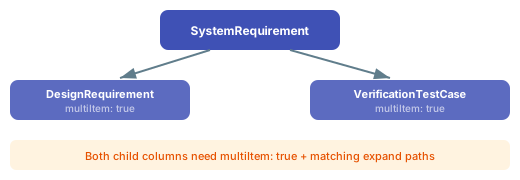
sources section. Without expansion, the related entities will not load:4
Configure the Display Property
Multi-item cells display a list of related items. Control what text appears for each item using the Available
display property:display values include id, title, and titleOrName.5
Multi-Item Editing Behavior
When
multiItem: true is set correctly, double-clicking a multi-item cell opens an autocomplete editor with a dropdown for selecting additional items. Each item displays with a separator and an external link icon for navigation.Multi-item columns also support:- Filtering: Click the filter icon to filter by item combinations
- Linking mode: For many-to-many relationships, use linking mode to create associations
Verification
After applying the fix:- Save the sheet configuration
- Reload the powersheet document
- You should now see multiple related items displayed in the column, separated by semicolons
- Double-click the cell to verify the multi-item picker opens with autocomplete functionality
See Also
- Configure Multi-Item Column — full multi-item setup
- Configure Many-to-Many Relationships — relationship setup
- Configure Sources — expansion path configuration
- Incremental Configuration Approach — build complexity gradually