

1
Identify which read-only cause applies
A checklist can appear read-only for three distinct reasons, and they require different fixes. Work through them in order.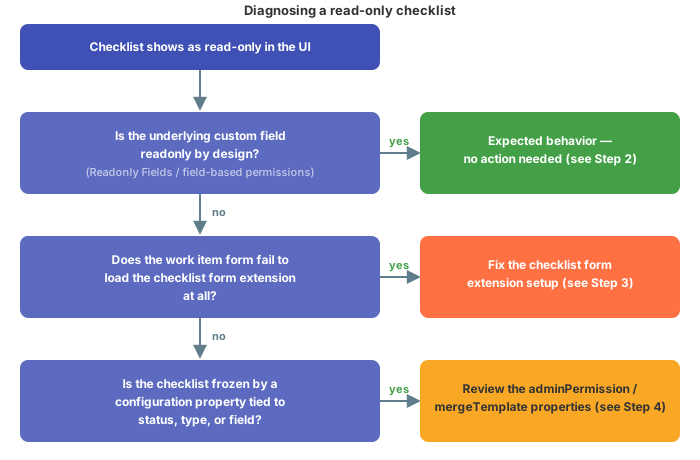
2
Rule out standard Polarion permissions
This is expected behavior, not a defect. The checklist custom field can be made read-only the same way any other custom field can:
- Administration > Work Items > Readonly Fields
- Field-based permissions in Administration > User Management > Permissions Management
3
Fix a misconfigured checklist form extension
If the work item extension responsible for rendering the checklist editor isn’t configured correctly, it can’t locate the editor on the work item form, and the field renders as if it were read-only even though no permission is blocking it.Confirm the checklist form extension is set up correctly by following the object-type setup guide for the item you’re working with:
- Set Up a Work Item Checklist
- Set Up a Document (LiveDoc) Checklist
- Set Up a Test Run Checklist
- Set Up a Plan Checklist
Verify in applicationThe exact form-layout XML that wires the checklist form extension into a given work item type isn’t covered in this article — confirm your form layout against the relevant setup guide above rather than assuming the extension is present by default.
4
Check for a status-based or type-based freeze
If Steps 2 and 3 don’t explain what you’re seeing, the checklist may be intentionally frozen through configuration properties rather than through Polarion permissions.Example — freezing the Accepted values are When
Freeze on workflow status
You can freeze the checklist definition so that, once a work item or document reaches a given status, the template is no longer reapplied and the checklist keeps whatever content it already has:dod checklist once a work item reaches status reviewed:Restrict who can change the checklist structure
Separately from freezing on status, you can restrict who is allowed to add, remove, or edit checklist items (as opposed to simply checking/unchecking them) using:@none, @all, or a comma-separated list of user roles (including project roles).Example — dod checklist manageable by admin and project_developer, but locked once a userstory reaches verified; dor checklist locked except while the userstory is in draft:adminPermission evaluates to @none for the current context, users lose the controls to add or delete checklist items, but — unless the field itself is also read-only per Step 2 — they can still mark existing items as checked.The system evaluates adminPermission using the full 4-level precedence, most specific first (shown here for type userstory, checklist dod, status accepted):nextedy.checklist.userstory.dod.accepted.adminPermissionnextedy.checklist.dod.accepted.adminPermissionnextedy.checklist.userstory.dod.adminPermissionnextedy.checklist.dod.adminPermissionnextedy.checklist.userstory.accepted.adminPermissionnextedy.checklist.accepted.adminPermissionnextedy.checklist.userstory.adminPermissionnextedy.checklist.adminPermission
Known limitation: type change can leave the checklist stuck read-only
Verification
You should now see one of the following:- The checklist field is intentionally read-only per Readonly Fields or field-based permissions, and this is expected — no further action needed.
- The checklist form extension correctly locates the editor and renders an editable checklist on the work item, document, test run, or plan form.
- The checklist behaves according to your
mergeTemplate/mergeTemplateResolvedandadminPermissionconfiguration properties — editable when the evaluated context allows it, and frozen only where you intended.