

Set a Fixed Time Range via Script
To define a static date range, add the following to Widget Properties > Advanced > Gantt Config Script:Set a Dynamic Time Range via Page Parameters
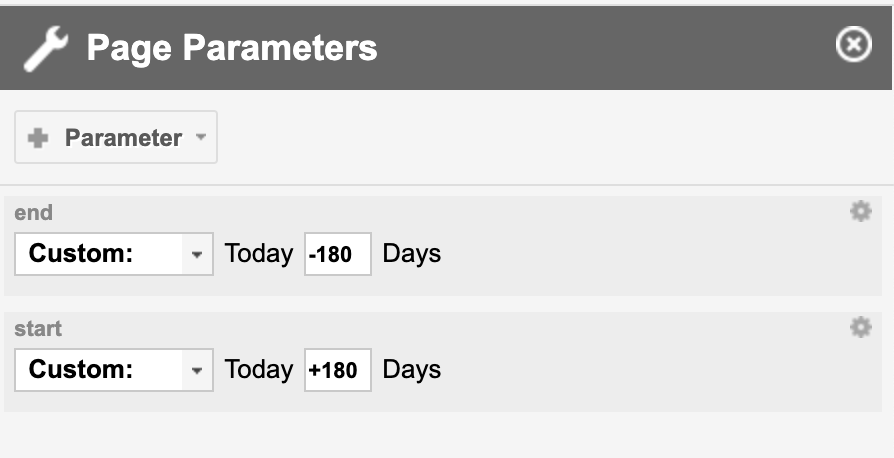
For dashboards where users need to select the visible date range, use Polarion Page Parameters to make the range interactive.- Add two Date-type page parameters to your LiveDoc page, named
startandend. - Add the following to Widget Properties > Advanced > Gantt Config Script:
start and end with the actual parameter names.
Footer Indicator for Filtered Items
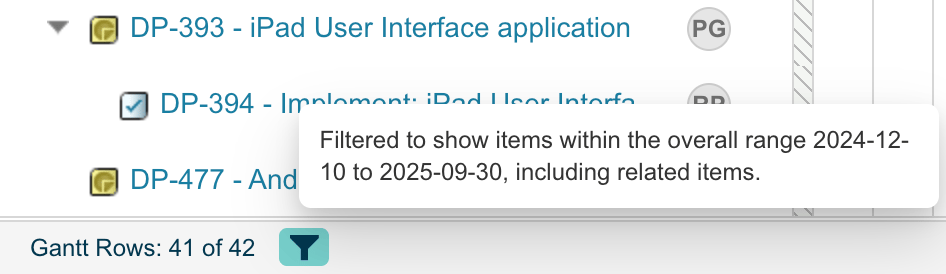
Starting with version 25.3.1, when a time range filter is active and some items are hidden, the Gantt footer displays:- The count of visible rows versus total rows
- A funnel icon with a tooltip describing the active time range
Reset to Auto-Fit
To remove the time range constraint and return to the default behavior (auto-fit to loaded items), simply remove thegantt.config.start_date and gantt.config.end_date lines from the Gantt Config Script. The chart will automatically adjust its visible range to fit all loaded work items.
Verification
After configuring the time range:- Open your Gantt chart and verify the timeline header shows dates within your specified range.
- If tasks exist outside your range, confirm they are hidden from the chart.
- Check the footer for the filtered items indicator showing how many rows are visible versus total.
See Also
- Configure the Time Scale — adjust zoom levels and header formats within your time range
- Configure Page Parameters — set up page parameters for dynamic filtering
- Schedule in Hours Instead of Days — combine time range with hour-precision scheduling
- Manage Large Datasets with Max Items — another approach to limiting visible data