

When to Use This Approach
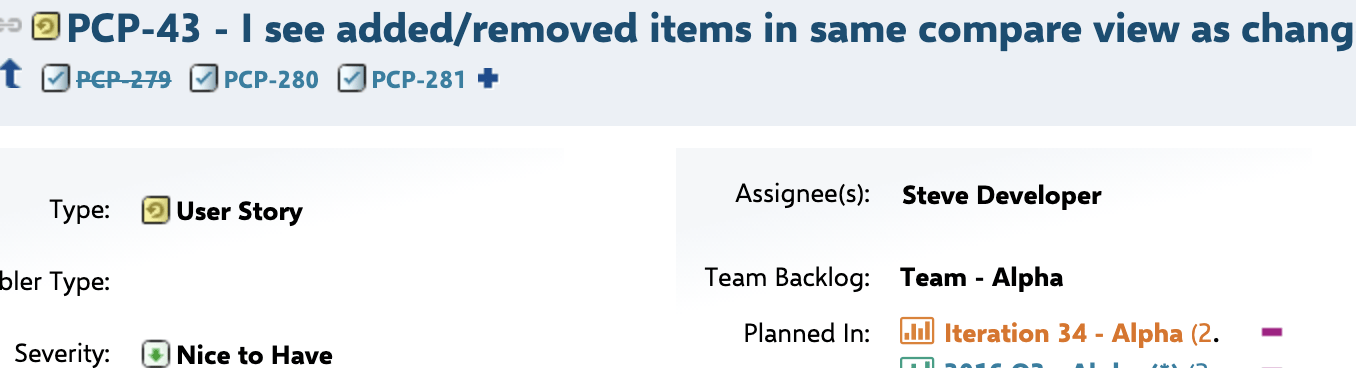
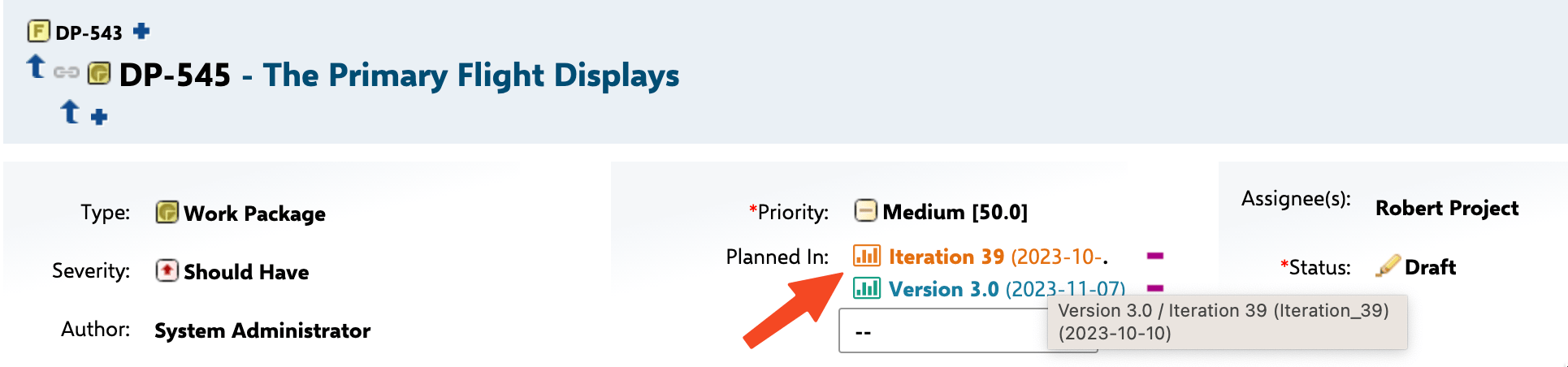
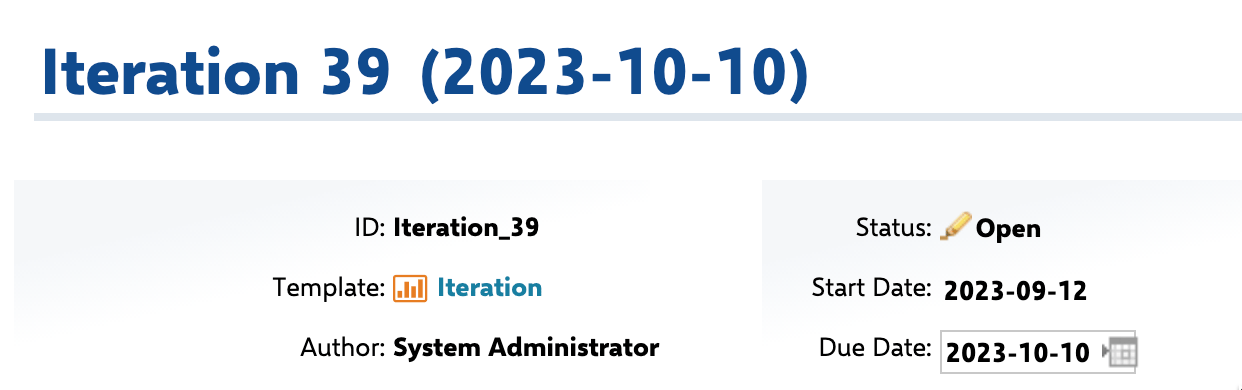
Use plan-derived scheduling when work items do not have their own start/end date fields populated but are assigned to Polarion Plans (iterations, releases) that have defined date ranges. This is common in agile workflows where sprints and iterations define the schedule.
1
Add the Item Script
Navigate to Widget Properties > Advanced > Item Script and add one of the following scripts depending on your scenario.Replace 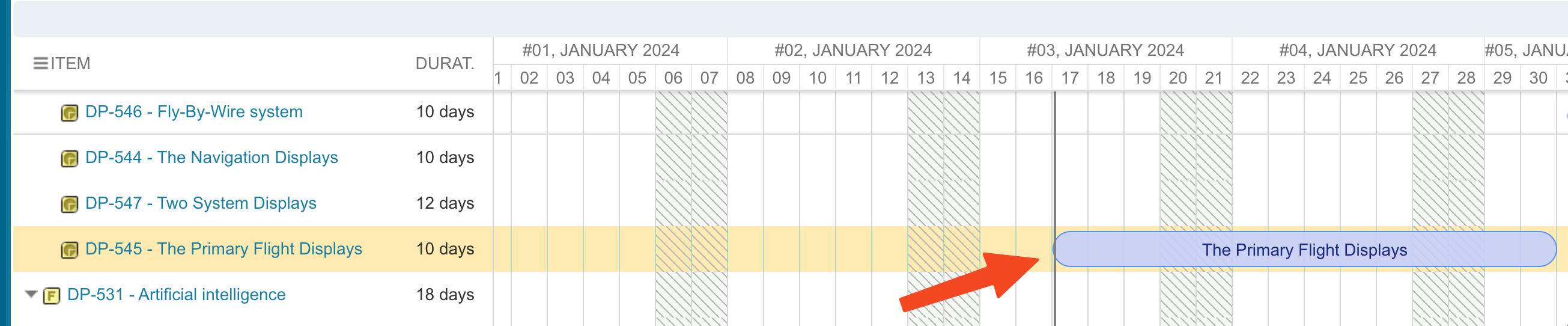
Option A: Derive Schedule for All Unplanned Items
Use the built-in utility method to automatically assign plan dates to unplanned work items:"iteration" with the plan template ID that matches your project (e.g., "release", "sprint").Option B: Derive Schedule for a Specific Plan Type
For more control, iterate through the work item’s plan assignments and match a specific template:2
Configure the Plans Gantt View (Optional)
If you want to display both plans and work items together on a single Gantt chart, use the Plans Gantt widget:
- Set Widget Properties > Show Plan Work Item > Enable Show Items to true.
- Configure the Load Children depth to control how many levels of sub-plans and work items are displayed.
- Set the child link role to load work items under their parent plans.
3
Save and Reload
Save the widget properties and reload the page. The Gantt chart recalculates work item positions based on their plan assignments.
Verification
You should now see:- Previously unplanned work items now positioned on the Gantt chart at the dates of their assigned plans
- Derived items marked as read-only (not draggable) if you set
task.readonly = true - Plan date ranges reflected accurately on the work item task bars
