

Open the Lightbox
- Enter Edit mode by clicking the Edit button in the toolbar.
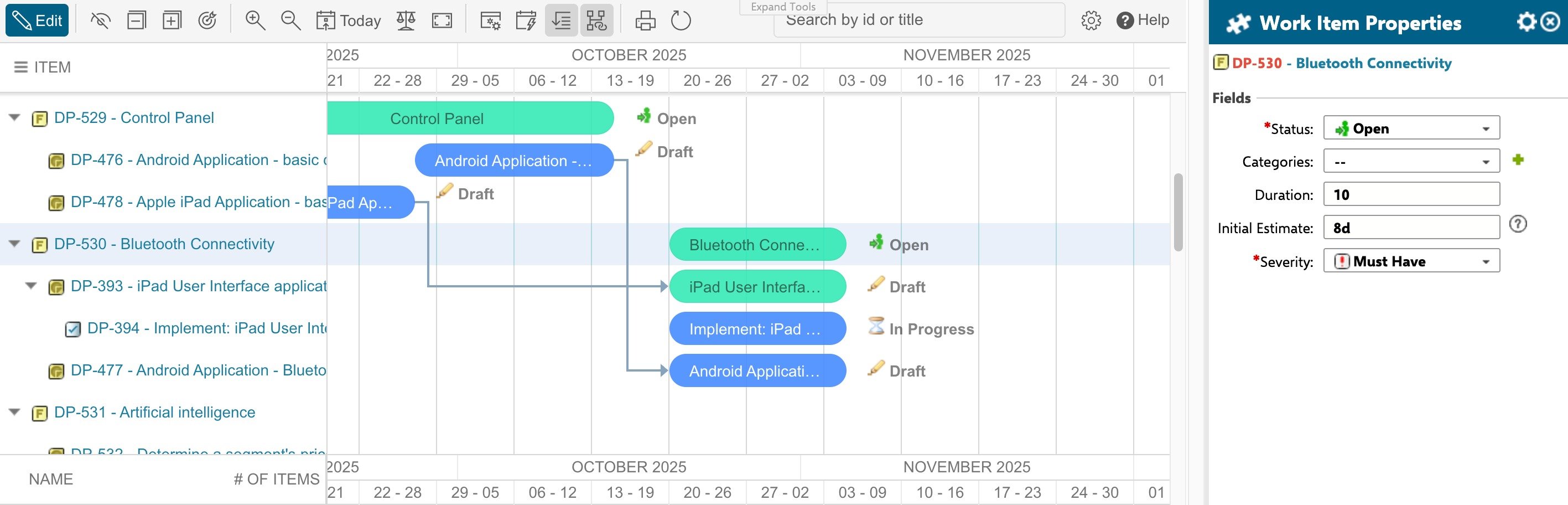
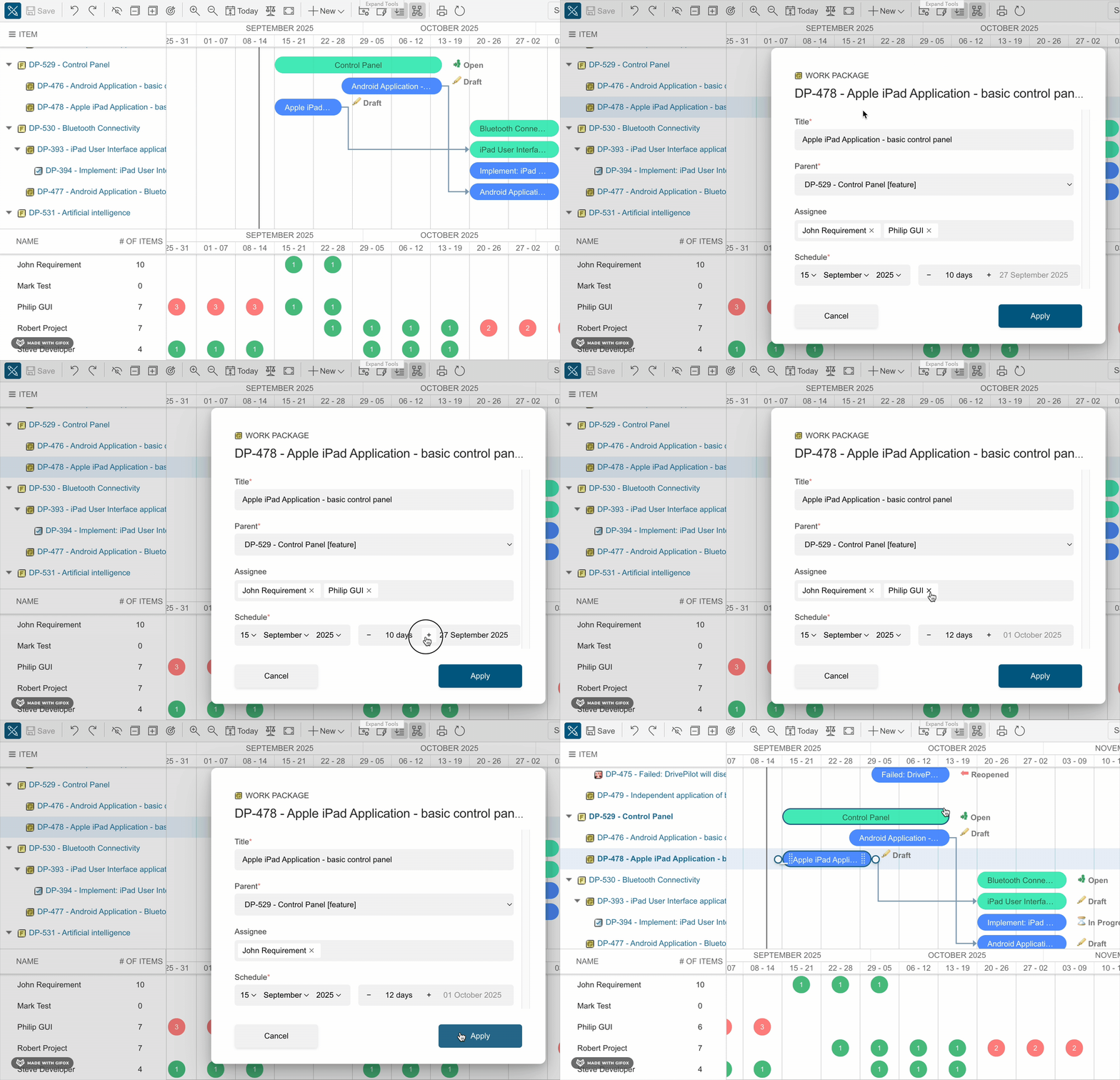
- Double-click any task bar in the Gantt chart. The lightbox opens as an inline editor overlay.
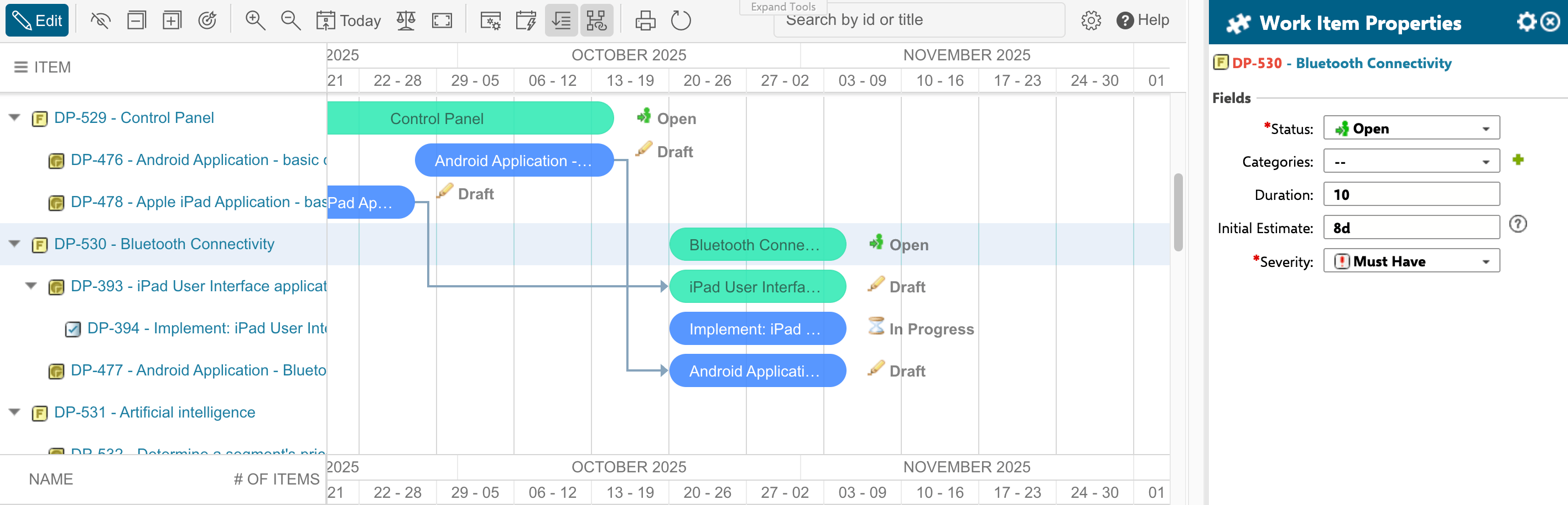
Skip View Mode with Always Edit
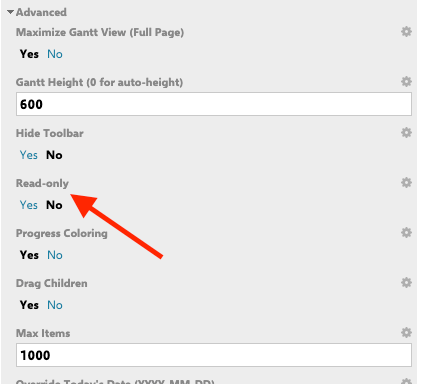
To open the Gantt directly in Edit mode, enable Always Edit per widget via Widget Properties > Work Items Sidebar > Always Edit (set to YES):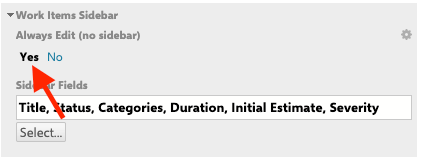
Edit Fields in the Lightbox
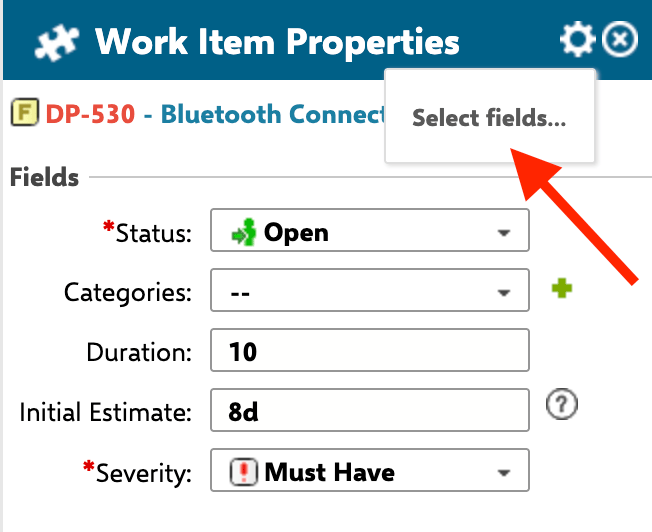
The lightbox supports the following field types:
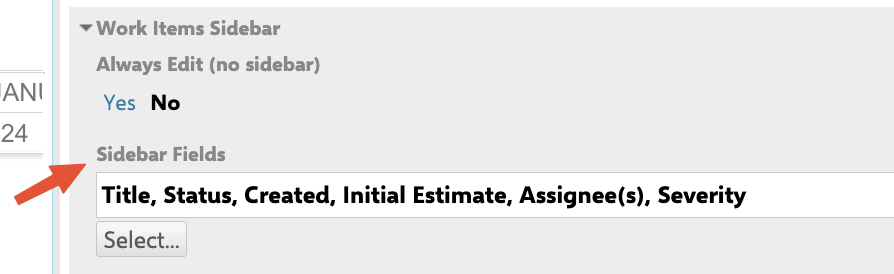
Which fields are shown is configurable. Admins set the default sidebar fields for everyone via Widget Properties > Work Items Sidebar > Sidebar Fields:
Change the Parent Task
The lightbox includes a parent task dropdown that lists eligible parent tasks based on your Work Item Types Configuration. Select a new parent to reparent the task directly from the editor. Selecting “no parent” detaches the task and makes it a root-level item.Validate and Save
Click the 💾 Save button to persist your changes. The lightbox runs validation before saving:- Required fields marked with a red asterisk must be filled. The save button remains disabled until all required fields have values.
- Date range validation ensures child task dates stay within the parent task’s date range. If violated, an inline error message displays the allowed parent date range.
- Numeric validation shows an inline error for non-numeric input in integer and float fields.
Create a New Task via the Lightbox
- Click the ➕ New dropdown in the toolbar.
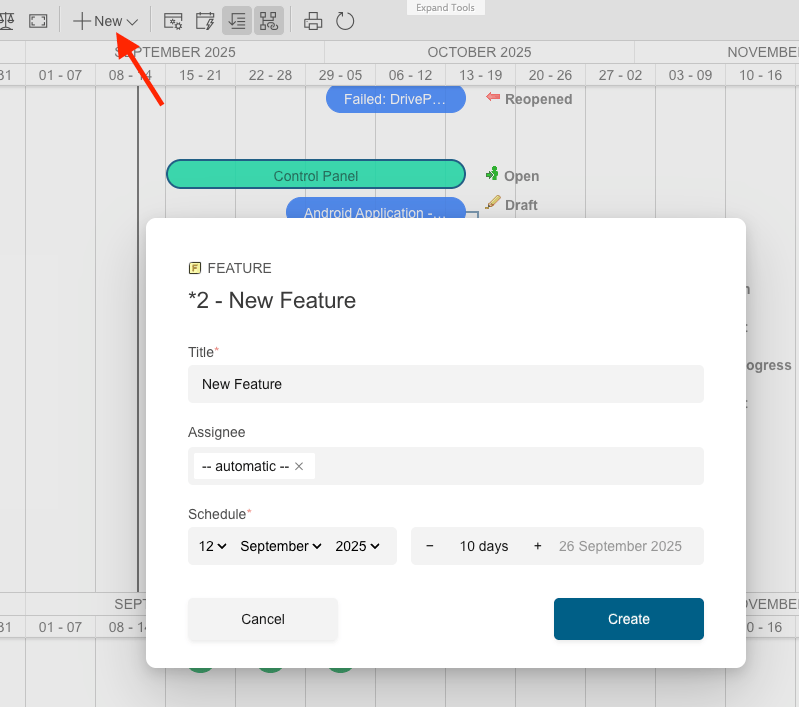
- Select the work item type to create.
- The lightbox opens with default field values pre-populated from your configuration.
- Fill in the required fields and click Save.
Delete a Task
When editing an existing task, the lightbox displays a Delete button. Clicking it removes the task after a confirmation prompt.Verify in applicationThe delete behavior depends on your Gantt configuration. Verify whether deletion removes the work item itself or only the dependency link.