Add the Approvals and Approvers columns to a Nextedy RISKSHEET sheet, choose which verdicts need a comment, and prepare the Polarion roles so reviewers can approve risks from the sheet.
This guide prepares a sheet for an approval round: a column that shows each risk’s approval state, a column to invite approvers, and the settings for approval comments. Once it is done, reviewers approve from the Approvals sidebar as described in Approve Risks in the Approvals Sidebar. For the background, see Work Item Approvals.
You can edit the sheet configuration of the document or of its template (Menu > Configuration > Edit Risksheet Configuration). See Find Configuration Files.
The people who will approve hold the Polarion project_approver role in the project, or the global approver role. The Approvers column offers only the holders of these two roles, so with neither assigned its list is empty. Once either role is defined, Polarion also lets only users who hold one of them approve.
Whoever invites approvers has the Polarion permission to manage other users’ approvals on the items. Removing an approver who has already filed a verdict also needs the permission to reset approvals.
Reviewers have the Polarion permissions to modify approvals and to comment on the risk work items.
The column is always read-only.The Approvals column also brings the approval data that cell decorators read, so a sheet that colours rows by approval state needs it. To keep it out of sight, leave it out of a saved view rather than removing it.
2
Add an Approvers Column
Add a column of type approvers to invite approvers from the sheet:
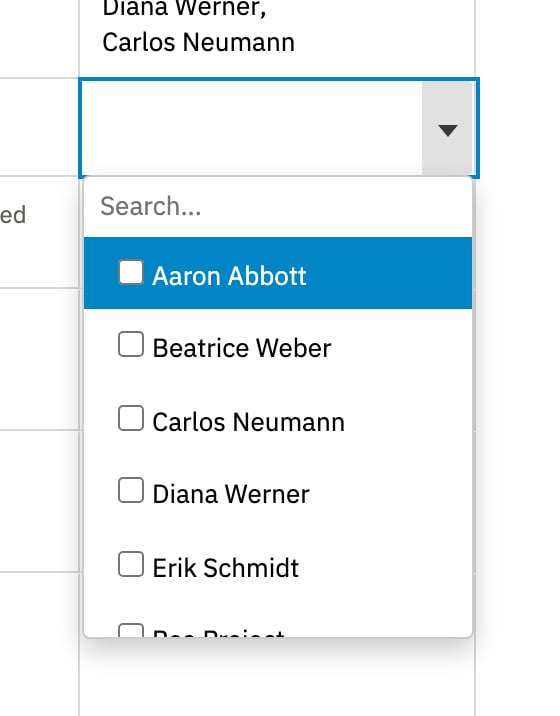
Picking a user in the cell invites them to approve the risk with status Waiting; unpicking removes them. Approvers who are already on the item keep their verdict.
The Approvers picker lists the users who hold an approver role
3
Choose Which Verdicts Need a Comment
Add an approval section to require an approval comment with a verdict. A typical setting asks for a reason when someone disapproves:
approval:
  requireComment:
    disapproved: true
With this setting, the comment box in the sidebar reads Required to disapprove, optional to approve, and Disapprove with an empty box is refused with A comment is required to file disapproved. The rule is checked again when the sheet is saved. Set approved: true as well to require a comment for both verdicts.
4
Decide Whether Resolved Comments Show
Resolving an approval comment thread is how a discussion is closed, so resolved threads are hidden by default. A reviewer can still read them at any time with the sidebar’s Show resolved link. To have them shown from the start, in the sidebar and in the approval-based review column, set the following. Approvals cells then count resolved comments in their unresolved comments figure as well.
approval:
  showResolved: true
5
Save the Configuration and Reload the Sheet
Save the configuration. The new columns appear after the sheet reloads.
Open the sheet and click the Approvers cell of a risk.
Tick the users who should approve it, then leave the cell.
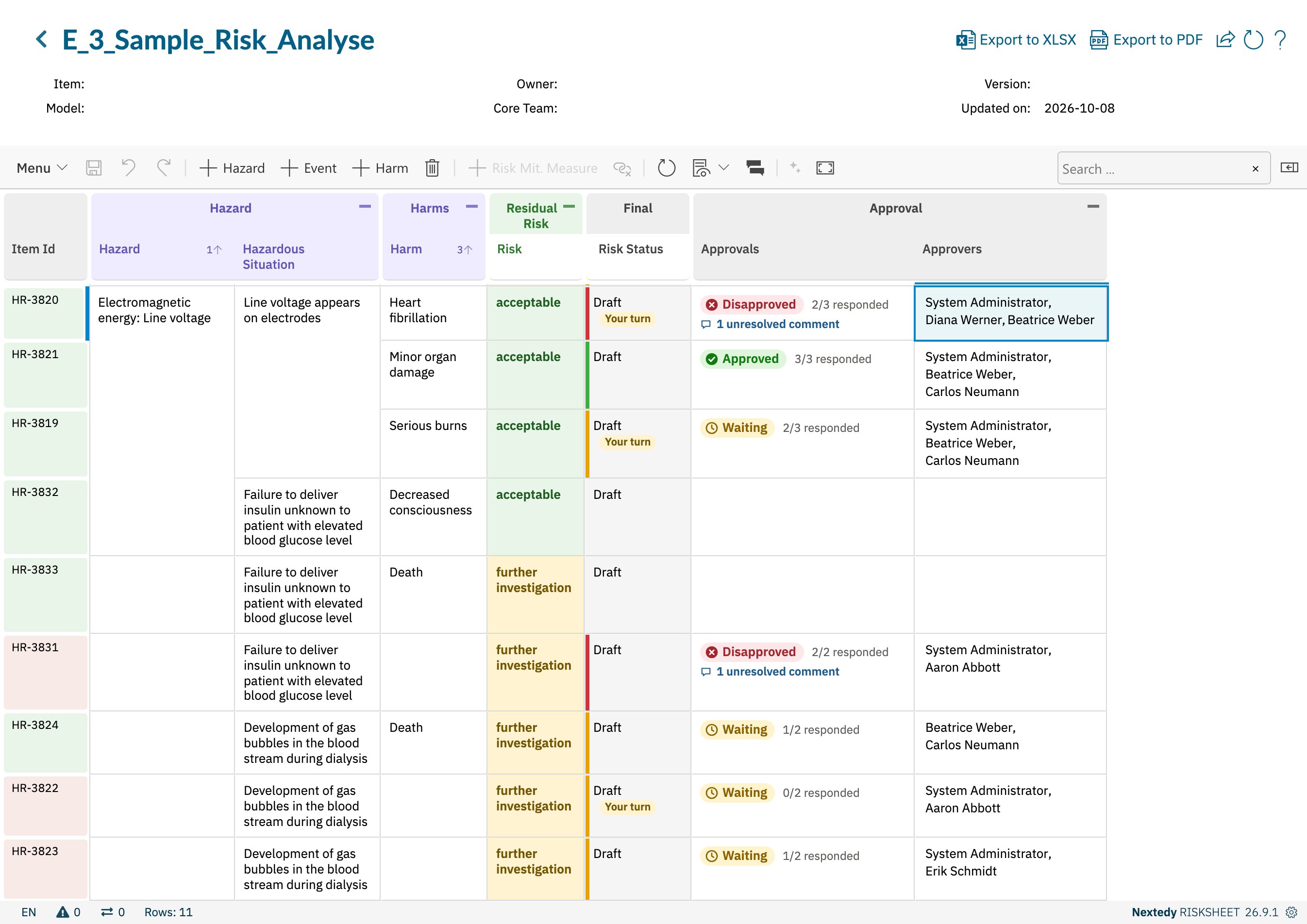
Click Save. Nothing is written to Polarion until you save. On save, the users are added as approvers with status Waiting, and the Approvals cell shows Waiting and 0/N responded.
After saving, the invited approvers are listed and the risk is waiting for their verdicts
Approvers can also be added or removed in Polarion; the sheet shows the same list.
The Approvals sidebar is available on every sheet. To switch it off for one sheet, set:
approval:
  enabled: false
The Approvals entries in the toolbar’s sidebar menu and in Menu > Process then stay visible but disabled, and their tooltip tells the user that an administrator can turn approvals on in the sheet configuration. Approval columns configured on the sheet still show.