Follow the progress of an approval round in Nextedy RISKSHEET from the All approvals view: see which risks are approved, disapproved or waiting, check each approver, chase missing reasons, share the sheet and reset approvals.
A review lead or quality manager needs the overall picture of a round, not one reviewer’s queue. The All approvals view of the Approvals sidebar gives it: how many risks are approved by everyone, which have a disapproval, who is still waiting, and what has not been sent for approval yet. For the reviewer’s side, see Approve Risks in the Approvals Sidebar.
The sheet has approvals switched on and, to show states in the grid, an Approvals column. See Set Up Work Item Approvals.
Reading the round needs no approval permission. Resetting approvals needs the Polarion permission to reset approvals, and asking a disapprover for a reason needs permission to comment on the item.
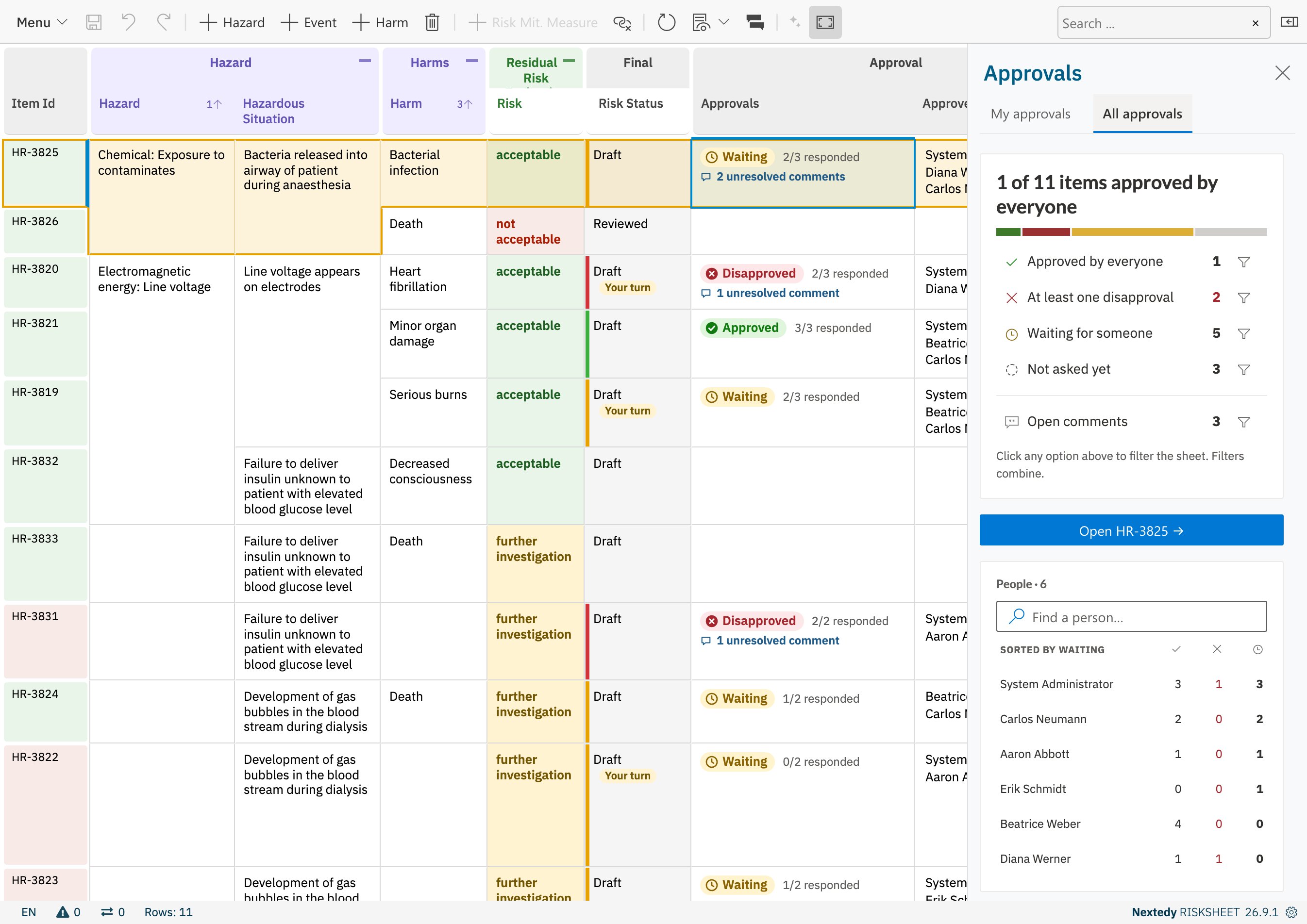
Open the Approvals sidebar — the sidebar menu at the right end of the toolbar, Menu > Process > Approvals, or a click on a cell of the sheet’s own Approvals column — and click the All approvals tab.The headline counts the risks approved by everyone. Below it, the risks of the sheet are split into Approved by everyone, At least one disapproval, Waiting for someone and Not asked yet, and Open comments counts the risks with an unresolved approval discussion. People lists every approver with how many risks they approved, disapproved and still have waiting, sorted by waiting.
All approvals: the state of every risk in the sheet, and every approver's progress
2
Filter the Sheet by State
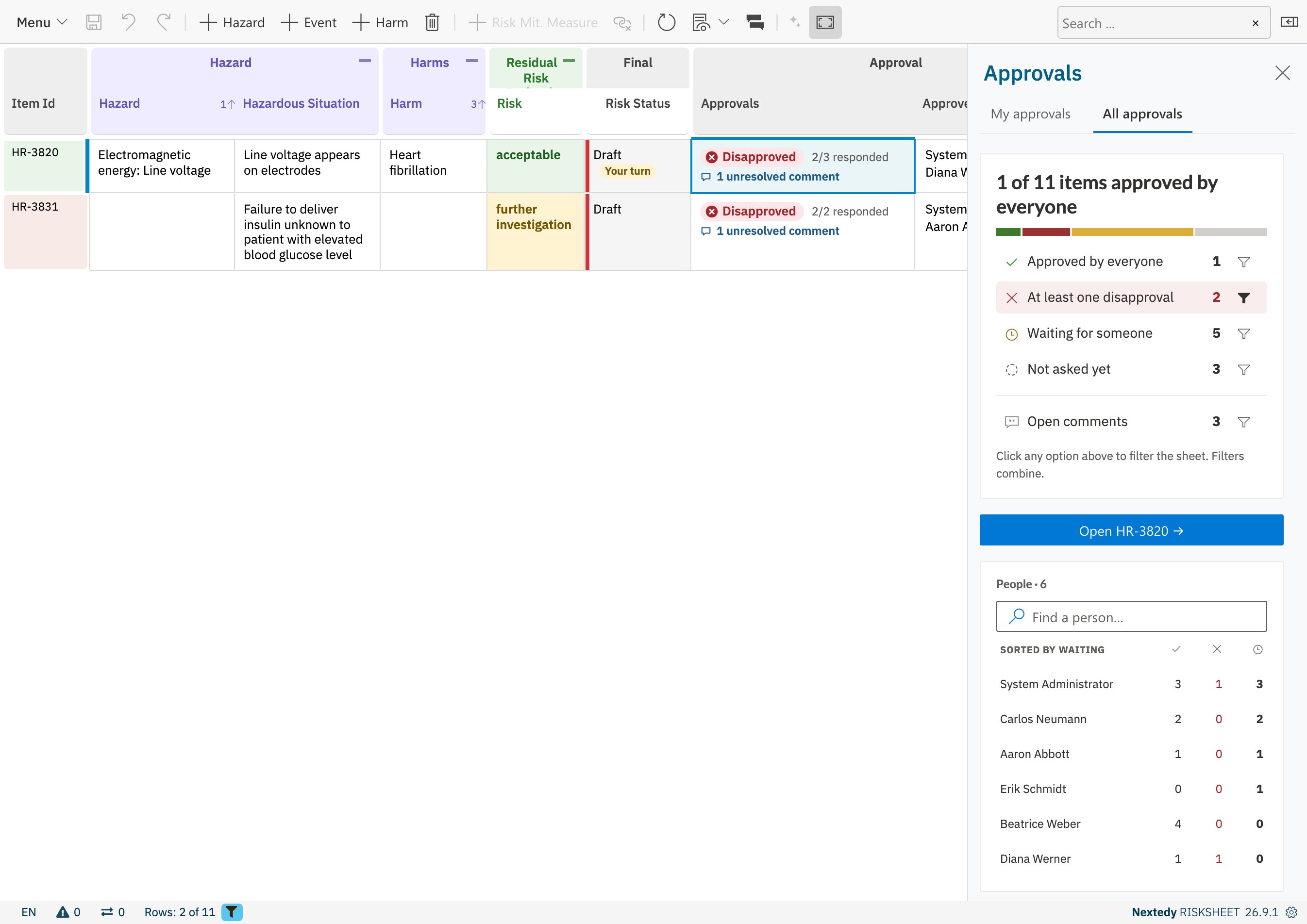
Click a state to show only those risks in the sheet, for example At least one disapproval. States combine with each other, and Open comments narrows them to risks that also have an open discussion. Click a state again to switch it off. When you open a risk, the sidebar shows the filter as Sheet filtered: … with a Clear link; closing the sidebar lifts it too.
The sheet filtered to the risks with at least one disapproval
3
Check One Approver
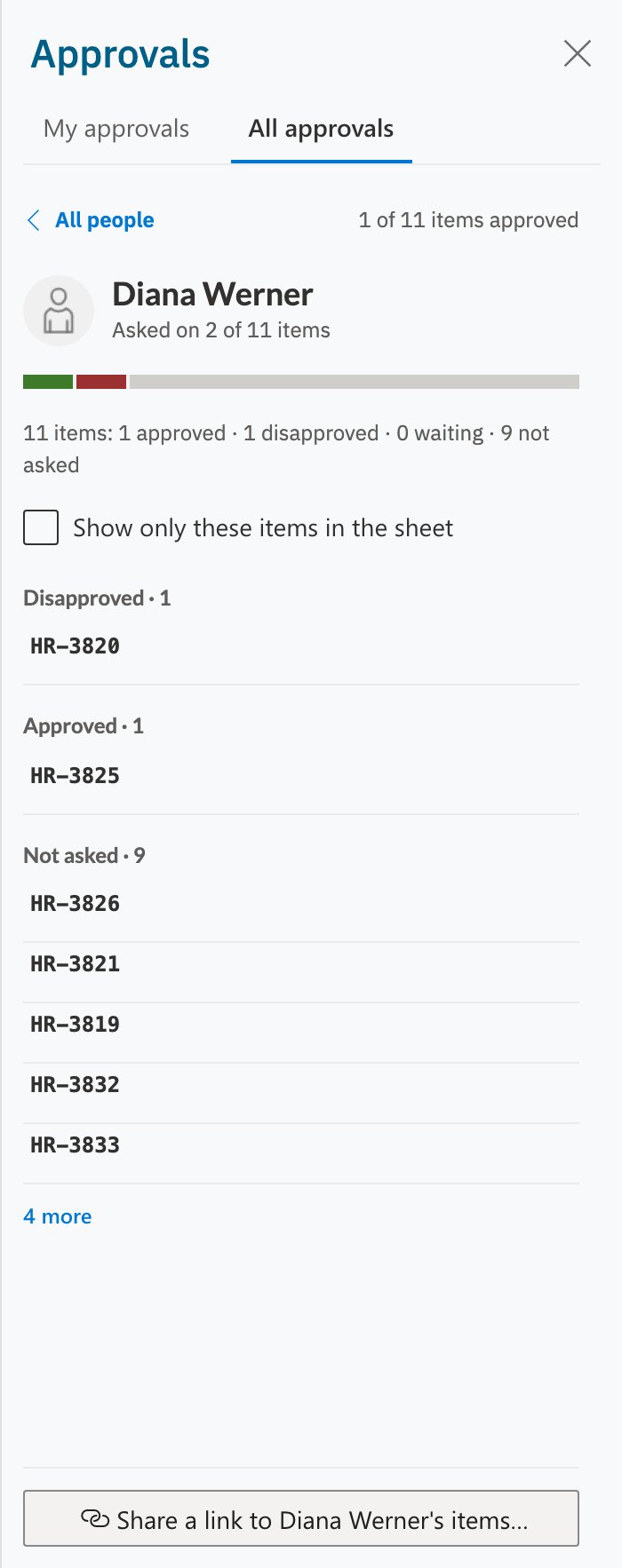
Click a name under People. The view shows how many of the sheet’s risks the person is asked on and lists them by their verdict. Tick Show only these items in the sheet to filter the grid to them; All people goes back.
One approver's progress
4
Open a Risk
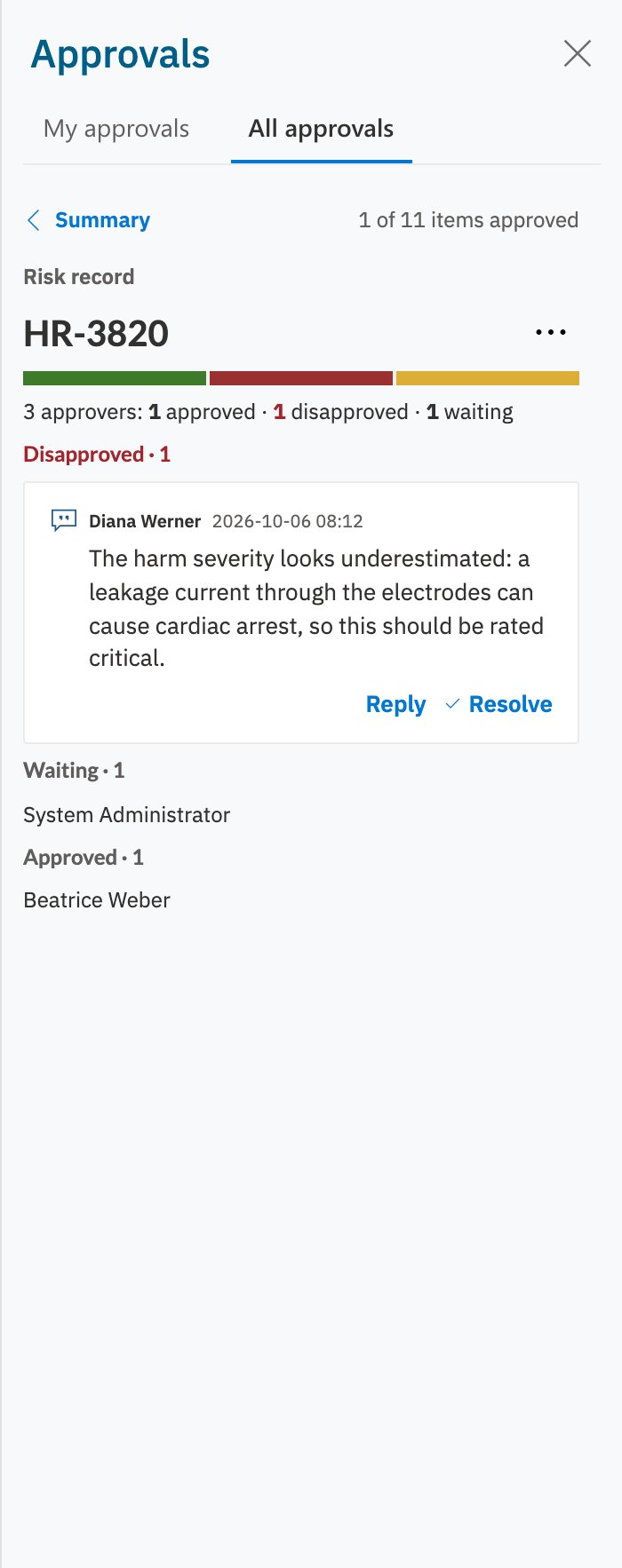
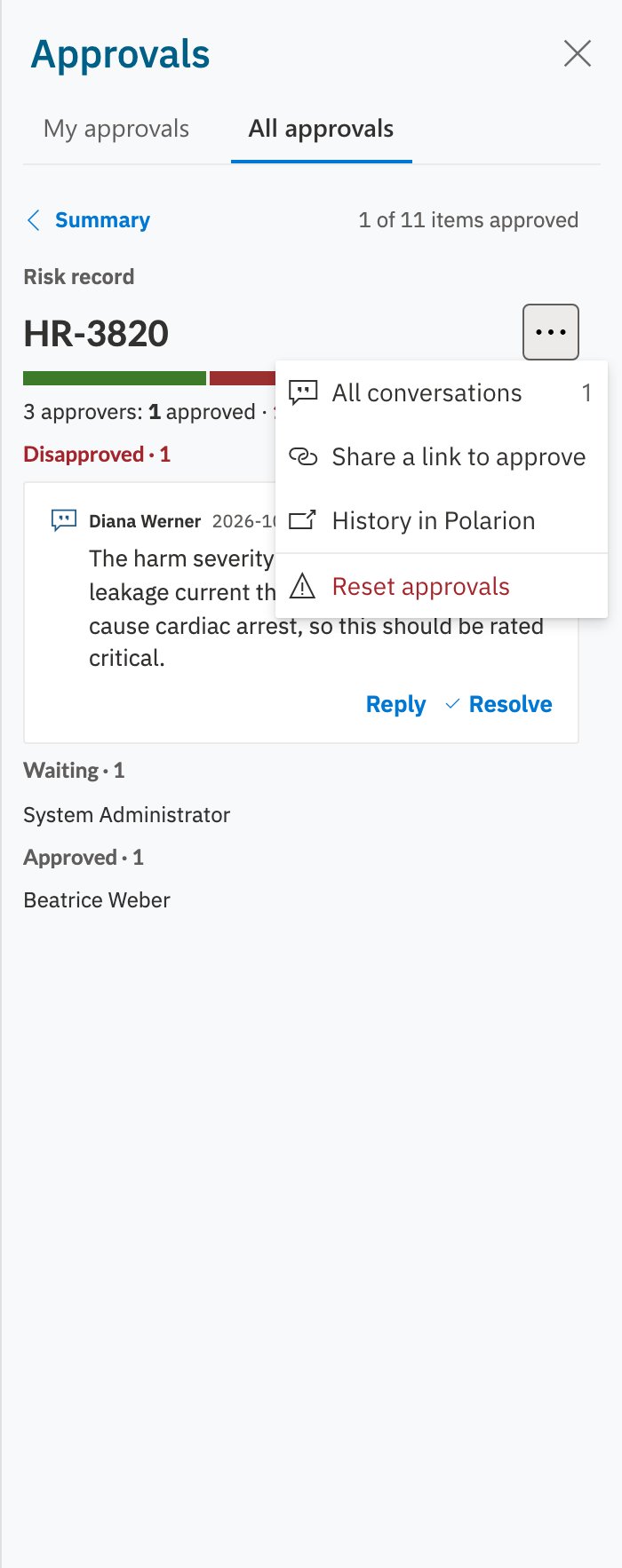
Click Open followed by a risk’s ID, or click a risk in a person’s list. The view shows how many approvers approved, disapproved or are waiting, and lists them by verdict. A disapproval is shown with the disapprover’s reason. When a disapprover gave none, click Ask for a reason to file an approval comment addressed to them.
A risk with one disapproval, one approval and one approver still waiting
When a risk changes after it was approved, you may want everyone to look at it again. Risksheet never resets approvals on its own when a risk is edited — when and whether to reset is your process’s decision.
Open the risk in All approvals and click ⋯ > Reset approvals. There is no confirmation dialog.
Every approver of the risk is set back to Waiting. Who is invited does not change.
Click Save. Until you save, Undo takes the reset back.
If Polarion’s rules for the risk do not allow resetting one of its approvals, the reset is not saved and stays pending, and the sheet tells you why.
Share a link to approve…, at the foot of All approvals, copies a link to the sheet to the clipboard and confirms it with a notification. The same link is copied from a person’s view and from a risk’s ⋯ menu. Whoever opens the link lands on the sheet with the Approvals sidebar open on their own My approvals, so each reviewer sees their own queue. A reader who has nothing to approve on the sheet gets All approvals instead. The link does not invite anyone and does not name a person or a risk — invite approvers in the Approvers column.You can also build the link yourself by adding sidebar=approvals to the sheet’s URL; see URL Parameters.