

approvals shows the approval state of an item, and approvers lists and edits who is asked to approve it. The approval section of the sheet configuration controls the Approvals sidebar and approval comments. For the concepts, see Work Item Approvals; for a walkthrough, see Set Up Work Item Approvals.
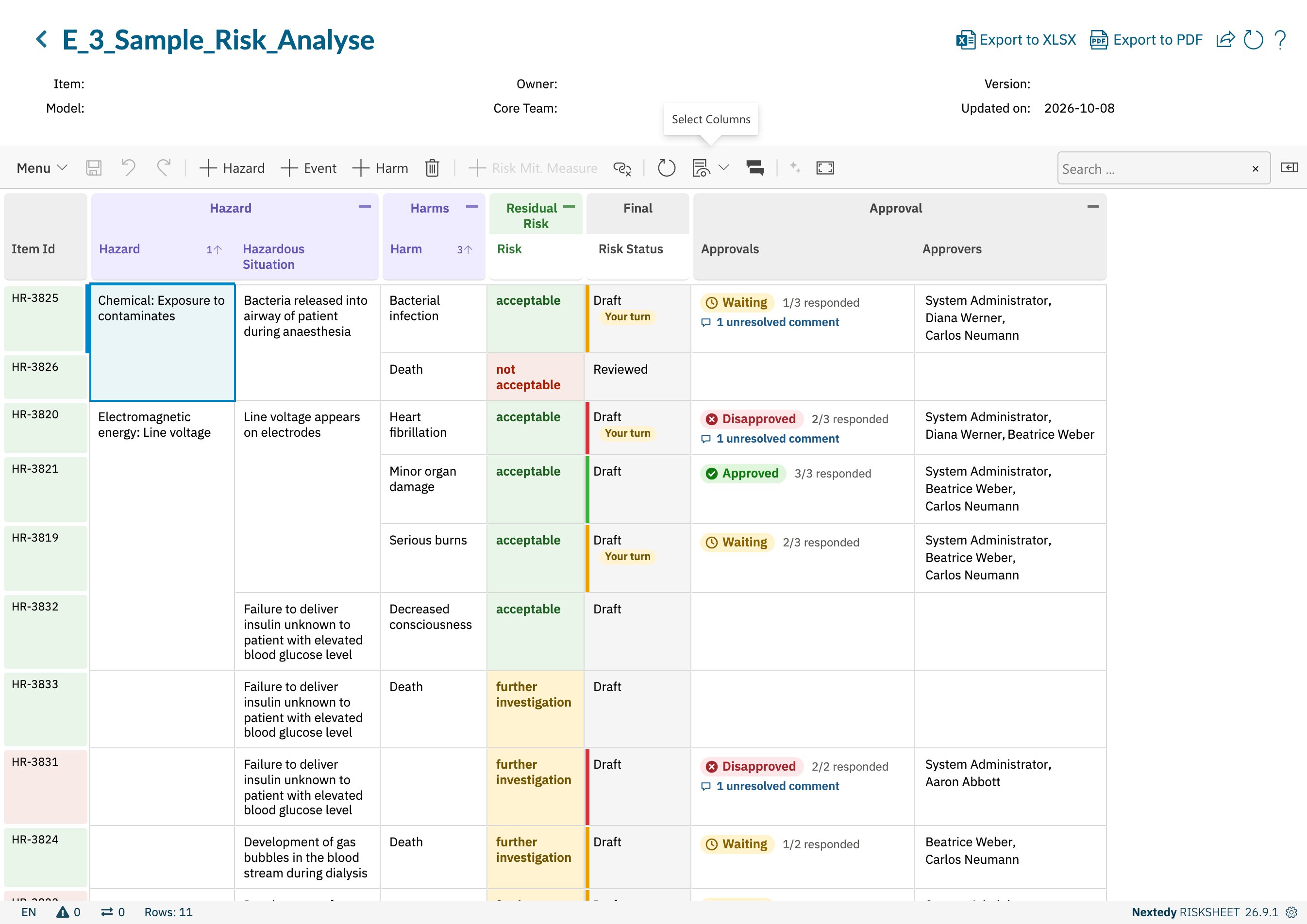
An Approvals and an Approvers column, under a shared Approval header group
Approvals Column
Other column properties such as
header, headerGroup, width and level work as for any column; see Column Types.
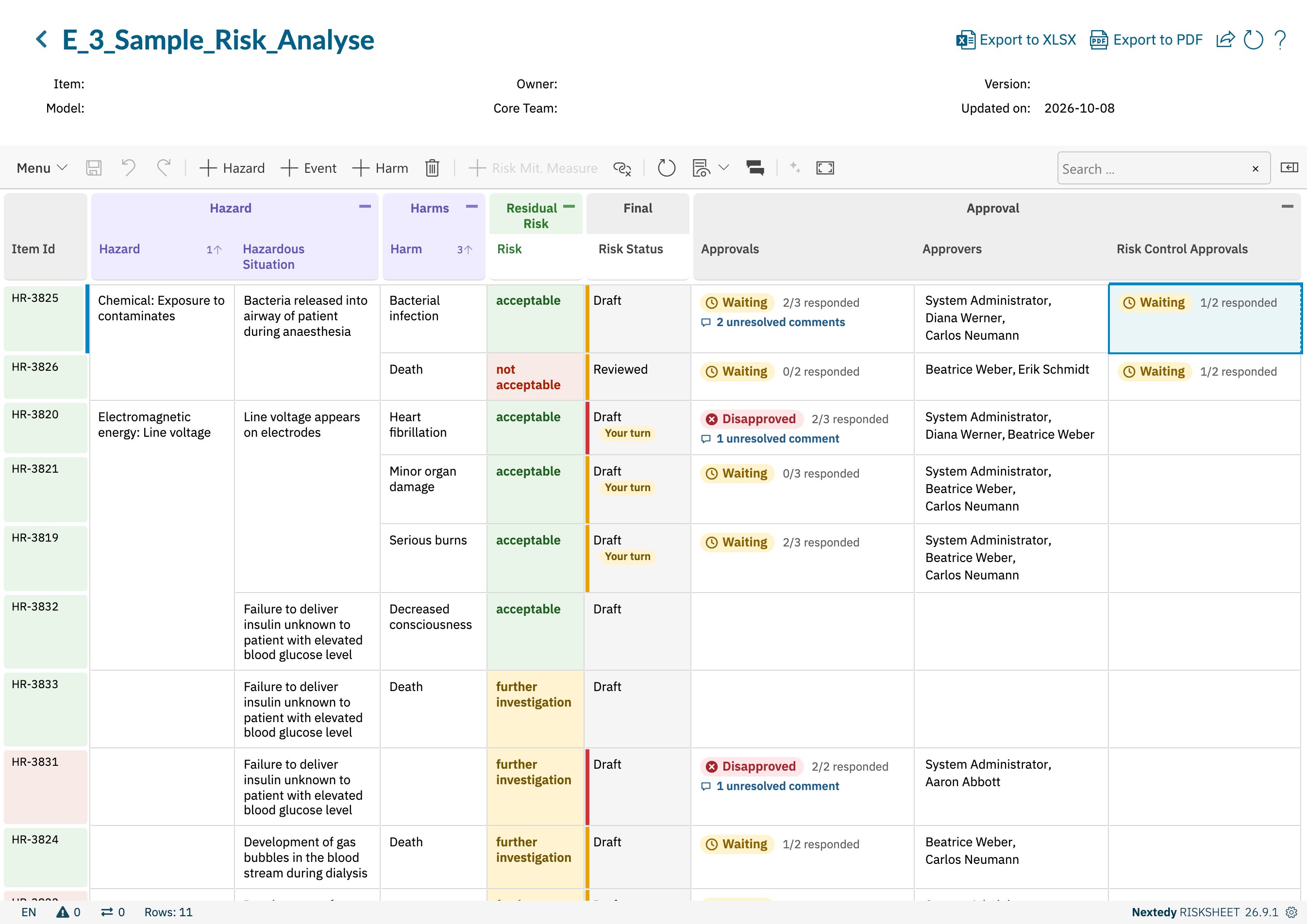
A Risk Control Approvals column bound to task.approvals: two risks sharing one risk control show its approvals
What the Cell Shows
The cell names no approvers; hover it for a tooltip with the reason for the state and the number of approvers in each state. A cell that shows the items of a
multiItemLink column lists one block per linked item that has approvers, headed by the item’s ID. An item with no approvers leaves the cell empty.
Clicking a cell of an Approvals column for the row’s own item opens the Approvals sidebar. Cells showing a risk control’s or a linked item’s approvals do not.
Filter, Export and Decorators
- Filter — the column filter lists the overall states, Disapproved, Waiting, Approved and No approvers, instead of the cell content. A multi-item cell counts as disapproved when any of its items is.
-
Excel and PDF export — the cell is exported as text: the status line, then one line per approver with their verdict.
-
Cell decorators — the approvals of the row’s own item reach every decorator as
info.approvals, read from the first Approvals column that is not bound to a linked item. A sheet without that column gives decorators no approval state. See Cell Decorators.
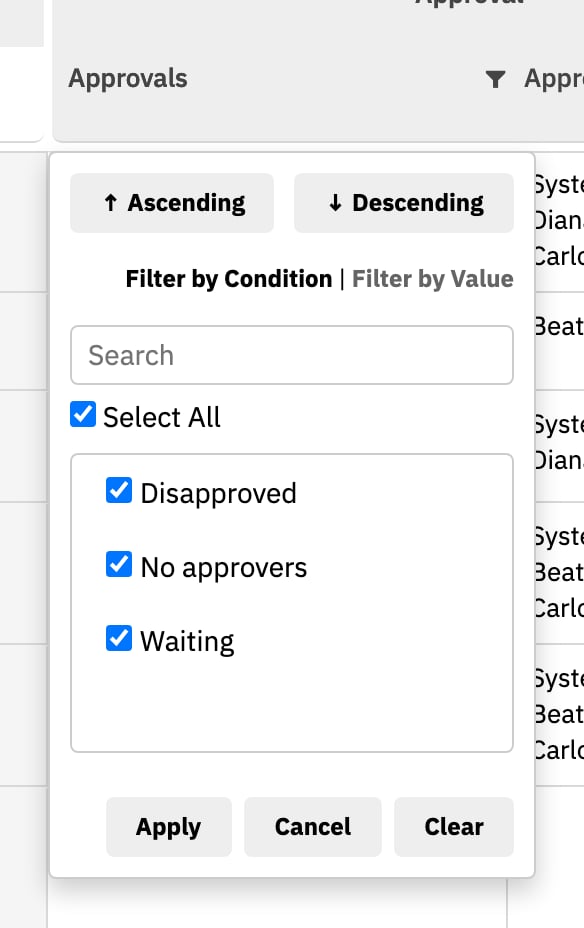
The Approvals column filter lists the overall states present in the sheet
Approvers Column
approval Section
Sheet-level settings for approvals, under the top-levelapproval key.