Open a Nextedy POWERSHEET sheet scoped to a Siemens Polarion ALM Collection from Powersheet Drive, from a document, or with the _collection URL parameter, and check that the sheet shows the Collection’s revisions.
Opening a sheet inside a Collection limits it to the work items of the Collection’s documents, each at the revision the Collection pins. For what that changes in the sheet, see Collection-Scoped Sheets.
A Polarion Collection in the same project as the sheet’s document. A sheet cannot open a Collection from another projects.
The Collection contains the documents whose work items the sheet shows. A sheet which is bound to the current document needs that document in the Collection.
A working powersheet document. No change to the sheet configuration or the data model is needed.
Read access to the Collection’s documents. To edit, you also need write access to the documents the Collection leaves live.
There are three ways in. All of them end in the same sheet URL, carrying _collection=<id>. Which one you use depends on where you start:
You are
Use
In Polarion, outside the Collection
Powersheet Drive and its Collection selector
In Polarion, inside the Collection
The Open with Nextedy POWERSHEET button on a document of the Collection. Powersheet Drive is not in the sidebar while you are inside a Collection: Polarion shows only the Collection’s own topics there.
Holding a link to the sheet
Add _collection=<id> to it
The scope of the sheet is stated by its own Collection: chip, not by Polarion’s Collection banner. A sheet URL without _collection opens unscoped even when Polarion is showing the Collection.
Powersheet Drive shows a Collection selector when the project has at least one Collection.
1
Select the Collection
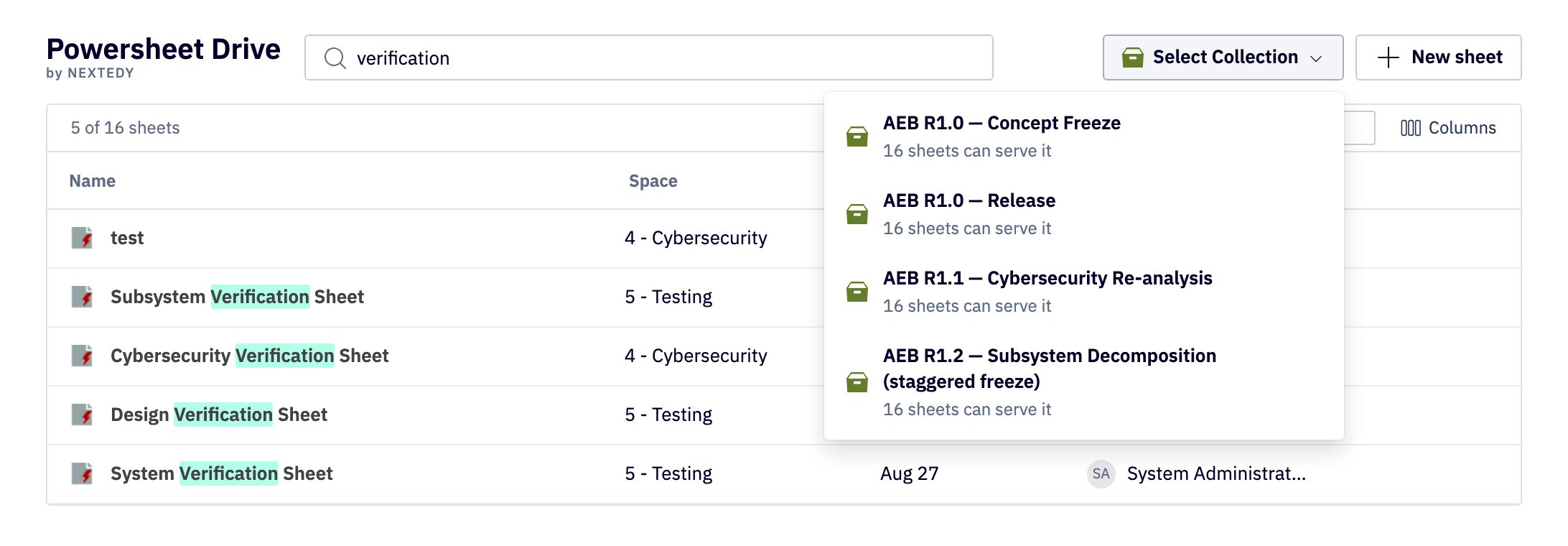
Open Powersheet Drive and choose Select Collection. The menu lists the project’s Collections, newest first, each with the number of sheets that can open inside it.
The Collection selector in Powersheet Drive lists the project's Collections.
2
Open a sheet
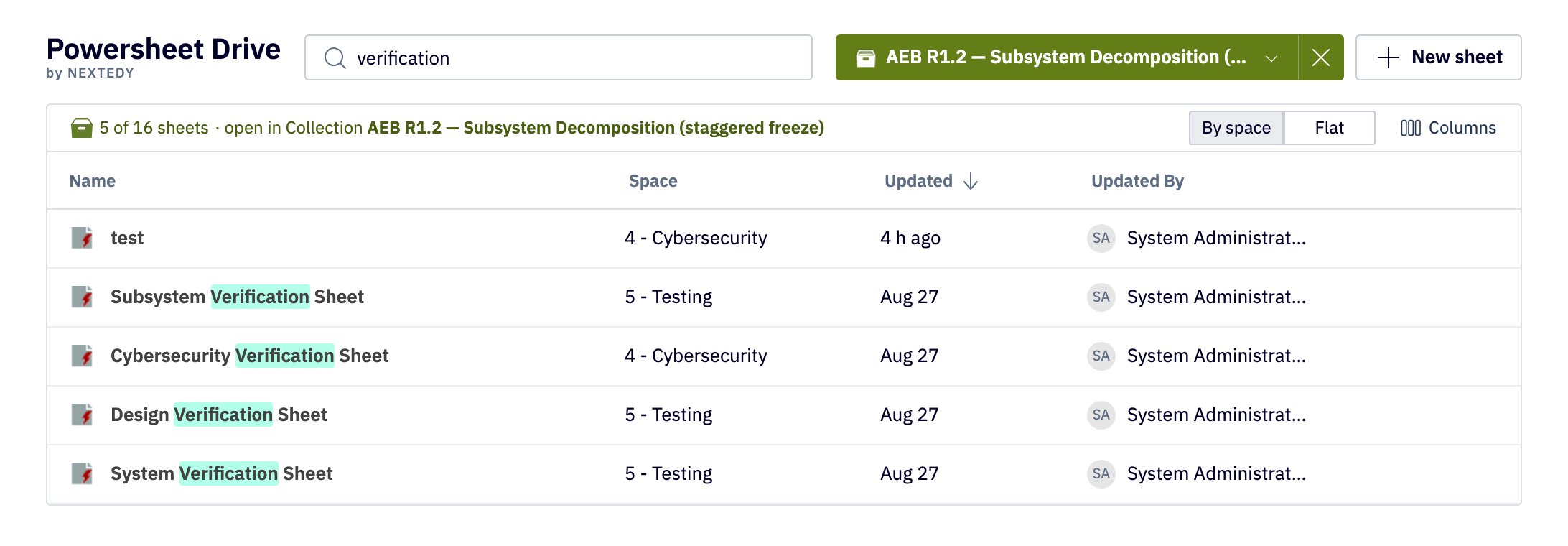
The selector now shows the Collection’s name, and the sheet count reads open in Collection followed by that name. Select a sheet. It opens in a new browser tab, inside the Collection.While a Collection is selected, the Drive lists only the sheets that can open inside it. A sheet which is bound to the current document is listed only when the Collection contains that document.
With a Collection selected, every sheet in the list opens inside it.
3
Leave the Collection
To return to the unscoped list, open the selector and choose Leave Collection, or select the cross beside the Collection’s name.
This is the way in while you are inside the Collection in Polarion, where Powersheet Drive is not available.
1
Enter the Collection
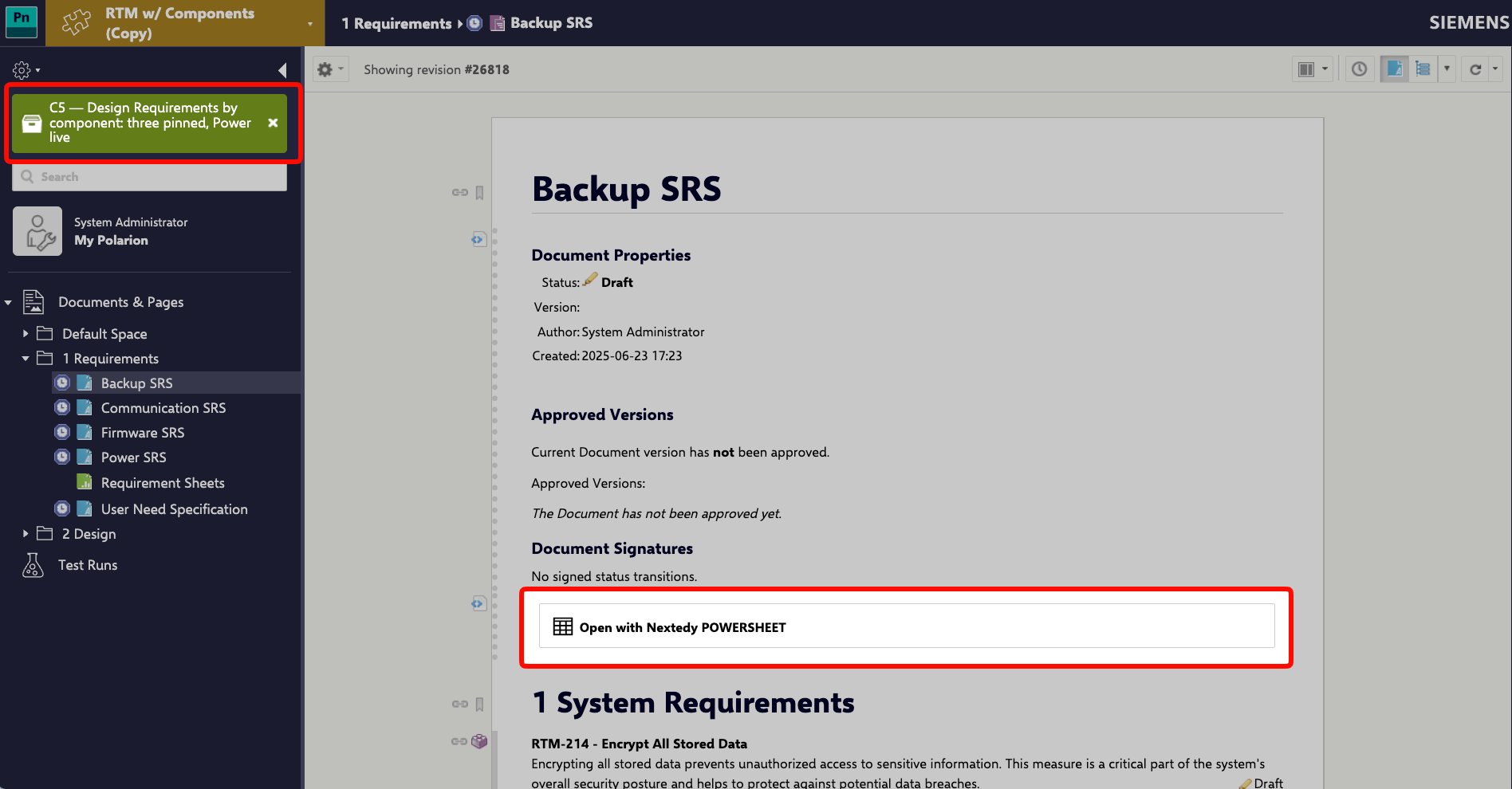
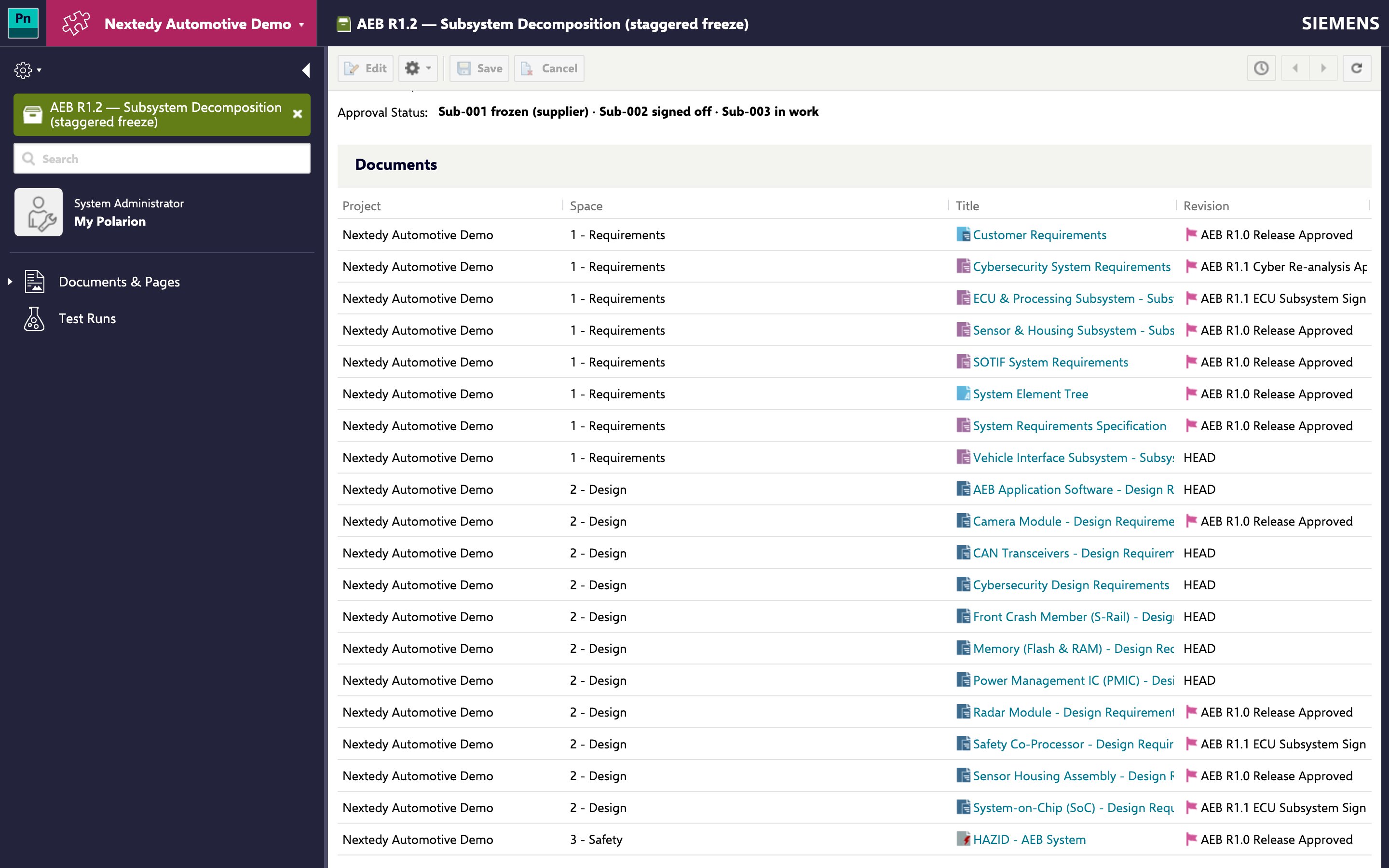
Open the Collections topic in the Polarion sidebar and select Enter Collection on the Collection. Polarion shows a green banner naming the Collection, and Documents & Pages now lists only the Collection’s documents.
The Collections topic is not in Polarion’s default navigationAn administrator adds it under Administration > Portal > Topics, the same way the Powersheet topic is added in Setting Up Navigation.
2
Open the document and select the Open with Nextedy POWERSHEET
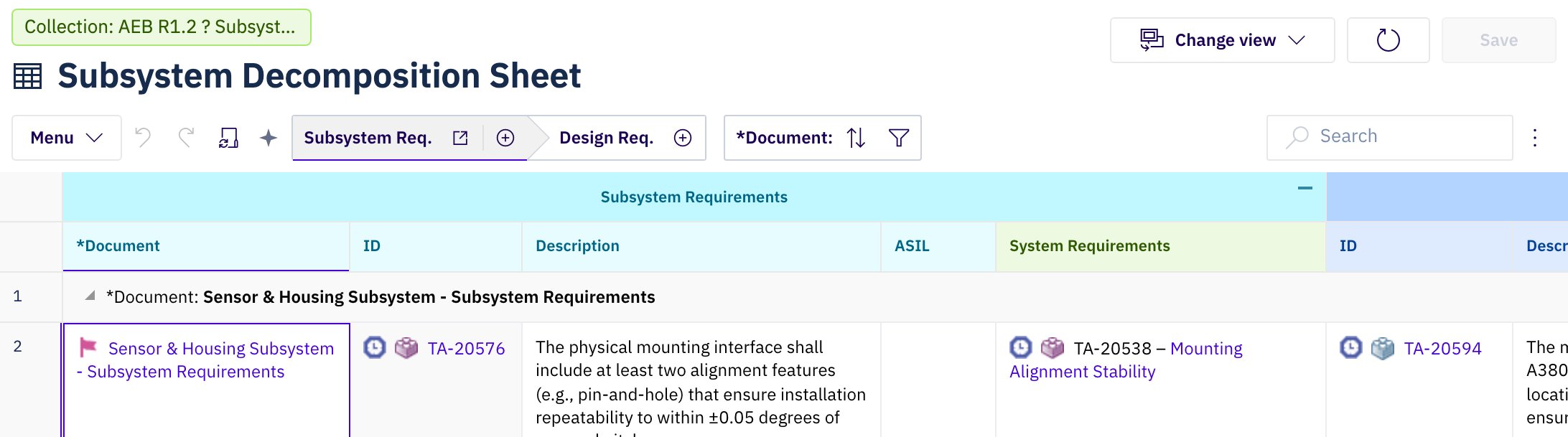
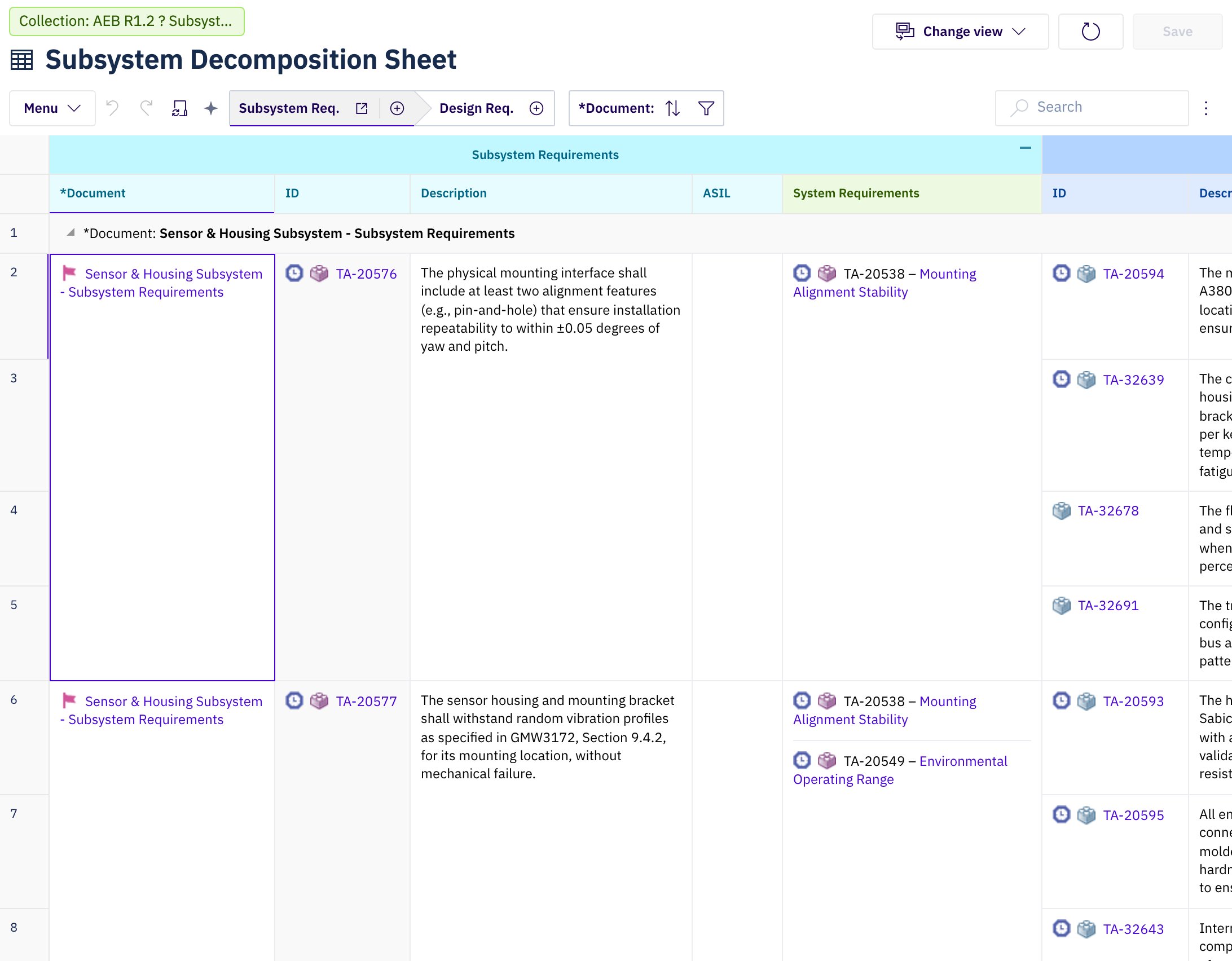
Open the sheet’s document from Documents & Pages and select Open with Nextedy POWERSHEET, the button a document carries when it was set up as in Creating Your First Powersheet Document. The sheet opens inside the Collection you came from, with the Collection: chip above its title.
The button carries the scope the document is shown in: the Collection when you are inside one; otherwise the revision, when the document is shown at a historical revision; otherwise nothing.
Polarion leaves the Collection; the sheet does notThe button opens the sheet in the same browser tab, and Polarion is no longer inside the Collection there: its green banner is gone, and the sidebar shows the project’s topics again. The sheet stays scoped, as its Collection: chip shows, and the links in its cells still open work items and documents inside the Collection. Anything you open from Polarion’s own navigation in that tab shows the live project. To keep working in Polarion inside the Collection, enter it again from the Collections topic.
After leaving a Collection, check that the document is liveWhen you leave a Collection, Polarion may keep showing the document at the revision the Collection pinned. The button then opens the sheet at that revision: read-only as a whole, with the revision in the title and no Collection: chip. Open the document’s current version first if you want the live sheet.
The URL can be bookmarked and shared. Everyone who opens it sees the same Collection.Only _collection scopes the sheet. A link that opens the sheet from inside a Collection in Polarion, but does not carry _collection, opens the unscoped sheet.
Building links from a page inside the CollectionIn a LiveReport or LiveDoc script block, $transaction.context().contextCollection() is set while the page is rendered inside a Collection. A page that is a member of the Collection can use its id() to build sheet links that carry _collection.
The fields of rows from pinned documents are read-only. Rows from live documents are edited as usual: change a cell and select Save, and the change is written to the work item’s current revision. Unsaved changes are lost when you reload or close the tab, as in any sheet.New rows are created in a live document of the Collection. See Editing Inside a Collection for the rules on creating and linking.To leave the Collection, select Menu > History > Exit Collection.