

1
Verify Entity Type Structure
Open your data model YAML file and confirm each entity type under Each entry must have:
domainModelTypes has a valid structure. Entity type names should follow PascalCase convention (e.g., UserNeed, SystemRequirement) for consistency across the configuration:- A unique name as the map key (the
namefield is automatically set from the key) - A
polarionTypevalue that maps to a Polarion work item type ID - An optional
propertiesmap defining available fields
2
Verify polarionType Mappings
Each
polarionType value must match an actual Polarion work item type ID — not the display name. Navigate to Administration > Work Item Types in Polarion to find the correct IDs.3
Verify Relationship References
In the Check each relationship for:
relationships section, both from and to values must reference entity type names defined in domainModelTypes — never Polarion work item type IDs:fromandto— must exactly match adomainModelTypeskey (case-sensitive)cardinality— if set, eithermany-to-oneormany-to-manystorage— set tolinkedWorkItemsfor Polarion link-based relationshipslinkRole— must match a link role ID defined in Polariondirect.nameandback.name— navigation property names used in sources and column bindings
4
Validate Navigation Property Names
Navigation property names defined in 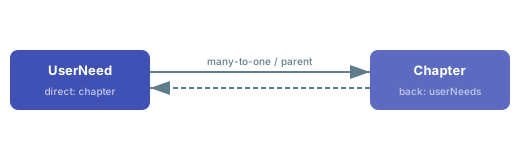
direct.name and back.name must be unique within each entity type. These names are how sources and columns reference the relationship.direct direction navigates from the from entity to the to entity. The back direction navigates in reverse. Verify that:- Scalar nav properties (N:1 direct side) use singular names:
chapter,userNeed - Collection nav properties (1:N back side, or M:N) use plural names:
userNeeds,systemRequirements - No two relationships define the same nav property name on the same entity type
5
Verify Link Roles Exist in Polarion
Each
linkRole in a relationship must correspond to a link role configured in your Polarion project:- Go to Administration > Work Item Link Roles in Polarion
- Confirm the link role ID exists (e.g.,
parent,decomposes,verifies,relatesTo) - Verify the link role allows connections between the work item types specified by
polarionTypeon both sides of the relationship
6
Check Property Definitions
Properties listed under entity type definitions should correspond to valid Polarion fields — either built-in fields or custom fields defined in the project:Key rules for properties:
- Property names map to Polarion field identifiers
- Custom fields require matching
customFieldNameif the property name differs from the Polarion field name - The
storageproperty on a relationship definition determines how the link is persisted —linkedWorkItemsis the only supported storage mechanism - Reserved names:
projectanddocumenthave special handling and should not be defined as custom properties
7
Use the Model Helper Widget
The Model Helper widget provides a visual tree of your data model structure, letting you verify that entity types and relationships are correctly connected before opening a full sheet:
- Open a LiveReport page in Polarion
- Add the Model Helper widget and configure its parameters:
- model: your model name (must match the
sources.modelvalue in your sheet configuration) - projectId: your Polarion project ID
- startEntity: the root entity type to visualize (e.g.,
UserNeed) - depth: number of relationship levels to display
- model: your model name (must match the
- Review the displayed tree structure and confirm:
- All expected entity types appear at the correct levels
- Navigation property names match what you defined in
direct.nameandback.name - No missing branches that indicate broken relationship references
Model name must match between data model file and sheet sources
Model name must match between data model file and sheet sources
The
sources.model property in your sheet configuration must match the name of your data model file (without the _model.yaml suffix). For example, if your file is rtm_model.yaml, set sources.model: rtm. Using the wrong name (such as leaving the default when you have a custom model name) is one of the most common first-time configuration errors.8
Cross-Check Source Expand Paths
After validating the data model itself, verify that your sheet configuration
sources section correctly references the navigation properties you defined. The expand path must match the cardinality:Validation Checklist
Use this checklist before deploying your data model to a sheet:- Entity type names use PascalCase without spaces or special characters
- Each
polarionTypematches a Polarion work item type ID (not display name) - All
fromandtovalues in relationships matchdomainModelTypeskeys exactly - All
linkRolevalues match link role IDs in Polarion configuration - Navigation property names (
direct.name,back.name) are unique per entity type - Scalar nav properties use singular names; collection nav properties use plural names
- Property names reference valid Polarion field names (built-in or custom)
-
cardinality, if set, ismany-to-oneormany-to-many -
storageis set tolinkedWorkItemsfor Polarion link-based relationships -
sources.modelin the sheet configuration matches the data model file name - Source expand paths match the navigation property names and follow cardinality patterns
Verify
After correcting any issues found during validation, save the data model and open a Powersheet document. You should now see:- The sheet loads without model connection errors
- All entity types display the correct Polarion work items
- Relationships expand correctly in the hierarchy, with child rows appearing at the expected levels
- Picker dialogs show items of the correct types when editing reference columns
- Navigation property names in column bindings resolve without errors
See Also
- Fix Model Connection Errors — resolve model loading failures
- Fix Type Name Errors — troubleshoot entity type mapping issues
- Fix Relationship Errors — diagnose broken relationship definitions
- Create an Entity Type — add a new entity type to the data model
- Configure a Relationship — set up relationships between entity types
- Create an Entity Type — map entity types to Polarion work item types
- Use Model Helper Widget — detailed Model Helper reference