

Prerequisites
- Both entity types must already exist in your
domainModelTypessection (see Create an Entity Type) - A Polarion link role must be configured in your project for the relationship
- Basic familiarity with the data model
relationshipsarray (see Configure a Relationship)
1
Define Both Navigation Directions
Every relationship in the data model supports two navigation directions through the This single relationship definition creates two navigation properties: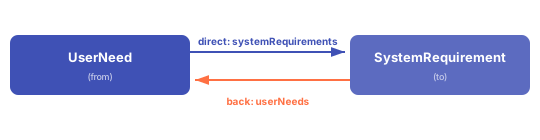
direct and back properties. The direct direction navigates from the from entity to the to entity. The back direction navigates in reverse — from to back to from.Add a relationship entry with both direct and back names defined:2
Choose the Right Cardinality
The cardinality determines how navigation properties behave in sources and columns. Pick the pattern that matches your traceability structure:Both navigation properties return collections in this cardinality.
Many-to-One Example
EachUserNeed belongs to exactly one Chapter:- The
directpropertychapteris singular — it returns oneChapterentity - The
backpropertyuserNeedsis plural — it returns a collection ofUserNeedentities
Many-to-Many Example
UserNeed links to multiple SystemRequirement items and vice versa:3
Use Bidirectional Links in Sheet Sources
Once the data model defines both directions, configure your sheet sources to expand the navigation properties. The direction you expand determines which entities appear as child rows.Expanding the direct direction (from Expanding the back direction (from The same relationship serves both views — no need to define a separate relationship for each direction.
UserNeed to SystemRequirement):SystemRequirement to UserNeed):4
Bind Columns to Both Directions
Reference the navigation properties in your column configuration to display data from both sides of the relationship.Columns for a UserNeed-centric sheet (expanding toward Columns for a SystemRequirement-centric sheet (expanding back toward The binding path follows the pattern:
SystemRequirement):UserNeed):navigationProperty.targetEntity.field. For many-to-one relationships, the binding is simpler since the property is scalar:5
Build a Multi-Level Hierarchy
Chain multiple bidirectional relationships to create a full requirements traceability matrix:With this model, you can build a sheet that navigates the full chain:
UserNeed → SystemRequirement → DesignRequirement — or traverse it in reverse from any level using the back navigation properties.6
Verify Your Bidirectional Links
- Open the Model Helper widget in your Polarion project
- Set the depth parameter to at least 2 to see multi-level relationships
- Confirm that each entity type shows both its
directandbacknavigation properties - Open a sheet that uses the data model and expand a row — you should see child items loaded through the navigation property
- Switch to a sheet using the reverse direction and verify the
backproperty loads the expected parent items
UserNeed shows its linked SystemRequirement items, and expanding a SystemRequirement shows the UserNeed items that reference it.Common Pitfalls
The sources.model property must match your data model name
The sources.model property must match your data model name
Ensure the
sources.model property in your sheet configuration matches the custom model name defined in your YAML file, not the default rtm. A mismatch causes model connection errors.See Also
- Configure a Relationship — core relationship setup
- Configure Many-to-Many Relationships — association entity patterns and advanced M:N configuration
- Add a Column — column binding path syntax
- Expand Navigation Properties — query-level navigation property expansion
- Use Model Helper Widget — visual model verification tool
- Data Model Reference — full property reference for relationships