

type property. This means dropdown values are governed by Polarion administration, reuse existing custom fields, and remain consistent across projects and documents.
1
Define the Enumeration in Polarion
Rating scales (severity, occurrence, detection) and category lists (hazard type, classification, impact area) are defined as Polarion enumerations, not as a section inside the sheet configuration.To define a new enumeration, open Polarion Administration:Administration > EnumerationsCreate the enumeration file (for example,
severity-enum.xml) and add the option entries. Each option has an id (stored value) and a name (display label). Optional description text appears as secondary information in the dropdown.Example enumeration entries for a severity scale used by ISO 14971 risk analysis:The enumeration is now available to every project that inherits this Administration context. Once Risksheet loads the sheet configuration, the server reads enum options directly from Polarion — no copy of the option list is stored in the sheet configuration.
2
Bind a Custom Field to the Enumeration
Once the enumeration exists, create or reuse a Polarion custom field on the risk work item type and set its data type to the enumeration you just defined.Administration > Work Items > Custom FieldsFor a severity column, you might define:
The custom field is what holds the selected value on every risk item. The Risksheet column simply binds to this field and renders the appropriate dropdown editor.
3
Reference the Enumeration from a Column
Open the sheet configuration (The
risksheet.json) through the configuration editor and add a column entry. The column connects the Polarion custom field to the dropdown editor through two properties:bindings— the custom field IDtype— the editor type plus the enumeration ID
type: rating:<enumId>. For non-rating category lists, use type: enum:<enumId>. Both forms tell Risksheet to render a dropdown populated from the named Polarion enumeration.type value follows the pattern enum:<enumId> or rating:<enumId>, where <enumId> matches the enumeration ID configured in Polarion Administration. The dropdown editor is activated automatically — there is no separate enum or rating definition inside the sheet configuration.The rating: form is semantically distinct from enum: and is used by the risk parameter system (RPN calculation, severity colouring, risk matrices in the top panel configuration). Use rating: for severity, occurrence, and detection scales, and enum: for general category fields.4
Add a Multi-Select Dropdown
For columns that accept multiple selections (such as a list of impact categories), use Multi-enum cells display up to two selected items inline, then collapse the remainder behind a count indicator (for example,
type: multiEnum:<enumId>. The column binds to a Polarion multi-enum custom field — the same pattern as a single-select enum, but the field stores an array of option IDs.+3 more). Selected values are stored as an array of enum IDs on the work item.Show descriptions in the dropdownSet
showEnumDescription: true on the column to display the enumeration’s description text beneath each option name inside the dropdown. This helps analysts pick the correct rating without leaving the grid.5
Dependent Enumerations for Cascading Dropdowns
Risksheet supports dependent enumerations (v25.3.1+) so that the value chosen in a parent column filters the options available in a child column. Dependent enums are configured at the column level on the child column — they are not a top-level section in the sheet configuration.The child column declares which parent column controls its filtering. The mapping between parent values and allowed child values is held in Polarion through the enumeration relationship configured during enumeration setup, or through a The runtime filtering behaviour follows these rules: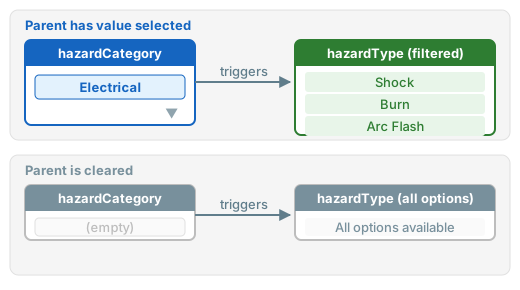
queryFactory function for dynamic filtering.Typical pattern in the sheet configuration:queryFactory function and reference it from the child column’s typeProperties.queryFactory.6
Dynamic Filtering with queryFactory
When dependent enumerations cannot capture the filtering rule (for example, the allowed values depend on a top panel input or a related work item field), use a The function receives an
queryFactory function to compute the Lucene query at runtime.Define the function under the top-level queryFactories section, then reference it from the column’s typeProperties.queryFactory:info object holding the current row context and returns a Lucene query string that filters the dropdown suggestions. This pattern is the recommended approach for cascading dropdowns that depend on values from multiple sources.7
Hide or Retire Options
To retire an enumeration option without losing historical data, mark it inactive in the Polarion enumeration definition. Risksheet honours the Polarion enumeration’s visibility setting:
- Active options appear in the dropdown for new entries.
- Inactive options remain visible on existing cells that already hold that value, so historical records still display the correct label.
- Inactive options are not offered as new selections.
Verification
After configuring the enumeration in Polarion, binding the custom field, and updating the sheet configuration, you should see dropdown fields in your Risksheet columns showing the configured options. Selecting a value in a parent column should automatically filter the available options in the dependent child column. Multi-enum columns should display multiple selections as a compact list with a count indicator once more than two items are selected. If the dropdown is empty, confirm that:- The Polarion enumeration ID in the column
typevalue matches the enumeration filename in Administration. - The Polarion custom field referenced by
bindingsexists on the risk work item type and has the correct enumeration as its data type. - For dependent enums, the parent column’s enumeration option IDs match the values used in the queryFactory or dependent enumeration mapping.
See Also
- Configure Enum Columns — detailed enum column setup
- Configure Multi-Enum Columns — multi-select enumeration columns
- Configure Dependent Enums — advanced cascading dropdown patterns
- Configure Multi-Select Enums — multi-select behaviour and display
- Add a Basic Column — column type configuration basics