Ask configuration questions inside the Nextedy RISKSHEET configuration editor. The Admin AI Assistant answers from the Risksheet documentation so you can solve setup problems without leaving the editor.
The Admin AI Assistant is a documentation-grounded chat in the Risksheet configuration editor, added by the separately installed Nextedy AI package. It opens from the sparkle button in the editor toolbar, and its window is titled ✦ Risksheet AI. While you are editing a configuration, you can ask natural-language questions about Risksheet configuration — which property controls a behavior, what an existing block does, why a column is not updating — and get answers drawn from the Risksheet documentation, with the relevant pages linked.
The assistant guides, it does not configureThe Admin AI Assistant answers questions and points you to the right configuration. It does not change, save, or apply configuration on your behalf — you stay in control of the file. Use its guidance to make the edit yourself in the editor.Nextedy AI also adds the Risksheet AI Assistant to the grid toolbar, which the interface labels AI Assistant as well. This page covers only the one in the configuration editor — see Admin AI Assistant for how the two differ.
You can open the Risksheet configuration editor, which requires administrator privileges for the Polarion project. See Use the Configuration Editor.
The Nextedy AI plugin is installed on your Polarion server, providing the /polarion/nx_ai/ endpoint the editor asks for its signed proof. If it is missing, the assistant button is disabled rather than absent — see the note below.
You are signed in to Polarion, so a proof can be issued for your user.
No Nextedy AI license is required for the assistant in the configuration editor — the Nextedy AI package alone is enough. The Risksheet AI Assistant in the sheet is a separate matter: that one does require a valid license.
Your browser can reach the Nextedy AI service. The proof is exchanged for a session token by the browser, so your Polarion server does not need outbound internet access.
If the button is disabledThe AI Assistant button carries the reason in its tooltip. “Install the Nextedy AI plugin, or contact Nextedy, to enable the AI Assistant” means the Nextedy AI package is not on the server. “AI Assistant is currently unavailable” means the package is installed but could not be reached, or the proof it returned could not be exchanged for a session token. Neither is a licensing problem — the assistant in the configuration editor is not licence-gated. Either way, the configuration editor itself keeps working.
From an open Risksheet document, use Menu > Configuration > Edit Risksheet Configuration…. The editor opens in a new browser tab with the project and document context loaded.The assistant is available in every configuration the editor opens, so Edit Top Panel Configuration… and Edit PDF Export Configuration… work the same way.
2
Open the ✦ Risksheet AI panel
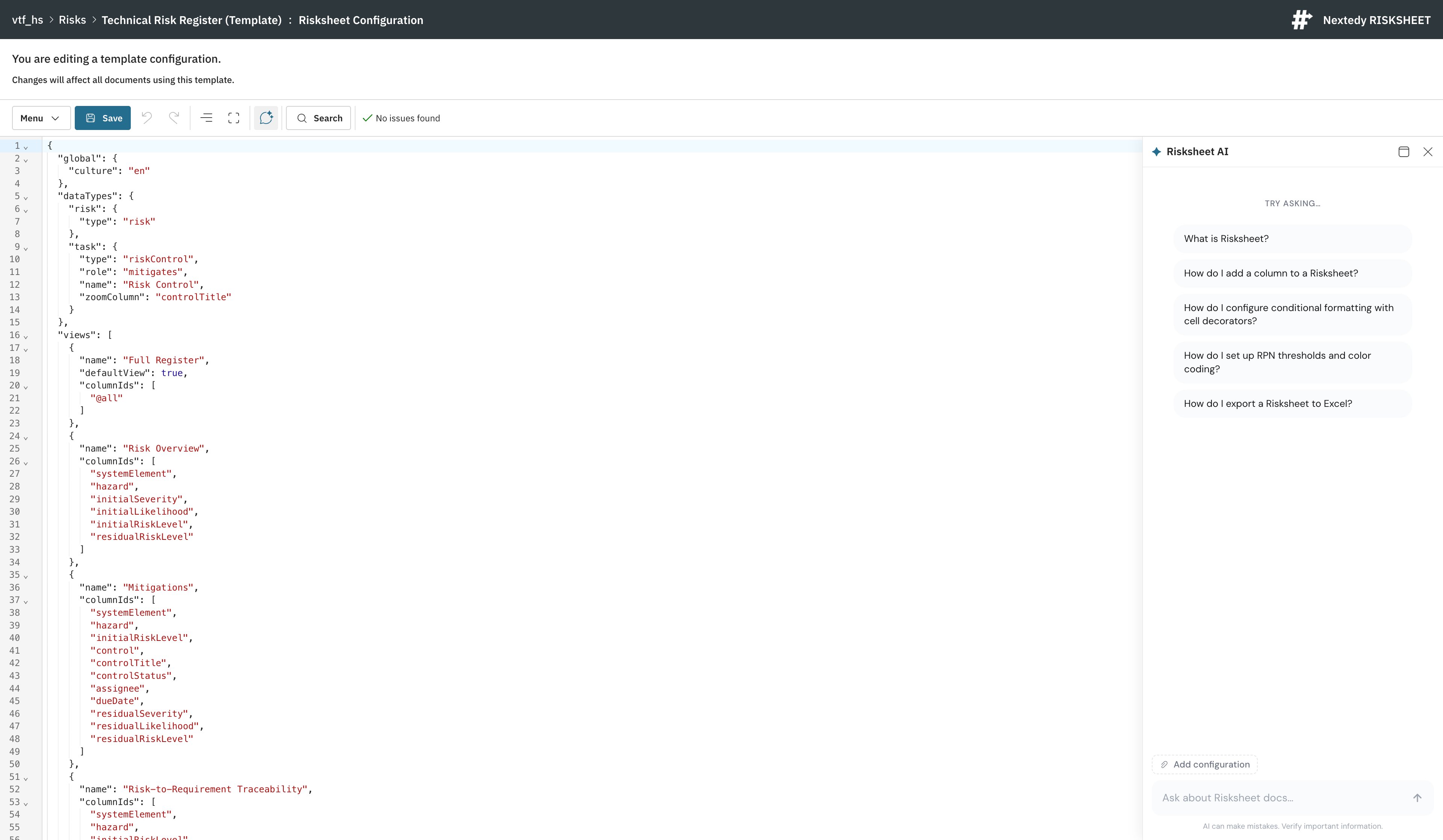
In the editor toolbar, select the AI Assistant button — the sparkle chat icon, between Fullscreen and Search. The ✦ Risksheet AI window opens.It opens docked to the right of the editor. Two icon buttons sit in the panel header: the first switches between docked and a free-floating window, and the ✕ closes the panel. They are icon-only, with no visible labels — a screen reader announces them as “Detach as floating window” or “Pin to right side”, and “Close window”. Drag the panel’s inner edge to resize it. The mode, position, and size are remembered for your next session.
The ✦ Risksheet AI panel docked beside the configuration editor. The AI Assistant button — the sparkle icon — sits between Fullscreen and Search in the editor toolbar.
3
Ask a question
Type your question in the input box — its placeholder reads “Ask about Risksheet docs…” — or, while the panel is still empty, pick one of the suggested questions offered under “Try asking…”. The answer streams in as it is generated, with links to the relevant documentation pages so you can read further.The questions you have already asked in this conversation stay available as input history. With the input box empty, press ↑ to step back through them and ↓ to come forward again, then send the one you want without retyping it.
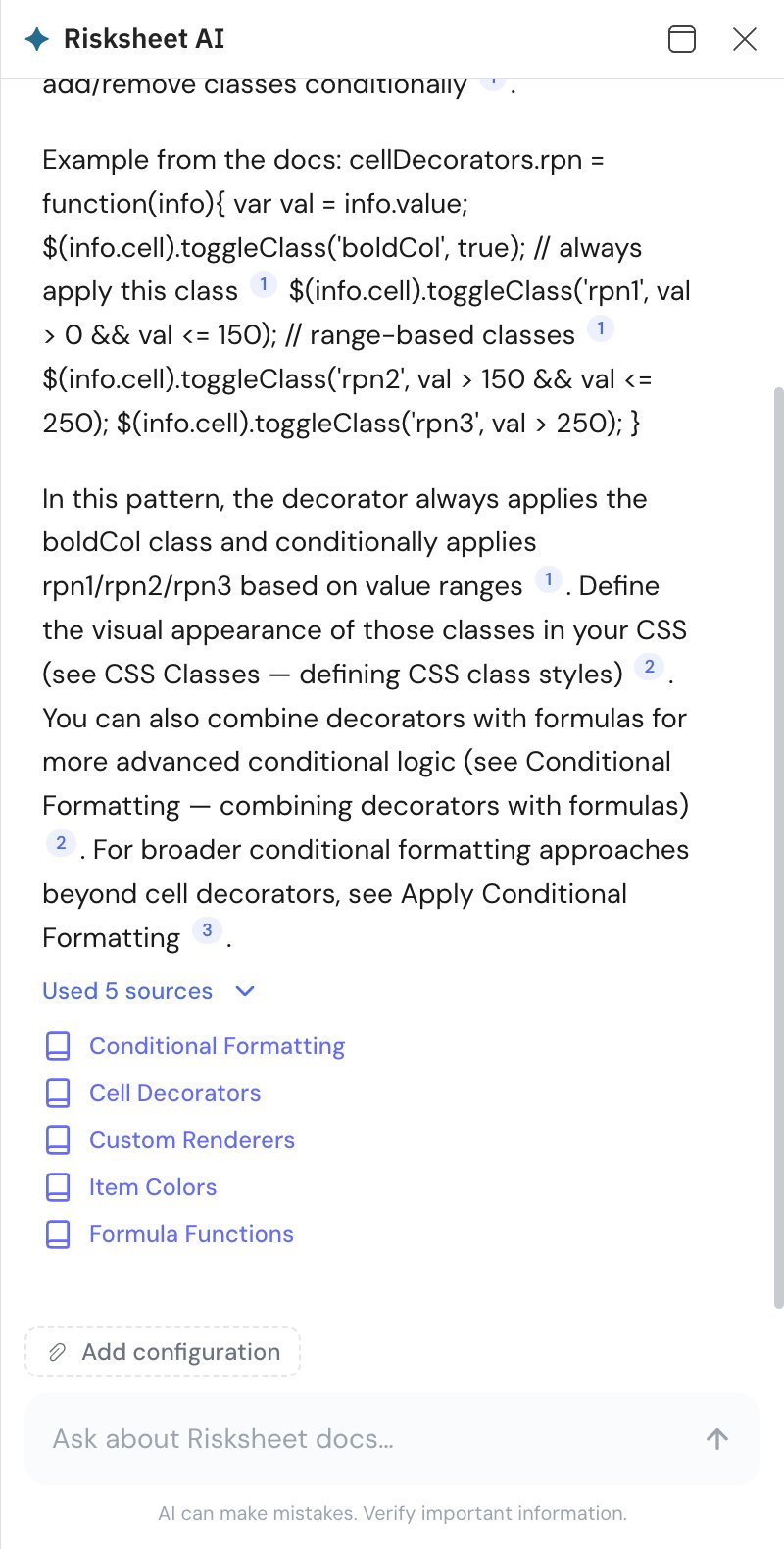
A grounded answer: numbered links cite the Risksheet documentation pages the answer drew on, and “Used 5 sources” expands to list them. The Add configuration control and the “AI can make mistakes” reminder sit below.
The assistant is meant for the questions that come up while you configure Risksheet. For example:
You want to…
Ask something like
Configure a specific behavior
How do I make this column read-only? / How do I hide this column?
Find the right property
Which property controls this behavior? / Where is this configured?
See an example
Show me the configuration for this setup
Understand existing config
What does this do? / Why is this behaving like this?
Troubleshoot
Why is this not working? / Why is this column not updating?
Compare concepts
What is the difference between a level and a column group?
Combine several aspects
How do I configure this scenario end to end?
Find the documentation
Where is this documented?
Follow-up questions keep their contextThe assistant keeps the context of your conversation, so after a broad question you can refine it with a short follow-up — including one that refers back to the earlier answer rather than restating the subject. The conversation is restored when you close and reopen the panel. Conversations are not kept indefinitely, though: once the service has dropped one, the panel starts fresh and your follow-up needs its context again.
By default the assistant answers from the documentation alone and receives nothing from your editor. When a question is about the configuration in front of you, attach it:
1
Attach the open configuration
Below the conversation, select Add configuration. A Configuration chip appears, and the content currently in the editor is sent alongside the questions you ask from then on.
2
Remove it when you no longer need it
Select the dismiss control on the Configuration chip. Later questions are answered from the documentation alone again.
Risksheet has no data-model attachmentIn Powersheet the assistant can additionally attach the data model a sheet configuration references. Risksheet has no separate data-model file to attach — its data model is defined inside the Risksheet configuration itself — so Add data model is not offered here.
The AI Assistant button appears in the configuration editor toolbar and is enabled.
Selecting it opens the ✦ Risksheet AI window, docked to the right of the editor. Suggested questions under “Try asking…” may appear in the empty state; the service supplies them, so their absence is not a fault.
Asking a question returns a streamed answer with links to Risksheet documentation pages.
Closing and reopening the panel brings your conversation back.
AI can make mistakesThe assistant shows a standing reminder that “AI can make mistakes. Verify important information.” Treat its answers as guidance: confirm property names and behavior against the linked documentation before relying on them in a production configuration.