

Who this guide is for
Administrators and evaluators who see an infinite-loading board or a blank widget and need to rule out network-level causes before escalating to product support.What causes network-related loading failures
Planningboard renders as a widget inside a Polarion LiveDoc or Wiki page. The browser page loads the Polarion host directly; the widget then makes additional HTTP requests back to the same Polarion server to load Plans, work items, and capacity data. If a corporate firewall or proxy intercepts those requests — even silently — the board spinner never resolves.
1
Confirm the Polarion host is reachable
- Open your browser and navigate to your Polarion instance (e.g.
https://polarion.example.com/polarion/). - Confirm the Polarion login page loads and you can authenticate.
- Navigate to the LiveDoc or Wiki page that contains the Planningboard widget.
2
Open the browser developer console
When the board is stuck loading, browser developer tools show exactly which request is failing.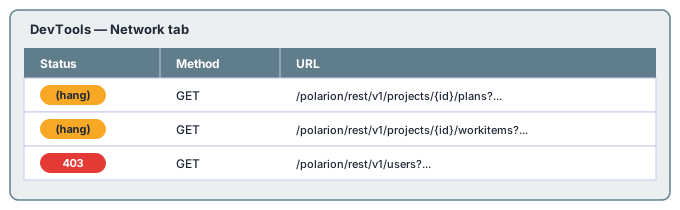
- On the page with the stuck Planningboard widget, press F12 (Windows/Linux) or Cmd+Option+I (macOS) to open DevTools.
- Click the Network tab.
- Reload the page (F5 or Cmd+R).
- Watch for requests that are red (failed) or that hang indefinitely (no response status).
/polarion/rest/ or /polarion/ws/ paths that return 0, timeout, or 403/407.3
Check the browser console for errors
- In DevTools, click the Console tab.
- Reload the page and look for red error messages.
4
Identify which hosts and ports must be reachable
Planningboard makes requests only to the Polarion server. The ports depend on your deployment:
No other hosts, ports, or external services are required. If your Polarion is behind a reverse proxy, the proxy must forward the full request path (including
/polarion/rest/ and /polarion/ws/) without stripping headers.No external cloud endpointsPlanningboard does not call any external APIs, license servers, or analytics endpoints at runtime. All requests are contained within the Polarion server. An outbound-only firewall rule to the Polarion host is sufficient.
5
Check proxy bypass configuration
If your organization routes browser traffic through a proxy, add the Polarion server hostname to the proxy bypass (no-proxy) list so that same-origin requests are not intercepted.Examples by platform:Windows (Internet Options > LAN Settings > Exceptions):macOS (System Settings > Network > Proxies > Bypass proxy settings for):Environment variable (CLI / scripts):After updating bypass settings, close and reopen the browser entirely before retesting.
6
Check TLS / SSL certificate trust
If your Polarion instance uses a certificate issued by a corporate or internal CA, the browser must trust that CA.
- Click the padlock icon in the browser address bar on the Polarion page.
- Verify the certificate chain shows no warnings.
- If there is a certificate error, ask your IT team to install the corporate root CA into the browser trust store.
7
Test with a direct connection
If possible, test from a machine that is not behind the corporate firewall or proxy (for example, a home network or a mobile hotspot):
- Connect to the alternative network.
- Navigate to the Polarion Planningboard page.
- If the board loads correctly, the problem is confirmed to be network/firewall-specific.
Common firewall rules to verify
Have your network or security team confirm the following:You should now see
After resolving the network issue and reloading the page, the Planningboard widget should:- Render the board within a few seconds (depending on the number of Plans and work items).
- Display swimlanes with cards populated from Polarion Plans.
- Show no red errors in the browser console Network tab.