

What this guide covers
Polarion’s Scripted Page Parameters (documented in the Polarion Widget SDK, section 7.2) let a Wiki page compute parameter values at render time using a server-side script. When combined with Planningboard’s widget parameters — such asselectedTeam, assignmentMode, or swimlane filters — this means one board page can serve multiple teams or roles without duplicating the page for every audience.
A common scenario: your project has several teams and you want each team member who opens the board to see only their own swimlane, without an administrator manually maintaining ten near-identical pages.
Prerequisites
- Planningboard is installed and a board widget is already embedded on a Polarion Wiki page.
- You have Wiki page edit permissions in Polarion.
- You understand the basic Planningboard widget parameters. See Widget Parameters Overview and Use Page Parameters.
1
Understand how Scripted Page Parameters work
A Scripted Page Parameter is a page-level script block that Polarion evaluates before rendering the page. The script produces a map of key/value pairs. Those values are then available to any widget on the page as named parameters — exactly as if a user had typed them into the widget’s parameter editor.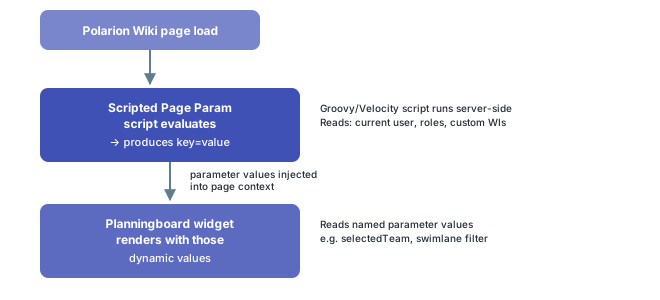
2
Add a Scripted Page Parameter block to your Wiki page
Open the Wiki page that contains your Planningboard widget for editing. In the page source, add a Scripted Page Parameters block before the widget macro. In Polarion Wiki markup, this is a This produces the parameter
module-scriptedparams macro or an equivalent script block — refer to your Polarion version’s Widget SDK for the exact syntax.The script block returns a Map<String, String>. Each key becomes a named parameter you can reference in widget configuration.Example: mapping the current user’s role to a team ID:boardTeam with a value derived from the current user’s Polarion role — no role IDs are exposed to end users.3
Reference the parameter in the Planningboard widget
Once the script produces a named parameter, reference it inside the Planningboard widget configuration using Polarion’s standard
${paramName} substitution syntax.For example, to pass boardTeam into the selectedTeam widget property:You can use the same parameter in multiple widget properties. For instance, you could drive both the
selectedTeam and a plan query filter from the same scripted value.4
Use a parameter in the Plan query
The Widget configuration:
plansQuery property accepts a Lucene query string and also supports ${param} substitution. This lets the script constrain which Plans appear as columns for the current user.Example: show only plans belonging to the user’s team prefix:When
teamPlanPrefix resolves to alpha, the board loads only Plans whose ID starts with alpha.5
Combine with the selectedTeam property for capacity filtering
When your board uses the Teams Service (
useTeamsService = true), the selectedTeam property determines which team’s capacity is loaded. Driving this from a scripted parameter means the capacity bar automatically reflects the current user’s team without them selecting it manually.For background on the Teams Service and capacity configuration, see Set Up Teams Service and Track Team Capacity.
Configuration example — single board, three teams
The following shows the complete setup for a project with three teams (alpha, beta, gamma), each with a matching Polarion role:
Scripted Page Parameters script:
With this configuration, a user holding the
team-alpha role sees only alpha* Plans as columns and the capacity bar reflects the alpha team’s capacity. Users with no matching role see all Plans (id:all*) — adjust the fallback to your project’s needs.
Common pitfalls
Verification
After saving the page and refreshing in a browser:- Open the board as a user who holds one of the mapped roles.
- Confirm the columns show only the Plans matching that team’s prefix.
- If
useTeamsServiceis enabled, confirm the capacity bar reflects that team’s capacity. - Open the board as a second user with a different role and verify the board shows a different set of Plans.
See also
- Use Page Parameters — static page parameters without scripting
- Dynamic Filtering with Page Parameters — URL-driven parameter patterns
- Configure Plans (Columns) —
plansQueryand Plans Mode options - Set Up Teams Service — prerequisite for
selectedTeamand capacity filtering - Config Scripts — server-side scripts that modify the full board configuration object
- Script Errors — diagnosing failures in scripted page parameter blocks