

Filter Types Overview
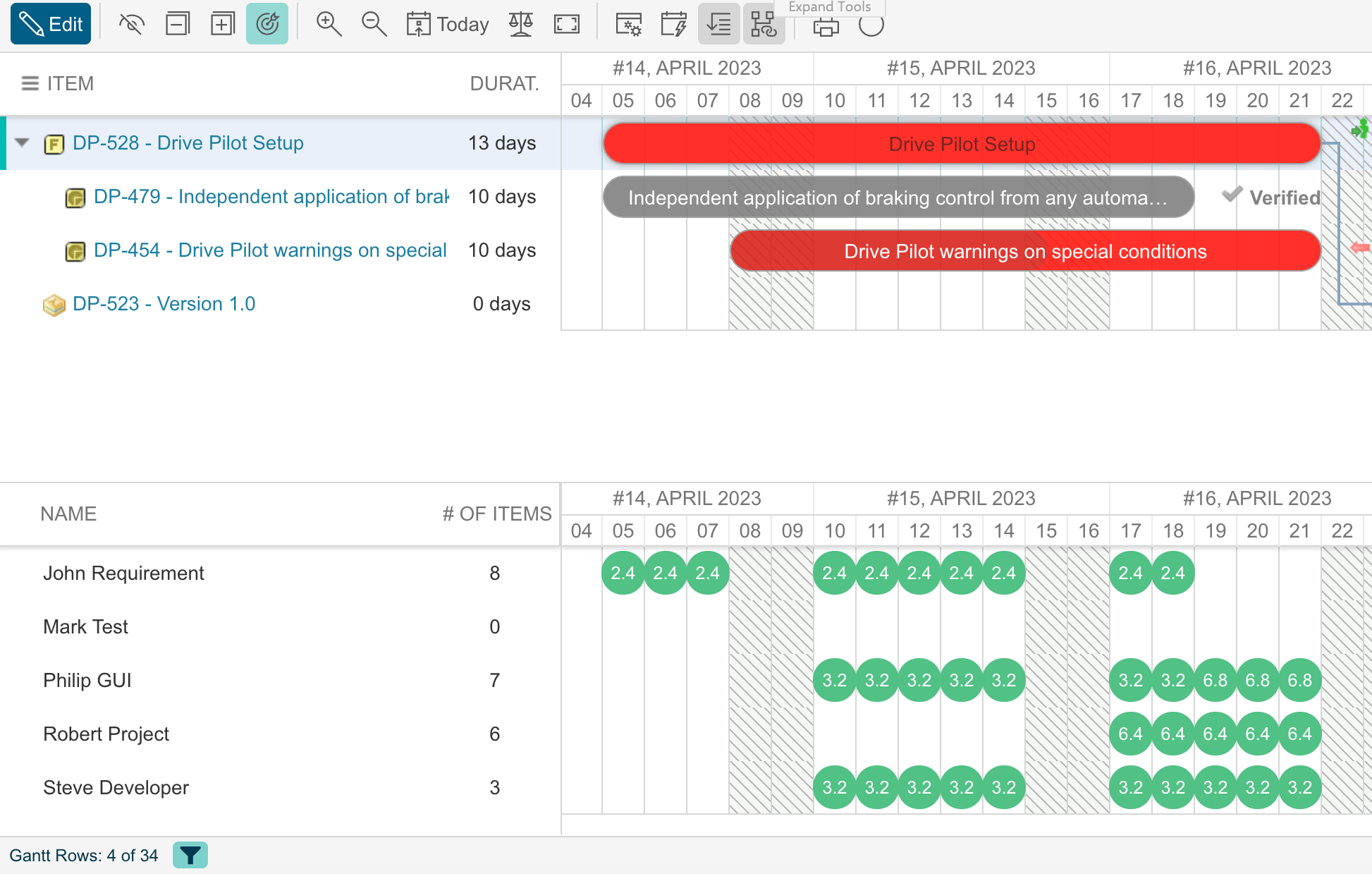

Filter by Time Range
Set a fixed time range in Advanced > Gantt Config Script to limit which work items are visible on the chart:Use Page Parameters for Dynamic Time Ranges
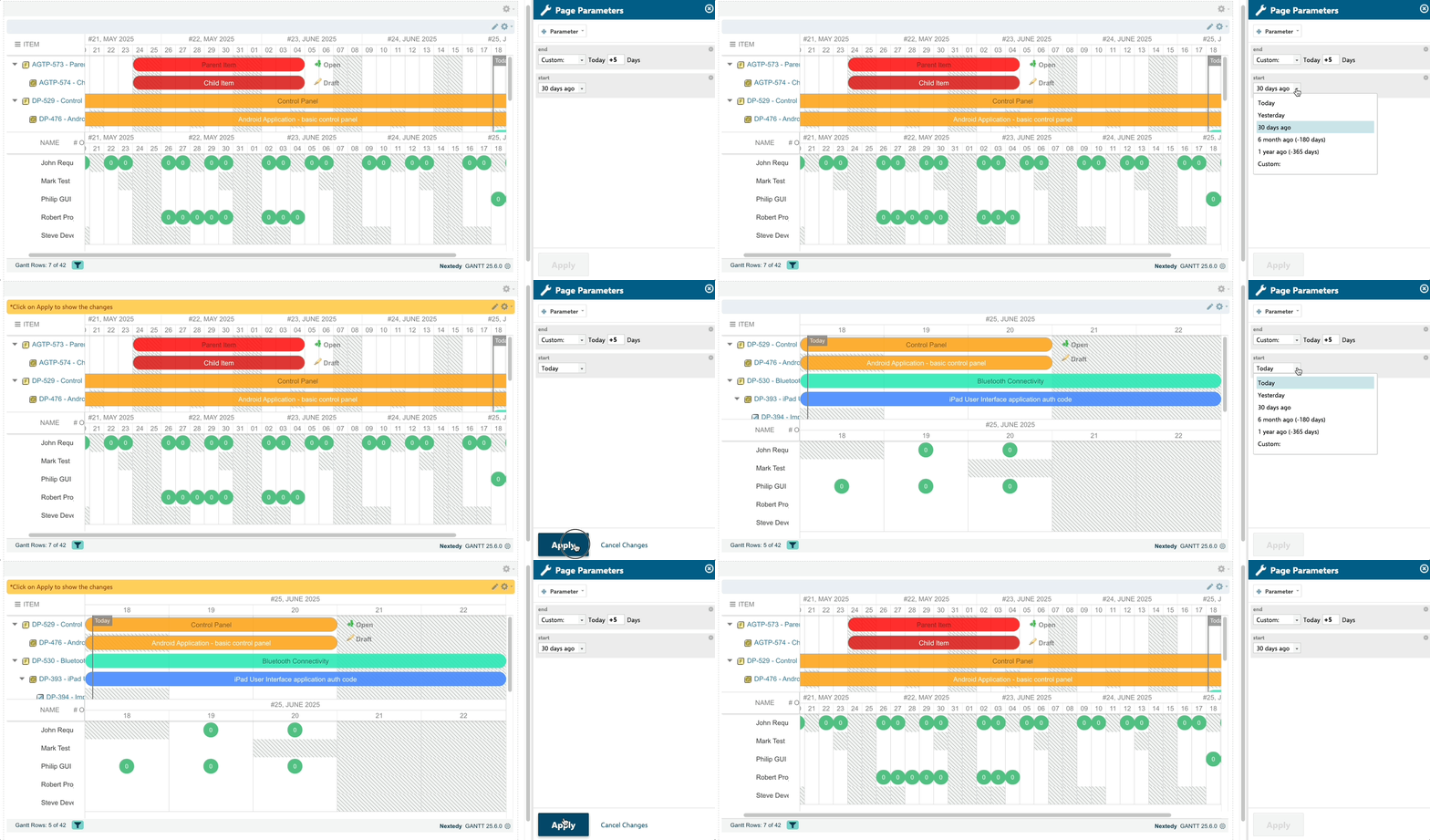
To let users select the time range interactively, createstart and end page parameters on your LiveReport page, then reference them in the Gantt Config Script:
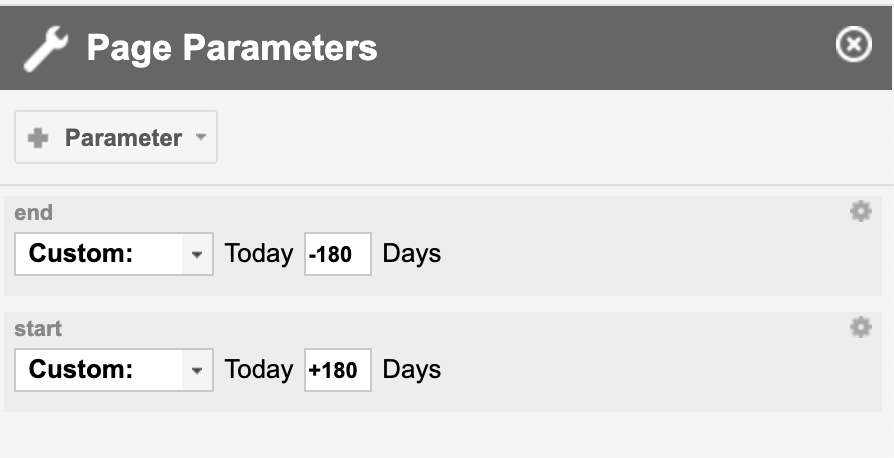
start and end with the IDs of your page parameters if you named them differently. See Use Dynamic Queries with Page Parameters for more details.
Filter by Item
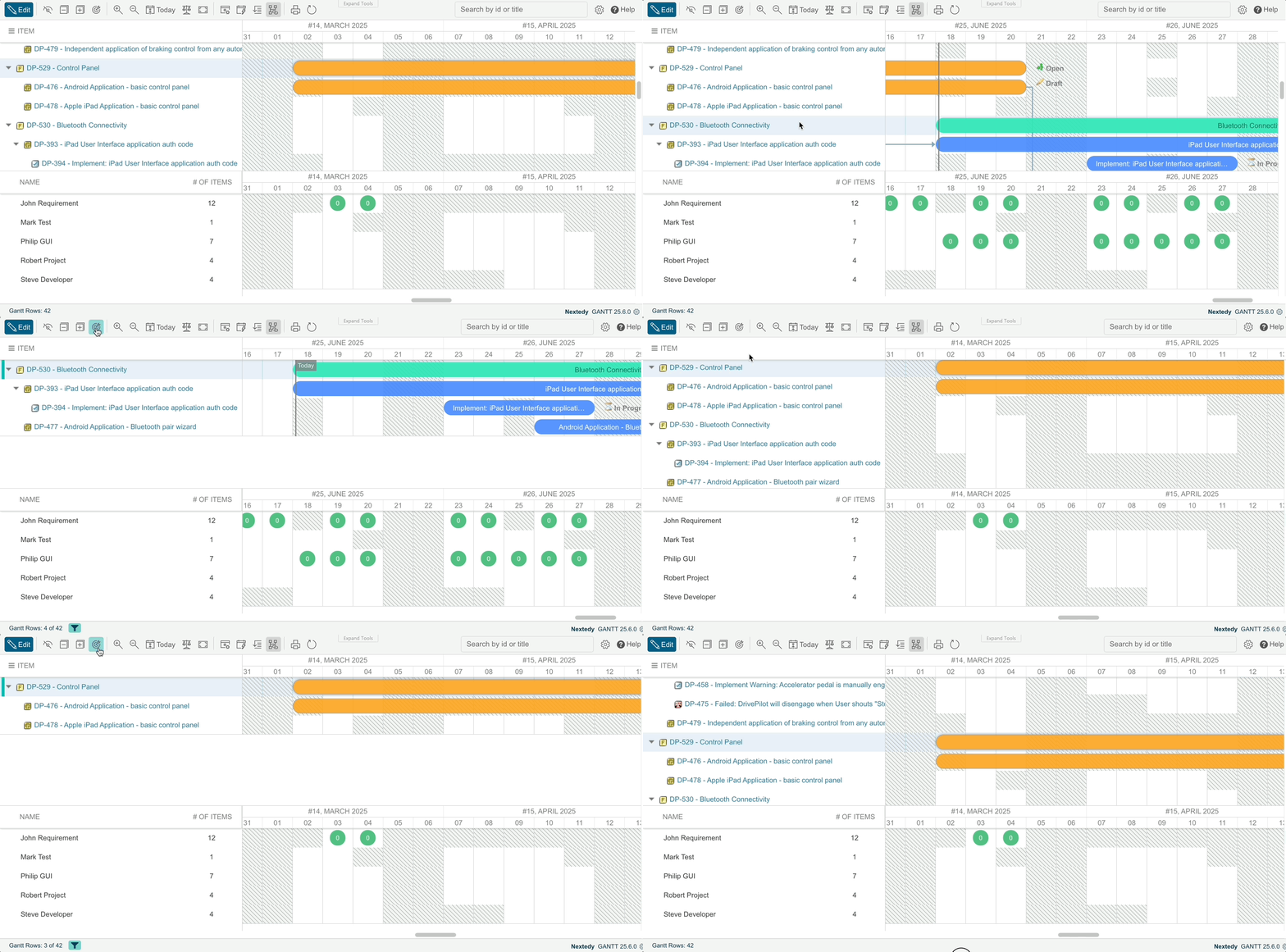
- Click one or more work items in the Gantt chart to select them.
- Click the Filter by Item button in the toolbar.
- The chart displays only the selected items and their related items (parents, children, and dependencies).
Filter by Resource
Click on a specific resource (assignee) name in the resource view to filter the chart to only rows where that resource is assigned. This helps you focus on an individual team member’s workload.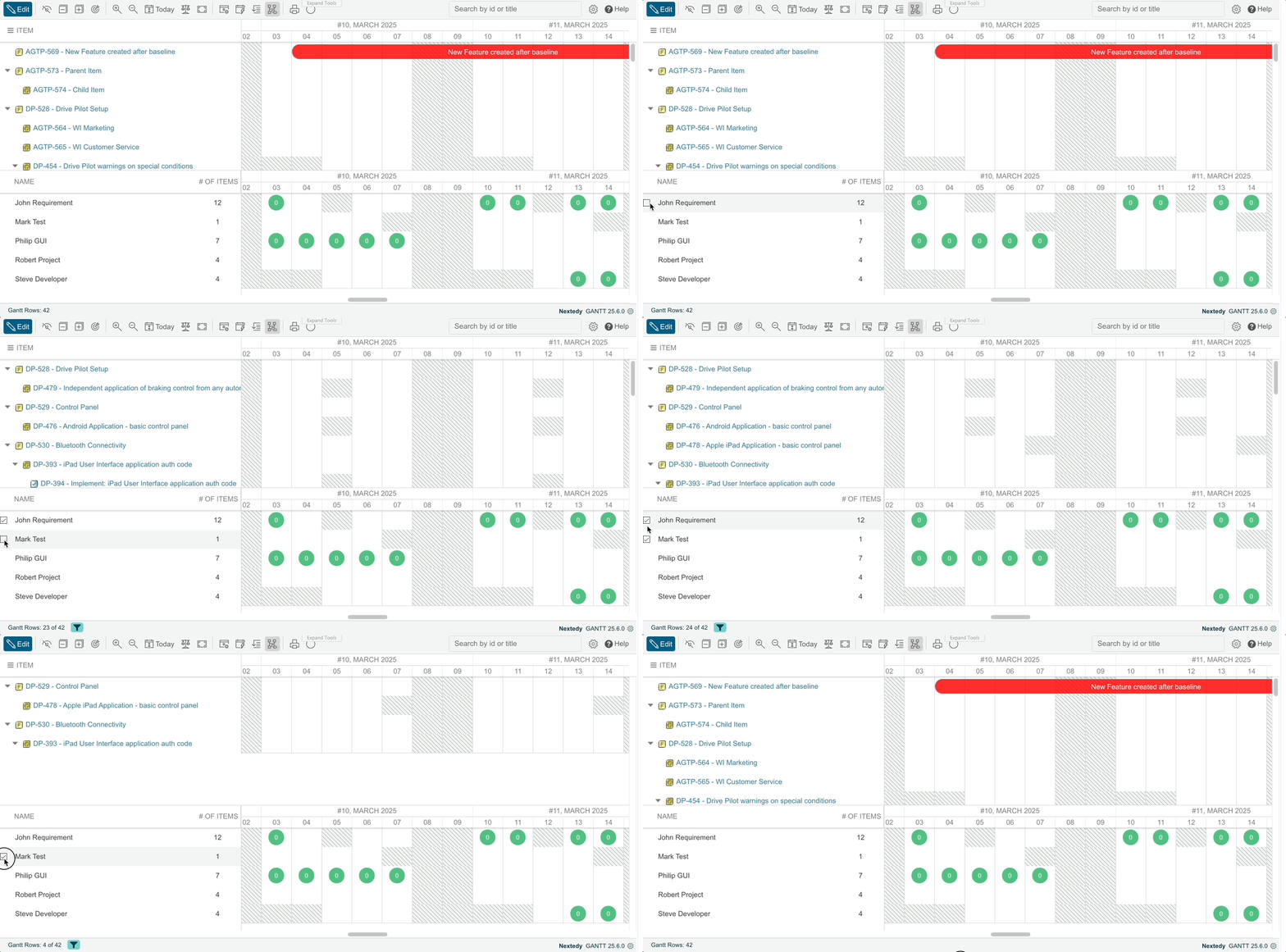
Resource filtering preserves contextWhen filtering by resource, parent and dependent tasks remain visible to maintain the scheduling context. The filtered resource’s tasks are highlighted while related items stay accessible.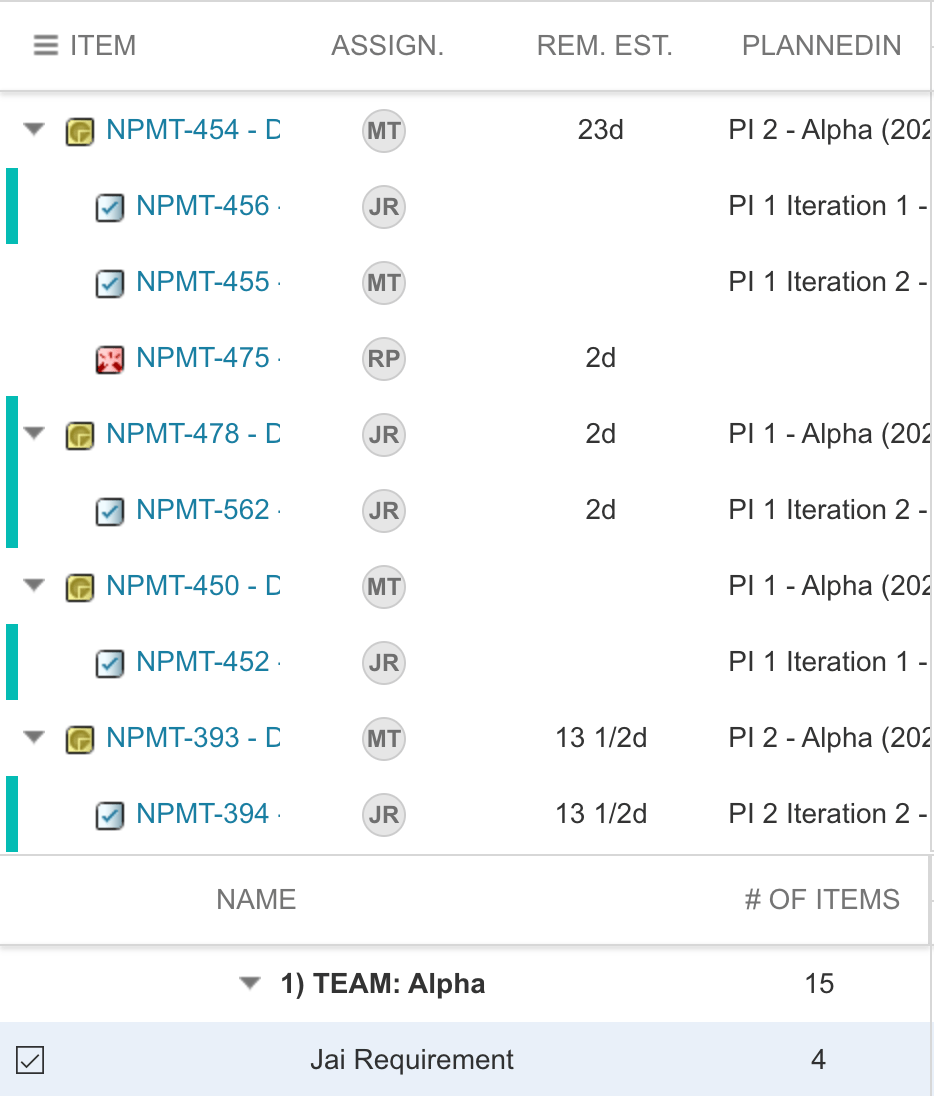
Filter by Allocation Bubble
Click an allocation bubble (marker cell) in the resource view to filter by a specific resource within a specific time period. This shows which work items contribute to that resource’s workload in the selected day, week, or month. When the Resource Load Calculation is set to Remaining Estimate or Estimate + Spent, a workload column appears in the table view showing the planned effort (in hours) per task. Since version 25.4.2, filtering by allocation bubble works with all load calculation modes, but the per-task effort column only appears for estimate-based modes.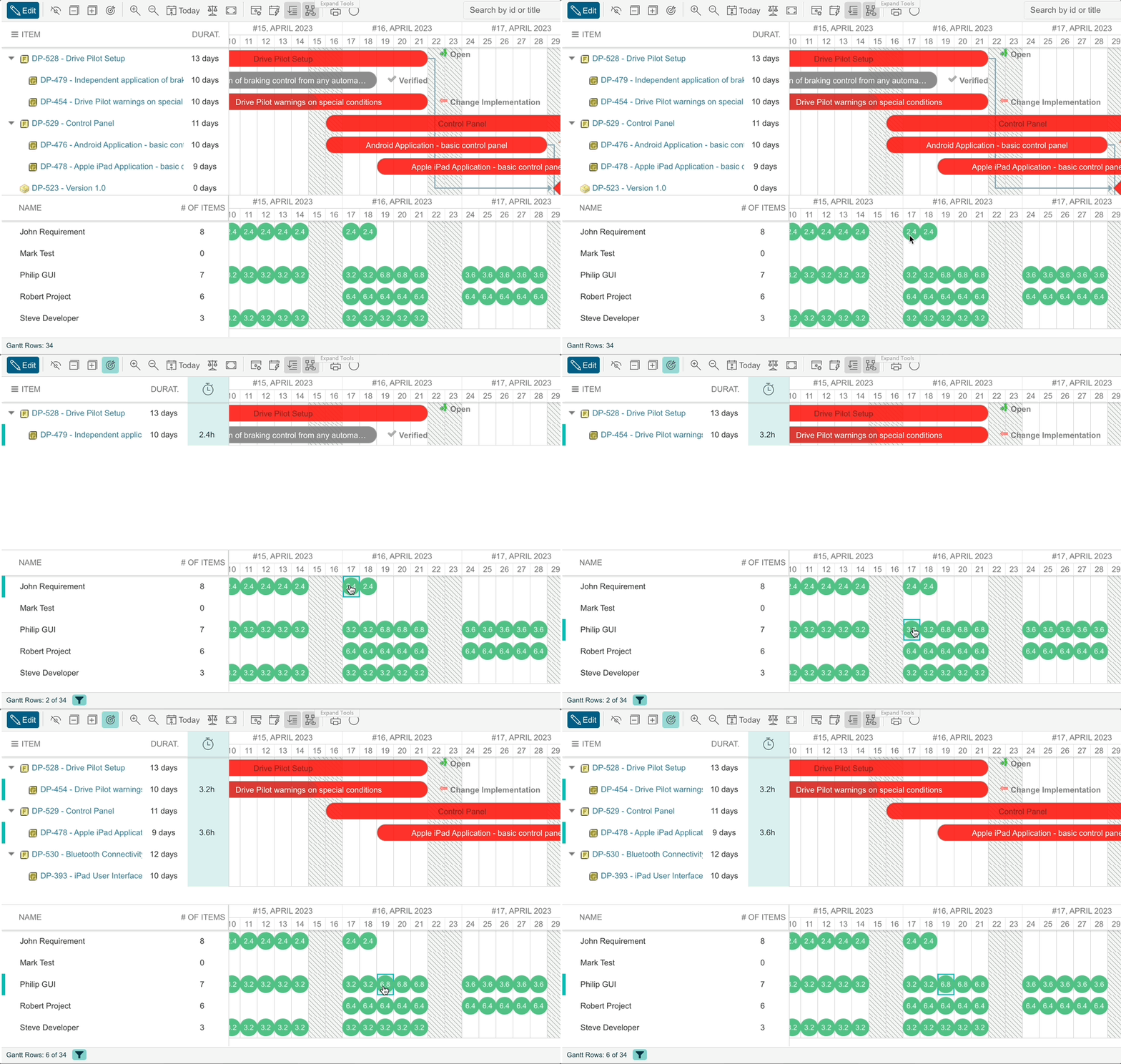
Collapsed trees expand automaticallyWhen you filter by allocation bubble, any collapsed parent items automatically expand so you can see all affected items and their allocations.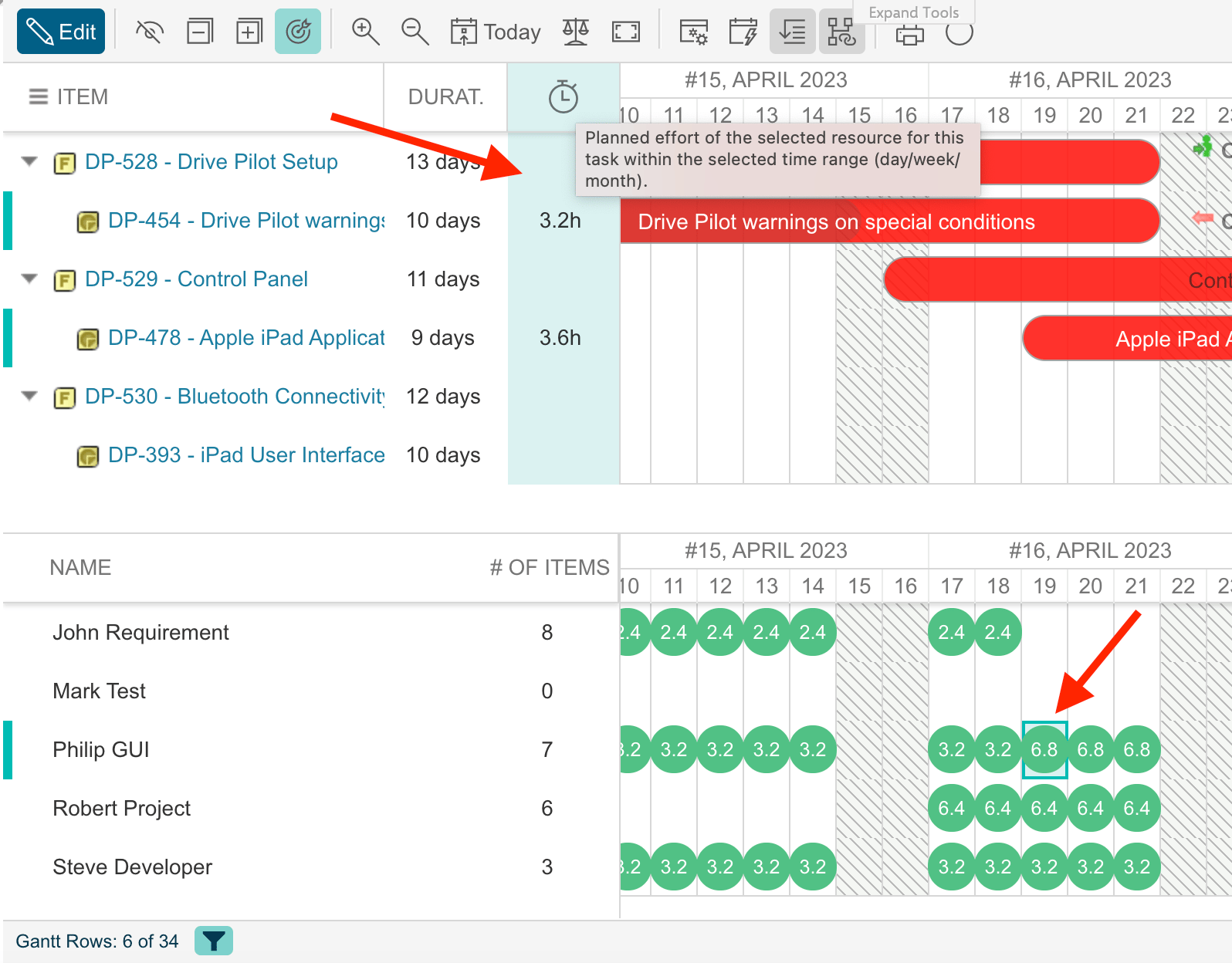
Footer Indicators
The Gantt footer shows the number of visible rows versus the total (for example, “Gantt Rows: 4 of 10”). When items are hidden by a filter or by collapsed parent rows, the funnel icon appears. Hover over it to see which filter is active and why items are hidden.Verification
After applying a filter, you should now see:- The funnel icon in the footer indicating an active filter.
- Only the matching work items visible in the chart.
- The footer row count reflecting the filtered set (for example, “Gantt Rows: 4 of 10”).
- Hovering over the funnel icon displays a tooltip describing the active filter.