What you will achieve

By the end of this tutorial, you will have a working checklist attached to a Polarion LiveDoc. You will create a custom field for documents, embed the checklist widget into the document report page, configure a document-level template, and verify the setup by interacting with checklist items on a live document.

Prerequisites

  • Nextedy CHECKLIST plugin installed and active (see Installation)
  • A Polarion project with administrator access
  • Permission to create custom fields and edit document report pages
  • Familiarity with Polarion LiveDoc structure

Setup overview

diagram

Step 1: Create a checklist custom field for documents

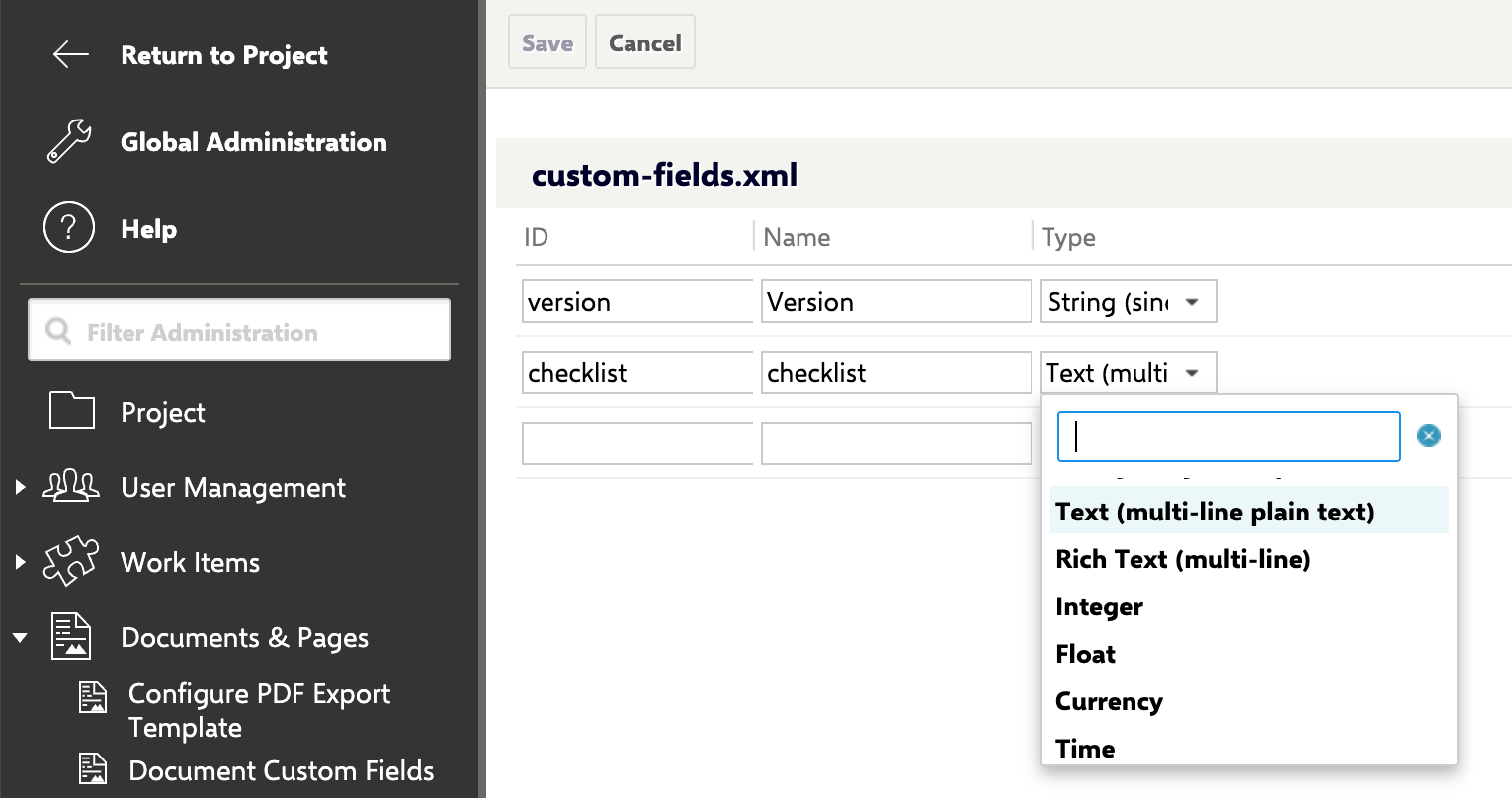
Create a new custom field on the Module (document) object to store checklist data.
  1. Open your Polarion project and navigate to Administration > Custom Fields > Module Custom Fields
  2. Click Add to create a new field
  3. Set the following values:
Field PropertyValue
IDdocReview
NameDocument Review Checklist
TypeText (multi-line plain text)
  1. Save the custom field
The custom field must be of type Text (multi-line plain text). Other field types will produce an error when the checklist widget attempts to render.
You should see the docReview field listed in the Module Custom Fields table.

Step 2: Embed the checklist widget in the document report page

Unlike work items, document checklists are displayed using a script block widget on the document report page rather than a form extension.
  1. Open the LiveDoc where you want to add the checklist
  2. Click Customize Report Page in the document toolbar
  3. Select Customize Shared Report to share the configuration across documents of the same type
Use Customize Shared Report when you want all documents of a given type to display the checklist. Use individual customization only if a specific document needs a unique layout.
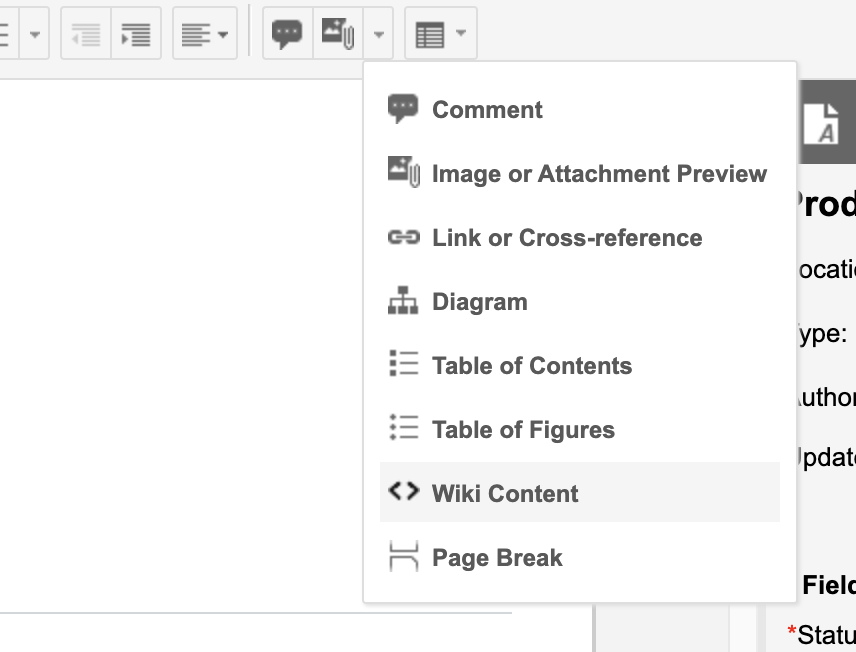
  1. In the report page editor, place a Script Block Widget in the location where you want the checklist to appear
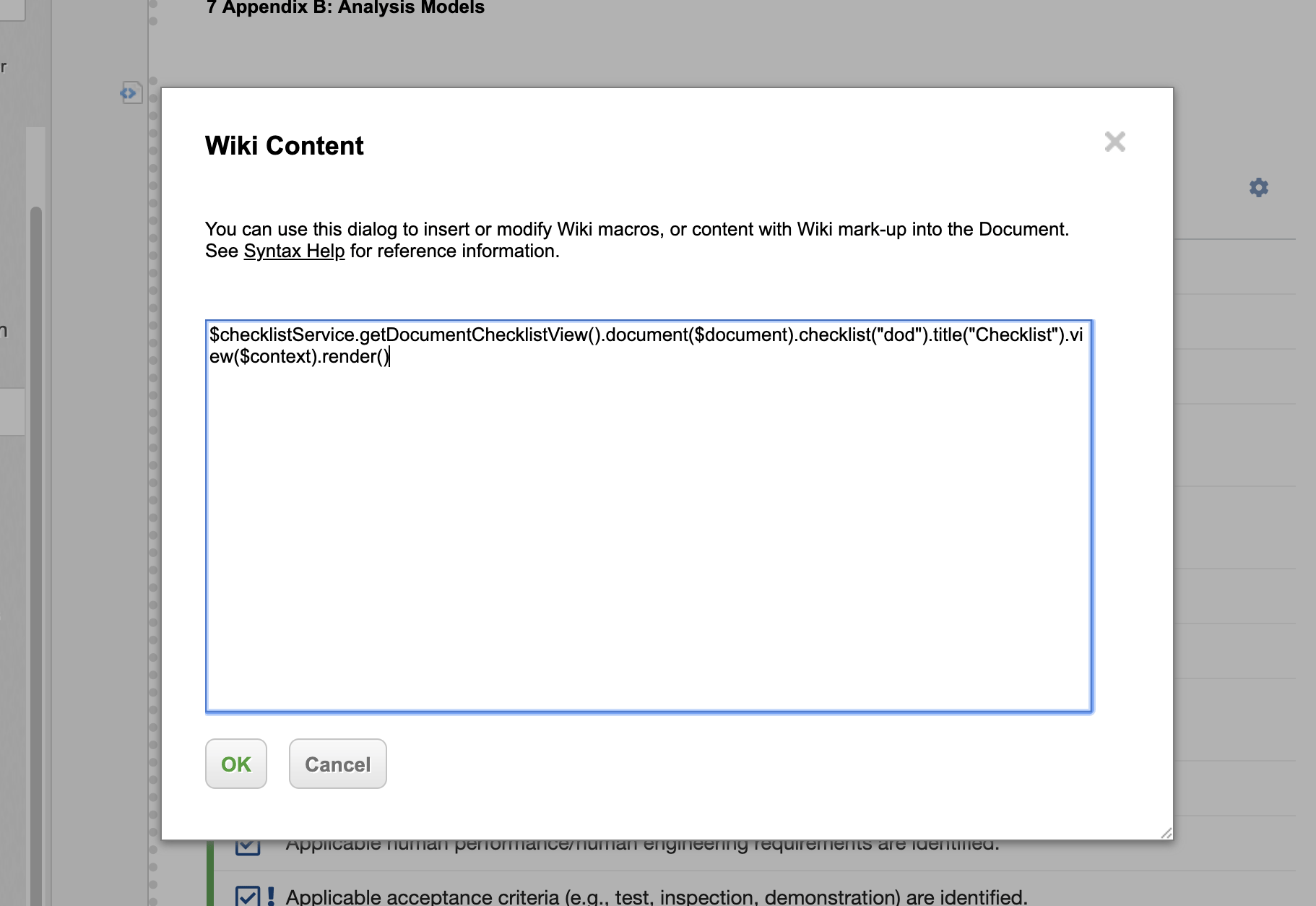
  2. Enter the following rendering call in the script block:
$checklistService.getChecklistView().document($module).checklist("docReview").render()
The "docReview" string in the checklist() call must match the ID of the custom field you created in Step 1. If your field has a different ID, substitute it here.
  1. Save the report page
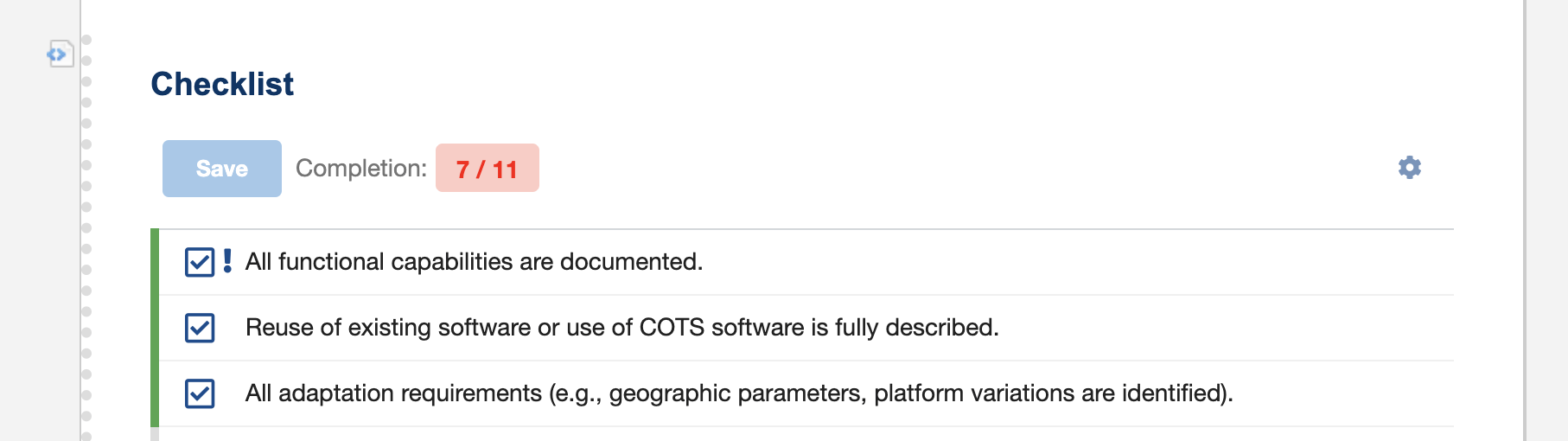
You should now see the checklist widget appear on the document page. It displays an empty checklist until you configure a template.

Step 3: Configure a document template

Set up a template so that documents inherit a predefined checklist. Document templates use a different configuration property than work item templates.
  1. Navigate to Administration > Configuration Properties
  2. Add the following configuration property, replacing the document location path with the path to the document that holds your master checklist:
nextedy.checklist.docReview.documentTemplateId=MyProject/Design Documents/Review Template
This tells the Checklist plugin to merge the checklist items from the specified template document into every document that uses the docReview field.
You can scope the template to a specific document type using the hierarchical property pattern:
nextedy.checklist.<typeId>.<fieldId>.documentTemplateId=<document-location>
For example, to apply a template only to documents of type specification:
nextedy.checklist.specification.docReview.documentTemplateId=MyProject/Templates/Spec Review
Alternatively, you can use the nextedy.checklist._TYPEID._FIELDID.documentTemplateHolder configuration property to point to a custom field that dynamically holds the template document location, allowing different documents to use different templates.
The document location path format may vary depending on your project structure. Verify the path by checking the document properties in Polarion.

Step 4: Verify the checklist on a document

  1. Open a LiveDoc that has the report page configured in Step 2
  2. Scroll to the location where you placed the script block widget
You should see the checklist items from the template rendered in the document page. Each item displays its current result state.
  1. Click a checklist item to change its result state (OK, NOK, N/A, Pending)
  2. The checklist state saves automatically to the document
Result StateTypical Use in Document Reviews
OKReview criterion passed
NOKReview criterion failed — action needed
N/ACriterion not applicable to this document
PendingCriterion deferred to next review cycle
EmptyCriterion not yet evaluated
Document checklists can render in PDF exports as static HTML tables. If you want to hide the checklist in PDF output, add .hideInPdf() to the rendering call:
$checklistService.getChecklistView().document($module).checklist("docReview").hideInPdf().render()

Next steps

Your document checklist is now operational. Continue with these topics:
KB ArticlesSupport TicketsSource Code
  • ChecklistService.java
  • ChecklistSettings.java
  • ChecklistSetupService.java
  • ChecklistAllChecked.java
  • ChecklistFailIfAnyUnchecked.java