

Before you start
Nextedy CHECKLIST persists checklist data through a save mechanism that recognizes four target types: documents, test runs, plans, and work items. This guide covers the test run target. The examples below usedod as the checklist ID — replace it with your own.
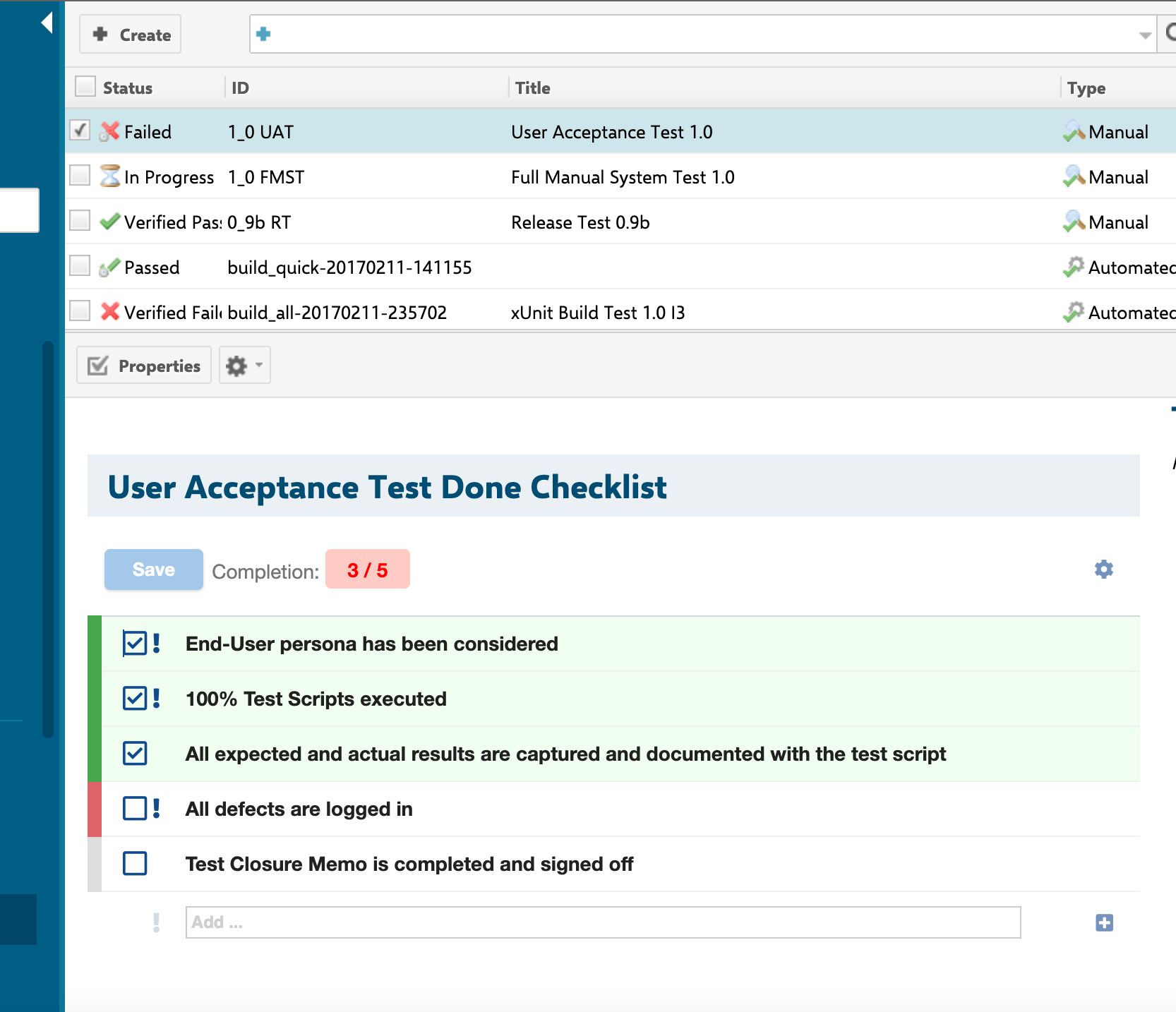
Verify in applicationThe steps below follow the supported
IChecklistService calls and the configuration property patterns documented for the other object types, rather than a click-by-click walkthrough of a test run such as the ones published for work items and documents. Confirm the exact UI steps for exposing a checklist on a test run form/page in your Polarion instance before rolling this out broadly.Steps
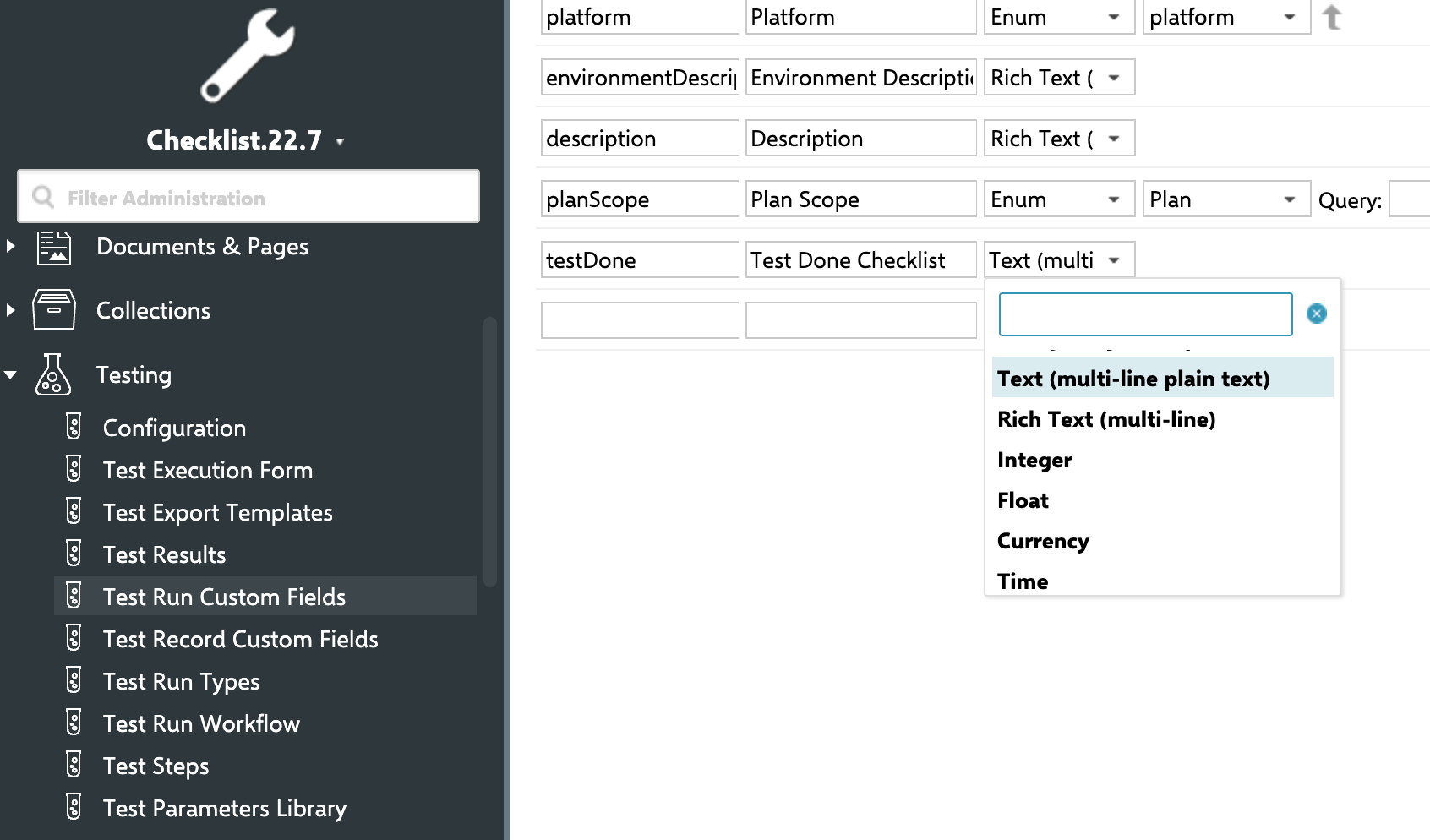
1. Identify the checklist field on your test run type
A checklist on a test run is parsed and stored via a field, the same way as on work items, documents, and plans.IChecklistService exposes dedicated overloads for ITestRun — parse(ITestRun testRun, String field) and the corresponding store and reset calls — so the underlying save/read mechanism for test runs is a first-class, supported path, not a workaround.
Confirm (or create) the custom field that will hold the checklist data for your test run configuration.
2. Render the checklist on the test run
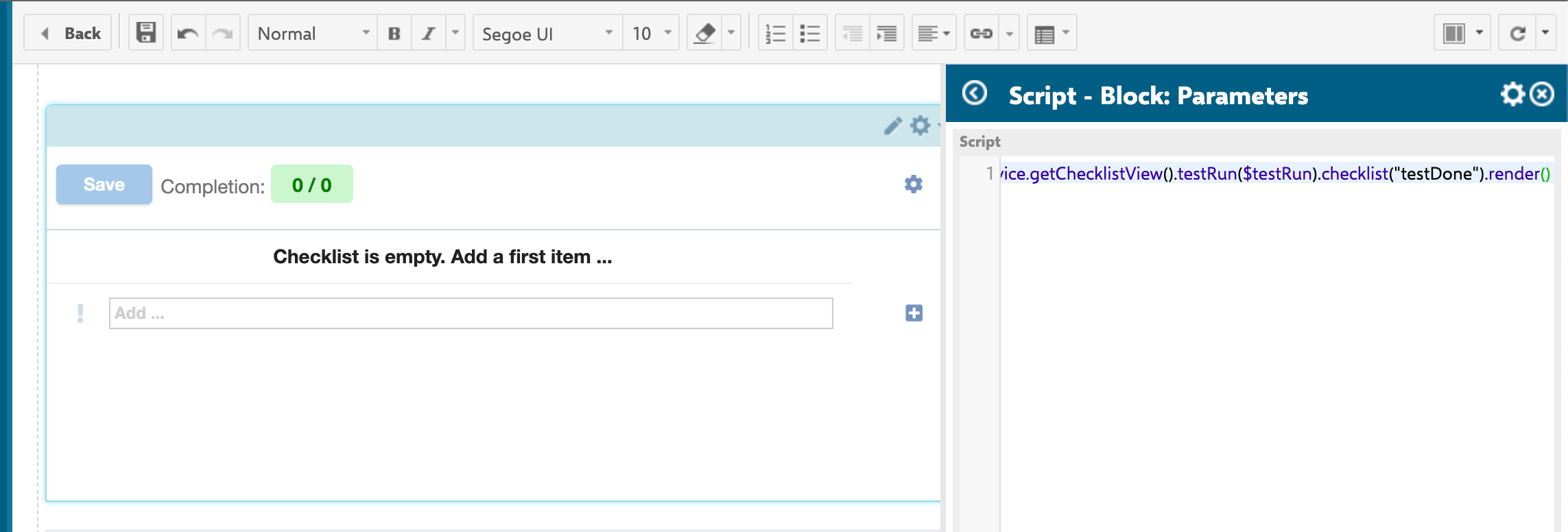
Test run checklists are rendered via$checklistService.getChecklistView().testRun($testRun).checklist("testDone").render() in a Velocity script block (see the screenshot below) — the same getChecklistView rendering entry point documented in IChecklistService and Velocity Rendering API, fluently scoped to the target test run. The resulting configuration includes the allMandatory flag and a template URL that points at the template test run (in the /testrun?id=... format), which implies:
- Test runs support the same
allMandatorysemantics as work items and documents (when enabled, all items — not only mandatory ones — must be checked for the checklist to be considered complete). - A test run can have its own dedicated template test run, referenced by a
/testrun?id=...URL, distinct from how work item and document templates are resolved.
getChecklistConf has a dedicated ITestRun overloadIChecklistService and Velocity Rendering API confirms
getChecklistConf has a dedicated ITestRun overload (getChecklistConf(ITestRun testRun, String field)), computing readonly/adminPermission from the test run’s own permission check (testRun.can().modify()) rather than the work item path’s license-authorization check. This is a first-class, supported path, not a workaround.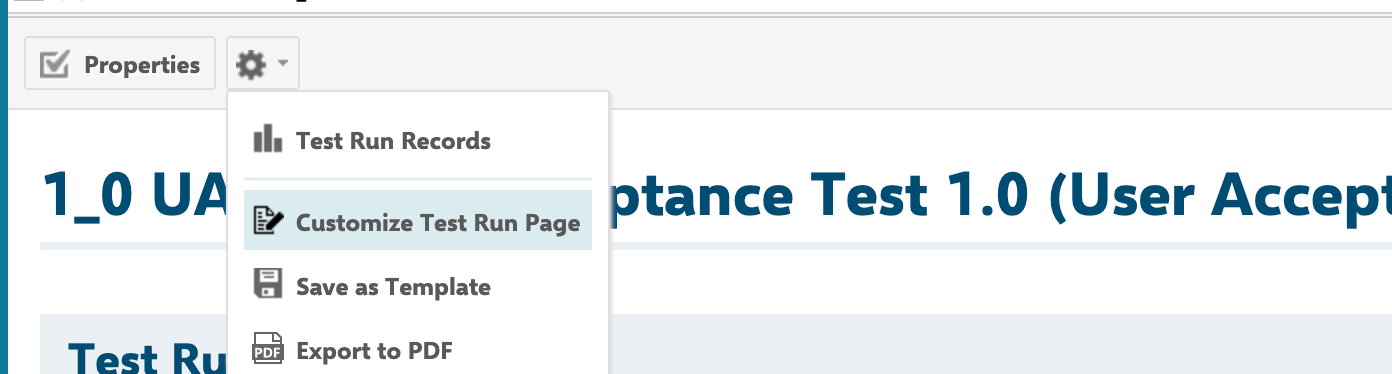
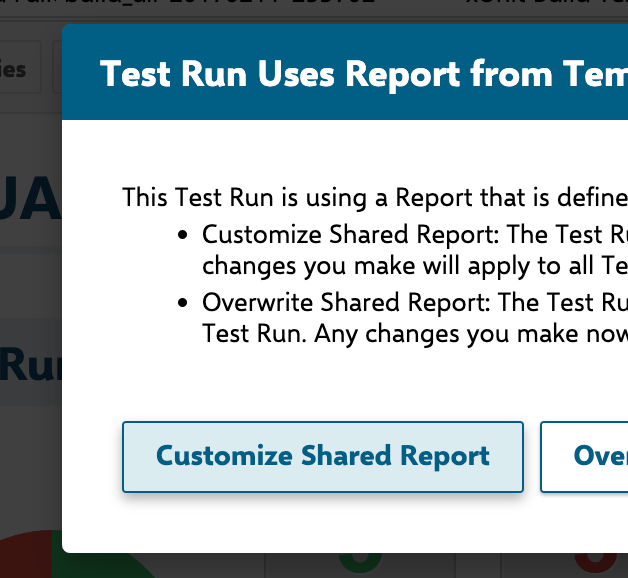
3. [Optional] Point the test run at a template test run
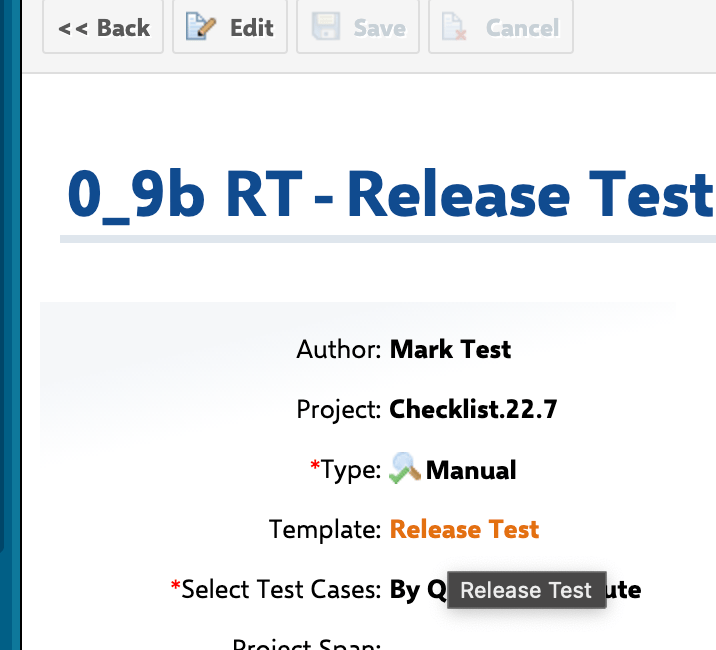
Checklist templates for test runs are resolved from the test run’s own template test run (ITestRun.getTemplate()), which is a different resolution path than the workItemTemplateId / documentTemplateId configuration properties used for work items and documents. Set up your template test run in Polarion’s test run template configuration, and confirm it is configured as the template for the test runs you want to gate.

4. Configure gate enforcement (optional)
If the checklist should block a test run’s workflow transition until items are checked, attach one of the workflow functions or conditions to your test run workflow. All three of the following explicitly support test runs as a target type, alongside work items and documents:ChecklistFailIfMandatoryUnchecked— a workflow function/action that aborts the transition with an error if mandatory items aren’t checked.ChecklistMandatoryChecked— a workflow condition that gates whether the transition is even available, without throwing.ChecklistApplyTemplate/ChecklistResetToTemplate— workflow actions that (re)apply or reset the checklist to its template state on a transition.
checklist argument is required and accepts a comma-separated list of checklist field IDs — you can validate several checklists in one function call:
5. Reset behavior on transitions
ChecklistResetToTemplate resets the checklist back to its template state (discarding any checked/unchecked progress), which is different from ChecklistUncheckAll, which only clears checkmarks while keeping the existing item list. Both support test runs as a target type. ChecklistResetToTemplate also accepts an optional skipForUsers argument — a comma-separated list of user IDs for which the reset is skipped (useful for service/automation accounts that shouldn’t have their checklist wiped on transition).
Common pitfalls
You should now see
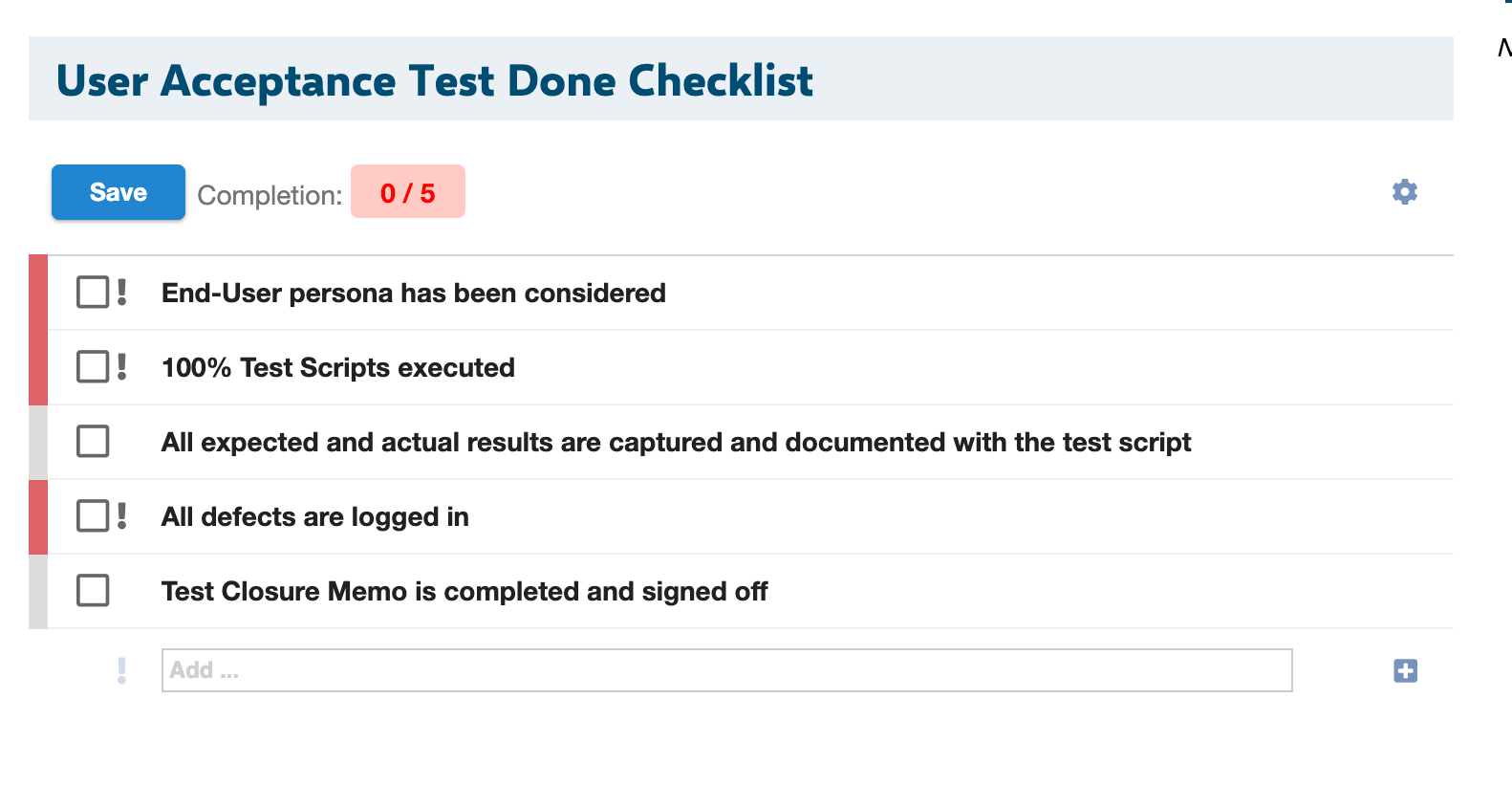
After wiring the checklist field to your test run type and (optionally) attaching workflow functions, you should now see the checklist form extension rendered on the test run, with items checked/unchecked and saved back via POST. If you attachedChecklistFailIfMandatoryUnchecked or ChecklistMandatoryChecked to a transition, that transition should be blocked (or disabled) until all mandatory items carry a checked result state.