

Prerequisites
- A working data model with entity types and relationships defined
- Access to Administration > Nextedy POWERSHEET > Data Models
- Knowledge of your Polarion document structure (module folders, document types, components)
1
Identify the Target Entity Type
Open your data model YAML and locate the entity type whose picker you want to filter. Pick constraints are defined on the target entity type — the type that appears in the dropdown when a user selects a related item. The same constraints also decide which work item IDs a user can paste into a multi-item cell.For example, to control which
SystemRequirement items appear when linking from a UserNeed, you add constraints to SystemRequirement:2
Add Pick Constraints
Add a This restricts the picker to show only system requirements located in documents within the
constraints section with a pick sub-section to the target entity type. The document property within pick controls filtering by document location:Requirements folder that have the document type systemRequirementsSpec.3
Choose Filter Properties
Use the following properties inside
constraints.pick.document to narrow picker results:4
Use Dynamic Context References
For component-scoped filtering, use When a user picks a 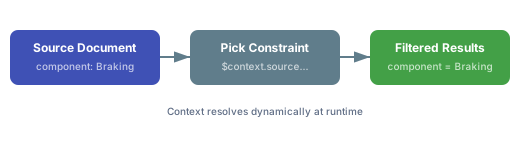
$context.source.document.component to dynamically match the source entity’s component at runtime. This is especially useful in multi-component projects where each component maintains its own set of documents:DesignRequirement from within a document whose component is “Braking”, the picker shows only design requirements from “Braking” documents. Switching to an “Engine” document automatically filters to “Engine” design requirements.5
Combine Multiple Filter Properties
You can specify multiple filter properties together. All conditions are applied as a logical AND — every condition must match for an item to appear in the picker:In this example, the
Hazard picker only shows items that satisfy all three conditions:- Located in the
Risksmodule folder - In a document of type
hazardAnalysis - Belonging to the same component as the source document
6
Configure Picker Search Fields
When a relationship column uses a picker, you can configure which fields are searchable in the dropdown. Add a The
list property to the column definition in your sheet configuration:searchableFields array controls which entity properties the user can type to search and filter the picker dropdown. Common choices include title, id, and custom property names.7
Complete RTM Example
Here is a complete data model excerpt demonstrating pick constraints across a requirements traceability hierarchy:
Sheet subqueries also filter the picker
constraints.pick (this guide) is a data-model filter that applies to every sheet. Separately, a subquery where on an expand level in a sheet configuration also constrains that column’s picker: the candidates are re-rooted onto the picked entity along the binding path and only those satisfying the subquery are offered, so a picked item will not disappear when the sheet reloads. The two mechanisms combine with AND.Verify Your Configuration
After saving your data model changes:- Reload the sheet in Polarion (refresh the page or re-open the document)
- Click a cell in a relationship column that references the constrained entity type
- The picker dropdown should now show only items matching your filter criteria
- If using
$context.source.document.component, verify that switching to a document with a different component changes the picker results accordingly
moduleFolder, type, moduleName, or component constraints.
See Also
- Configure Constraints — full overview of pick, load, and create constraint types
- Configure a Relationship — set up relationships between entity types
- Configure a Formatter — apply conditional styling to picker columns
- Add a Column — column configuration basics including
displayandlistproperties - Data Model Reference — complete data model YAML reference