

Prerequisites
- A custom PDF export script (
risksheetPdfExport.vm) attached to your document or template - An image file accessible via URL or embedded as a Base64 string
- Familiarity with PDF export customization
1
Understand Page Event Behavior
The PDF export engine fires a 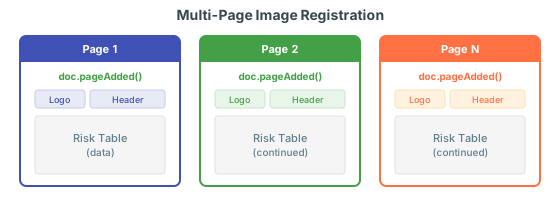
doc.pageAdded event each time a new page is created. You must register this event on every page where you want the image to appear.2
Configure the Image in Your Export Script
3
Repeat After Each New Page
If your export script uses
#newPage() to create manual page breaks (for example, between the main risk table and rating definition tables), you must re-register doc.pageAdded after each break:4
Position the Image
Use the
x and y parameters of doc.drawImage() to control placement:Verification
After configuring your export script:- Save all changes to your document
- Click Export to PDF from the toolbar
- Wait for the export to complete
See Also
- Export to PDF — Base PDF export configuration
- Customize PDF Export Scripts — Full script customization reference
- Control Column Visibility in Exports — Hide columns during export