

Prerequisites
- Gantt version 4.4.0 or later (the version that added mapping of advanced dependencies to Polarion link roles)
- A Dependency Role already configured in the widget parameters (see Create and Configure Dependency Links)
1
Enable Advanced Dependencies
Open Project / Repository Administration > Configuration Properties and add:This tells the Gantt to preserve the specific dependency type when you create or edit a link. Without this property, every dependency link is automatically converted to Finish-to-Start.
2
Hide the Metadata Field
When advanced dependency types are enabled, the Gantt stores type and lag information in a custom field called 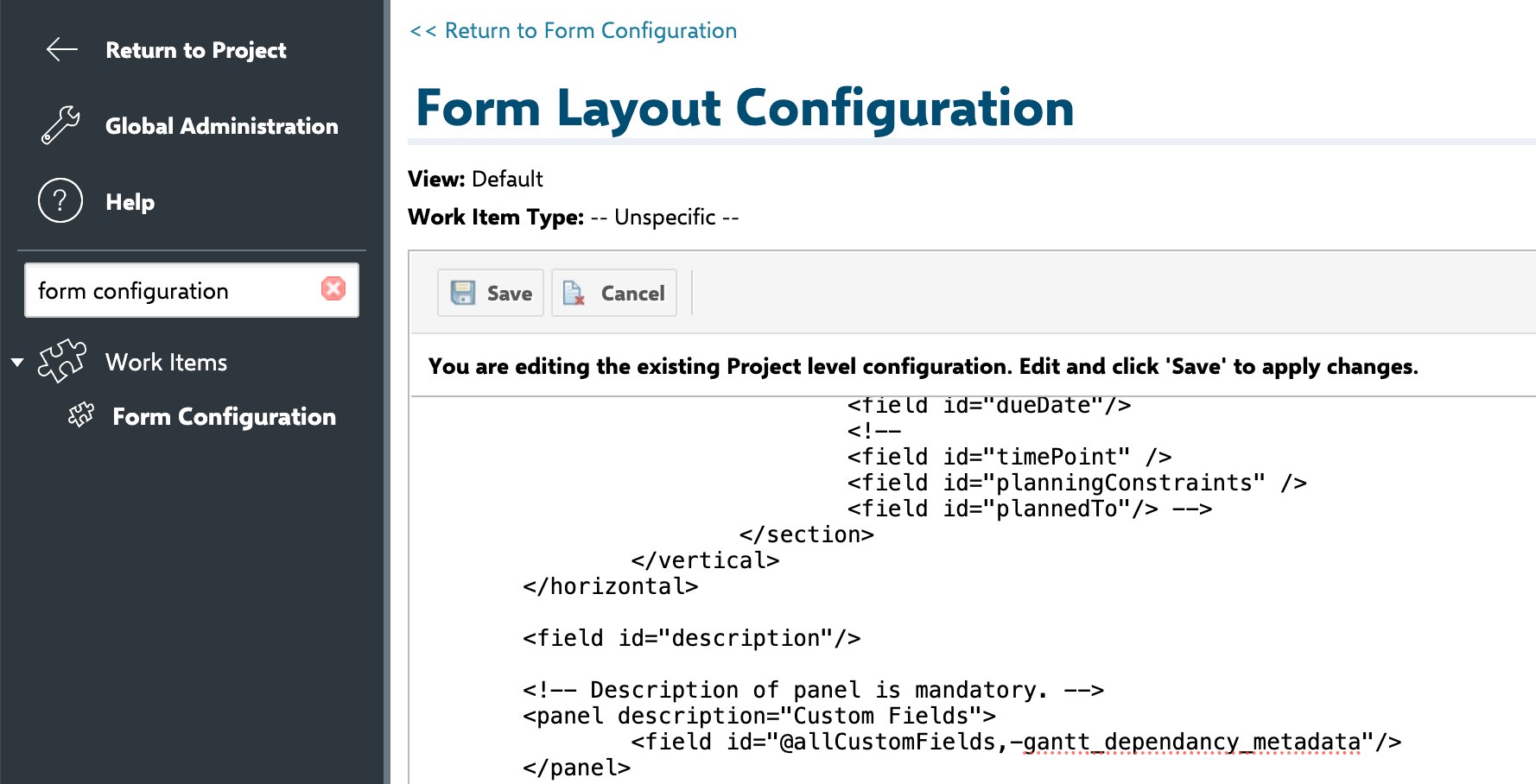
gantt_dependency_metadata. End users should not see or edit this field directly.- Open Administration > Form Configuration for the relevant work item types.
- Locate the
gantt_dependency_metadatafield. - Mark it as hidden so it does not appear on work item forms.
3
Map Dependency Types to Link Roles (Optional)
By default, all four dependency types share the same Polarion link role. If your project requires separate link roles for each type, add the following to Configuration Properties:Replace each value with the actual Polarion link role ID used in your project.
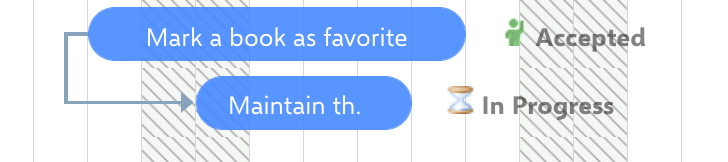
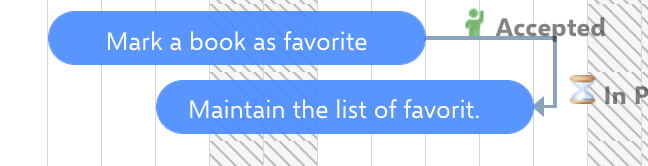
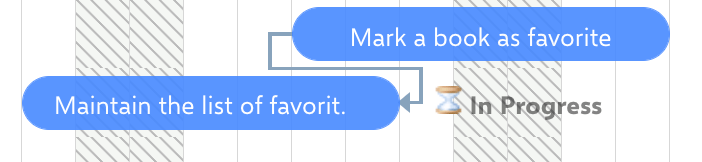
Dependency Types Reference
All constraints allow the target to shift later — they define the earliest possible start or finish, not an exact alignment.

1
Create a Dependency Link with a Specific Type
- Enter Edit mode on the Gantt chart.
- Drag from the link circle on one task bar to another task bar to create a dependency link.
- The dependency type is assigned based on which edge (start or end) you drag from and drop onto.
2
Identify Constraint Violations
When a dependency constraint is violated — for example, a Start-to-Finish link where the target task ends before the source task starts — the Gantt displays a red dotted line beneath the incorrectly positioned task bar.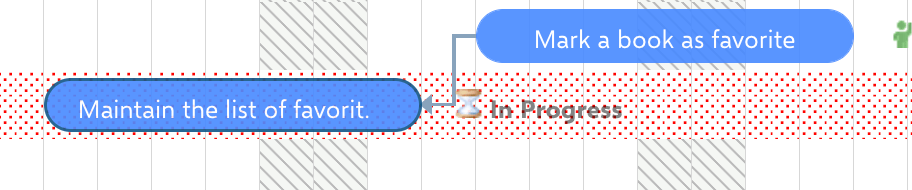
Verification
You should now see:- Dependency arrows drawn between tasks reflecting the specific type (FS, SS, FF, or SF)
- The link type preserved when you save and reload the Gantt chart
- Red dotted violation indicators appearing when a task position violates its dependency constraint